M3plus_OperationManual_e.pdf - 第57页
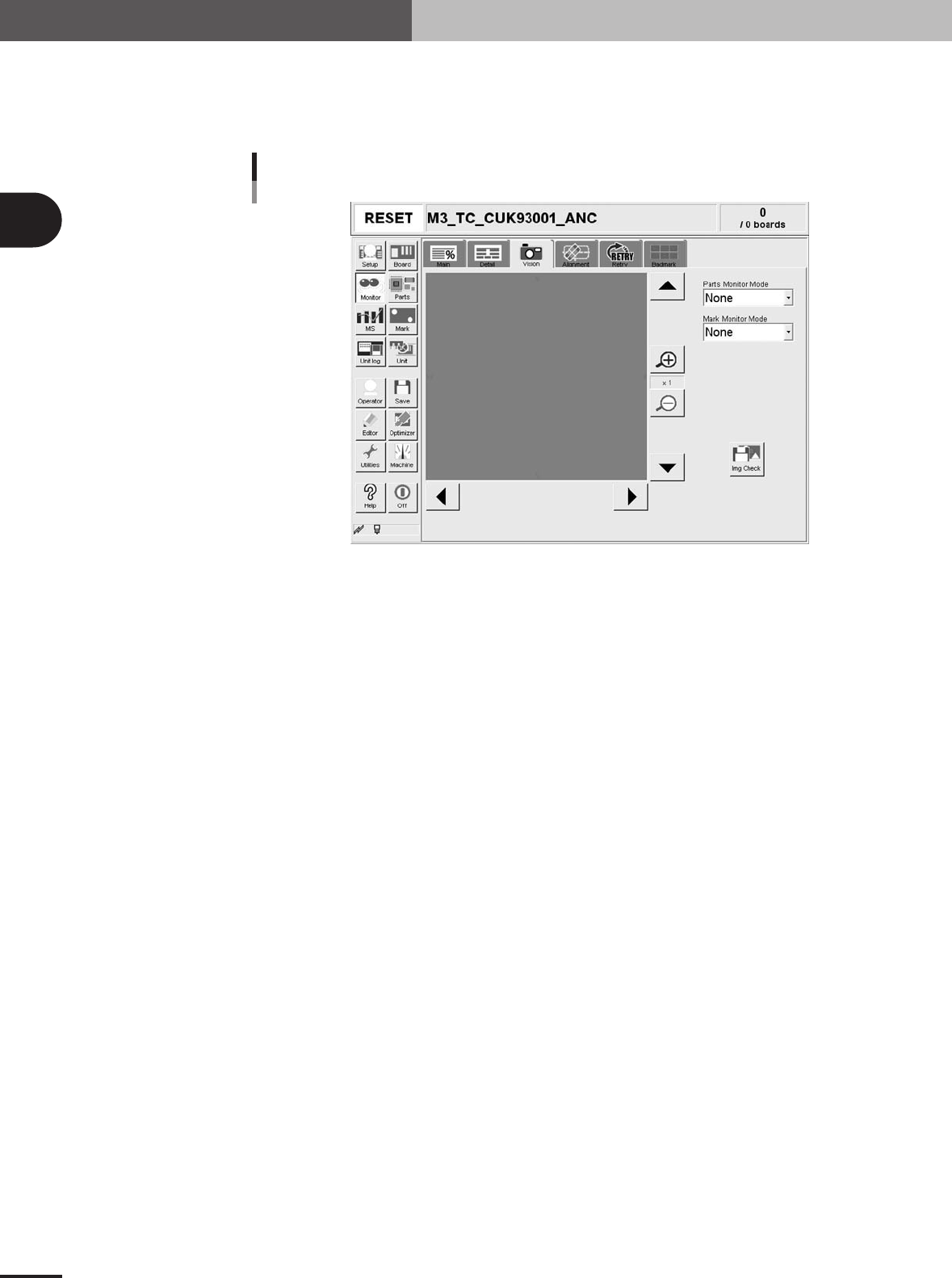
2 - 24 2 Basic oper ation 4. Starting and finishing production Monitor: Vision When the fiducial mark, badmark or component is recognized during automatic operation, the recognized image is displayed. When used with a mu…

2 -23
2
Basic operation
4. Starting and finishing production
Delay Time (sec/board, sec)
Shows the time that the machine has waited for PCB unloading. Note that when the machine is
mounting components or the upstream machine is standing by for supply, the delay time will not be
counted even if the PCB is standing by for unloading. The average unloading delay time per board or
the cumulative unloading delay time can be displayed by pressing the [Unit Change] button.
Finished (boards)
Shows the quantity of finished PCBs.
Max. Output
board/h
This is the number of PCBs that can be produced in an hour. This is calculated in reverse from the
average mounting time and average transfer time. Note that the PCB supply delay time and error
stop time are not included.
block/h
This is the number of blocks that can be produced in an hour. This is calculated in reverse from the
average mounting time and number of blocks per board in the PCB information.
chip/h
This is the number of chips that can be produced in an hour. This is calculated in reverse from the
"Cycle Time (sec/chip)" displayed on the [Main] tab screen.
[Reset] button
Resets the production control information, including the various data, current production quantity,
current unloader quantity, scheduled production quantity and scheduled unloader quantity displayed
on the screen. The "Board Counter" value on the [Setup] screen is also reset when this production
data is reset.
2 -24
2
Basic operation
4. Starting and finishing production
Monitor: Vision
When the fiducial mark, badmark or component is recognized during automatic operation, the
recognized image is displayed. When used with a multi-vision camera, the components will be
recognized continuously at a high speed, so only the component recognized last will be displayed.
Monitor: Vision
27307-5E-20
Enlarge/reduce buttons
The recognition results image can be enlarged from 1 to 16 times by pressing the enlarge (+) button.
The image can be reduced to 1/16 by pressing the reduce (-) button. Note that when the image is
enlarged, the smooth part edges may appear jagged, and when reduced, gray sections may appear
around the edges. But this is not a fault.
Up/down/left/right buttons
The arrow buttons at the right top and bottom of the screen are used to move the image vertically.
The arrow buttons at the bottom left and right of the screen are used to move the image horizontally.
Use these arrow buttons to view a section of the image that is not displayed on the screen.
Parts Monitor Mode
This specifies the mode for displaying the components on the monitor during vision recognition.
Depending on the selected item, the recognition results and detection range window will appear on
the image. This monitor mode can also be changed during operation.
"None"
Displays the image taken by the camera. The recognition result values are not displayed.
"Vision Result"
Displays information such as the recognition results X, Y and R direction position (pixels) and
number of detection leads. Note that the displayed items will differ according to the component
recognition type.
"Detection Range"
Draws a window for the component detection range. If the component does not fit within the
detection range, it will not be recognized correctly. In this case, check the pickup state or correct
the component data.
"Datum Pos."
Displays a cross cursor indicating the position used as a reference for detecting the lead or
component edge.
"Find Line"
Displays the line used for component detection, on a chip component or on the component leads. If
the detection line position is incorrect, adjust the Vision parameters.

2 -25
2
Basic operation
4. Starting and finishing production
"Edge Pos."
Displays a cross cursor at the lead or component edge position.
"Last Pos."
Displays a cross cursor at the center of the component.
Mark monitor mode
This specifies the monitor display mode during mark recognition. The recognition results and binary
image will appear on the image according to the selected item. This monitor mode can be changed
during operation.
"None"
Displays the image taken by the camera. The recognition result values are not displayed.
"Result"
Displays the center position coordinates (pixels) of the detected mark.
"Binary Image"
Displays the image taken by the camera as a binary image.
"Grey Image"
Displays the grey image after processing the image taken by the camera.
"Search Result"
Draws a line to make an approximate circle around the mark.
"Datum Circle"
Draws a mark of the specified diameter from the center of the detected mark. (Possible only in
specific recognition modes.)
"Tangent Circle"
Draws an inscribed circle and circumscribed circle from the center of the detected mark. (Possible
only in specific recognition modes.)
"Error Image"
Displays the error image. (Possible only in specific recognition modes.)
"Individual data"
Displays the individual data when multiple objects are detected. (Possible only in specific
recognition modes.)
[Img Check] button
Allows you to check and save the image that was recognized immediately before the machine
stopped during automatic operation. This function does not capture images continuously during
automatic operation.