182049 Viking Installation Manual.pdf - 第58页
semi automatic POWER UP SEQUENCE MACHINE POW ER UP SEQUEN CE 6.6 Installatio n Manual Chapt er Issue 1 O ct 02 b. Click on the Time Zone tab. c. Select the appropr iate local e/time zone from the drop down menu box. d. C…
semi automatic
POWER UP SEQUENCE
MACHINE POWER UP SEQUENCE
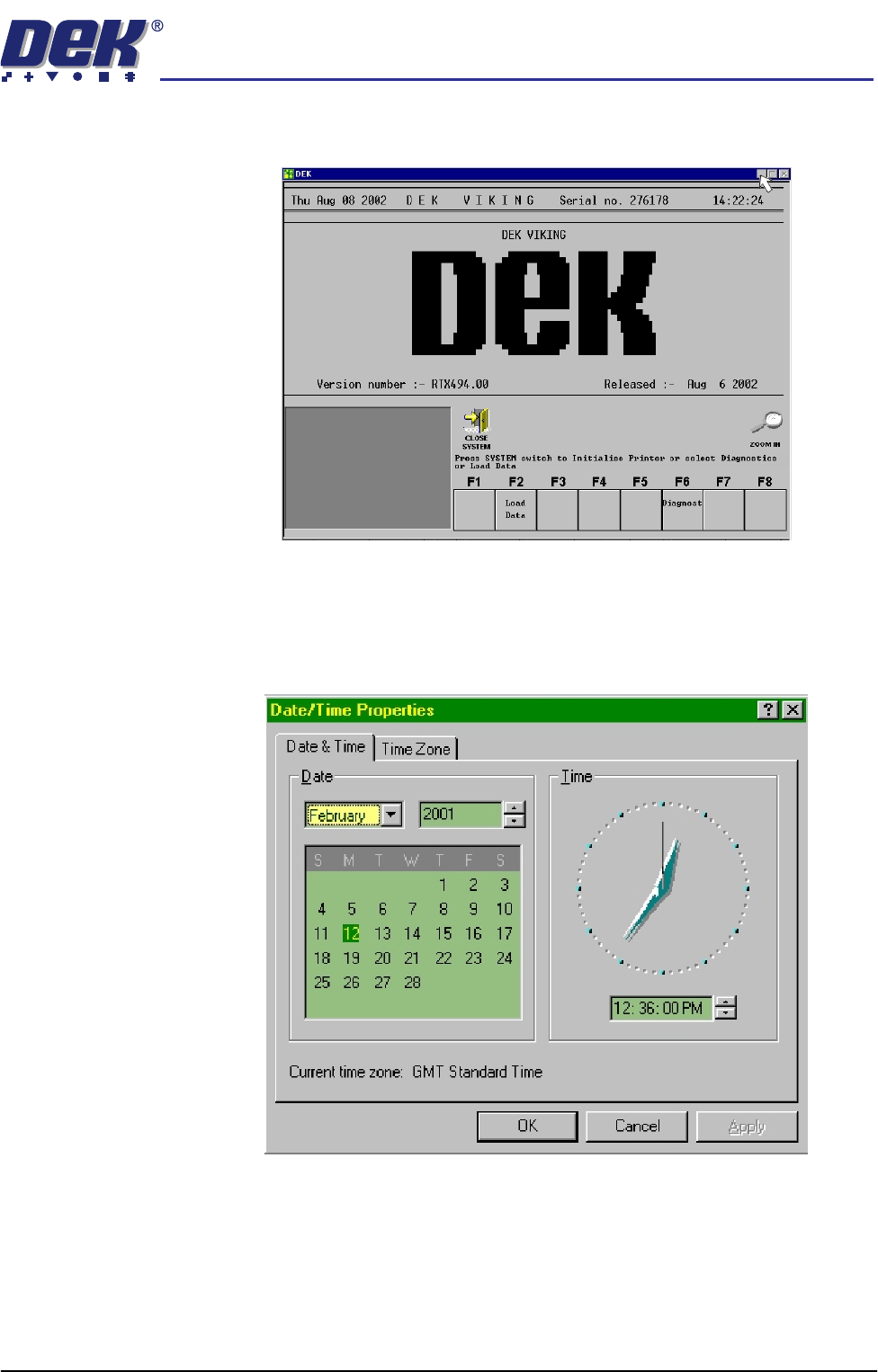
Chapter Issue 1 Oct 02 Installation Manual 6.5
5. On completion of ‘auto login’, minimise the DEK program.
Set Time and Time
Zone
6. In order for the machine PC to log events correctly, the system time, date
and time zone must be set.
a. Using the mouse, double click on the time, displayed at the right hand side
of the Windows NT taskbar. The Date/Time Properties window is dis-
played.
semi automatic
POWER UP SEQUENCE
MACHINE POWER UP SEQUENCE
6.6 Installation Manual Chapter Issue 1 Oct 02
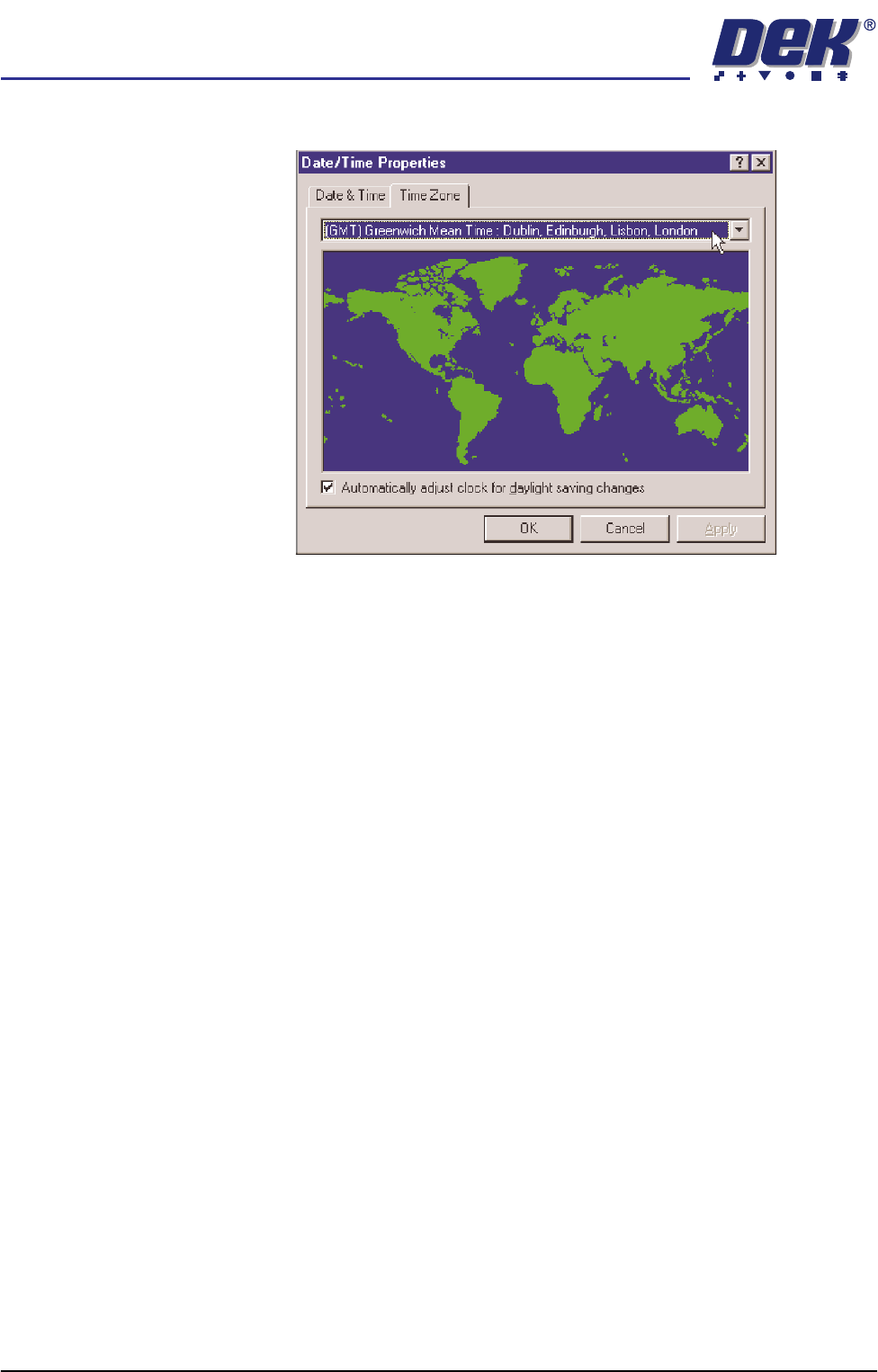
b. Click on the Time Zone tab.
c. Select the appropriate locale/time zone from the drop down menu box.
d. Click on Apply.
e. Click on the Date & Time tab. Adjust the local time and date.
f. Select OK.
g. Maximize the DEK monitor control display by clicking the DEK Software
icon on the task bar.
h. Press the System button.
NOTE
In some instances the DEK machine software may interpret any change
in date/time settings as an error, if so the following message, ‘Date and
Time Incorrect’, is displayed in the warning message window of the
monitor control display.
7. In the event of a date/time error message, carry out the following proce-
dures:
a. Power down the machine.
b. Power up the machine. Allow the system to start without any user
intervention. DEK machine software executes. When the message -
‘Press System Switch To Initialize Printer or select Diagnostics’ is
displayed in the Message Prompt Bar, the Diagnost function becomes
available in the menu bar.
c. Select Diagnost (F6).
d. The Module Diagnostics Page is displayed with the System Error mes-
sage, ‘System Power Down’ superimposed on top of it.
e. Press the System button to enable system power.
semi automatic
POWER UP SEQUENCE
MACHINE POWER UP SEQUENCE
Chapter Issue 1 Oct 02 Installation Manual 6.7
E Stop Loop
Operation
8. Carry out the following procedure for E Stop loop operation check:
a. Restore the DEK 265 program.
b. Select Diagnost (F6).
c. The Module Diagnostics Page is displayed with the system error mes-
sage, ‘System Power Down’ superimposed on top of it.
d. Press the System button to enable system power.
9. Check E Stop loop operation as detailed in the table.
10. On completion of E Stop loop check, exit from the Diagnostics module.
11. Press the System button.
Screen Clean Function Check (if fitted)
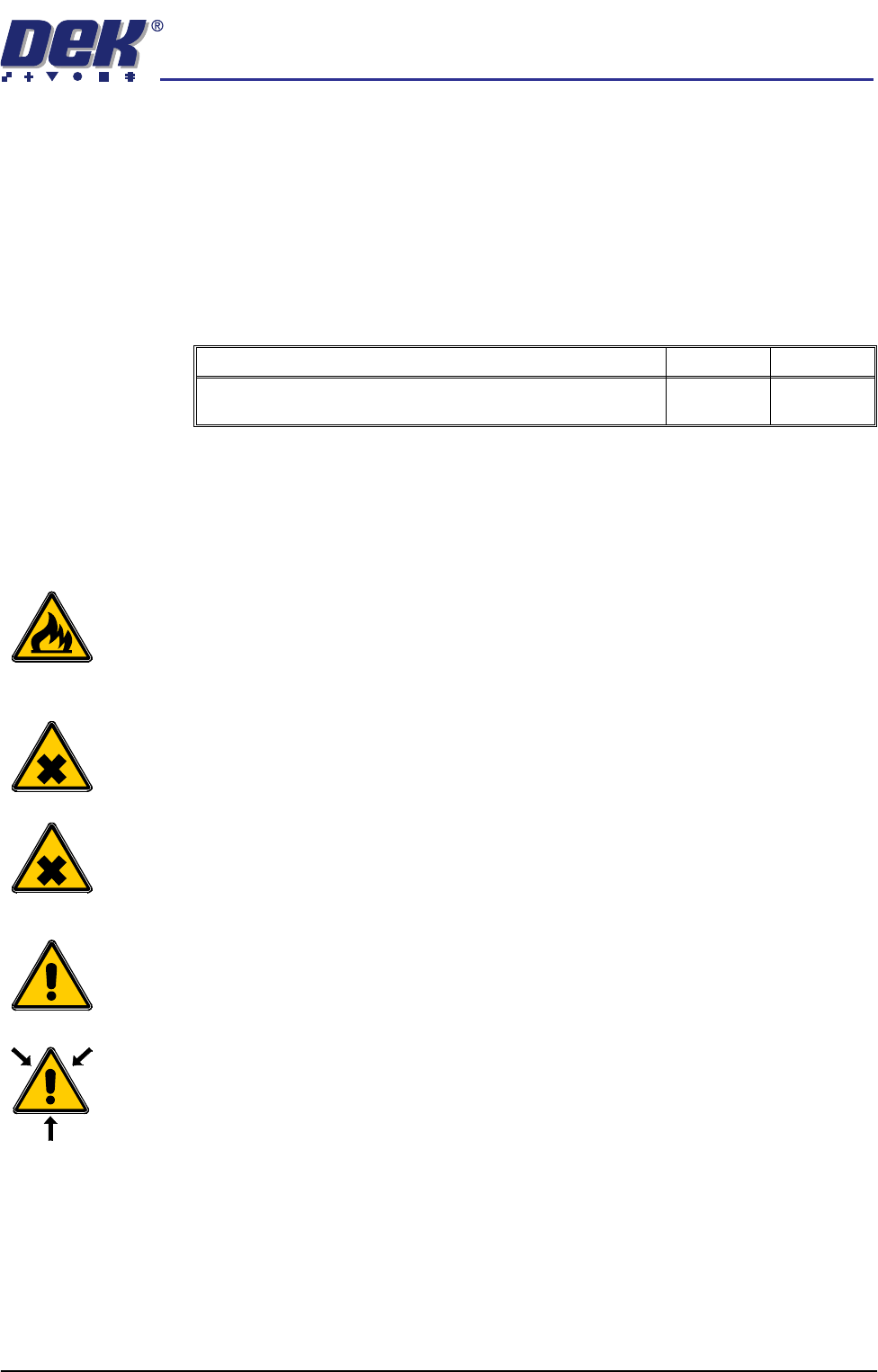
WARNING
RECOMMENDED SOLVENTS. ANY SOLVENTS USED MUST COMPLY WITH
LOCAL ENVIRONMENTAL GUIDELINES. DEK RECOMMEND USING SOLVENTS
THAT ARE ENVIRONMENTALLLY FRIENDLY, IE CFC FREE AND WATER BASED.
SOLVENTS USED MUST HAVE FAST EVAPORATION RATES AND FLASHPOINT
SPECIFICATIONS GREATER THAN 39ºC.
WARNING
SOLDER PASTE AND SOLVENTS. WHEN USING OR HANDLING ANY SOLDER
PASTE OR SOLVENT FORMULATION THE MANUFACTURERS’ RECOMMEND
SAFETY PRECAUTIONS MUST BE STRICTLY ADHERED TO.
WARNING
PROTECTIVE CLOTHING. APPROVED PROTECTIVE CLOTHING SHOULD BE
WORN BY SOLDER PASTE AND SOLVENT HANDLERS AT ALL TIMES TO
ELIMINATE FUME INHALATION, EYE CONTACT, SKIN CONTACT AND
INGESTION.
WARNING
SOLVENT SOLUTION. DO NOT MIX SOLVENT SOLUTIONS. FLUSH THE
SOLVENT TANK THOROUGHLY WHEN CHANGING TO A DIFFERENT SOLVENT
SOLUTION.
WARNING
SOLVENT SPRAY. THE UNDERSCREEN CLEANER SPRAYS A FINE JET OF
SOLVENT SOLUTION ON TO THE CLEANER. APPROVED PROTECTIVE
CLOTHING SHOULD BE WORN.
Blue USC To enable the blue under screen cleaner carry out the following:
1. Select Maint. (F8).
2. Select Set Prefs (F5).
3. Select F10 function key on the keyboard, type bluon and select Enter.
Detail Accept Reject
Check the correct operation of all components of the E Stop loop,
ie E Stop buttons and covers.