00191021-02.pdf - 第148页
4 Mapping User’s Manual Test Program SITEST 4.3 RV Mapping Software Version 403.xx Edition 07/97 4 - 10 Fig. 4.3.1 "RV mapping" Display The foll owing func tions ar e avail able in t he "RV ma pping "…
User’s Manual Test Program SITEST 4 Mapping
Software Version 403.xx Edition 07/97 4.3 RV Mapping
4 - 9
4.3 RV Mapping
NOTE
Prior to the performance of RV mapping make sure that PCB mapping has already been carried out.
●
Carry out the preparatory steps as described in section 4.1.
Additional prerequisites are:
–
Segment offset
II
(RV-PCB camera offset) must already have been determined for both gantries.
–
The calibration tool must be in the calibration tool pocket.
–
The calibration tool position must already have been determined.
–
On segment 1 of each revolver head a type 720 nozzle must be attached.
●
In the main view click on the icon (for revolver head 1 of SIPLACE 80S-20) or on the icon
(for the revolver head of SIPLACE 80F
4
)
to switch the screen display to the "RV head" display
(see Fig. 0.3.4).
●
Click on the icon to switch to the "RV mapping" display.
4 Mapping User’s Manual Test Program SITEST
4.3 RV Mapping Software Version 403.xx Edition 07/97
4 - 10
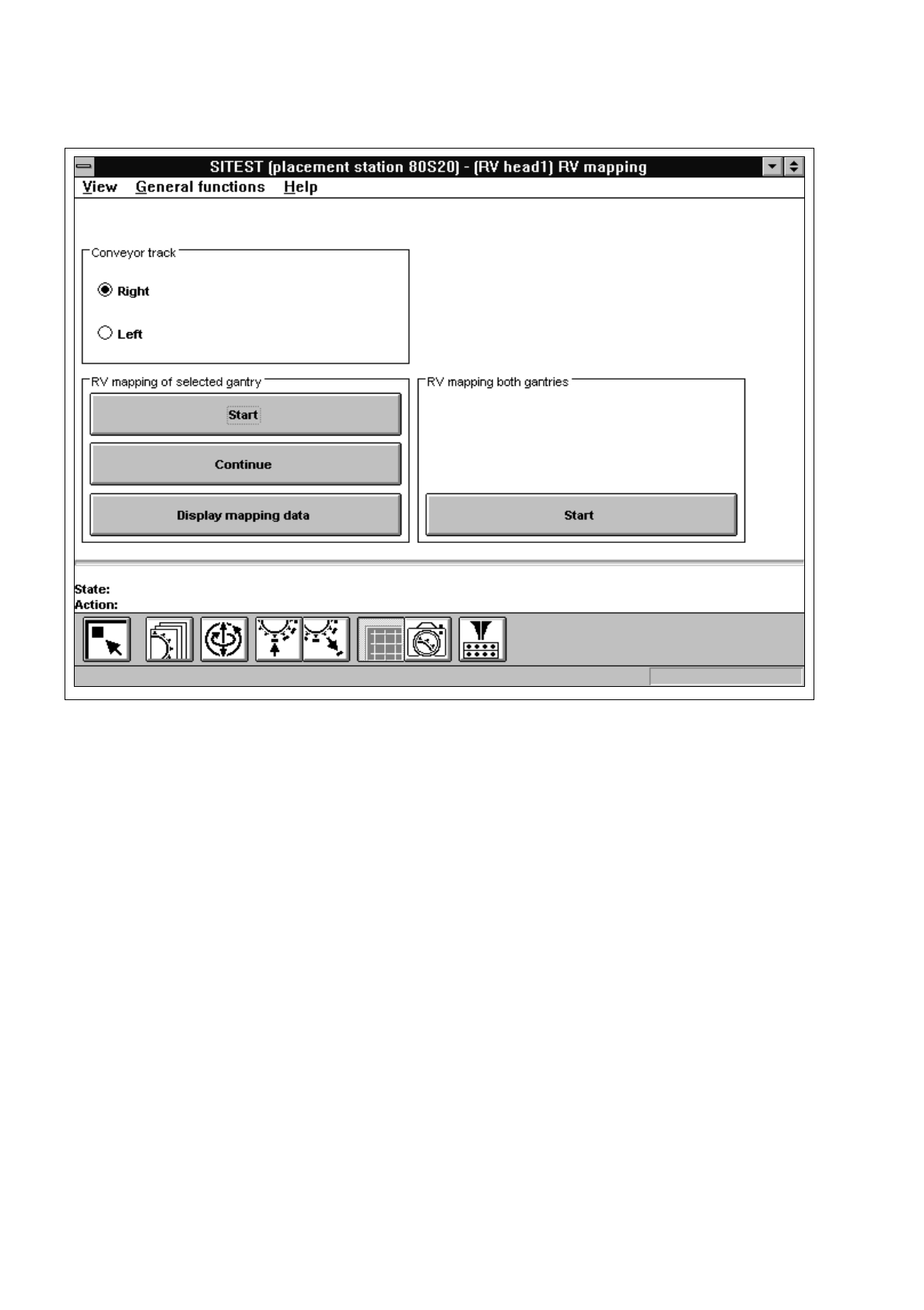
Fig. 4.3.1 "RV mapping" Display
The following functions are available in the "RV mapping" display:
–
Right to select the right conveyor track
–
Left to select the left conveyor track of a dual conveyor
–
Start to start the mapping run
(field "RV mapping of selected gantry")
–
Continue to continue mapping
–
Display mapping data to display the mapping data determined
–
Start to perform the mapping run for both gantries of the SIPLACE
(field "RV mapping both gantries")
80S-20 (switching from one gantry to the other is carried out auto-
matically. The mapping run is first carried out for gantry 1, then for
gantry 2).

User’s Manual Test Program SITEST 4 Mapping
Software Version 403.xx Edition 07/97 4.3 RV Mapping
4 - 11
4.3.1 Mapping Run for Both Gantries (SIPLACE 80S-20)
●
Click on the
Start
button in the
"
RV mapping both gantries
"
field.
The mapping run is performed for gantry 1. After the mapping run, gantry 1 is automatically moved to
the park position and subsequently the mapping run for gantry 2 is performed.
After the mapping run has been completed without any errors, the data thus determined is automatically
saved.
●
If a dual conveyor is installed, activate the radio button for the conveyor track for which mapping has
not yet been performed.
●
Click on the
Start
button in the
"
RV mapping both gantries
"
.
The mapping run is performed for both gantries on the selected conveyor track.
After the mapping run has been completed without any errors, the data thus determined is automatically
saved.
●
Click on the icon to return to the main view.
4.3.1.1 Mapping Run for the Second Gantry
●
Click on the
Start
button in the "RV mapping of selected gantry" field.
The active gantry now performs the mapping run. After the mapping run has been completed without
any errors, the data thus determined is automatically saved.
●
If a dual conveyor is installed, activate the radio button for the conveyor track for which mapping has
not yet been performed.
●
Click again on the
Start
button in the
"
RV mapping of selected gantry
"
field.
The active gantry performs the mapping run on the selected conveyor track. After the mapping run has
been completed without any errors, the data thus determined is automatically saved.
●
Click on the icon to return to the main view.
●
In the main view "SIPLACE 80S-20" click on the icon to switch to the "RV head 2" display.
●
Click on the icon to switch to the "RV mapping" display.
●
Click on the
Start
button in the
"
RV mapping of selected gantry
"
field.
Gantry 2 now performs the mapping run.
After the mapping run has been completed without any errors, the data thus determined is automatically
saved.
●
If a dual conveyor is installed, activate the radio button for the conveyor track for which mapping has
not yet been performed.
●
Click again on the
Start
button in the
"
RV mapping of selected gantry
"
field.
●
Gantry 2 performs the mapping run on the selected conveyor track.
After the mapping run has been completed without any errors, the data thus determined is automatically
saved.
●
Click on the icon to return to the main view.