00191021-02.pdf - 第17页
User’s Manual Test Program S ITEST 0 Introduction to t he User Interface of the Test Program Software Version 403.xx Edition 12/97 0.2 Components of the User Interface 0 - 13 0.2.3 Dialog Boxes Differen t types of dialog…
0 Introduction to the User Interface of the Test Program User’s Manual Test Program SITEST
0.2 Components of the User Interface Software Version 403.xx Edition 12/97
0 - 12
NOTE
To view the entire contents of the list, you can scroll vertically through the list with the aid of the scroll bar
elements (details on how to proceed are contained in section 0.2.4).
●
Once you have obtained the required information, close the dialog boxes by clicking on the
OK
button contained in each of the dialog boxes.
0.2.2 Functions of the Buttons in the Main View
–
Error information
Invokes the help system containing information about the cause and elimination of the error currently
displayed.
–
Diagnostics
Starts the system for diagnosing the error currently displayed.
–
Clear error
Acknowledges the error message currently displayed. Subsequently, it will no longer be displayed.
–
Calibrate machine...
Serves to open a settings box containing all functions required to carry out the calibration of the entire
machine (see chapt. 3, section 3.2).
–
Overall reference run
The reference run is performed for all head and gantry axes of the machine.
–
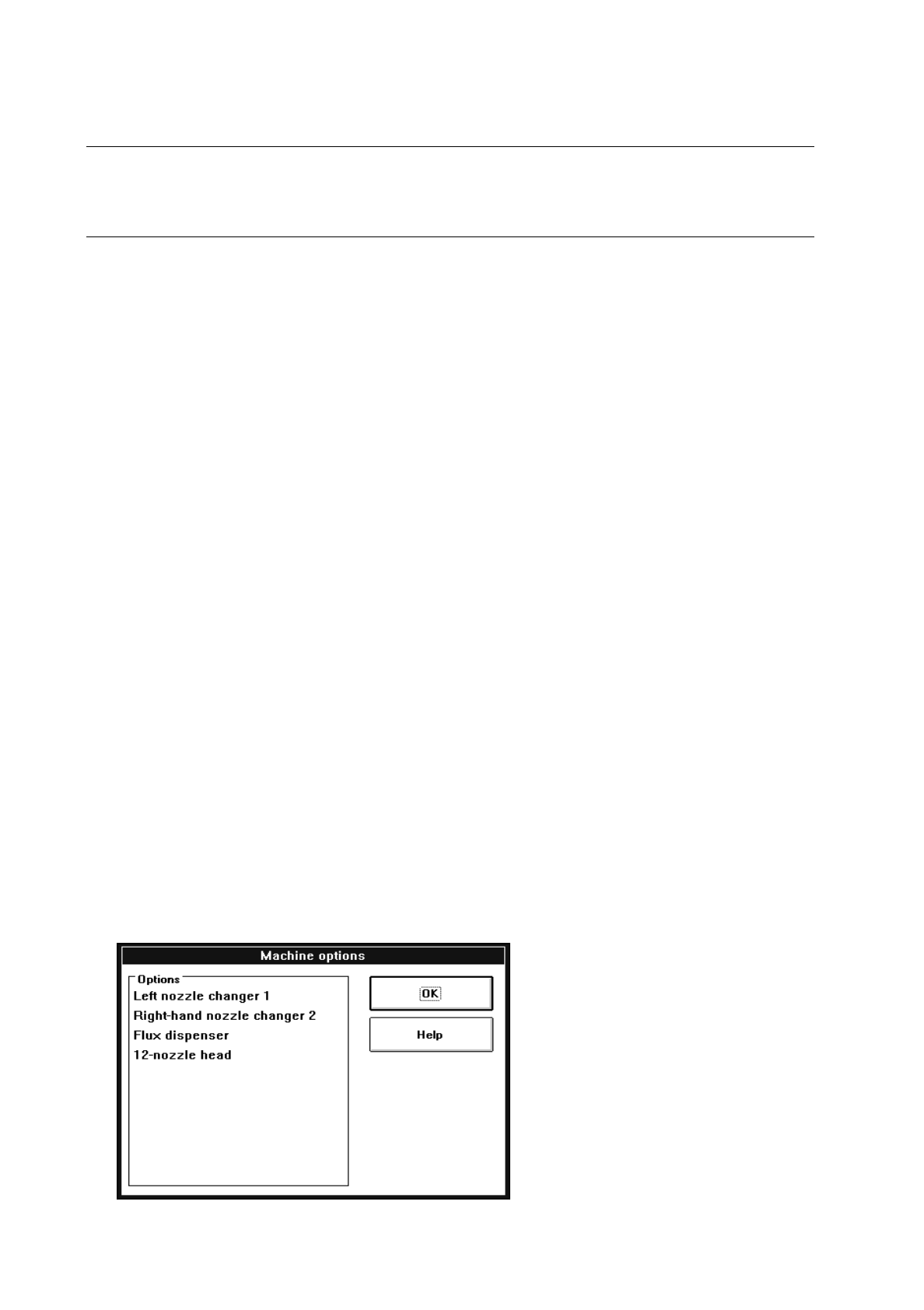
Machine options...
Opens a dialog box containing a listing of all machine options available.
Example for machine type SIPLACE 80S-20:
User’s Manual Test Program SITEST 0 Introduction to the User Interface of the Test Program
Software Version 403.xx Edition 12/97 0.2 Components of the User Interface
0 - 13
0.2.3 Dialog Boxes
Different types of dialog boxes can be displayed in the work area. They vary in their appearance depending
on their functions.
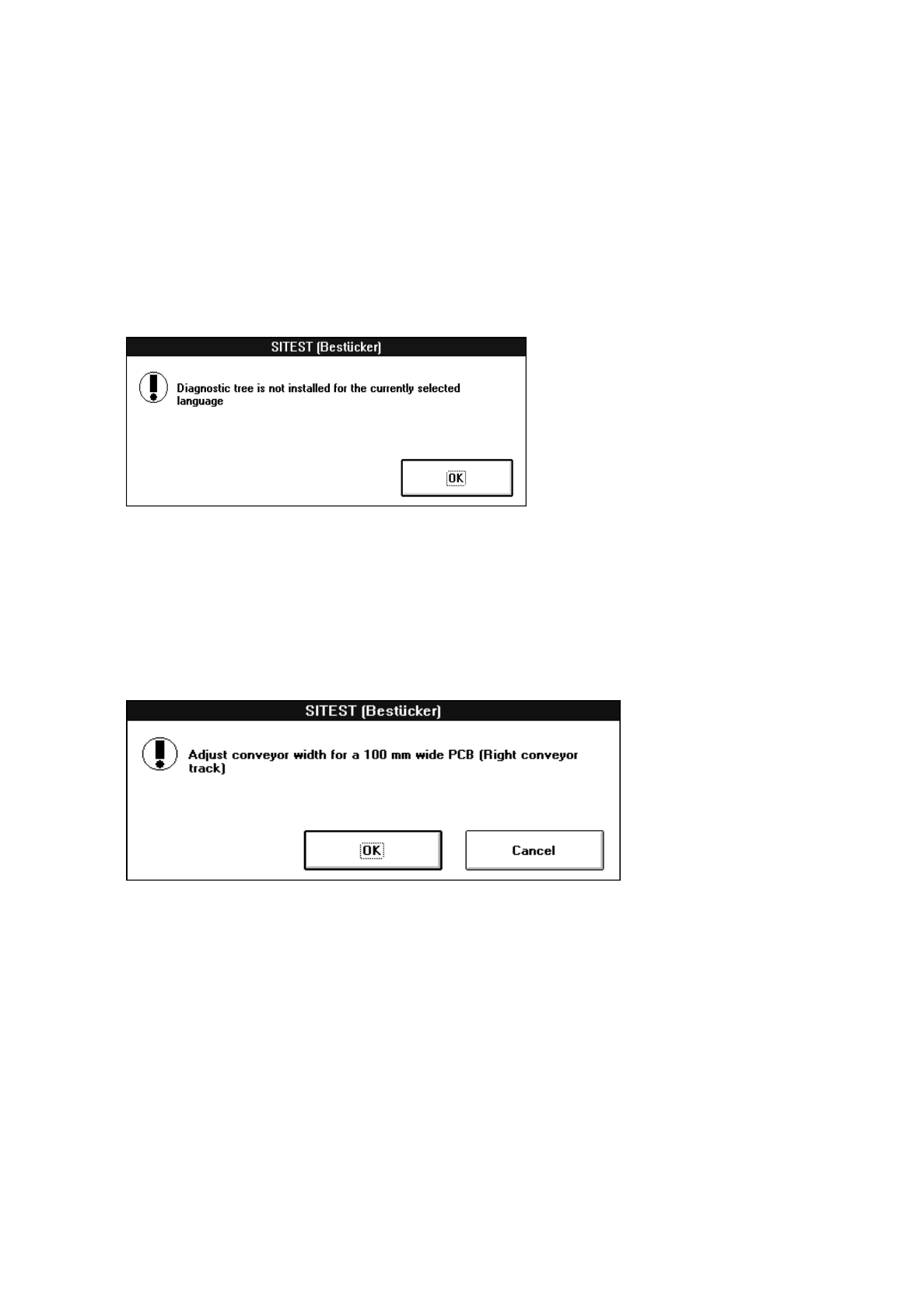
0.2.3.1 Warning Box / Notice Box
A warning or notice box is displayed whenever warnings or notices to the operator are required.
●
Read the warning or notice and then click on the
OK
button to close the box.
0.2.3.2 Message Box
A message box contains information on which action has just been carried out or which activity the operator is
to perform.
●
Read the message and then click on the
OK
button.
●
Perform the requested activity that may have been contained in the box, if applicable.
●
If you do not wish to carry out the action related to the activity requested, click on the
Cancel
button.
0 Introduction to the User Interface of the Test Program User’s Manual Test Program SITEST
0.2 Components of the User Interface Software Version 403.xx Edition 12/97
0 - 14
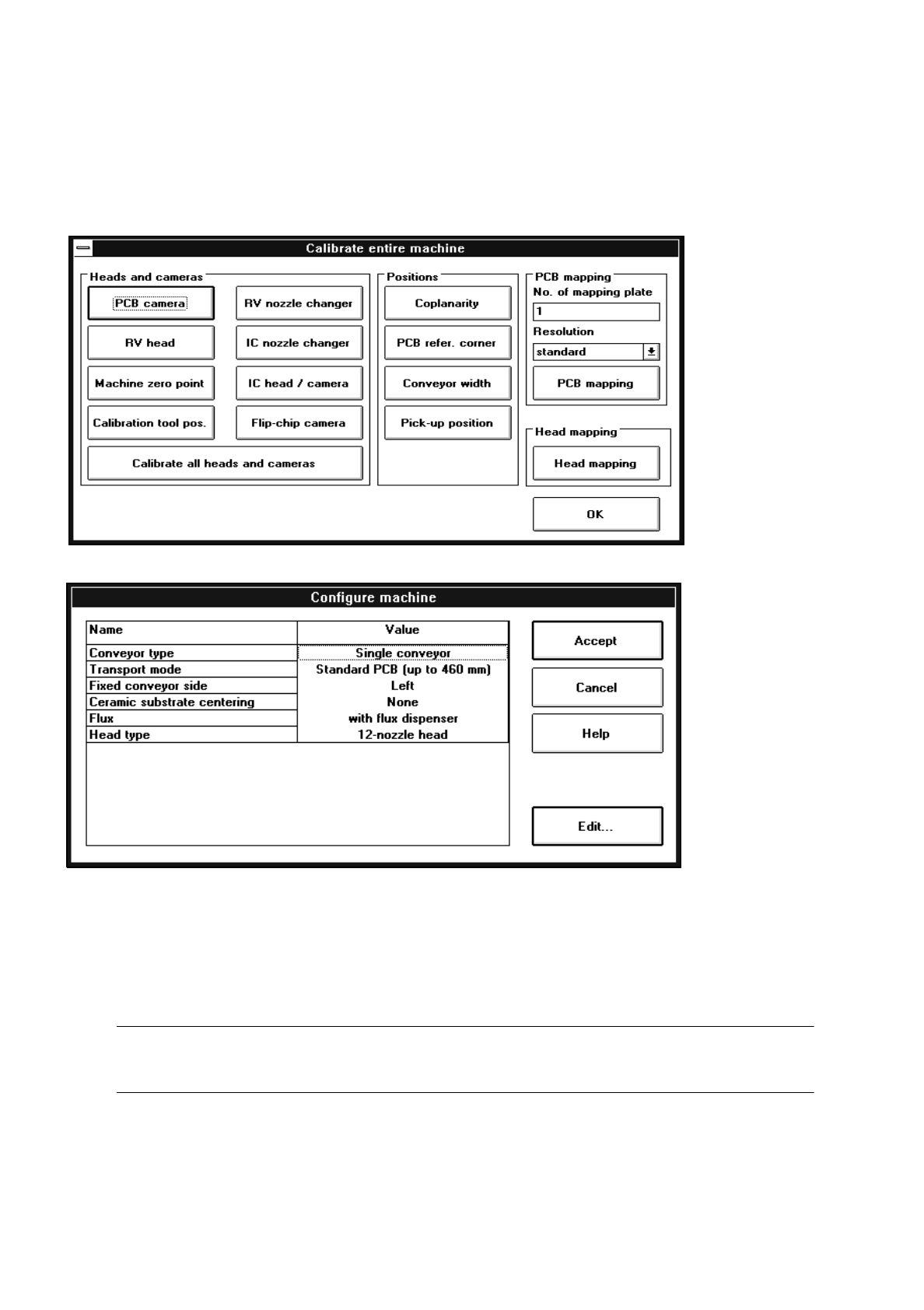
0.2.3.3 Settings Box
A settings box may contain, for instance, options for the setting or configuration of the machine (see examples
below). They can be activated with the aid of buttons.
●
Click on the button associated with the desired option.
Or else,
●
select the entry of the option you wish to change by clicking on it and then click on the
Edit...
button.
A text entry box opens. (Details on how to make entries in this box are contained in section 0.2.3.4).
NOTE
To open the text entry box, the entry can also be selected by directly double-clicking on it.
●
Close the settings box by clicking on the appropriate button (e.g. Accept, OK, Close, Cancel, etc.).