00191021-02.pdf - 第91页
User’s Manual Test Program S ITEST 2 Functions for the Adjustment of the Machine Software Version 403.xx Edition 12/97 2.5 Conveyor Functions 2 - 27 2.5 Conveyor Fu nctions ● In the mai n vi ew cl ick o n the i con fo r …

2 Functions for the Adjustment of the Machine User’s Manual Test Program SITEST
2.4 Head Continuous Run Software Version 403.xx Edition 12/97
2 - 26
User’s Manual Test Program SITEST 2 Functions for the Adjustment of the Machine
Software Version 403.xx Edition 12/97 2.5 Conveyor Functions
2 - 27
2.5 Conveyor Functions
●
In the main view click on the icon for "PCB conveyor 1", or click on the icon for
"PCB conveyor2" and subsequently, (if required) the icon to switch to the "Conveyor functions"
display.
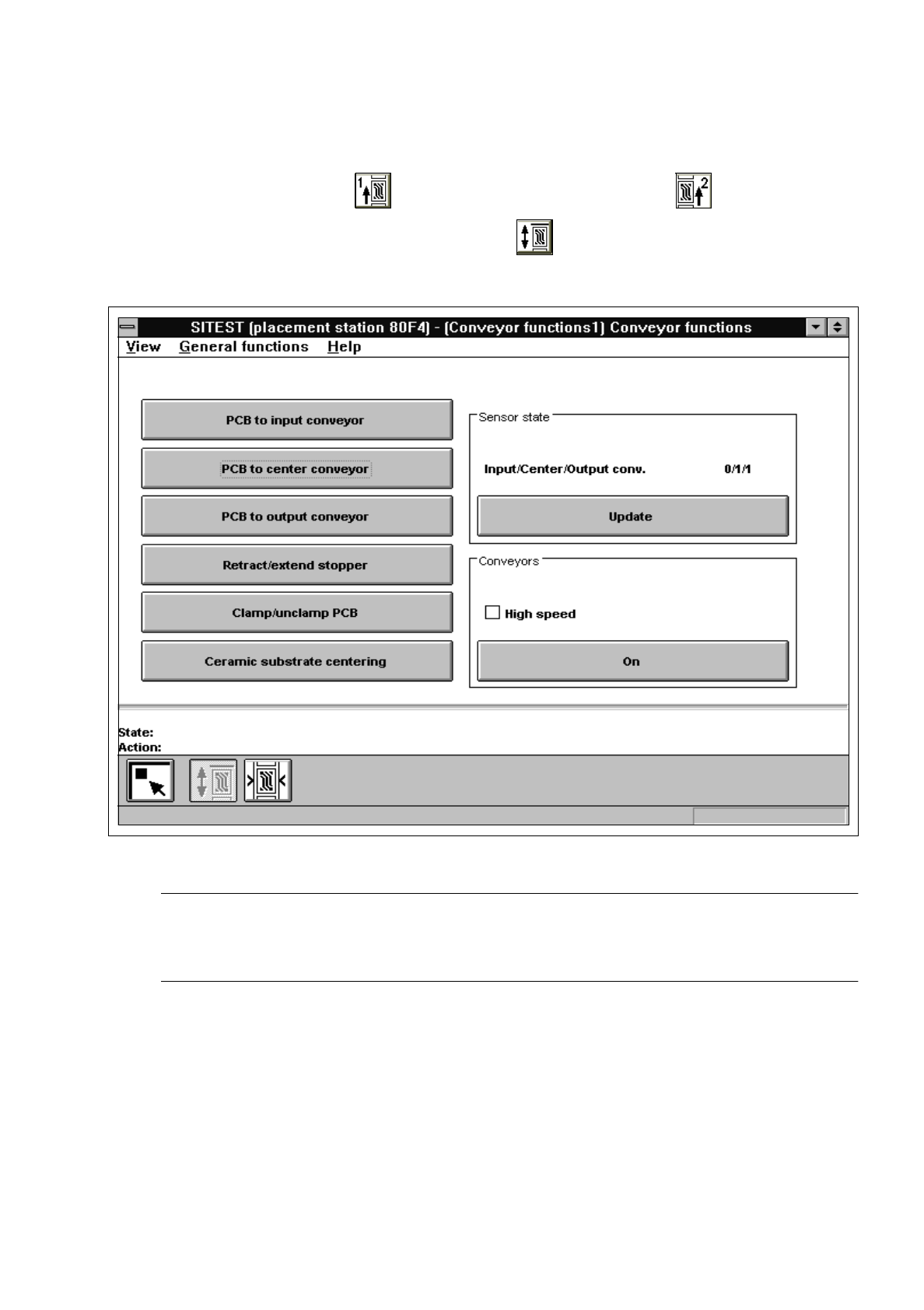
Fig. 2.5.1 "Conveyor functions" Display
NOTE
The transport functions can be tested for each PCB conveyor (single or dual conveyor) installed in the
machine. The same functions are available for each transport type (see chapt. 1, section 1.3).
The following functions are available in the "Conveyor functions" display:
–
PCB to input conveyor to transport the PCB to the input conveyor
–
PCB to center conveyor to transport the PCB from the input to the center conveyor
–
PCB to output conveyor to transport the PCB from the center to the output conveyor
–
Retract/extend stopper to retract and extend the PCB stopper
–
Clamp/unclamp PCB to open/close the conveyor clamping system
–
Ceramic substrate centering to activate the ceramic substrate centering device

2 Functions for the Adjustment of the Machine User’s Manual Test Program SITEST
2.5 Conveyor Functions Software Version 403.xx Edition 12/97
2 - 28
–
Update to display the current sensor state for the input, center and
output conveyors
–
On to activate the conveyors (normal or high speed)
●
Click on the corresponding button for the desired function.
The function will be performed.
●
To update the sensor states of the conveyor sections (input, center, output), click on the
Update
button. The current state of the sensors will be displayed above the button.
●
If you wish to have the conveyors run at low and high speed for testing purposes, activate or deacti-
vate, respectively, the check box
High speed
in the "Conveyors" field by clicking on it.
●
Prior to starting the run, make sure that the conveyor is empty.
●
Click on the
On
button in the "Conveyors" field.
The run starts, and a dialog box displaying the start time opens.
NOTE
The conveyors will run at low speed if the check box
High speed
is not activated.
The conveyors will run at high speed if the check box
High speed
is activated.
The conveyor belts of the input conveyor will run at high speed only.
●
Click on the
Cancel
button in the dialog box if you wish to stop the operation of the conveyors.