YG300_Mainte_E - 第31页
2-1 2 Daily maintenance items 1 . C h e c k i n g t h e n o z z l e S o l d e r s t i c k i n g t o t h e n o z z l e t i p o r a c l o g g e d n o z z l e h o l e c a n c a u s e c o m p o n e n t p i c k u p e r r o r …
2-1
2
Daily maintenance items
1. Checking the nozzle
Solder sticking to the nozzle tip or a clogged nozzle hole can cause component pickup errors and
recognition errors. Poor nozzle spring action can also cause pickup and mounting errors. To prevent such
problems periodically inspect and clean each nozzle.
1.1 Check with software
n
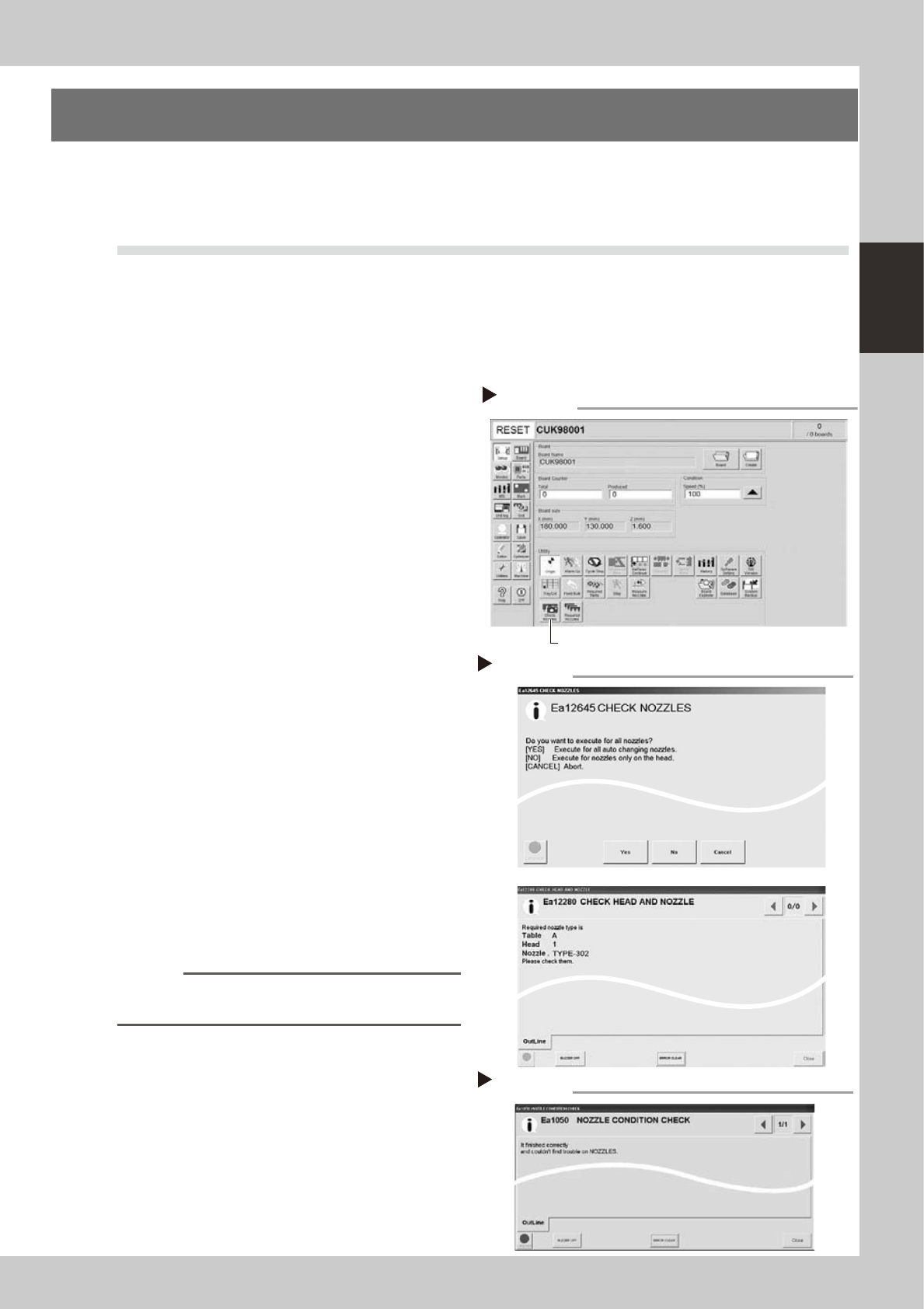
How to check for a dirty nozzle (with the [Check Nozzle] button)
The term "dirty nozzle" as used here indicates shiny material such as solder adhering to the nozzle tip. This
shiny portion might be mistaken for a component and cause recognition errors. To check for this problem,
press the [Check Nozzles] button on the [Setup] screen while the nozzle tip picks up no components. The
multi-vision camera finds the extent of grime or dirt on the nozzle tip.
1
Press the [Check Nozzles] button as
follows.
1. Cancel emergency stop.
2. Open the Setup screen and press the
[Check Nozzles] button in the "Utility"
group box.
54200-F1-00
2
Select the item to be executed.
After checking the displayed message,
select the desired button.
n
When [Yes] was selected
Performs auto nozzle change and checks all nozzles
that can be changed.
n
When [No] was selected
e
1. Press the emergency stop button and then move the
head to a position where a nozzle can be easily
changed.
2. Change the nozzle and press the [OK] button by
following the message.
3. Nozzle check begins after pressing the last [OK]
button.
54201-F1-00
3
Check the message.
When the message shows "NG" (no good),
clean the nozzle.
54202-F1-00
n
NOTE
The "Check Nozzles" function is usually set for "Type 302"
nozzles.
Pressing the [Check Nozzles] button
Step 1
[Check Nozzles] button
Selecting the item to be executed
Step 2
When [No] was selected
Checking the message
Step 3
2-2
2
Daily maintenance items
n
How to check for clogged nozzles (on the [Unit] - [Head] tab screen)
The term "clogged nozzle" used here indicates that material such as solder is adhering to the nozzle hole,
causing a rise in negative pressure even if no component is being picked up by the nozzle. This state might
cause problems such as component mounting errors. Check for clogged nozzles using the following procedure.
e
1
Attach the nozzle.
Press the emergency stop button and attach
Type 302 nozzles to all heads. When the
machine has a nozzle station, press the
[Nozzle Change] button to change the
nozzles.
54203-F1-00
2
Reset the numerical figure.
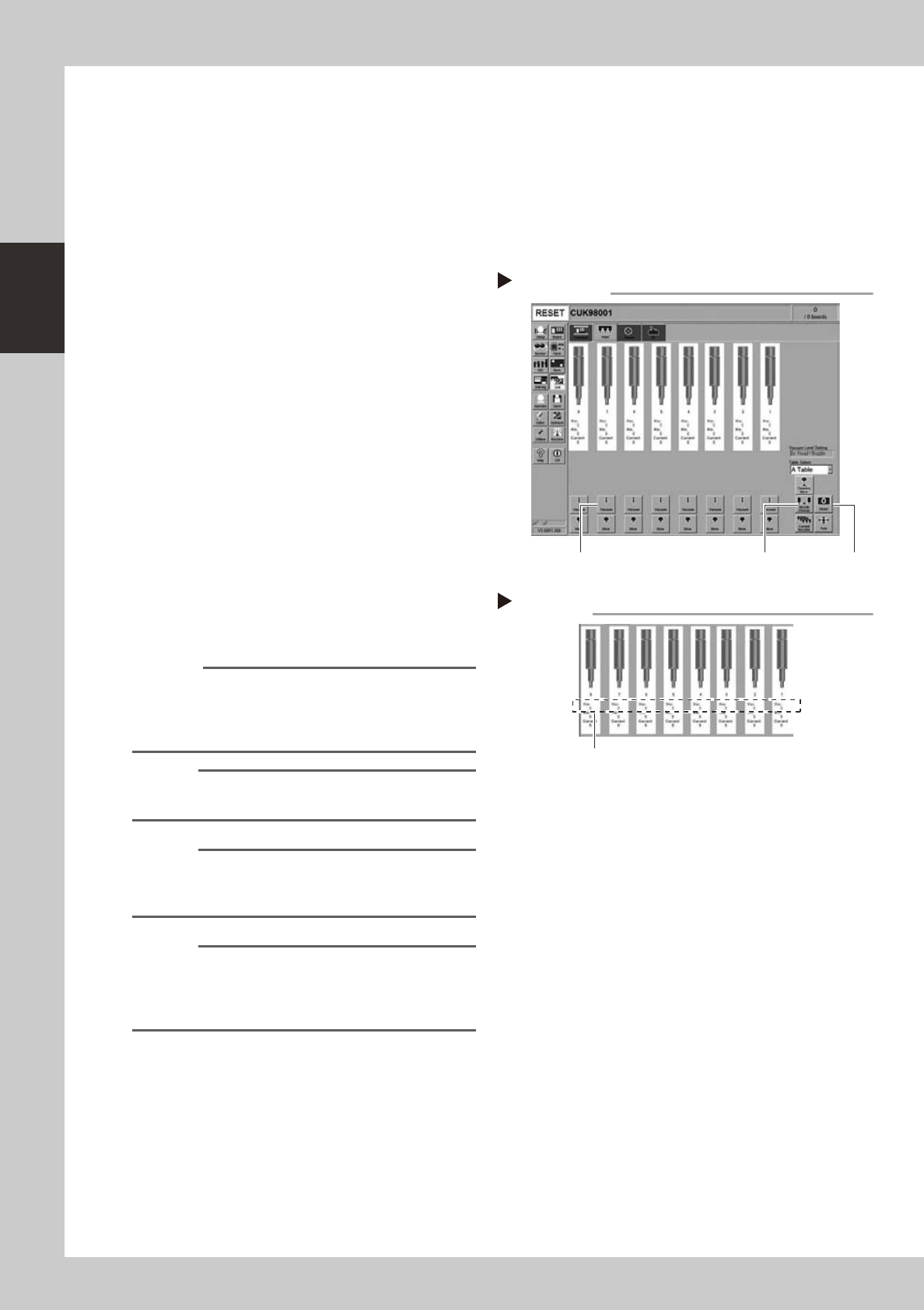
Open the [Unit] - [Head] tab screen. Then
press the [Reset] button on the lower right of
the screen to reset the pickup level values.
3
Generate negative pressure.
On the [Unit] - [Head] tab screen, set the
[Vacuum] buttons for all heads to ON. When
this value starts rising, wait 5 to 10 seconds
and set to OFF.
4
Check the vacuum levels.
Read the "Max" value shown in red on the
[Head] tab screen. If this value is 130 or less
then it is in normal range. If higher than 130,
then the nozzle hole might be dirty and
probably needs cleaning.
54204-F1-00
Reference
The above-mentioned value "130" is a general guide for
maintenance of Type 302 nozzles and the actual value
to use may differ slightly depending on operating
conditions. Use this "130" value for reference.
Reference
When using Type 301 nozzles, use "190" as a general
guide .
n
NOTE
If a correct value cannot be obtained after cleaning
even after performing steps 1 to 4, then the interior of
the spline shaft might be dirty.
n
NOTE
The vacuum level in the spline shaft air path might
slightly differ depending on the air source and
operating conditions. Use the above values for
reference during maintenance.
Negative pressure generation
Step 2 to 3
[Nozzle Change] button[Vacuum] button [Reset] button
Negative pressure check
Step 4
Read "Max" values.