00195447_EN_DE_Install_SR604.pdf - 第41页
Installation Manual, Station Software Version 604.01 Issue 04/2007 The installation program now uninstalls the SIPLAC E software including the SIPLACE hotfixes, SIPLACE Language Pack and SIPLACE Vision. Fig. 5-26: Finali…
Installation Manual, Station Software Version 604.01 Issue 04/2007
5.7 Uninstalling the SIPLACE software
Note:
You must be logged in as administrator to uninstall the software.
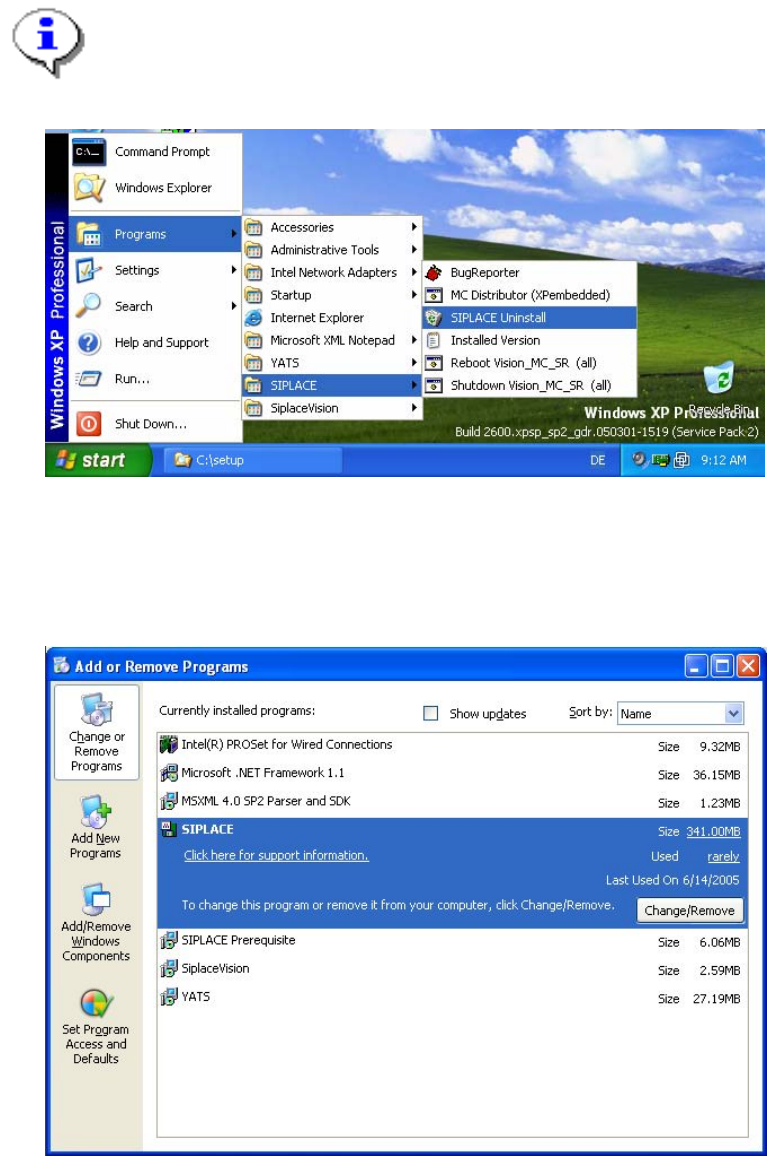
→ Open the Start menu and choose Programs Æ SIPLACE Æ SIPLACE Uninstall.
Fig. 5-24: Starting uninstallation (alternative 1)
Or:
→ Open the Start menu and choose Settings Æ Control Panel.
→ Double-click Add/Remove Programs.
Fig. 5-25 Starting uninstallation (alternative 2)
→ Select SIPLACE from the list of installed programs.
→ Click the Change/Remove button.
40 of 48
Installation Manual, Station Software Version 604.01 Issue 04/2007
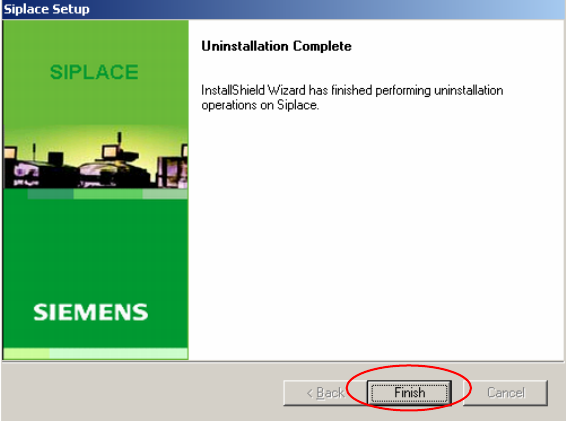
The installation program now uninstalls the SIPLACE software including the SIPLACE hotfixes, SIPLACE
Language Pack and SIPLACE Vision.
Fig. 5-26: Finalizing uninstallation
→ Click the Finish button.
The SIPLACE software and SIPLACE Vision have now been uninstalled correctly.
41 of 48
Installation Manual, Station Software Version 604.01 Issue 04/2007
5.8 Installing the Vision computer software (option)
Notes:
The Vision computer is only required if the optional 3D coplanarity sensor is used.
The installation requires approx. 20 minutes.
→ Connect the USB keyboard to the Vision computer.
→ Switch the video multiplexer from the station computer to the Vision computer.
→ Switch on the SIPLACE placement machine.
→ Log in to the Vision computer as Administrator.
(Keep the Shift key pressed as soon as the Windows XP logo appears)
→ Insert the installation CD in the drive. It is read automatically.
Note:
If autostart has been disabled for the drive, you must start the installation manually from
the Windows Explorer.
→ Open the Explorer and start "setup.exe" under drive E by double clicking it.
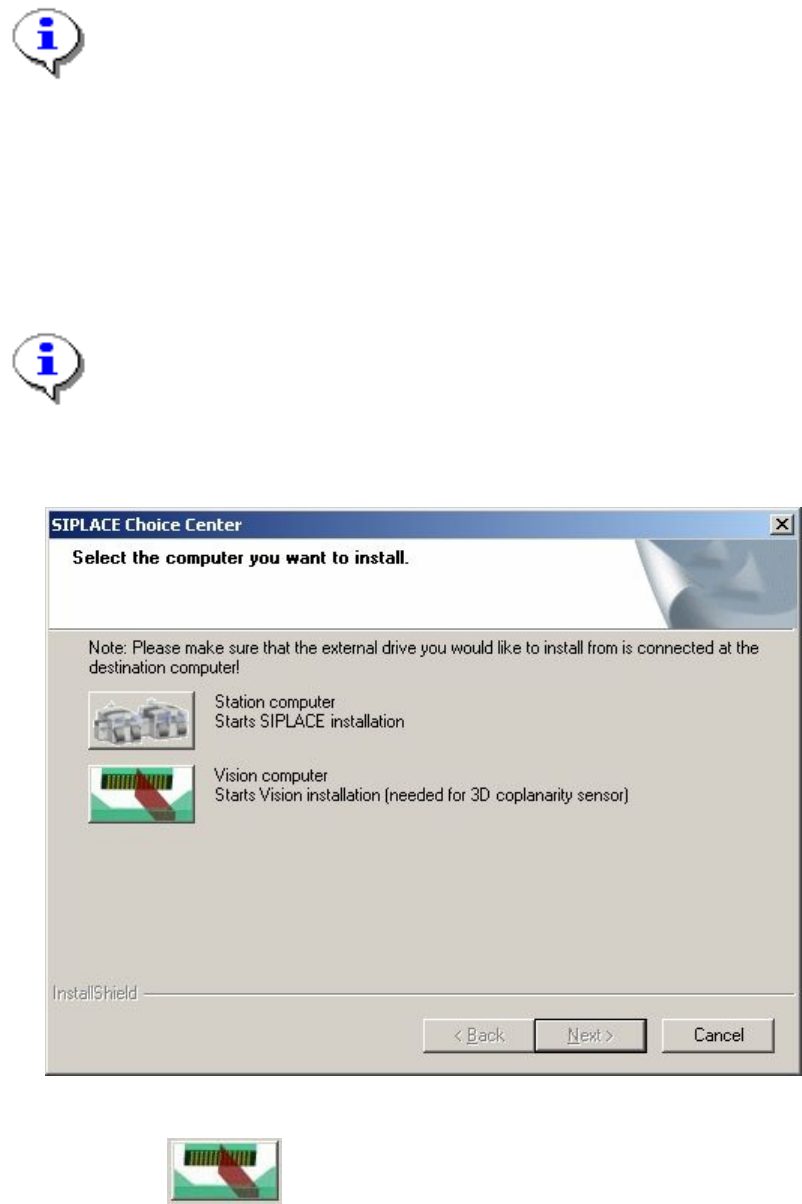
The "SIPLACE Choice Center" dialog box is opened.
Fig. 5-27: "SIPLACE Choice Center" dialog box
→ Click the "Vision computer" button.
42 of 48