ISM_INM.pdf - 第7页
JOIN BUTTON FUNCTIO N Join button fu nction rev_00 E dition 11/2015 – Reproduction forb idden Page 7 If we click on “Start ” and “Gen erate extractions Q ueue”, the software give s us the following reels: - About item co…
JOIN BUTTON FUNCTION
Join button function rev_00 Edition 11/2015 – Reproduction forbidden
Page 5
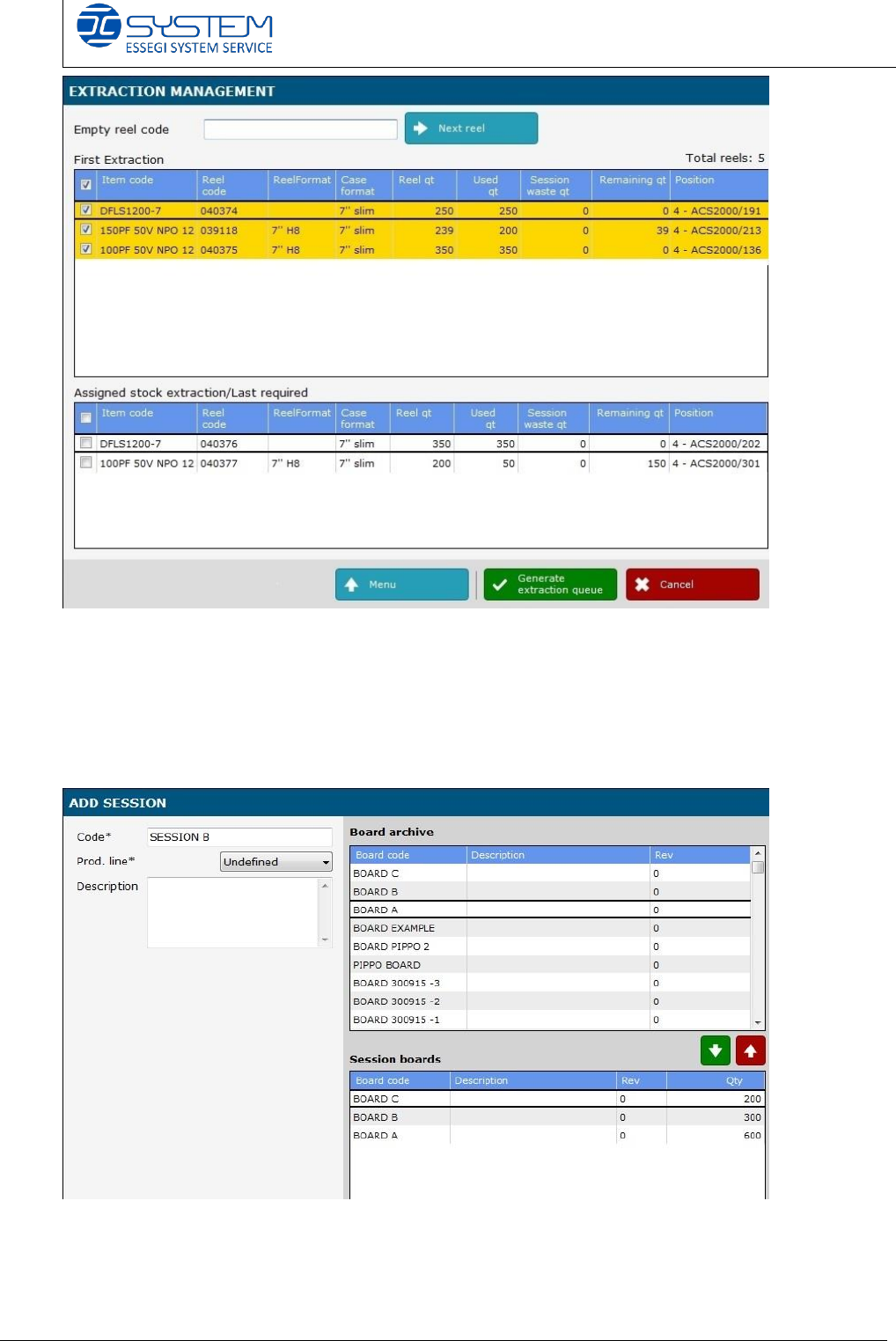
Now I create a new session called “Session B” because the order changed.
It is always composed by the boards A-B-C but the quantities are different:
- Board C: 200 pcbs type C
- Board B: 300 pcbs type B
- Board A: 600 pcbs type A
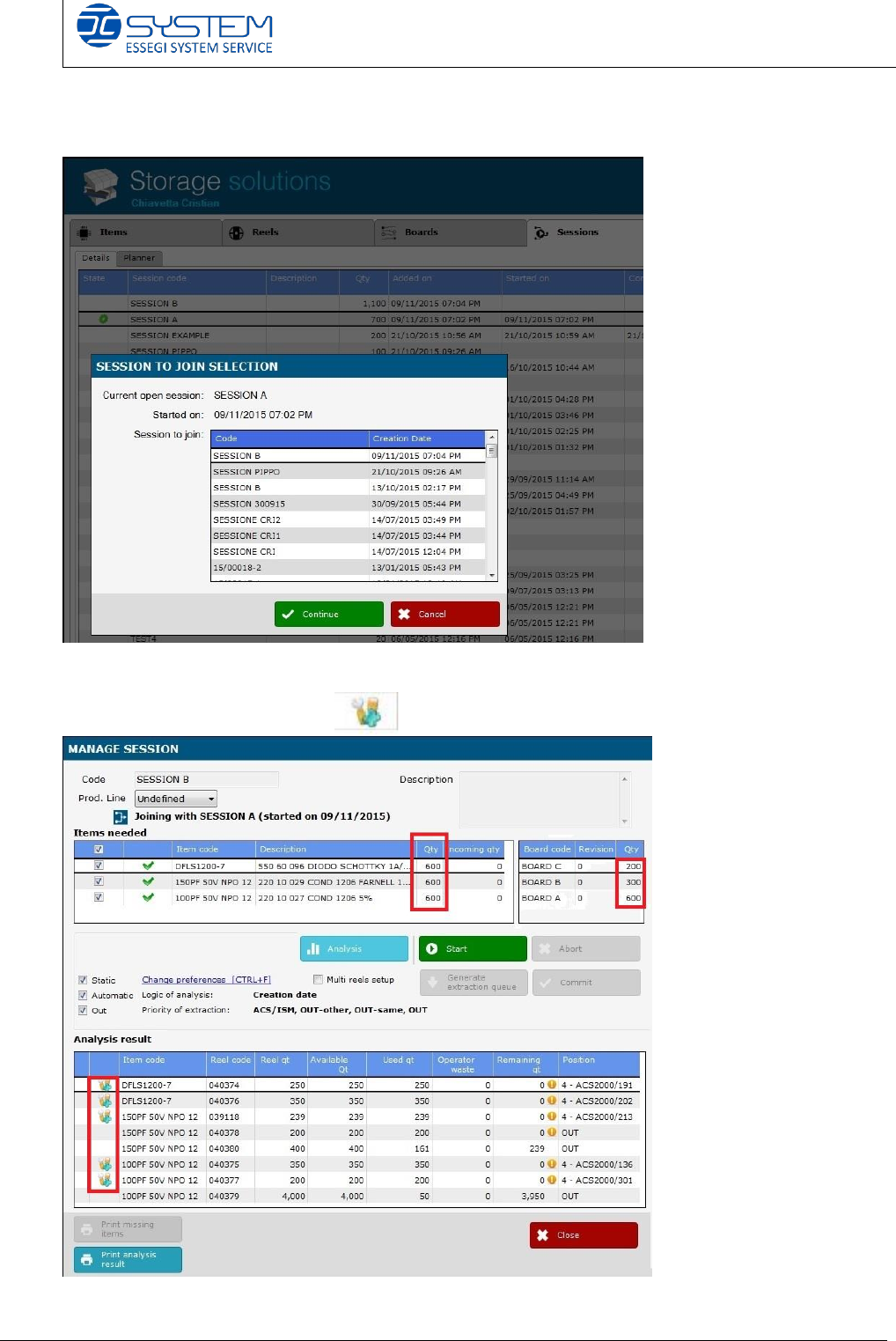
After creating the new session, we must:
- select the started session (this is the first session we created)
- click on the “Join” button
JOIN BUTTON FUNCTION
Join button function rev_00 Edition 11/2015 – Reproduction forbidden
Page 6
- select the session to joint (in this case, it is the new one)
- press the “continue” button.
We can see the quantities are changed and the software marks the reels
used earlier with this symbol
JOIN BUTTON FUNCTION
Join button function rev_00 Edition 11/2015 – Reproduction forbidden
Page 7
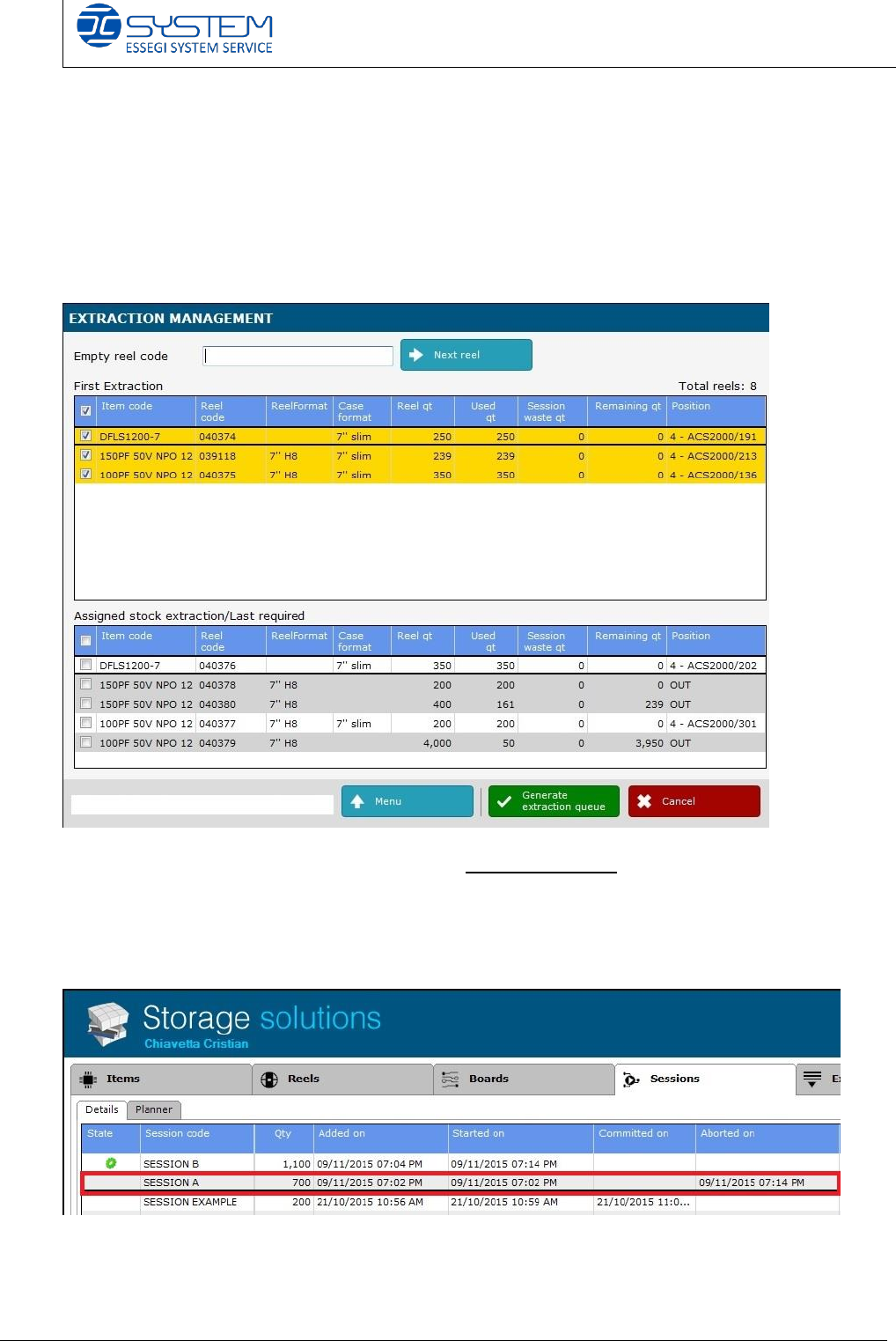
If we click on “Start” and “Generate extractions Queue”, the software gives us the
following reels:
- About item code DFLS1200-7, reel 040374 and then reel n. 040376
- About item code 150PF 50V NPO 12, the reel 039118, 040378 and 040380
- About item code 100PF 50V NPO 12, 040375 and then reel 040377 and
040379
As we can see, the software gives us the reels in the same order as the session A
created first.
Now the old session (Session A) is in the status Aborted and the new session
(Session B) is running.