00198621-02_GS_SIPLACE-Pro-16.1-R19-1_EN.pdf - 第53页
Getting S tarted SIPLACE Pro 16.1 (R19-1) 3 T utorial 04/2019 Edition 3.7 Exercise 6: Optimizing the Job 53 3 Fig. 3 - 19 Report Manager with Changeover Instructions The changeover instru ctions can be printed out a nd u…
3 Tutorial Getting Started SIPLACE Pro 16.1 (R19-1)
3.7 Exercise 6: Optimizing the Job 04/2019 Edition
52
3.7.4 Create and Print Changeover Instructions
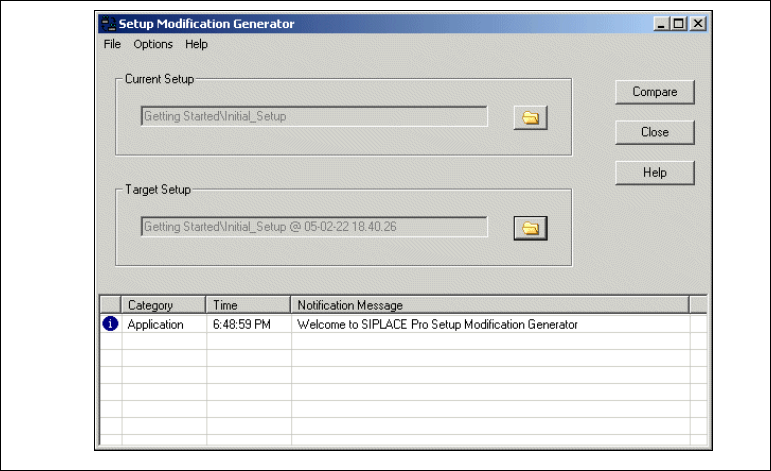
The setup modification generator is needed to print changeover instructions from an existing
setup with feeder and nozzles, for use with a new setup. 3
Start the setup modification generator by
– selecting Start => Programs => SIPLACE Pro => Setup modification generator from
your Windows Start menu.
– selecting Options => external Programs => Setup modification generator
3
Fig. 3 - 18 Setup Modification Generator
Select the Current setup and the Target setup.
Start the setup modification generator with the Compare button. The Report Manager will open
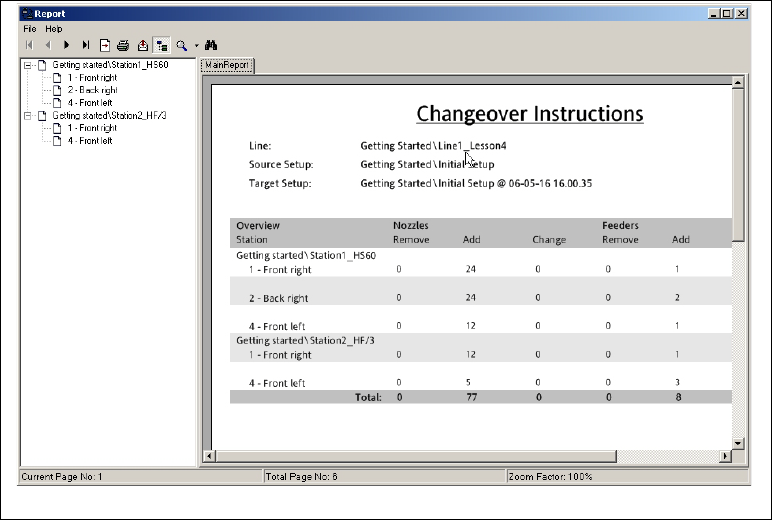
with the changeover instructions.
Getting Started SIPLACE Pro 16.1 (R19-1) 3 Tutorial
04/2019 Edition 3.7 Exercise 6: Optimizing the Job
53
3
Fig. 3 - 19 Report Manager with Changeover Instructions
The changeover instructions can be printed out and used as a working guide. These are divided
into instructions for "removing" or "adding" feeders/components or nozzles.
The instructions can now be printed or exported in various formats (.pdf, .xls, .doc, .rtf) for further
processing. Simply use the relevant icons in the toolbar.
3
3 Tutorial Getting Started SIPLACE Pro 16.1 (R19-1)
3.8 Exercise 7: Performing a Download with the Line Control GUI 04/2019 Edition
54
3.8 Exercise 7: Performing a Download with the Line
Control GUI
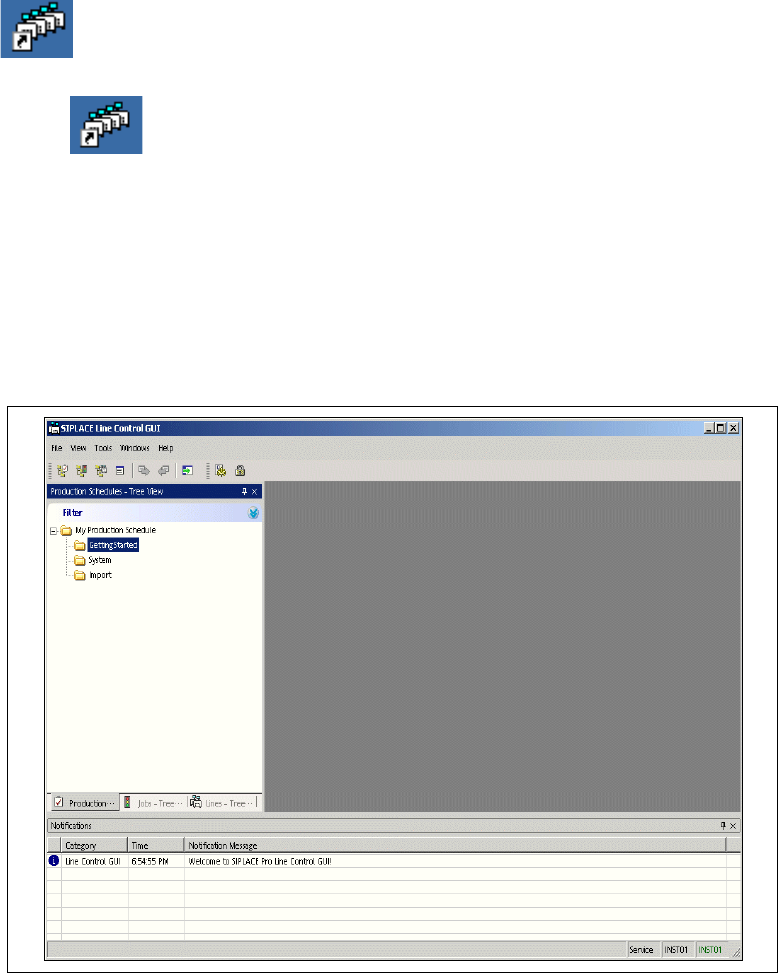
After successfully installing SIPLACE Pro, the Windows Start menu Start => Programs => will
show the entry SIPLACE Pro => LCGUI 16.1 and
the LCGUI 16.1 icons will appear on the Desktop. 3
Start the LCGUI 16.1 from the submenu or
with the icon on the Desktop.
– The system will open the Logon dialog box.
Enter your User data. Contact your system administrator if you have questions about user
name or password.
– After successfully logging on, the system will connect to the Line Control server and open
the Line Control GUI user interface.
Please refer to your installation guide, if installation was not successful.
3
Fig. 3 - 20 LCGUI: Main View