00198015-01_IM_SQL_Server_2014_Express_EN.pdf - 第32页
SQL Server 2014 Ex press / Installation Manual 11/2015 Edition 32 The Server Properties win dow is displayed. Figure 5-12: Server Properties wi ndow ► Click Process ors in the Select a page sect ion .
SQL Server 2014 Express / Installation Manual 11/2015 Edition
31
► Ensure that the correct SQL instance is entered as Server name:.
The correct naming is <ComputerName>\<InstanceName> for user defined instances. If you
installed a default SQL instance (internal name MSSQLSERVER), you only have to enter the
computer name instead.
► Select the appropriate authentication method. If you have installed SQL correctly giving the
administrators group full permissions, you may use Windows Authentication.
► If you select SQL Authentication, enter the sa user name and the appropriate password.
► Click Connect to connect to the SQL instance.
SQL Server 2014 Management Studio connects to the SQL instance.
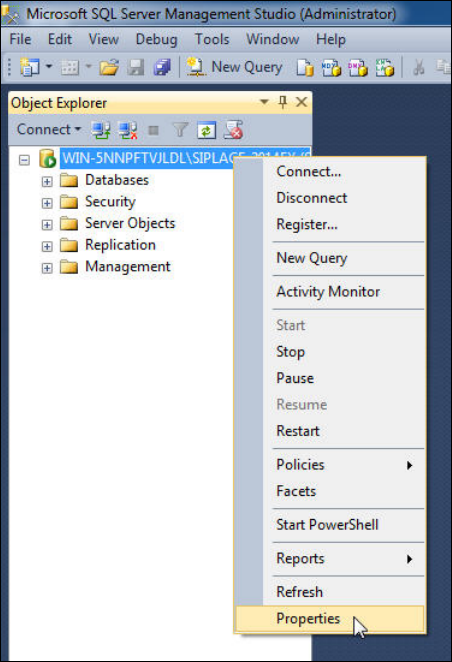
Figure 5-11: Selecting Properties of the SQL instance
► On the left side of the window, click the SQL instance you have connected to select it.
► Right- click and select Properties.
SQL Server 2014 Express / Installation Manual 11/2015 Edition
32
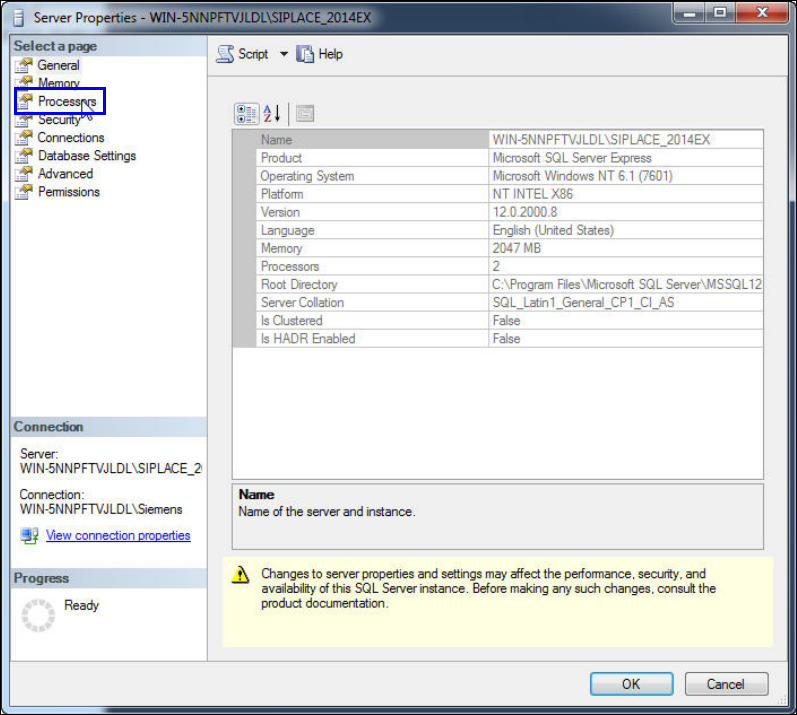
The Server Properties window is displayed.
Figure 5-12: Server Properties window
► Click Processors in the Select a page section.
SQL Server 2014 Express / Installation Manual 11/2015 Edition
33
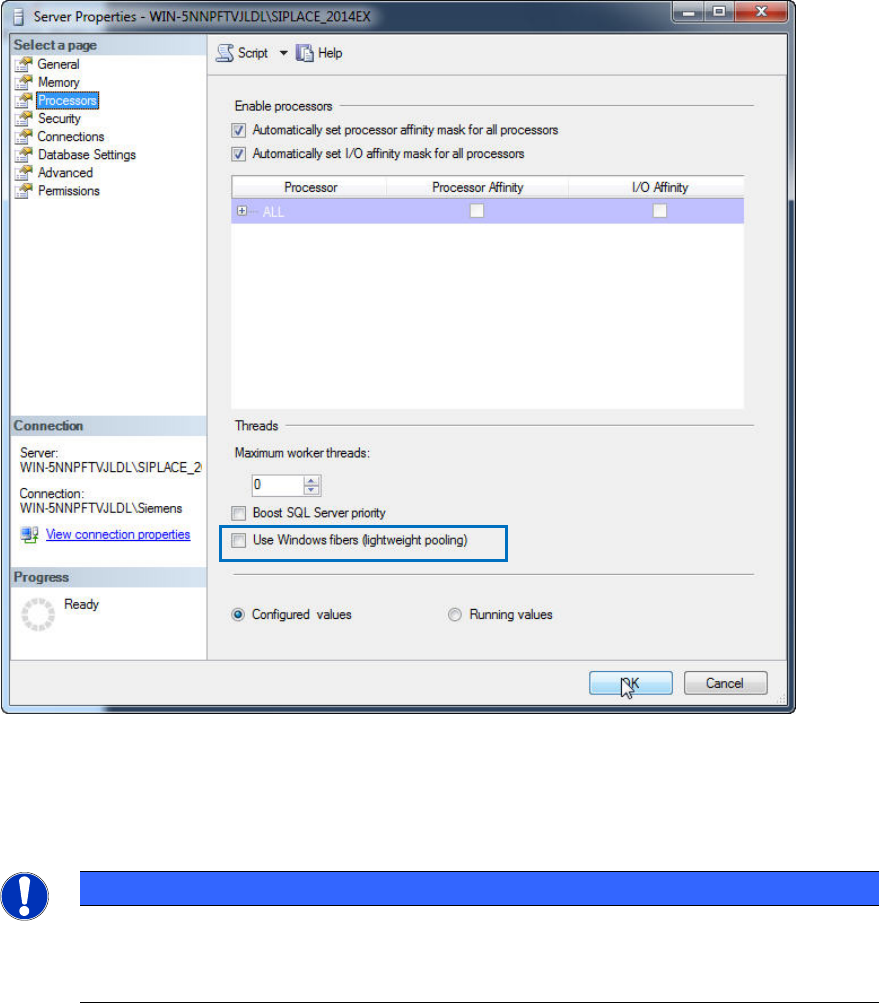
The Processors settings are displayed.
Figure 5-13: Processors settings
► Ensure that the Use Windows fibers (lightweight pooling) check box is NOT selected.
► Click the OK button to close the settings window.
NOTICE
Maximum worker threads value
Unlike the SQL Server 2000 setting that was 255, this value is set to zero by default
which causes SQL to automatically configure this value at start-up.