Oxford-100-ICP-2-Step-DRIE-SOP-in-PDF-Format.pdf - 第5页
Oxford ICP 2 - step DRIE SOP Page 5 of 10 Revisi on 2- 12 0 321 6.3.6 Press stop button. See Figure 4. 6.4 Load Wafer 6.4.1 Open load lock lid (See Fig 5) 6.4.2 Place wafer in load lock against the two pins on the tran s…
Oxford ICP 2-step DRIE SOP Page 4 of 10
Revision 2-120321
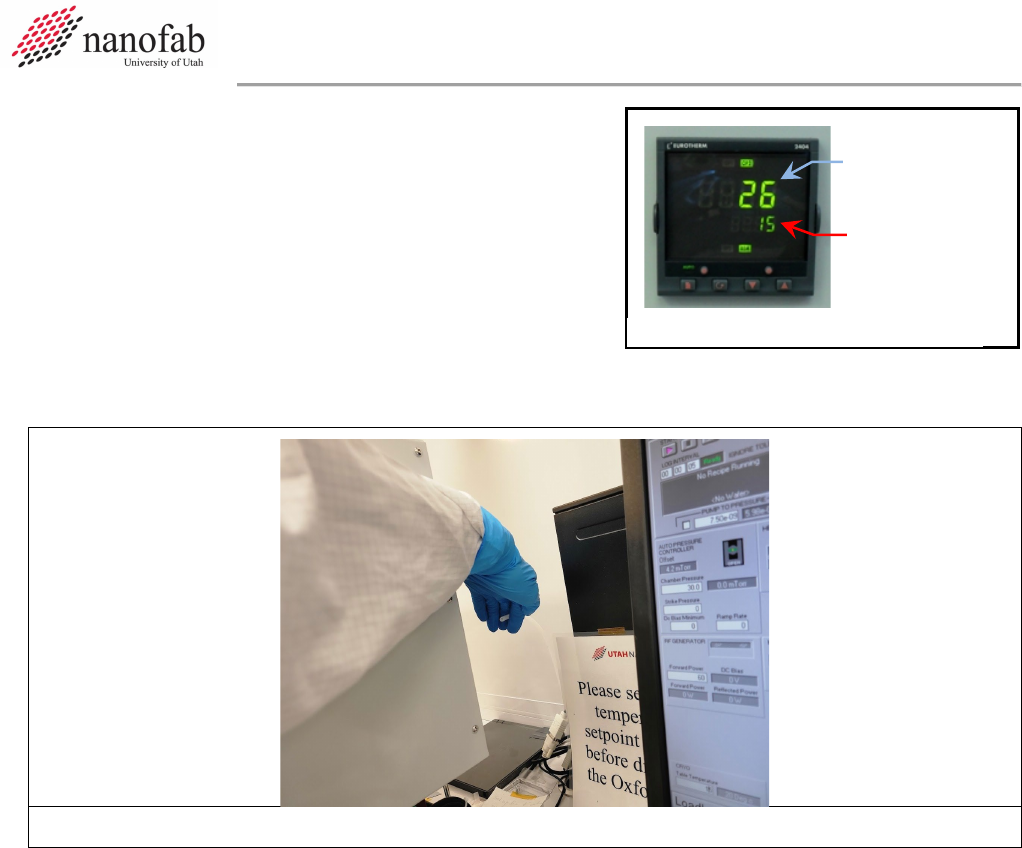
6.2.5 Check the set point on the temperature controller to
make sure the set point number reads -15 (see
Figure 2). The controller won’t function unless you
initially set it way below your desired set point, and
then change it to the actual set point later.
6.2.6 Find the unattached tube behind the main chamber. Feel the output to make sure nitrogen is
flowing out of it (see Fig 3). This means the chuck is being cooled to the setpoint.
Figure 3. N2 cooling flow tube
6.2.7 Now set the table temperature to your desired setpoint (typically 15C for most DRIE Bosch
recipes) (lower left corner of screen) See Figure 1.
6.2.8 Press the pink start button, then immediately click stop (right next to it). See Figure 1.
6.2.9 Find the unattached tube behind the main chamber. Feel the output to make sure nitrogen is
still flowing out of it.
6.3 Vent Load Lock
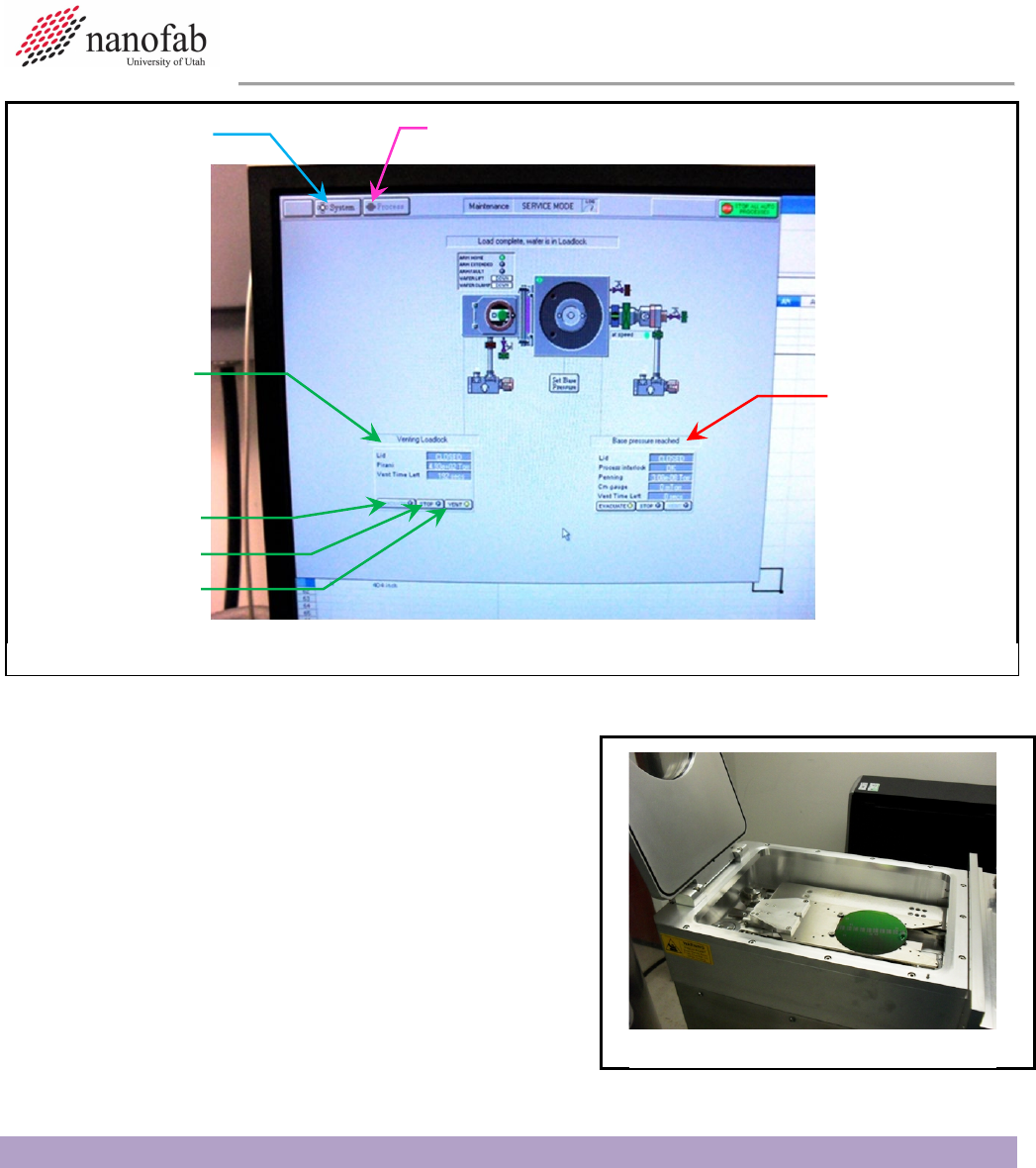
6.3.1 Click on System icon. See Figure 4 Pump Control Page.
6.3.2 Click on “pumping” on the drop-down menu
6.3.3 Press stop button corresponding to the load lock mechanical pump (on the left side of the
screen, do not touch the main chamber buttons on the right side of the screen). See Figure 4.
6.3.4 Press stop, then ok, then vent, then ok buttons. See Figure 1.
6.3.5 Wait for load lock to vent. The pressure will read above 600 Torr and you will hear hissing
initially from the load lock lid.
Set point
Actual
Temperature
Figure 2, Temperature Controller
Oxford ICP 2-step DRIE SOP Page 5 of 10
Revision 2-120321
6.3.6 Press stop button. See Figure 4.
6.4 Load Wafer
6.4.1 Open load lock lid (See Fig 5)
6.4.2 Place wafer in load lock against the two pins on
the transfer arm with the wafer facing the two
pins. The wafer should touch the two pins. See
Figure 5, Load Lock.
6.4.3 Close load lock lid.
7. Run Recipe
NOTE: This recipe can be used to etch deep trenches or vias in 100 mm wafers. It is strongly
advised that you do a test run on a practice wafer before working with your device wafer.
7.1 Load and Edit Recipe
7.1.1 Click on Process icon. See Figure 6, Pump Control Page.
7.1.2 Click on “Recipes” on the drop-down menu
Figure 5, Load Lock
System
Button
Process Buttton
Load Lock
Controls
Evacuate
Stop
Vent
Main
Chamber
Controls Do
Not Touch
Figure 4, Pump Control Page
Oxford ICP 2-step DRIE SOP Page 6 of 10
Revision 2-120321
7.1.3 Click on “New” and press ok to clear the current recipe
7.1.4 Click on “Load” and select the desired recipe (typically BB Bosch 12:5 15C 80:80 recipe for
silicon DRIE), and click ok
7.1.5 The recipe steps will be displayed on the left side of the screen.
7.1.6 For Si DRIE set the number of etch cycles
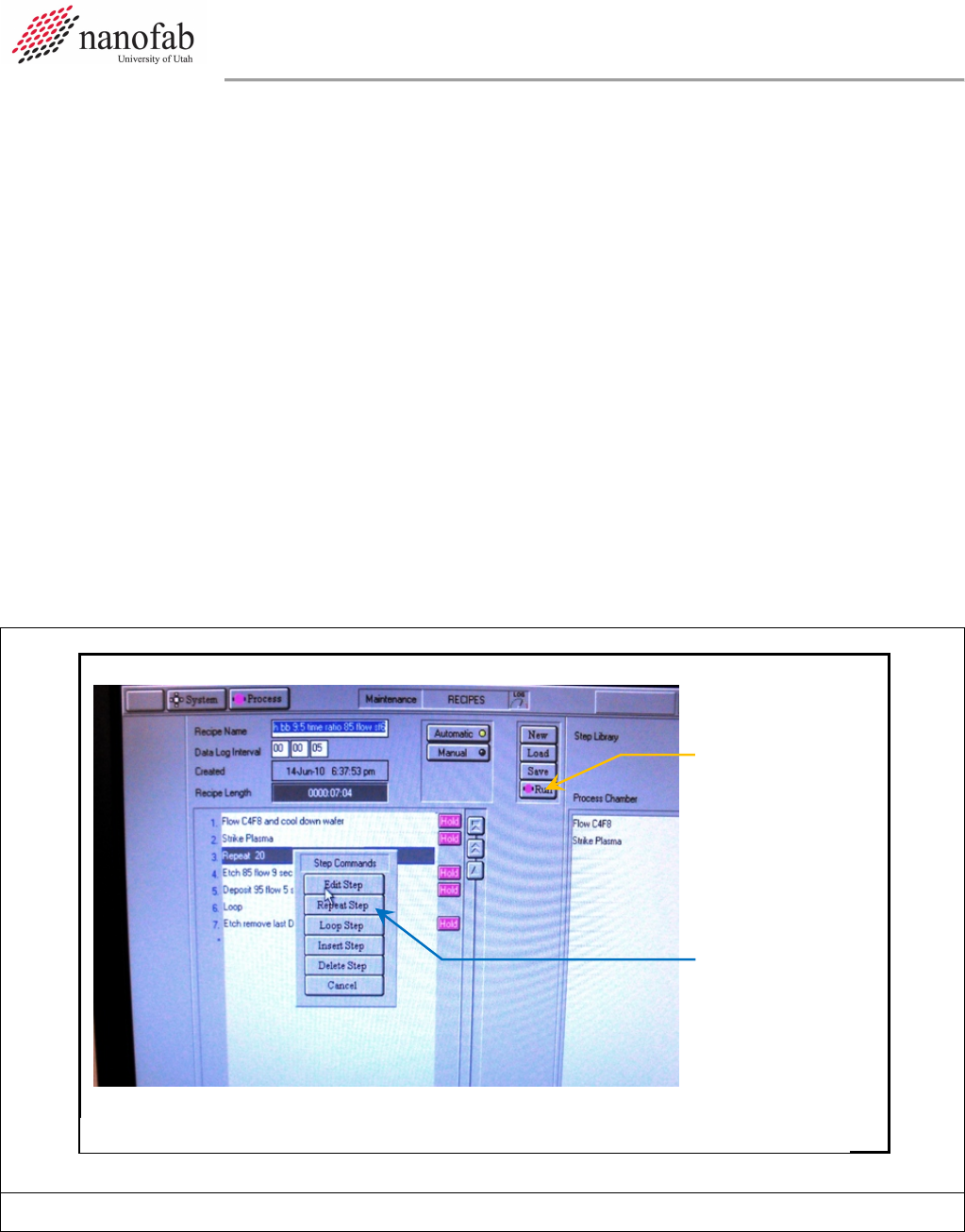
7.1.6.1 Right click on “Repeat”
7.1.6.2 Click on “Repeat Step”
7.1.6.3 Enter the desired number of cycles to repeat the etch and deposition step for the Bosch
process (typically ~0.67 um/cycle) but this varies greatly depending on the area of
exposed silicon (can vary from ~0.4um/cycle to ~1.1 um/cycle).
7.1.6.4 Click OK
7.1.7 For other etch processes set the etch time
7.1.7.1 For other etch processes you can change the etch time by right clicking on the etch step
and then changing the process time.
7.1.7.2 Do not change the gas flows or powers unless it is your own recipe and you know what
you are doing. Click Save when you are done editing to save the recipe.
Figure 6, Load, Edit, and Run Recipe Page
7.1.8 The Bosch etch recipe is as follows:
Repeat Step
Button
Figure 1, Recipe Editor Page
Run Button