SIPLACE Line Computer UNIX.pdf - 第548页
17 Practical Tips on Using the LC UNIX User Manual Line Computer UNIX 17.3 Description of Com ponents and PC Bs Software Version 5 02.xx 10 /2000 Issue 546 I t I I The adh esive pa ttern desc ription is di spensed with. …
User Manual Line Computer UNIX 17 Practical Tips on Using the LC UNIX
Software Version 502.xx 10/2000 Issue 17.3 Description of Components and PCBs
545
I
t I I
94. In the ’Centering’ selection box, activate the applicable buttons, here: Centering in head.
95. In this example, the preselected settings for the handling values, the handling instructions and the ’Acce-
leration’ special handling option can be accepted as they are. No changes are required.
96. Click on the Save option on the FILE menu.
The data are saved.
To allocate a feeder to package form 1503, proceed as follows:
97. On the SERVICES menu click on the Starting Feeder Editor option.
The Feeder Editor is opened.
98. Activate the Allocate icon .
99. Click on the Line button.
The entire line is highlighted in light-green.
100.Click on the appropriate feeder on the list of placeable feeders, here: FD~S_G_12.
The feeder is transferred to the Feeder selection field.
101.In the Feeder Editor click on the Save option on the FILE menu.
The data are now saved.
102.Click on the Quit option on the FILE menu.
The Feeder Editor is closed.
103.In the Package Form Editor click on the Quit option on the FILE menu.
The Package Form Editor is closed.
17 Practical Tips on Using the LC UNIX User Manual Line Computer UNIX
17.3 Description of Components and PCBs Software Version 502.xx 10/2000 Issue
546
I
t I I
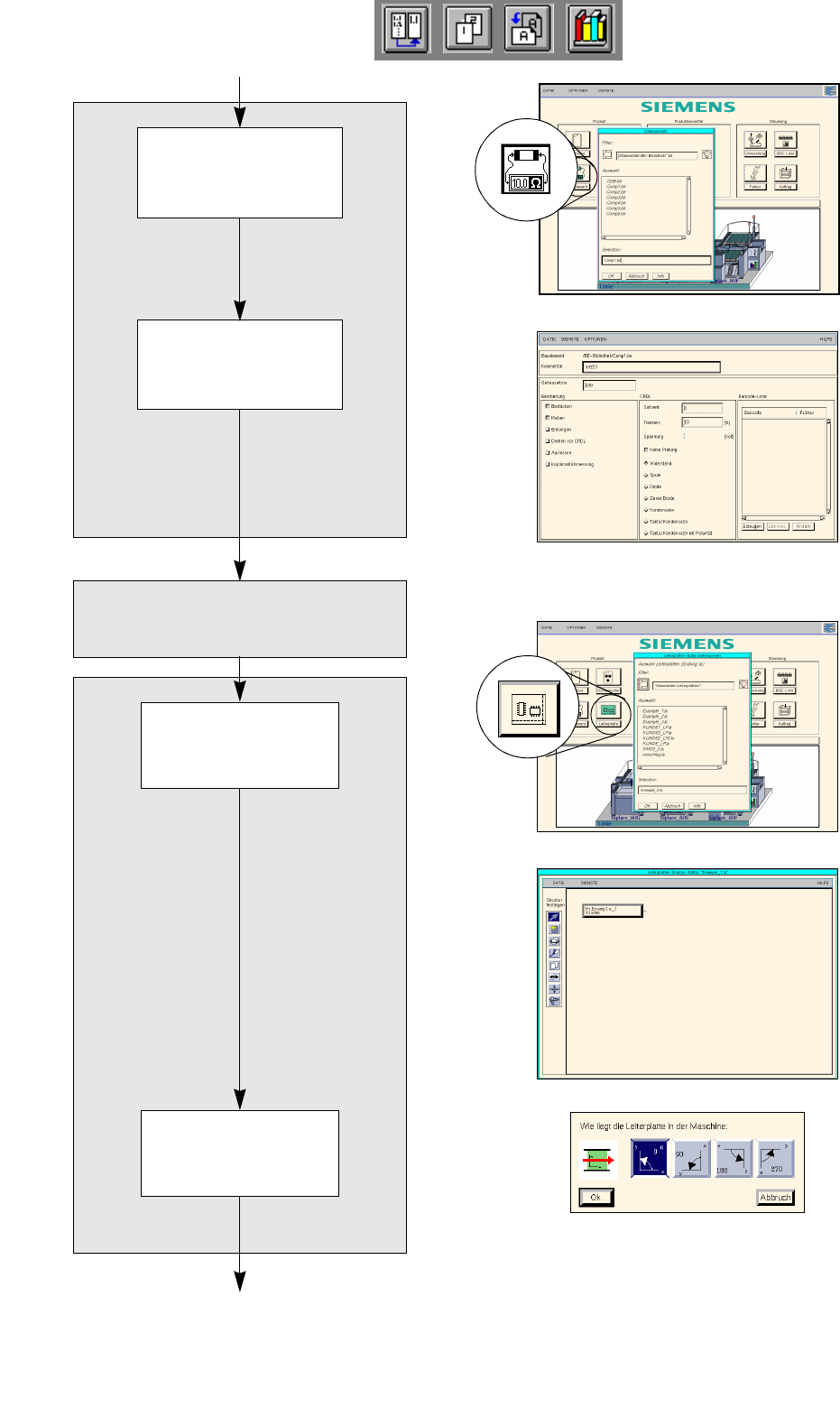
The adhesive pattern description is dispensed with.
Opening the
Component Editor for
a component
Entering component
data
Component Editor
Adh. pattern description
Starting the PCB
Editor for a PCB
Entering the position
of the PCB in the
machine
PCB description
continued on page 17-36
continued from page 17-32
User Manual Line Computer UNIX 17 Practical Tips on Using the LC UNIX
Software Version 502.xx 10/2000 Issue 17.3 Description of Components and PCBs
547
I
t I I
17.2.2.2 Component Description
To open the Component Editor for a component, proceed as follows:
104.On the desktop click on the icon the the Component Editor .
The file selection window is opened.
105.Click on the Selection editing field.
106.Enter the name of the component, here: Comp4.be, click on the OK button.
The Component Editor is opened.
To enter the component data, proceed as follows:
107.Click on the Comment editing field, enter a comment that is a unique description of the component, here:
Chip 2220.
108.Click on the Package form editing field, enter the package form number, here: 1501.
109.In the Handling selection field activate the appropriate buttons, here: Placing.
110.In the CRDL selection area activate the appropriate buttons, here: No check.
111.Click on the Save option on the FILE menu.
The component data are saved.
112.Click on the Quit option on the FILE menu.
The Component Editor is closed.
113.Carry out the component description for the remaining components analogously, here: Comp5.be and
Comp6.be.
17.2.2.3 Adhesive Pattern Description
For the new package forms an adhesive pattern is automatically adopted from the DM-Bibliothek.
17.2.2.4 PCB Description
To open the PCB Editor, proceed as follows:
114.On the desktop click on the icon of the PCB Editor .
The file selection window is opened.
115.Click on the Selection editing field.
116.Enter the name of the PCB, here: Example_2.la and click on the OK button.
A dialog box is opened.
117.Click on the TYPE editing field.
118.Enter a type designation, here: board_1 and click on the OK button.
The PCB Editor is opened. The PCB is displayed as a rectangle.
To specify the position of the PCB in the machine, proceed as follows:
119.Activate the Coordinate system icon .
120.Click on the PCB (rectangle).
A dialog box with the display of four coordinate systems is opened.
121.Click on a coordinate system, here: 0°.
122.Click on the OK button.
The dialog box is closed.