00193796-08.pdf - 第76页
Installation Manual Station Software Version 505.04 76 of 156 • PL EA 1 has a globally unique Class B internet addre ss. This official Class B Internet address is 39.10 (.x.y). All SIPLACE-LAN communication partners oper…

Installation Manual, Station Software Version 505.04 Edition 07/2006
75 of 156
4.4.4 Changing the network addresses
To change the internet addresses, you must
• Switch the machine off
• Insert installation floppy #1 and switch the machine on
• Press the key 'A' in the first menu
• The menu offers you the choice of setting the Internet addresses or the port IDs.
[X] EXIT MENU [H] SET INTERNET ADDRESS
[S] SET PO RT ID
PRESS KEY TO CONTINUE [H,S,X]?
• If 'H' is selected, the file '\ETC\HOSTS' appears in the DOS editor.
The Internet addresses and system names valid for this station must be entered.
Note:
The ALIAS names "autlr", "autsr" and "localhost" must not be changed, as these names are used and
required by the software.
Example of hosts:
#******************************************************************************
#
# File : C:\ETC\HOSTS
#
# Author/Date : T. Noetzold 16-Aug-1995
#
# Abstract : Konfigurationsdatei fuer TCP/IP
#
# Inskript: : AUT 5 BSM 13 $Author:: ake/mme $
# $Date:: 10 Sep 1996 23:41:16$
# $Revision:: 3.0 $
#
# Usage : Durch TCP/IP-Software
#
#******************************************************************************
# Copyright (C) 1992-1996 by Siemens AG. All rights reserved
#******************************************************************************
#
# Internet Official List Of Aliases # Comment
# Address Host Name
#
127.255 loop
172.22.231.84 local localhost # my IP address!
172.22.231.82 autsr traceserver # station computer
220.9.200.1 autgem # gem computer
# --- end of host file ---

Installation Manual Station Software Version 505.04
76 of 156
• PL EA 1 has a globally unique Class B internet address. This official Class B Internet address is
39.10 (.x.y). All SIPLACE-LAN communication partners operate within this address range. We will
make the correct settings for you. (This information is also contained in the machine documents).
Should you have any queries, contact our Service department.
• If 'S' is selected, the file '\ETC\SERVICES' appears in the DOS editor.
• If 'X' is selected, the menu is exited and the DOS prompt appears.
Remove the floppy from the drive.
• To start the SIPLACE system, switch the machine off and then on again.
4.4.5 Troubleshooting
• If the installation program terminates prematurely due to an error, remove the floppy from the drive
and switch the machine off.
• Insert floppy #1 into the drive and switch the machine on again.
• Try installing the operating system again.
Note
If the software can still not be installed on the second attempt, contact your Service center.
4.4.6 Installing the conveyor control software
If downloading from SITEST is not successful, the conveyor firmware can be uploaded to the
conveyor from a boot floppy.
4.4.6.1 Creating the installation disk
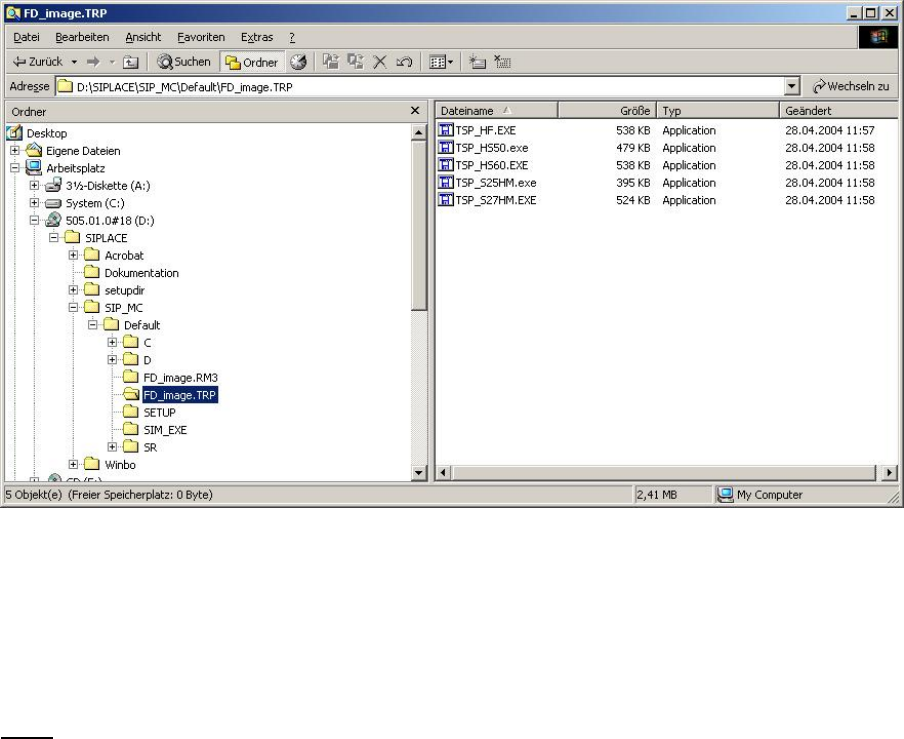
The disk required to load the conveyor controller software can be created on any PC which is
running Windows XP and which has a CD drive, for example, the station computer. A directory
called \SIPLACE\SIP_MC\HS50\FD_IMAGE.TRP contains an image of the download disk in the
form of a self-extracting EXE file. The filenames are seff-explanatory.
Installation Manual, Station Software Version 505.04 Edition 07/2006
77 of 156
The executable will be started (it can also be started from the Explorer by double-clicking on the
file). Then simply follow the instructions in the program. Insert the disk / the program may ask
whether disk should be deleted / data is written to the disk (the bar shows the progress). When the
window disappears, the floppy is finished (before removing the floppy, you must wait until the 'active'
light on the disk drive has gone out).
Notes
− The system looks for a floppy in drive 'A:' (this setting cannot be changed)
− You must use a formatted floppy.
(The program does not allow you to format the floppy as you create it.)
− Each time the executable is called it will create one disk only
− Before and during creation of each disk, no other tool may be permitted to access this disk (e.g. the
current Explorer window, the path of a DOS box must not be set to the A: drive).
4.4.6.2 Installation procedure
Put the newly created disk containing the conveyor controller software into the drive of the M54, and
switch on the station. This starts MS-DOS. The controller software will be downloaded via the CAN bus to
the available conveyor units. If the download process is completed successfully, the version and the date
the software was created will be displayed at the end of the installation process.