Printer 710_810 v8 High Throughput Conveyor Module.pdf - 第23页
HIGH THROUG HPUT CONVE YOR (HTC ) MODULE ADJUS TMENT S AND SET TINGS Chapter Issue 3 Oct 06 Technical Reference Manual 17.23 10. Place a verni er gauge abov e the tran sport belt s i n the centr e of the board clamp s an…
HIGH THROUGHPUT CONVEYOR (HTC) MODULE
ADJUSTMENTS AND SETTINGS
17.22 Technical Reference Manual Chapter Issue 3 Oct 06
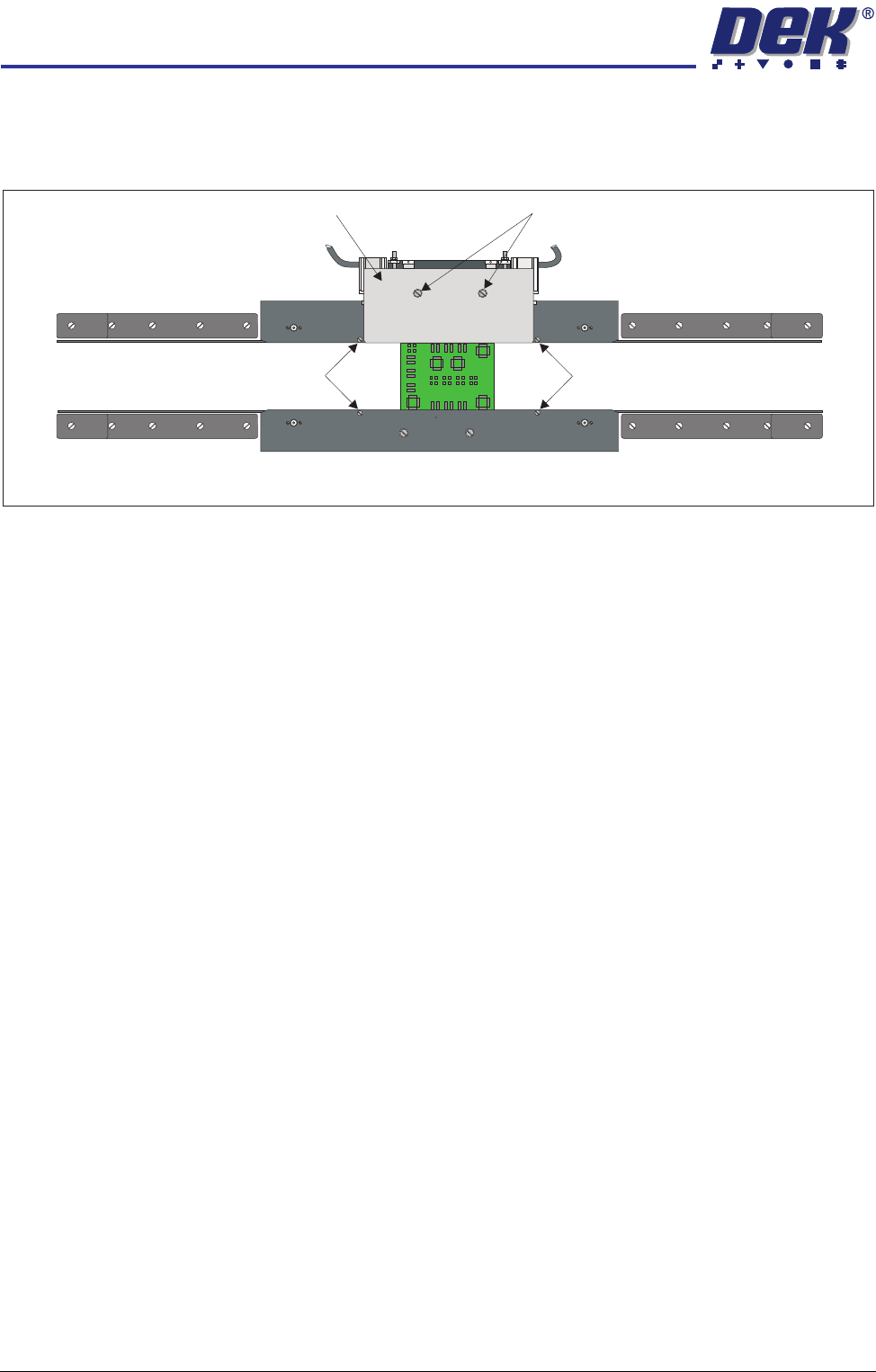
Rear Snugger
Plate Parallelism
1. Open the front printhead cover/shutter.
2. Slacken the two rear snugger plate securing screws.
3. Place a product board centrally between the snuggers.
4. In Diagnostics select Rail System.
5. Select Select Module.
6. Select Toggle Board Clamp.
7. Select Run Diagnost. The edge of the rear snugger plate aligns with the
edge of the board.
8. Tighten the two rear snugger plate securing screws.
9. Remove the product board from the machine and exit from diagnostics.
Home Position Rail
Width Check
Ensure that board clamps are fitted and that the Board Clamp Setting procedure
(this section refers) has been carried out.
1. In Diagnostics select Rail System.
2. Select Select Module.
3. Select Home Rail Width.
4. Select Run Diagnost.
5. Select Adjust and set board width to 250mm.
6. Select Exit.
7. Select Drive Rail to Board Width.
8. Select Run Diagnost.
9. Open the front printhead cover/shutter.
Downstop Screws
Downstop Screws
Rear Snugger Plate Rear Snugger Plate Securing Screws
Plan View of Rail System
HIGH THROUGHPUT CONVEYOR (HTC) MODULE
ADJUSTMENTS AND SETTINGS
Chapter Issue 3 Oct 06 Technical Reference Manual 17.23
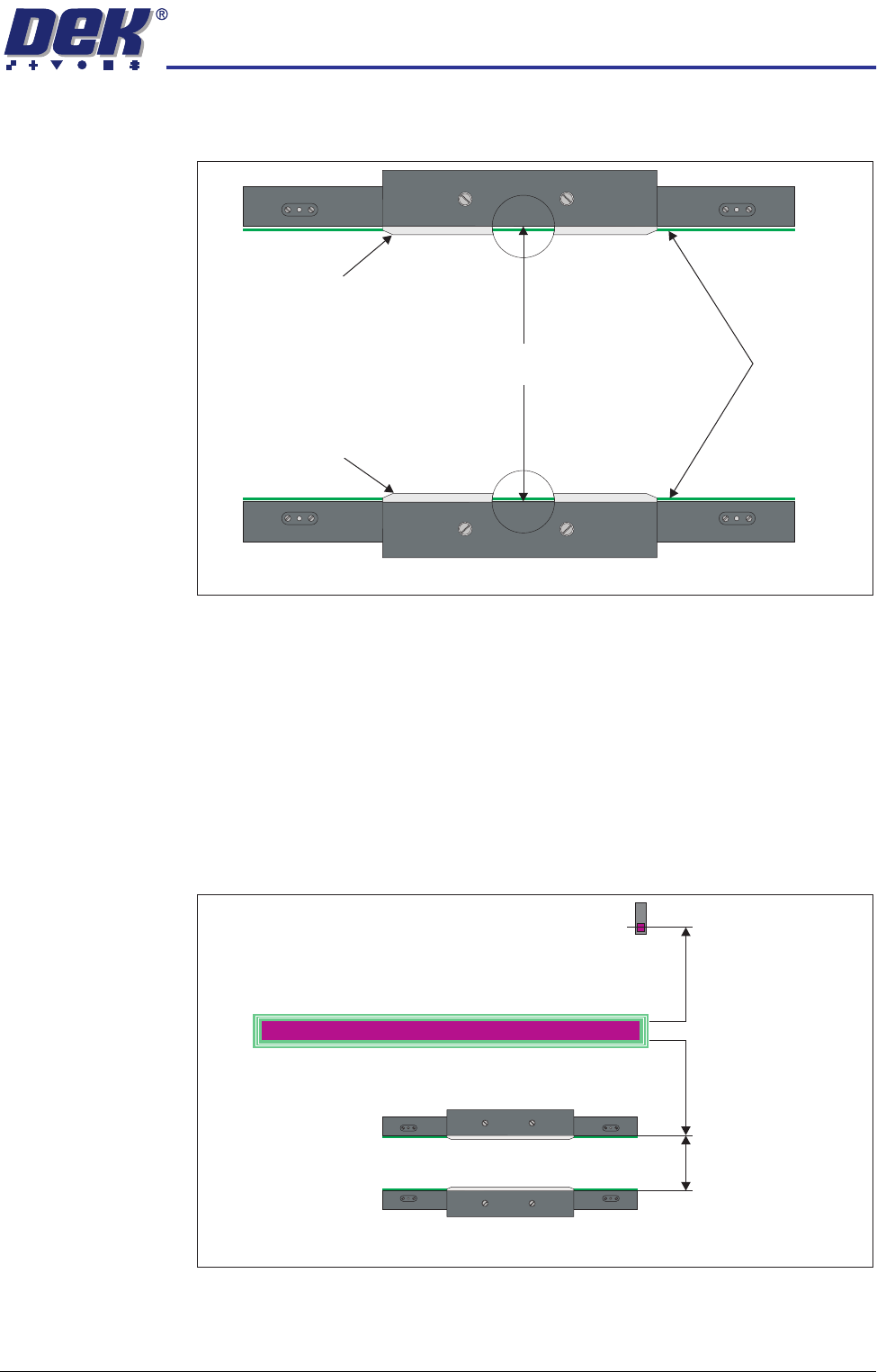
10. Place a vernier gauge above the transport belts in the centre of the board
clamps and check that the vernier reads between 250.25mm ±0.10mm.
11. If the rail width is correct, go to Step 21.
12. Close the printhead cover/shutter and press the System button.
13. Select Set Rail Board Width Calibration.
14. Select Run Diagnost to open the Rail Width Offset window.
15. Use Incr. or Decr. to set the offset required to achieve the dimension in Step
10.
NOTE
Increasing the offset increases the dimension between the rear rail and the
home position therefore, decreasing the width between the front and rear
rails.
16. Select Move.
17. Open the front printhead cover/shutter and recheck the measurement.
250.25mm ±0.10mm
Rear Board Clamp
Plan View of Board Clamps
Transport Belts
Front Board Clamp
Plan View of Transport Rails (centre section)
Home Position
Rail Width
RAIL WIDTH OFFSET 0.00 mm
+/- 3.00mm
HIGH THROUGHPUT CONVEYOR (HTC) MODULE
ADJUSTMENTS AND SETTINGS
17.24 Technical Reference Manual Chapter Issue 3 Oct 06
18. If the rail width is incorrect, close the printhead cover/shutter, press the
System button and repeat Steps 15 to 17.
19. If the rail width is correct, close the printhead cover/shutter, press the
System button and select Set.
20. Select Yes to save the information.
21. Using a suitable test board, with the rail width programmed to the board size,
select Cycle Board on Belts.
22. Select Run and ensure the board runs through the entire length of the rail
system for 10 complete cycles, without jamming or excessive clicking of the
board edges.
NOTE
If any jamming occurs investigate the position of the board/snugger clamps
before repeating the check.
Auxiliary Rail to
Print Station Gap
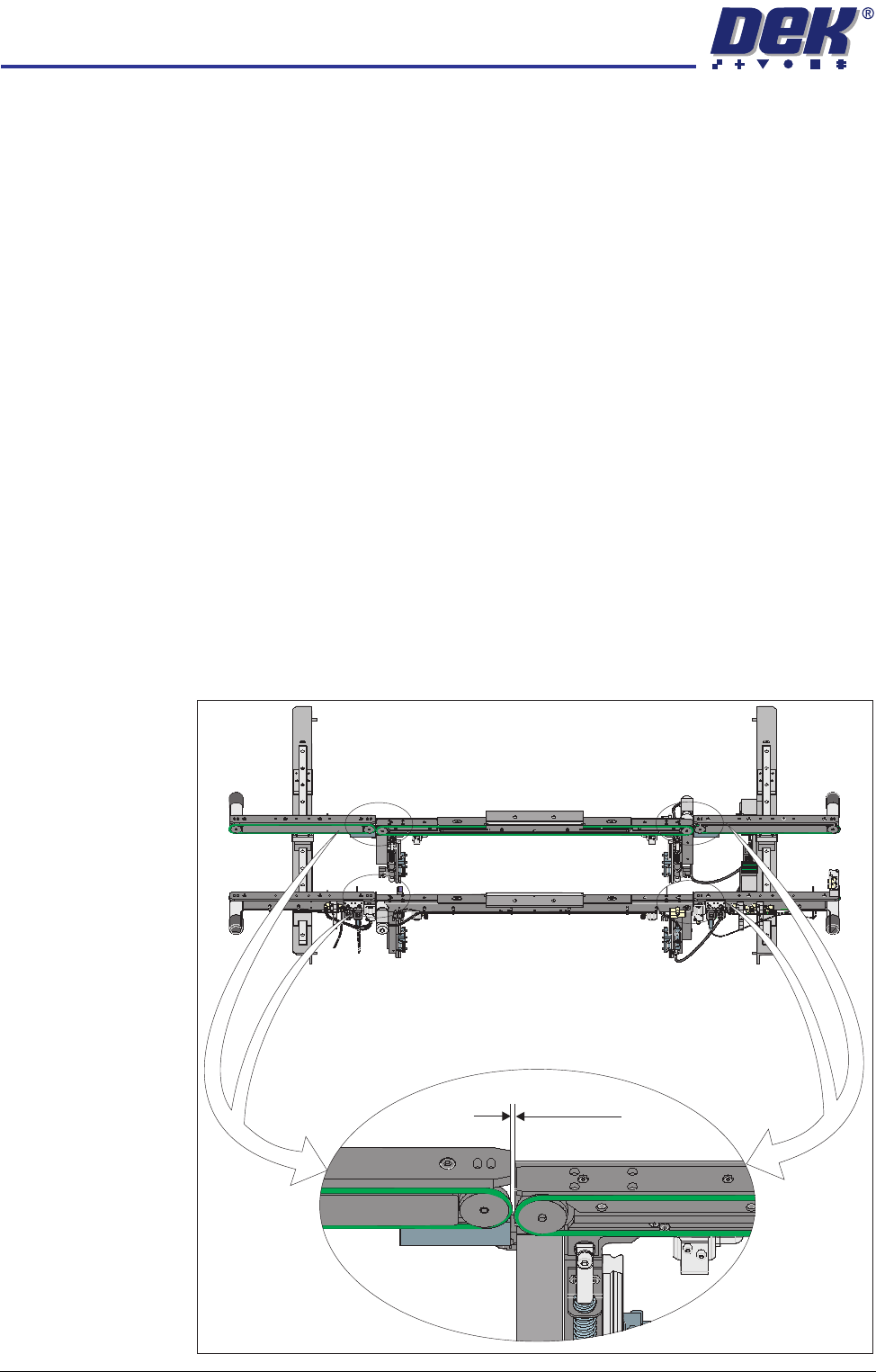
To check and if required adjust the gaps between the print station rail and the
auxiliary conveyors carry out the following procedure:
NOTE
To carry out this procedure on the front rail, the board stops between the print
station and the auxiliary conveyors must be removed prior to and refitted on
completion of this procedure.
1. Using feeler gauges, ensure that the gap between the print station and the
auxiliary conveyors (in four positions) is 3.5mm ±0.5mm.
Front View of HTC Rails
3.5 ±0.5mm