00196743-01 - Install Guide SIPLACE Explorer 2.7_en.pdf - 第34页
3 In st alli ng SIPLA CE Expl ore r Ins ta llat i on and Con fi gur ati on Gu id e SI PLA CE Exp lo rer 3. 1 I ni tial Ins tall ati on o f SI PLA CE E xpl ore r 2. 7 Ed iti on 03 /2 010 EN 34 3 F ig. 3 - 1 0 S IPL ACE E …
Installation and Configuration Guide SIPLACE Explorer 3 Installing SIPLACE Explorer
Edition 03/2010 EN 3.1 Initial Installation of SIPLACE Explorer 2.7
33
→ To accept the destination folder, click on Next in the Choose Destination Location window.
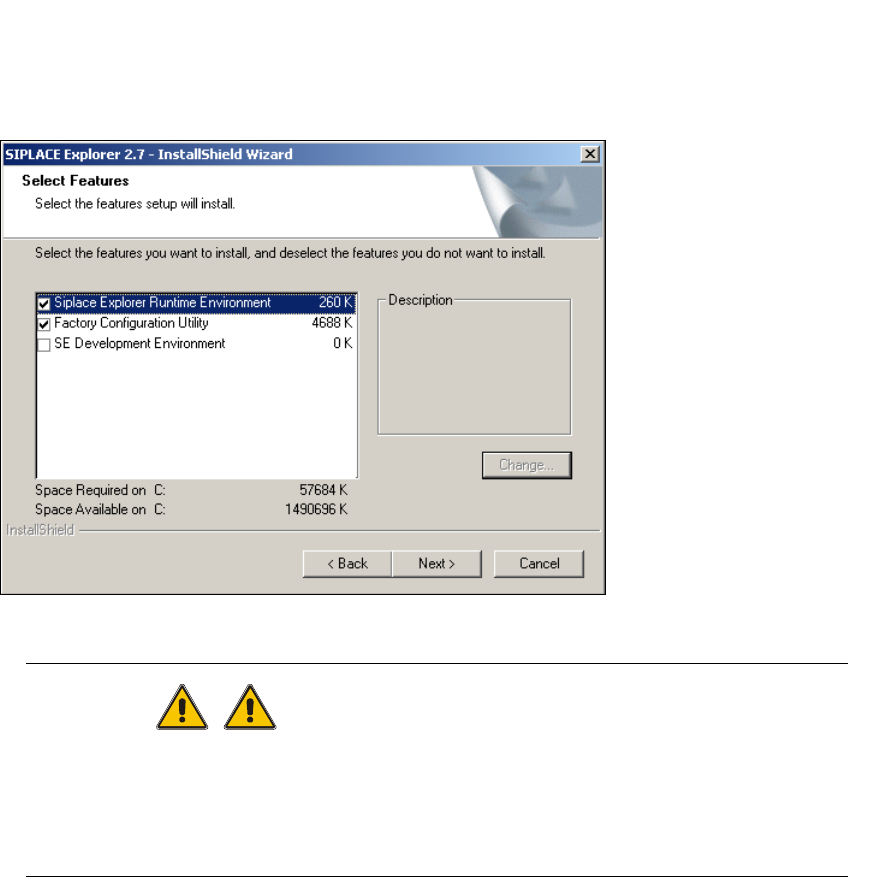
→ The Select Features dialog box will open. Here you can select any of the following three
components: SIPLACE Explorer Runtime Environment, Factory Configuration Utility and
SIPLACE Explorer Development Environment.
3
Fig. 3 - 9 SIPLACE Explorer setup - 'select features' dialog box
WARNING
Do not install "SIPLACE Explorer V.2.7 Runtime Environment" and "SIPLACE Explorer V.2.7
Development Environment" on the same computer. These two options will not run parallel to
one another. Before working with these options in succession, make sure you know the steps
for starting/terminating the respective option and observe these. 3
→ Once you have selected the required installation option, click on the Next button to continue.
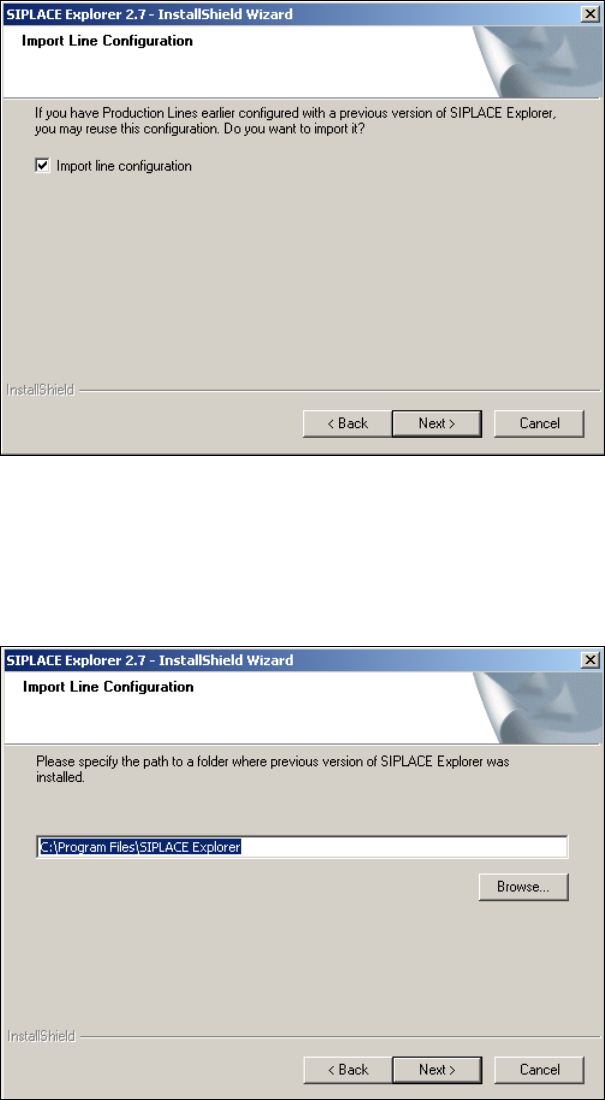
→ If the specified destination folder is empty, the Import Line Configuration dialog box will open.
3 Installing SIPLACE Explorer Installation and Configuration Guide SIPLACE Explorer
3.1 Initial Installation of SIPLACE Explorer 2.7 Edition 03/2010 EN
34
3
Fig. 3 - 10 SIPLACE Explorer setup - import line configuration
→ Activate the Import Line Configuration checkbox, if you want to keep the existing line
configurations and other settings. The Import Line Configuration dialog box will open.
→ Specify the folder in which you wish to import the line configuration. The default folder is
C:\Program Files\SIPLACE Explorer.
3
Fig. 3 - 11 SIPLACE Explorer setup - import line configuration
→ You can alter the default installation folder by using the Browse button.
Installation and Configuration Guide SIPLACE Explorer 3 Installing SIPLACE Explorer
Edition 03/2010 EN 3.1 Initial Installation of SIPLACE Explorer 2.7
35
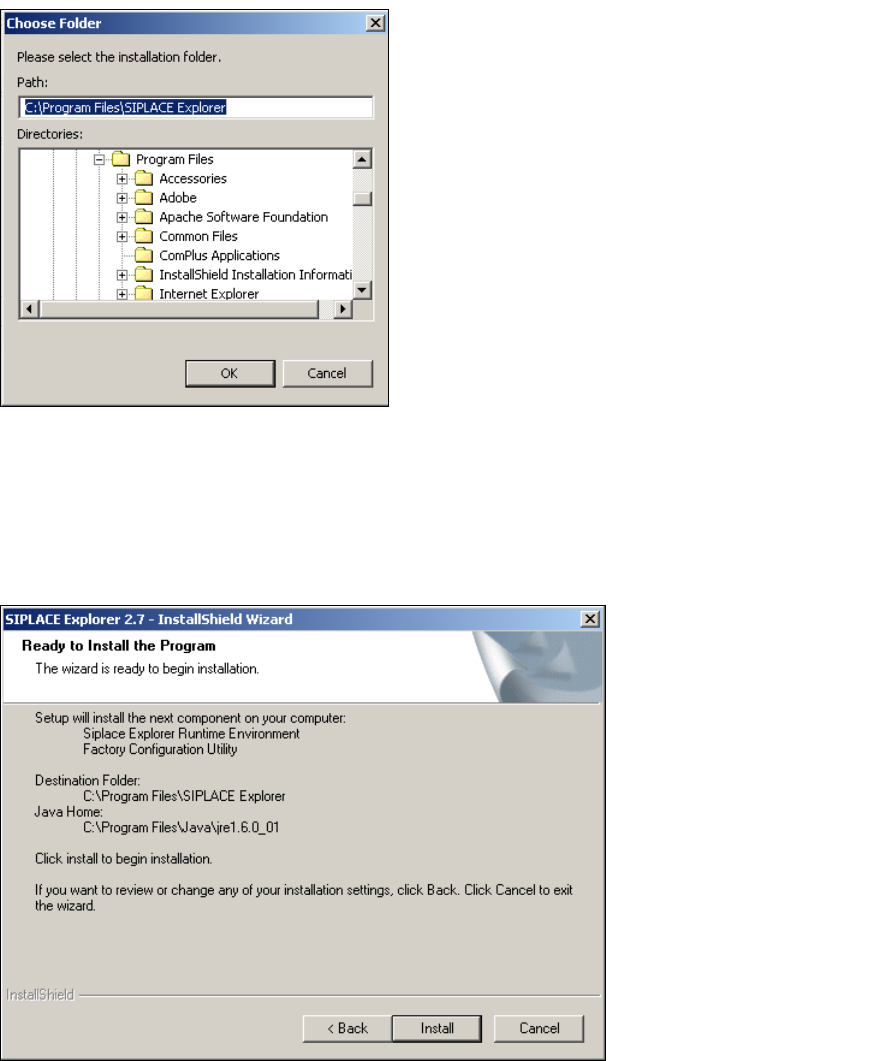
→ The Choose Folder dialog box will open to locate the desired folder.
3
Fig. 3 - 12 SIPLACE Explorer Setup - 'choose folder' dialog box
→ Specify the required folder and click on OK, to confirm your choice. You will return to the Import
Line Configuration dialog box, where the folder will be shown.
→ To accept the destination folder, click on Next in the Import Line Configuration window.
→ The Ready to Install the Program dialog box will open.
3
Fig. 3 - 13 SIPLACE Explorer setup - 'ready to install' dialog box
→ Click on the Install button, to begin the actual installation of SIPLACE Explorer V2.7.