00196743-01 - Install Guide SIPLACE Explorer 2.7_en.pdf - 第35页
In stal la tion an d Conf ig ura tion Gui de SIP LACE Ex pl orer 3 I ns talli ng SIP LACE Ex pl orer Edi t ion 03 /201 0 EN 3.1 Ini t ial I ns tal la tion of SIPLA CE Expl ore r 2 .7 35 → T he Choose Folder dialog b ox w…
3 Installing SIPLACE Explorer Installation and Configuration Guide SIPLACE Explorer
3.1 Initial Installation of SIPLACE Explorer 2.7 Edition 03/2010 EN
34
3
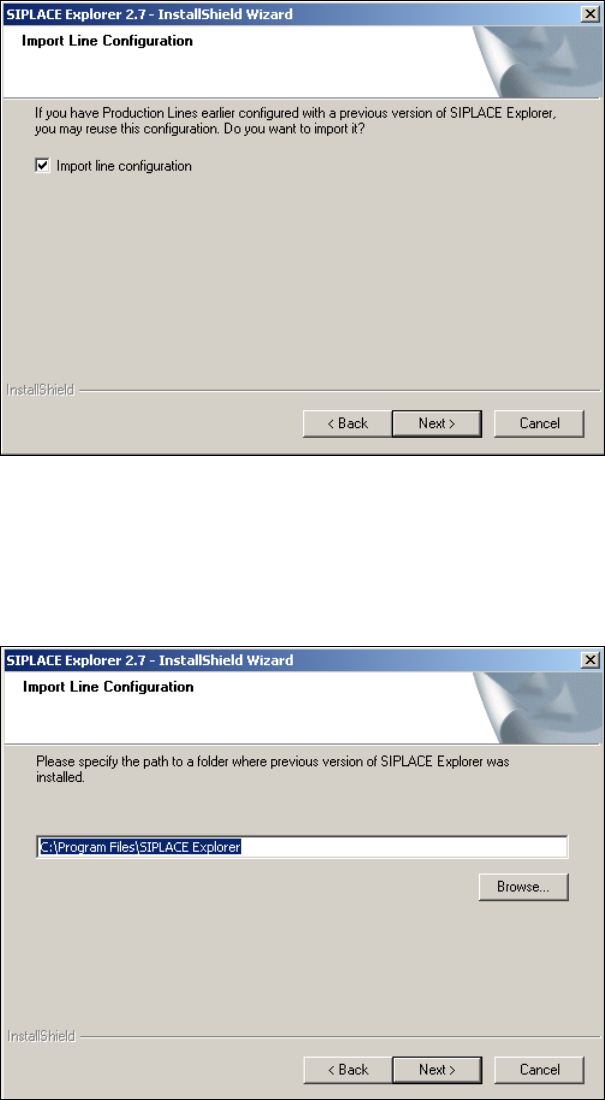
Fig. 3 - 10 SIPLACE Explorer setup - import line configuration
→ Activate the Import Line Configuration checkbox, if you want to keep the existing line
configurations and other settings. The Import Line Configuration dialog box will open.
→ Specify the folder in which you wish to import the line configuration. The default folder is
C:\Program Files\SIPLACE Explorer.
3
Fig. 3 - 11 SIPLACE Explorer setup - import line configuration
→ You can alter the default installation folder by using the Browse button.
Installation and Configuration Guide SIPLACE Explorer 3 Installing SIPLACE Explorer
Edition 03/2010 EN 3.1 Initial Installation of SIPLACE Explorer 2.7
35
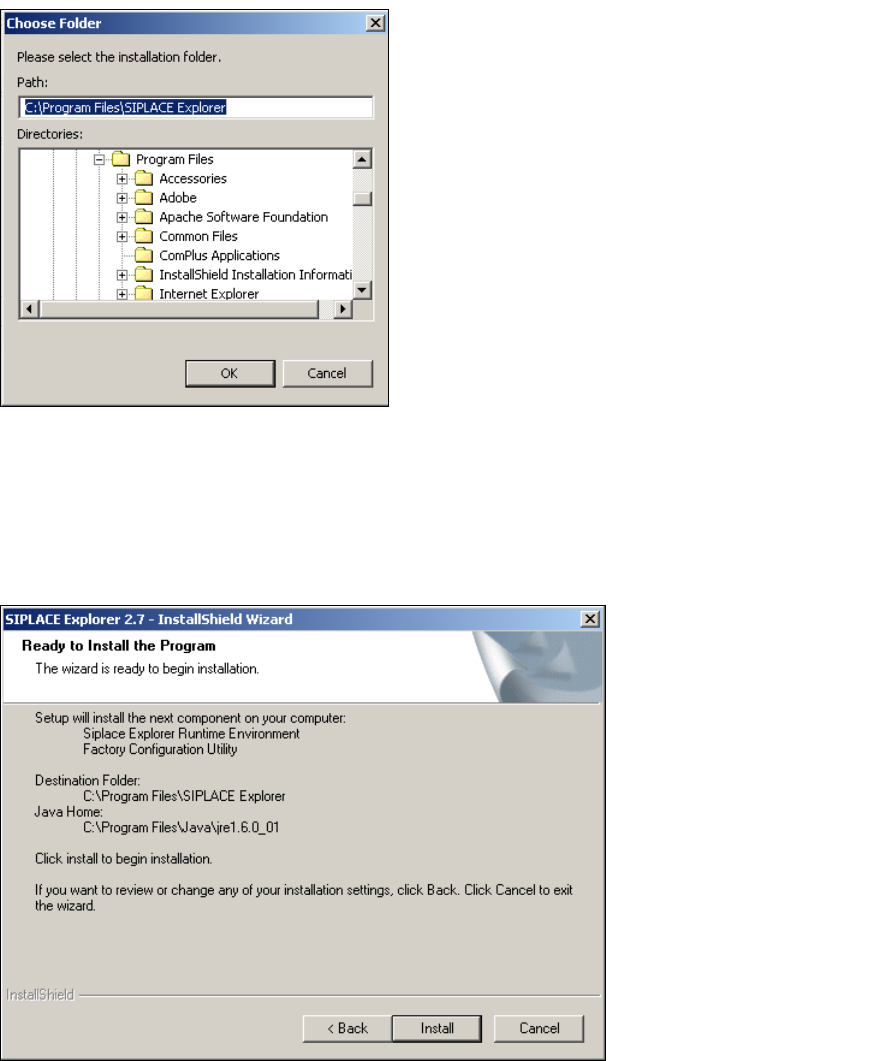
→ The Choose Folder dialog box will open to locate the desired folder.
3
Fig. 3 - 12 SIPLACE Explorer Setup - 'choose folder' dialog box
→ Specify the required folder and click on OK, to confirm your choice. You will return to the Import
Line Configuration dialog box, where the folder will be shown.
→ To accept the destination folder, click on Next in the Import Line Configuration window.
→ The Ready to Install the Program dialog box will open.
3
Fig. 3 - 13 SIPLACE Explorer setup - 'ready to install' dialog box
→ Click on the Install button, to begin the actual installation of SIPLACE Explorer V2.7.
3 Installing SIPLACE Explorer Installation and Configuration Guide SIPLACE Explorer
3.1 Initial Installation of SIPLACE Explorer 2.7 Edition 03/2010 EN
36
3
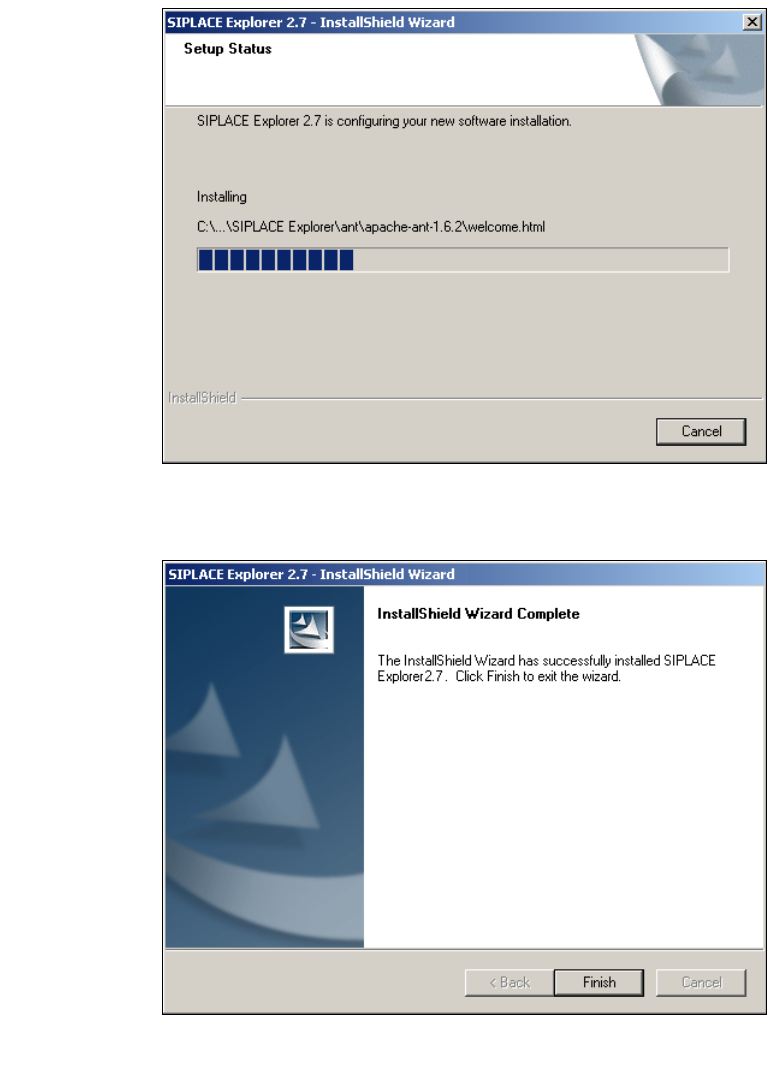
Fig. 3 - 14 SIPLACE Explorer setup - setup status
→ Once the installation procedure has finished, the following dialog box will open.
3
Fig. 3 - 15 SIPLACE Explorer setup - installation complete
→ Click on Finish. After you have rebooted your computer, SIPLACE Explorer will be available
for use. Follow the instructions at “Starting SIPLACE Explorer” on page 42.