00197455-01_IM_TX150SS8_en.pdf - 第23页
Installing Prim ergy TX 150 S8 with W indows S erver 20 12 07/2012 Edit ion 23 The Confi guration of Disks and RAID Control lers sc reen appears . Figure 3- 10 : Configuration of Disks and RAID Controllers screen with de…
Installing Primergy TX150 S8 with Windows Server 2012 07/2012 Edition
22
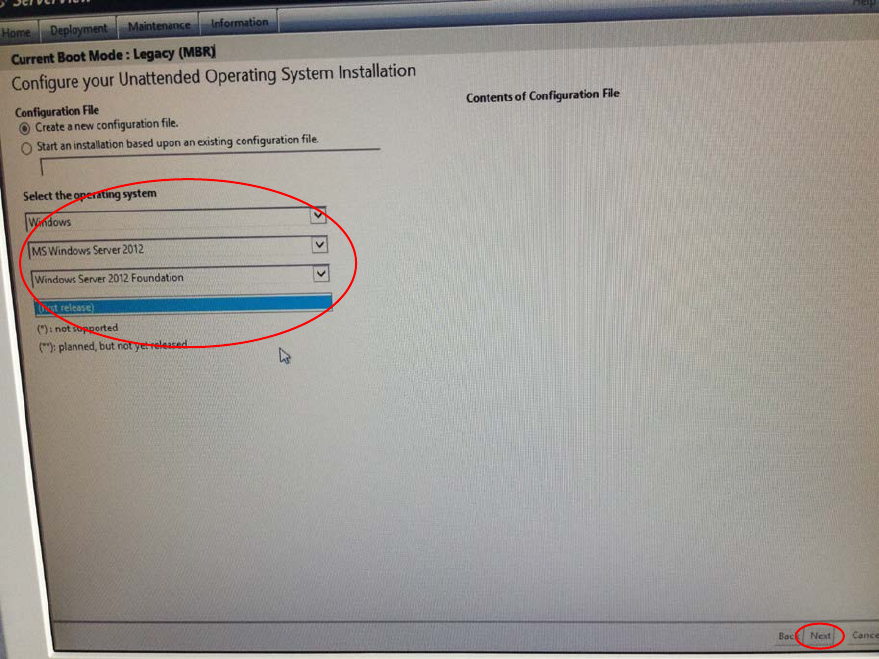
The Configure your Unattended Operating System Installation screen appears.
Figure 3-9: Unattended Operating System Installation Configuration screen with Windows Server 2012 Foundation selected
► In the dropdown boxes, select Windows, MS Windows Server 2012, Windows Server 2012
Foundation as displayed in the figure above.
► Click the Next button at the bottom of the screen.
Installing Primergy TX150 S8 with Windows Server 2012 07/2012 Edition
23
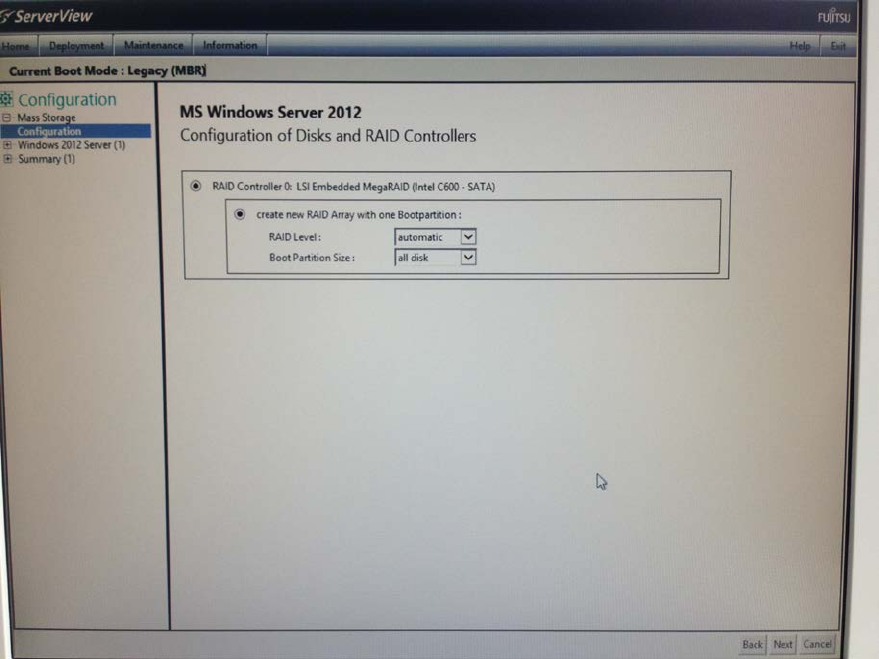
The Configuration of Disks and RAID Controllers screen appears.
Figure 3-10: Configuration of Disks and RAID Controllers screen with default options
Installing Primergy TX150 S8 with Windows Server 2012 07/2012 Edition
24
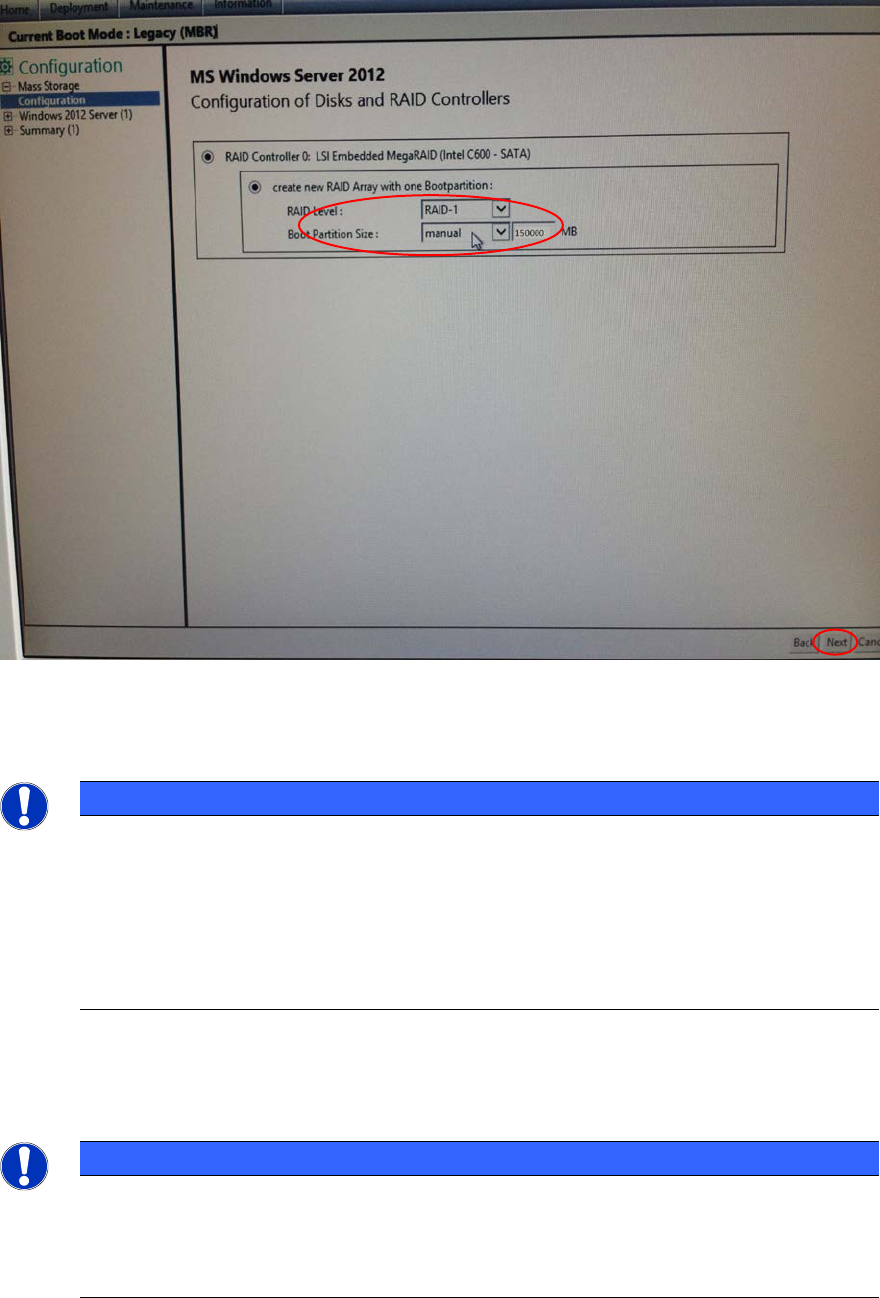
► Modify the default settings as displayed in the following figure.
Figure 3-11: Configuration of Disks and RAID Controllers screen with custom options
► For RAID level 1, select RAID-1. This configures a Mirror RAID.
NOTICE
Select/change RAID options carefully
In this manual, RAID level 1 is used for data security. RAID 1 requires two hard disks at
least. In most cases, changing the RAID level afterwards causes existing data on the
involved disks to get lost. So, you should ensure to select the proper RAID level first
before setting up the computer with important data. For more information on RAID levels,
please consult the manual for your RAID controller or search in internet for RAID
documentation.
► For Boot Partition Size, select manual and enter the value 150000 MB to reserve about 150 GB
for the boot partition (the Windows "C:" drive).
NOTICE
Whole disk with single partition
If you leave the default settings for boot partition size, a single partition containing the
whole disk will be created. After that, you will have to use a partition manager tool if you
want to split the system into more partitions.
► Click the Next button at the bottom of the screen to continue.