00197455-01_IM_TX150SS8_en.pdf - 第24页
Installing Prim ergy TX 150 S8 with W indows S erver 20 12 07/2012 Edit ion 24 ► M odif y the default s ettings as disp la yed in the f ollowin g figure . Figure 3- 11 : Configuration of Disks and RAI D Controllers scree…
Installing Primergy TX150 S8 with Windows Server 2012 07/2012 Edition
23
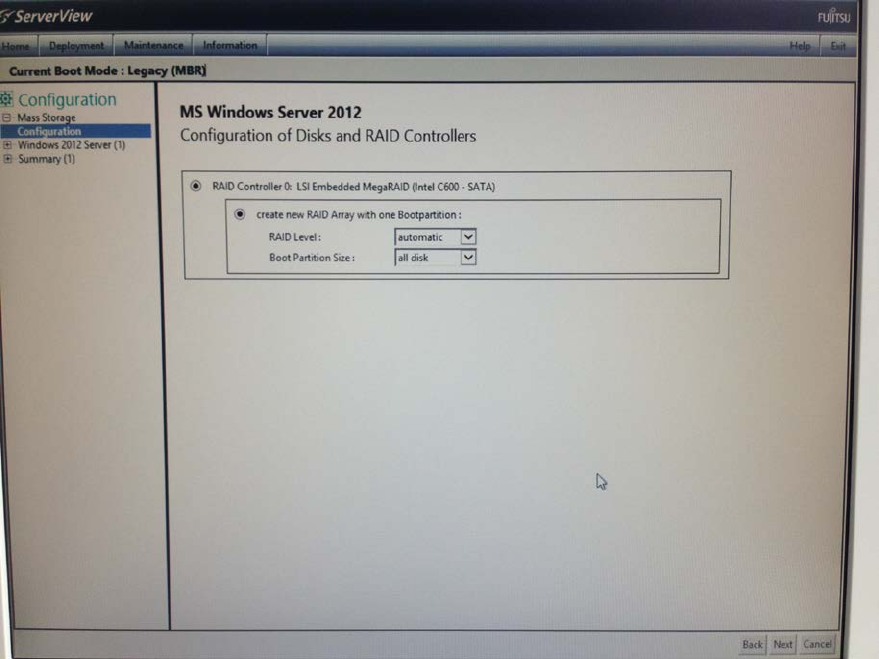
The Configuration of Disks and RAID Controllers screen appears.
Figure 3-10: Configuration of Disks and RAID Controllers screen with default options
Installing Primergy TX150 S8 with Windows Server 2012 07/2012 Edition
24
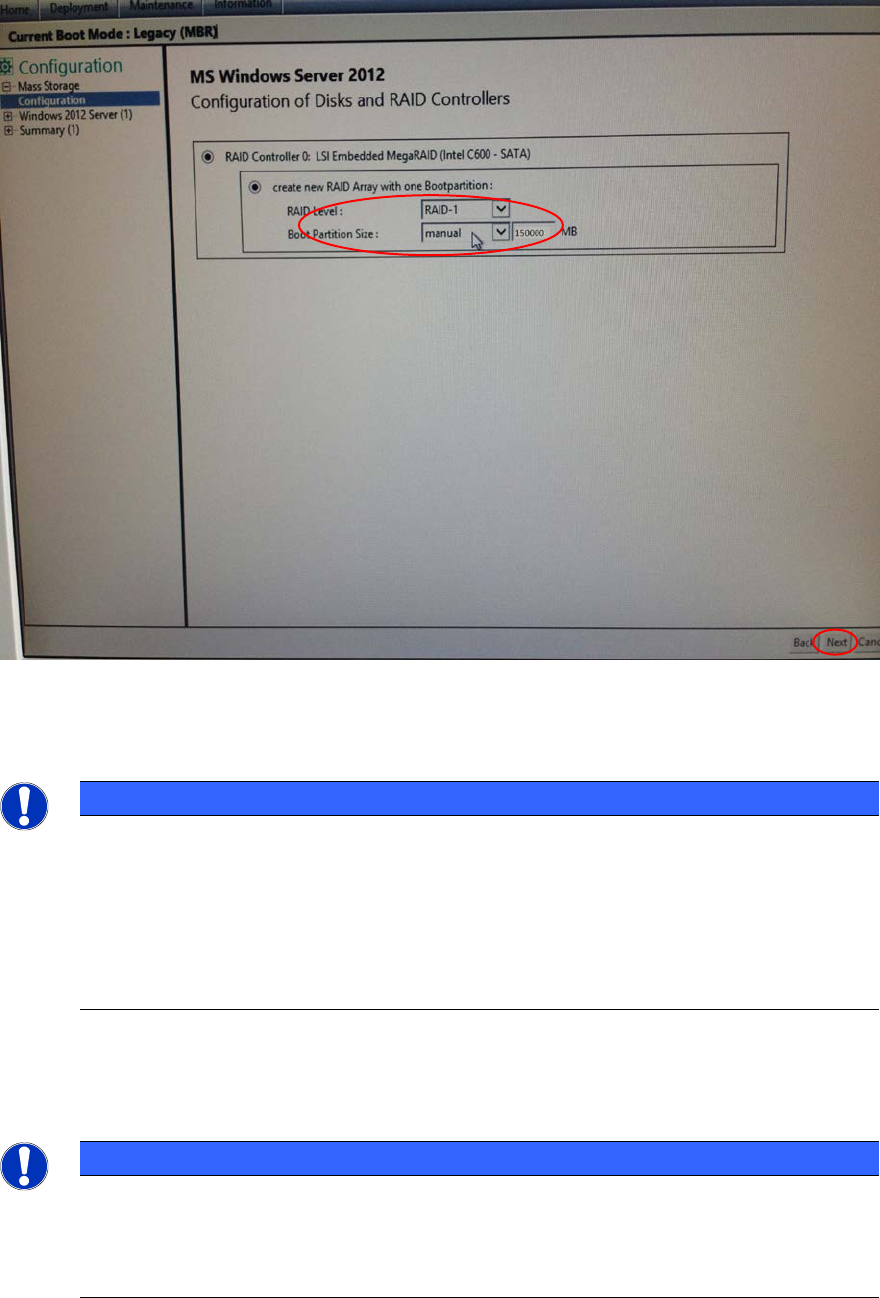
► Modify the default settings as displayed in the following figure.
Figure 3-11: Configuration of Disks and RAID Controllers screen with custom options
► For RAID level 1, select RAID-1. This configures a Mirror RAID.
NOTICE
Select/change RAID options carefully
In this manual, RAID level 1 is used for data security. RAID 1 requires two hard disks at
least. In most cases, changing the RAID level afterwards causes existing data on the
involved disks to get lost. So, you should ensure to select the proper RAID level first
before setting up the computer with important data. For more information on RAID levels,
please consult the manual for your RAID controller or search in internet for RAID
documentation.
► For Boot Partition Size, select manual and enter the value 150000 MB to reserve about 150 GB
for the boot partition (the Windows "C:" drive).
NOTICE
Whole disk with single partition
If you leave the default settings for boot partition size, a single partition containing the
whole disk will be created. After that, you will have to use a partition manager tool if you
want to split the system into more partitions.
► Click the Next button at the bottom of the screen to continue.
Installing Primergy TX150 S8 with Windows Server 2012 07/2012 Edition
25
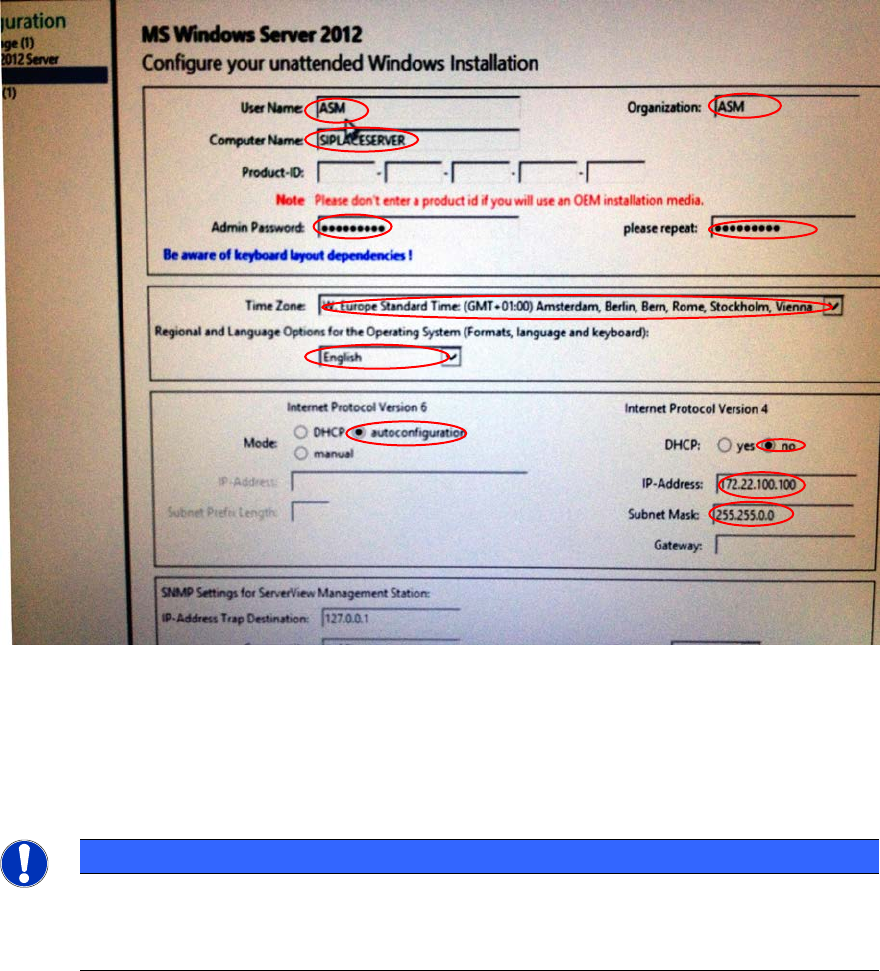
The next configuration screen appears.
Figure 3-12: Settings screen with additional options
► Enter a name for the user and organization.
This information will only be used for registration information – no account will be generated.
► Enter the name of the computer as required.
NOTICE
Ensure that the computer name is valid!
Please select the computer name carefully. Some products, like SQL Server strongly
depend on the computer name and may stop working when you change it afterwards!
► Leave the Product ID field blank.
► Enter the administrator password. For SIPLACE default installations please see the technical
information TI2008-04V08 in which all SIPLACE default passwords are listed.
► Select the appropriate time zone.
► Select English for the Regional and Language Options.
► Select the radio button besides autoconfiguration in the Internet Protocol Version 6 field.
► In the Internet Protocol Version 4 field :
► Select no besides DHCP.
► Enter the IP address for the SIPLACE LAN connection besides IP-Address.
► Enter the appropriate mask besides Subnet Mask. In this documentation, 255.255.0.0 is
used.