00194888-02_DE_EN_Installationsanleitung.pdf - 第37页
Installation Manual, Station Software Version 603.01 SP1 Issue 03/2007 Fig. 4-23: Shutting down the station comput er, machine controller and Vision computer → Switch the machine off when the computer systems have shut d…
Installation Manual, Station Software Version 603.01 SP1 Issue 03/2007
The installation program now installs the additional programs on the station computer.
4.5.7 Finalizing the installation
Note:
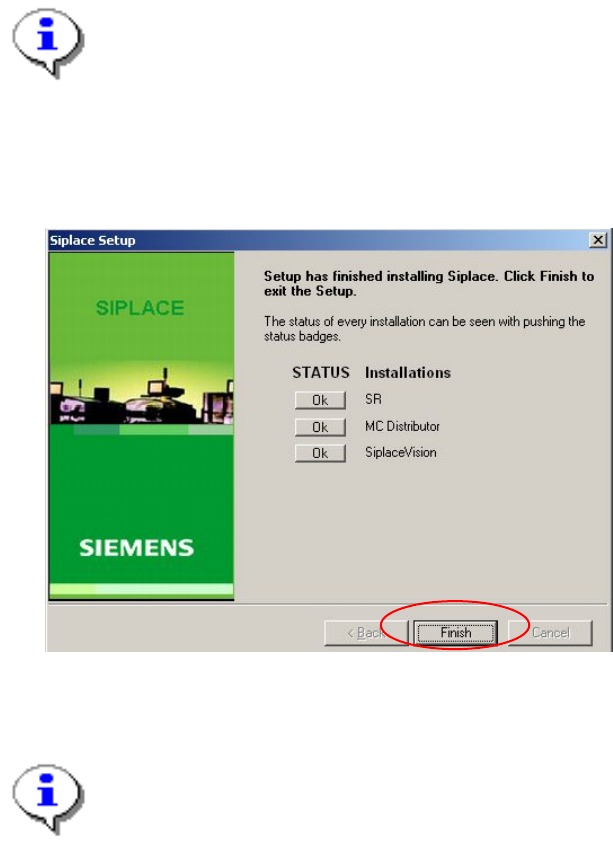
The status only lists the programs that have just been installed. If, for instance, the current
version of SIPLACE Vision was already installed, it is not listed here.
If errors occurred during installation, the status is indicated by the Error button being
displayed next to the program name instead of the Ok button.
→ If you wish to read the log of the installation of any program, click the Ok (or Error) button next to the
name of the program. The Notepad is started and displays the appropriate file.
Fig. 4-22: Finalizing the installation
→ Click the Finish button.
Note:
To establish the connection between the station computer and the machine controller after
installation has been completed, the station computer, machine controller and Vision
computer (if present) must first be run down and the machine must then be switched off
completely.
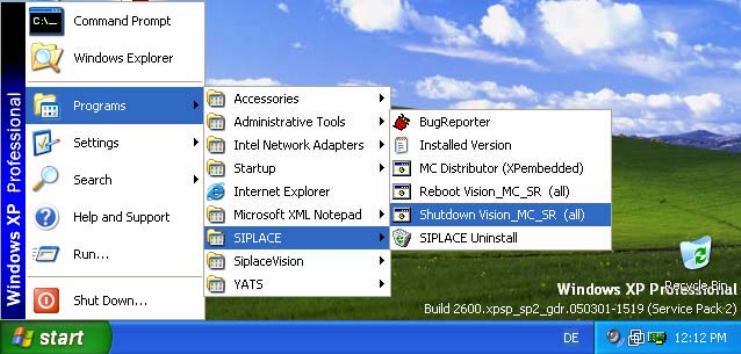
→ To do this, open the Start menu and select Programs Æ SIPLACE Æ Shutdown_Vision_MC_SR
(all).
36 of 48
Installation Manual, Station Software Version 603.01 SP1 Issue 03/2007
Fig. 4-23: Shutting down the station computer, machine controller and Vision computer
→ Switch the machine off when the computer systems have shut down.
→ Switch the machine back on again. This then reboots the station computer, the machine controller and
the Vision computer (if present).
37 of 48
Installation Manual, Station Software Version 603.01 SP1 Issue 03/2007
4.6 Uninstalling the SIPLACE software
Note:
You must be logged in as administrator to uninstall the software.
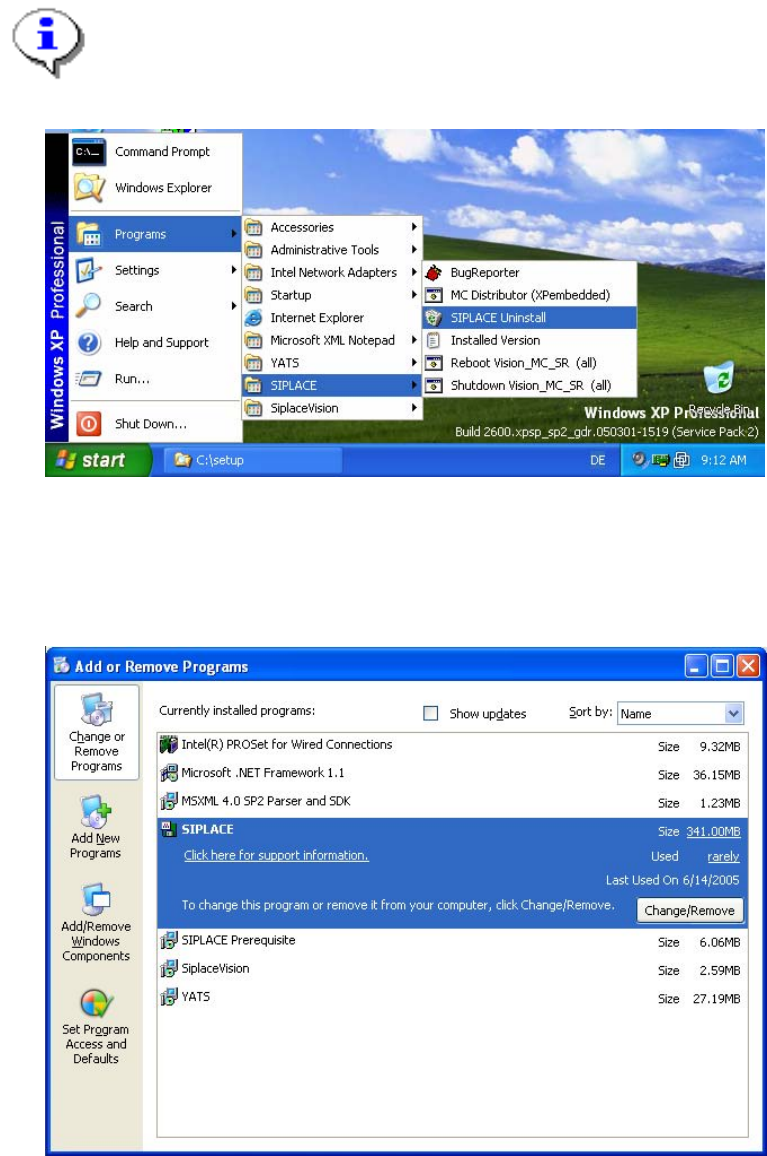
→ Open the Start menu and choose Programs Æ SIPLACE Æ SIPLACE Uninstall.
Fig. 4-24: Starting uninstallation (alternative 1)
Or:
→ Open the Start menu and choose Settings Æ Control Panel.
→ Double-click Add/Remove Programs.
Fig. 4-25 Starting uninstallation (alternative 2)
→ Select SIPLACE from the list of installed programs.
→ Click the Change/Remove button.
38 of 48