00197597-02_IM_Station_Programming_1.1_EN.pdf - 第14页
Station Programmi ng 1.1 / Installation M anual 05/2015 Edition 14 The following dial og is displayed. Figure 7-2: Removing Station P rogramming ► Click the Remov e button to remove the S tation Programming installation …
Station Programming 1.1 / Installation Manual 05/2015 Edition
13
5 Removing Station Programming
► Log in as administrator using the ASM_Admin account on the station computer.
► Insert the installation DVD into the DVD drive.
► Open Windows Explorer.
► Double-click the Setup.exe file under drive E: to start the installation program.
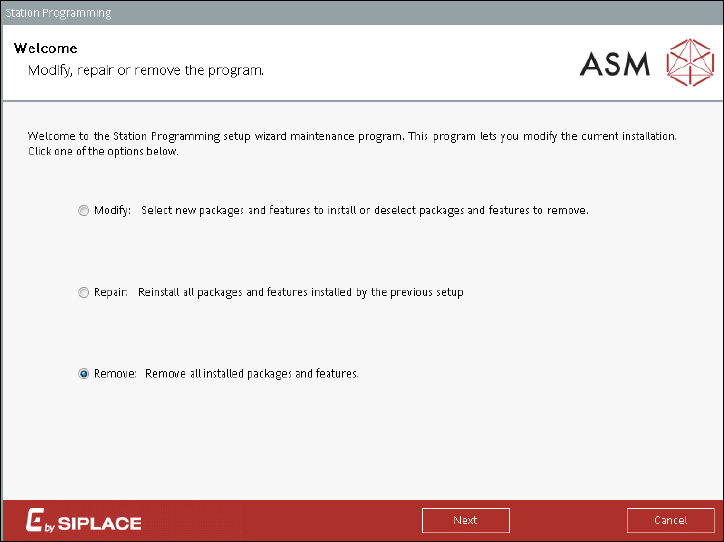
The following dialog is displayed.
Figure 7-1: Setup wizard maintenance program
► Select the Remove button to remove all installed packages and features of Station
Programming.
► Click the Next button.
Station Programming 1.1 / Installation Manual 05/2015 Edition
14
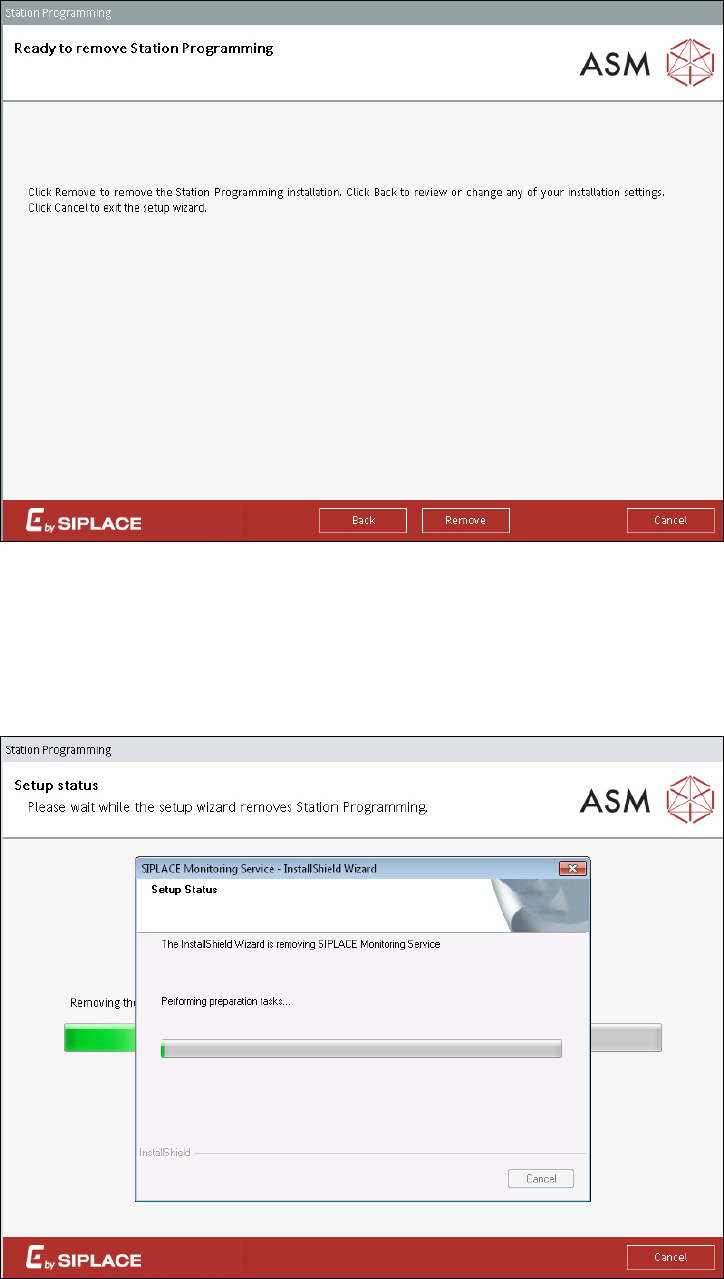
The following dialog is displayed.
Figure 7-2: Removing Station Programming
► Click the Remove button to remove the Station Programming installation.
Station Programming will be removed from the station computer. All other products and SQL
databases remain on the system.
During removal, the setup status is displayed.
Figure 7-3: Setup status
Station Programming 1.1 / Installation Manual 05/2015 Edition
15
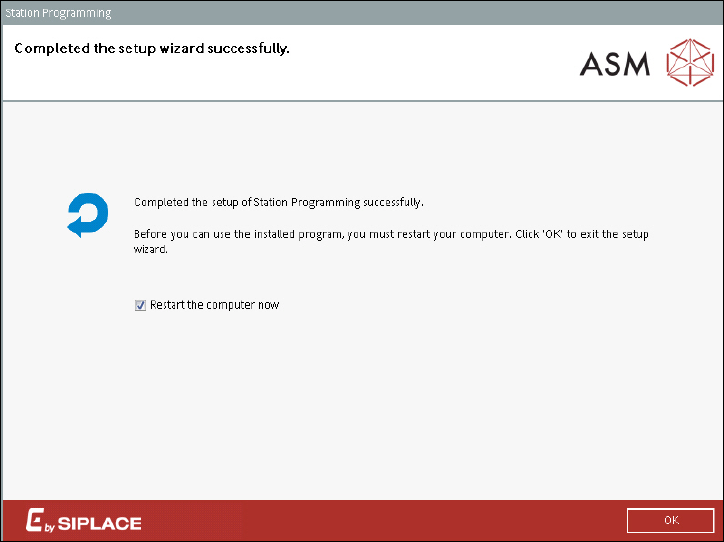
After the Station Programming installation has been removed, the following dialog is displayed.
Figure 7-4: Removing Station Programming completed
The station computer has to be restarted for the changes to take effect.
► Ensure that the Restart the computer now check box is activated (default).
► Click the OK button to exit the setup wizard.
After restart, the station computer logs in automatically using the Operator account of the station.