00195425-01.pdf - 第35页
In st alla tio n an d Co nf igur at ion G uide SI P LACE E xpl ore r 3 I ns tal li ng SIP LAC E Ex plor er Edi tion 05 /200 7 EN 3. 2 Updat e Ins tal lati on of S IP LACE Ex plore r 2 .2 35 3. 2 Update I ns t a lla tion …

3 Installing SIPLACE Explorer Installation and Configuration Guide SIPLACE Explorer
3.1 Initial Installation of SIPLACE Explorer 2.2 Edition 05/2007 EN
34
3.1.2 Information about the Installation of MSDE 2000
NOTE
After the MSDE 2000 installation:
Once the MSDE 2000 installation has finished, you will see a popup window showing a port
number. Make a note of this port number - you will need it later, when using SIPLACE Explorer.3
3.1.2.1 Changing Password for "sa" Account Manually
If you want to change the password of the MSDE installation manually, you can do that via the
command line. 3
→ Open a command prompt window on the computer hosting MSDE and to which you wish to
establish a connection.
→ Type the following command, and then press ENTER:
osql -U sa 3
This command connects you to the local, default instance of MSDE by using the SA account.3
→ Type the following commands on two separate lines, and then press ENTER:
sp_myoldpassword null, 'mynewpassword', 'sa' 3
go 3
NOTE
Replace 'mynewpassword' with the new password. 3
→ You will receive a message, informing you that your password was changed successfully.
Installation and Configuration Guide SIPLACE Explorer 3 Installing SIPLACE Explorer
Edition 05/2007 EN 3.2 Update Installation of SIPLACE Explorer 2.2
35
3.2 Update Installation of SIPLACE Explorer 2.2
To update from a previous version to SIPLACE Explorer V2.2, you must already have an
executable version of SIPLACE Explorer already installed on your system. 3
– Update from SIPLACE Explorer V1.2, V2.0, V2.0 SP1 and V2.1 to SIPLACE Explorer V2.2:
Uninstall the previous version with its components. Proceed by following the instructions at
“Uninstallation” on page 99. For the installation, proceed as described at “Initial Installation of
SIPLACE Explorer 2.2” on page 23 3
NOTE
If you want to keep the existing line configurations and other settings, install the new version
of SIPLACE Explorer in the same folder as the previous version. See Fig. 3 - 8 SIPLACE
Explorer Setup - "Choose Folder" dialog box. 3
NOTE
Before installing Tomcat 5.5.9, make sure that all versions of Tomcat < 5.5.9 have been
uninstalled. Use the Apache Tomcat uninstallation program. This can be started via the
Start → Programs → Apache Tomcat 5.5 → Uninstall Tomcat menu in Windows. 3
After performing the update, you can also install additional SIPLACE Explorer options: 3
– SIPLACE Explorer V2.2 options:
The options Backflush V1.0, SIPLACE Traceability Option 1.0 and SIPLACE Maintenance
Manager V1.0 are not included in the SIPLACE Explorer V2.2 delivery package and must be
ordered (installed) separately. 3
3 Installing SIPLACE Explorer Installation and Configuration Guide SIPLACE Explorer
3.2 Update Installation of SIPLACE Explorer 2.2 Edition 05/2007 EN
36
3.2.1 Installation of SIPLACE Explorer 2.2 - Update Installation
NOTE
You must have Windows administrator privileges to perform installation. 3
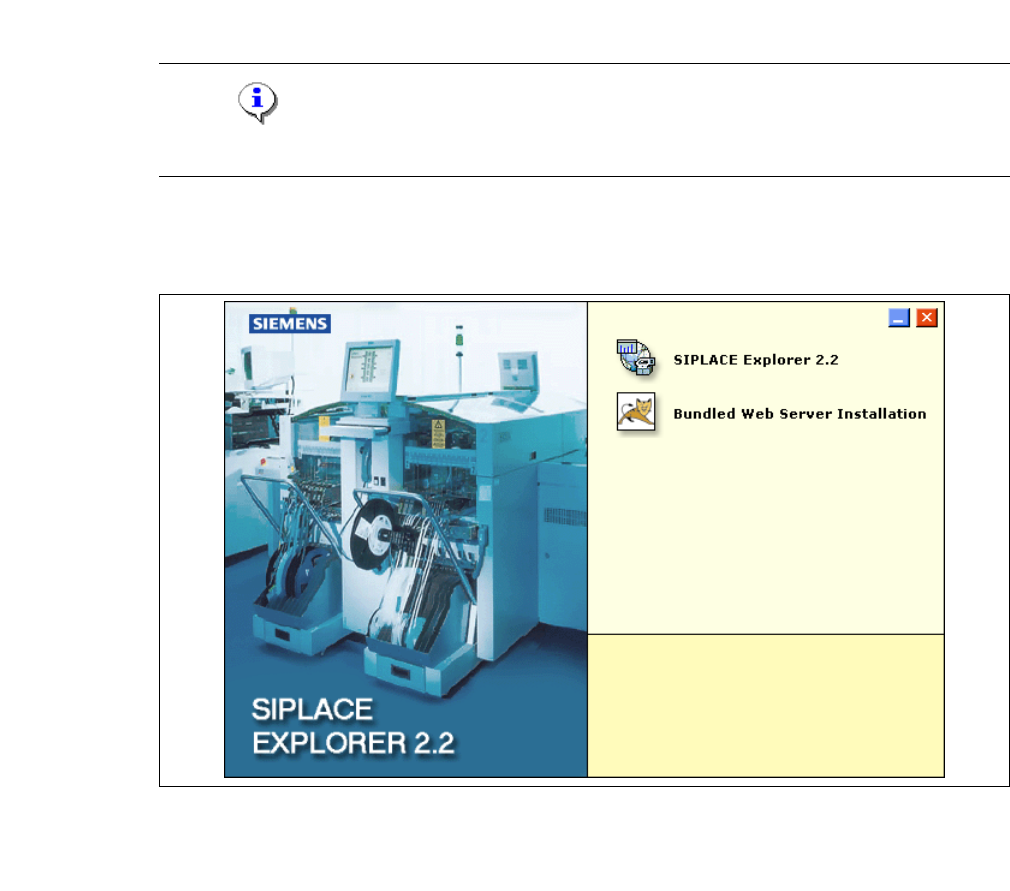
→ Place the SIPLACE Explorer CD in your CD-ROM drive.
→ The Start screen will open.
3
Fig. 3 - 13 SIPLACE Explorer setup - Start screen
→ Select SIPLACE Explorer 2.2.
→ You will be guided through the SIPLACE Explorer installation procedure.