00197622-01_IM_OIS_SIS_12.0_DE_EN.pdf - 第8页
SIPLACE O IS V12. 0 / Ins tallatio n Manual Ausgabe 12/2014 Edit ion 8 NOTICE You can us e the < B ack and Next > b uttons t o m ove b ack ward and f orward withi n the setup pro gram . You can ex it the pr ogram a…
SIPLACE OIS V12.0 / Installation Manual Ausgabe 12/2014 Edition
7
3 Installation
NOTICE
This documentation only describes the manual installation of SIPLACE OIS.
If you use SIPLACE OIS with Station Programming of SIPLACE E, you don't have to
perform the steps described in this manual, since SIPLACE OIS is a part of Station
Programming and will be delivered, installed and maintained automatically. For more
details on the Station Programming installation, please refer to the "
Station Programming
Installation Manual", item no. [00197597-xx].
In all other cases the SIPLACE OIS software has to be installed as follows:
► Prepare your computer with the Support Media DVD before starting the installation.
3.1 Starting the installation
► Start Windows.
► Log in with administrative permissions.
► Put the CD-ROM in the drive.
After a few seconds, the setup will be started automatically.
NOTICE
► If the setup does not start automatically, manually start the setup.exe program from
the root directory of the CD-ROM.
NOTICE
Installation duration
As of the SIPLACE OIS 10.0 version the UsedComponents OIS table has been split into
three tables. Due to this database conversion, installation may take a little bit longer as
for former versions.
When the setup program is started, the following dialog box appears on the screen.
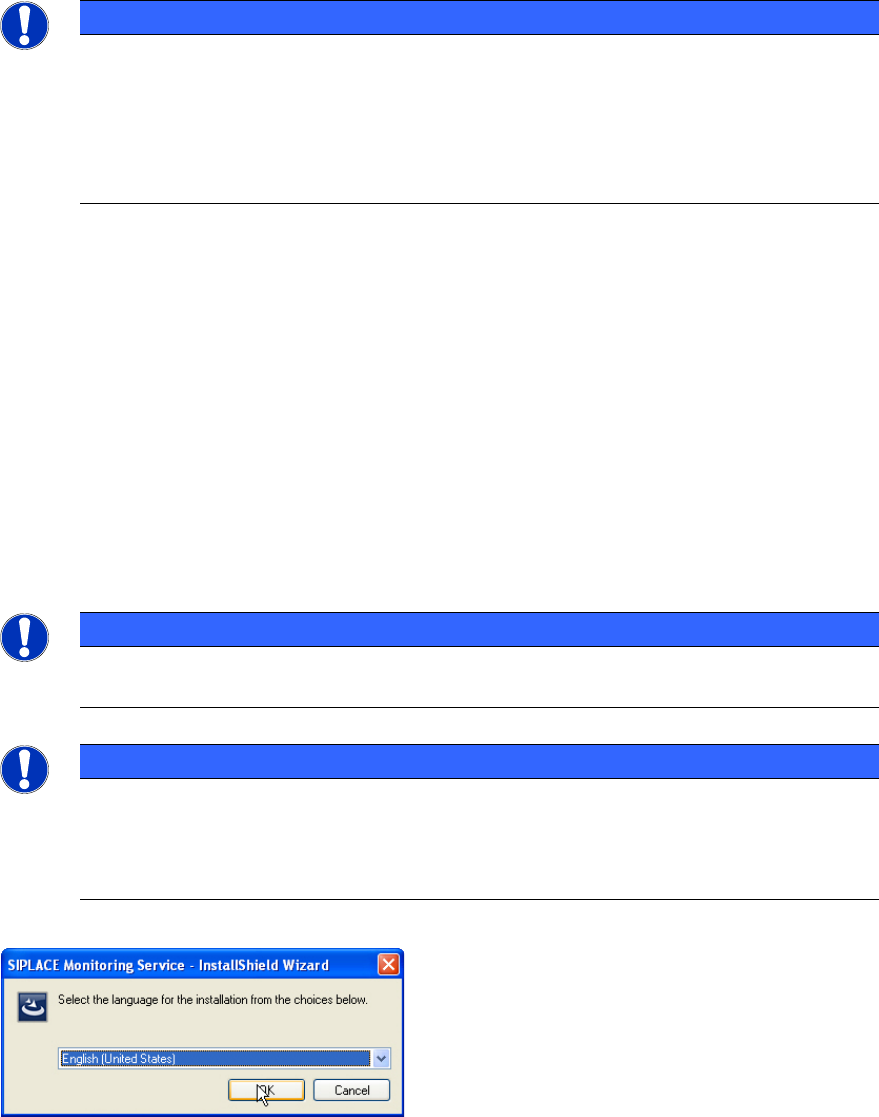
Figure 3-1: Selecting setup language
► Select the language you wish to use for the installation and click OK.
This setting will only affect the language used in the setup dialogs.
SIPLACE OIS V12.0 / Installation Manual Ausgabe 12/2014 Edition
8
NOTICE
You can use the < Back and Next > buttons to move backward and forward within the
setup program. You can exit the program at any time using the Cancel button.
This exits
the program without making any changes to the system.
The installation program differentiates between Installation, see section 3.2 and Maintenance
mode. The setup program recognizes which type of installation is required.
If you have to upgrade from SIPLACE OIS with a version < 10.0, you have to uninstall this version
manually before installing the new version. With newer versions of SIPLACE OIS, upgrade will be
performed automatically when executing the new setup.
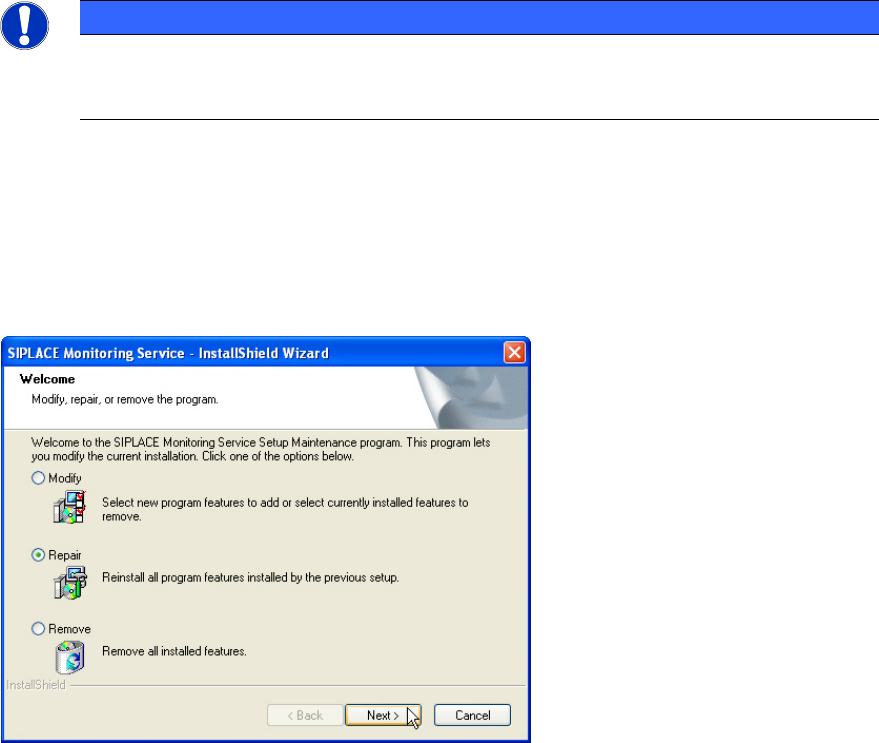
If the same version of SIPLACE OIS is already installed, you will see the welcome page of the
maintenance mode as displayed in the following picture.
Figure 3-2: Maintenance mode dialog
► Select one of the following options, to determine what you want to do with the existing
installation.
Further information about these options can be found in the appropriate sections of this
document.
● Modify (see section 3.3)
● Repair (see section 3.4)
● Remove (see section 3.5)
During the SIPLACE OIS installation, the installer checks whether the installed operating system is
supported. If not, an error message is displayed and the installation canceled.
SIPLACE OIS V12.0 / Installation Manual Ausgabe 12/2014 Edition
9
3.2 Installation of the SIPLACE OIS software
As of the SIPLACE OIS 10.0 version the setup has been re-designed in order to support newer
technologies, such as Windows Installer and Windows 7. The new setup also contains the OIS
Client installation that was delivered as a separate setup package in former versions.
3.2.1 Starting the installation of the SIPLACE OIS software
NOTICE
Sample installation
In the following sample installation Monitoring Service as well as OIS Client will be
installed. If only one of the programs shall be installed, some of the described dialog
boxes do not appear.
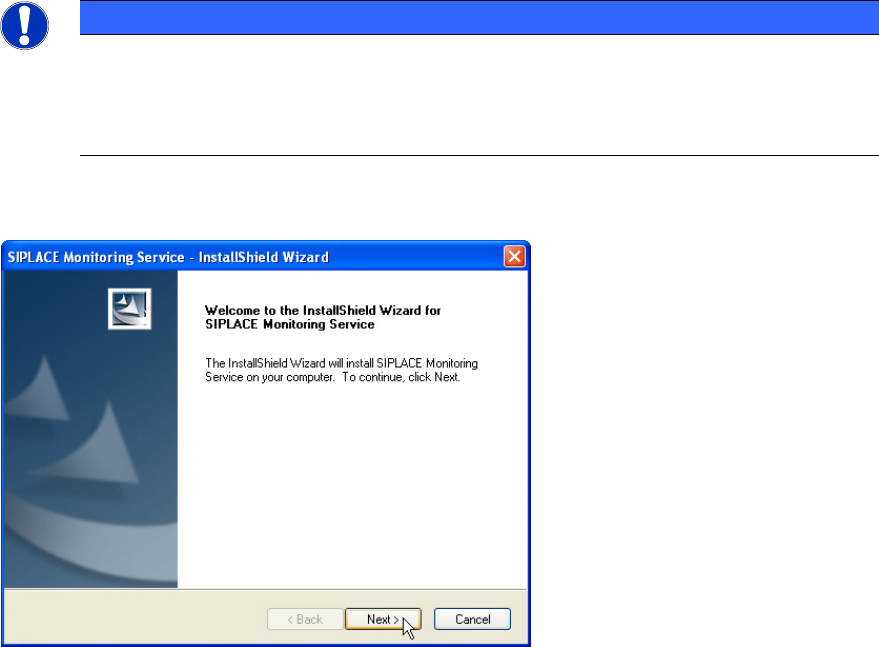
The following dialog box is opened.
Figure 3-3: Welcome SIPLACE Monitoring Service
► Close all open applications.
► Continue by clicking Next>.