1OM-1625-004_w.pdf - 第133页
1OM-1603 3-10 1. Automatic Operation : Chap.3 1012-004 (3) Press the [Place] button (entitled "Run Mode"). Note Press the [Pass] button (entitled "RUN MD") to set the "Pass" mode. When the m…
1OM-1603
3-9
1. Automatic Operation : Chap.3
1012-005
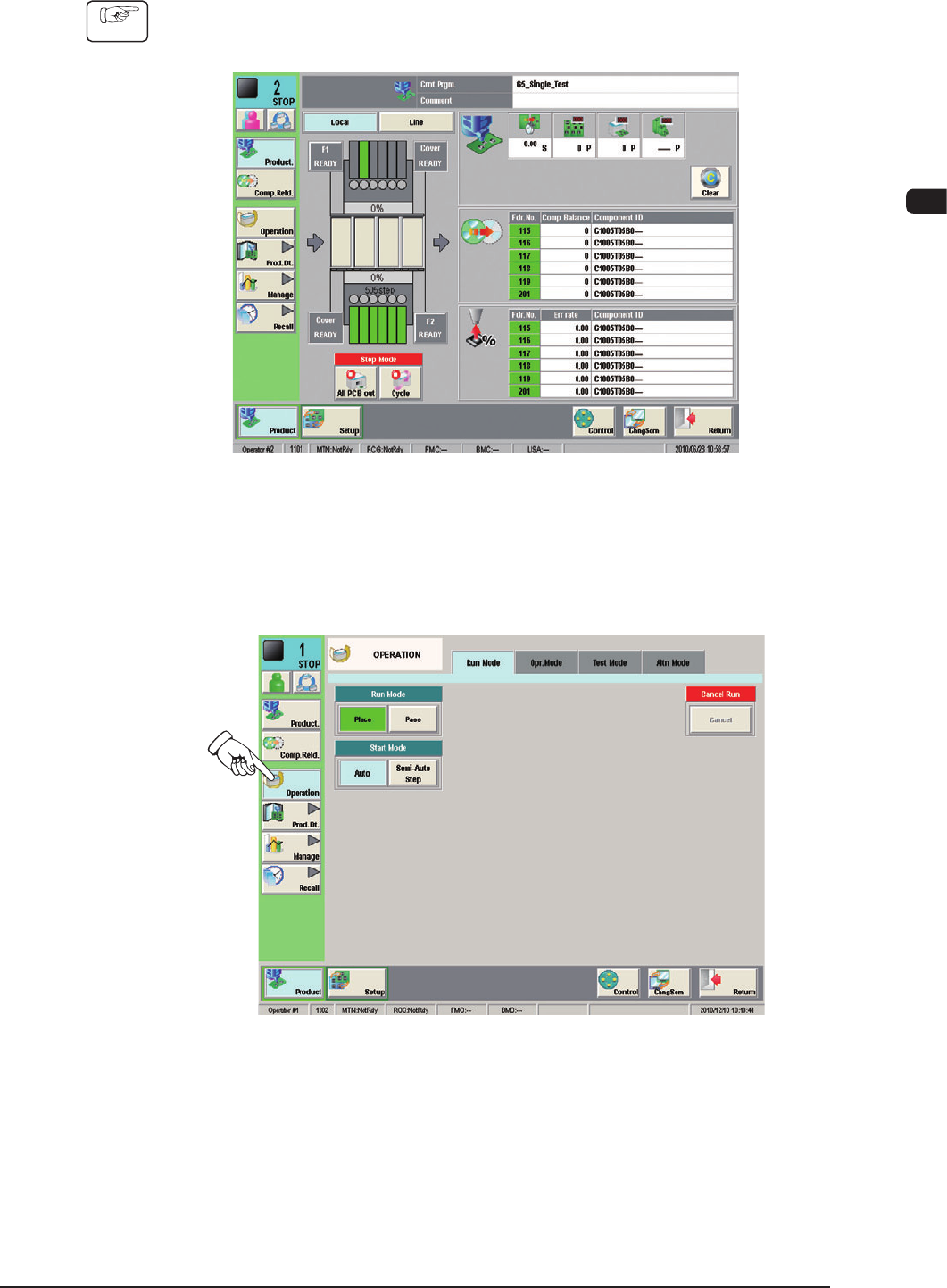
1.3.3 "Product" Window
Procedure
(1) Press the [Product] button on the TOP window.
(The "Product" window appears on the touch screen.)
F1C8
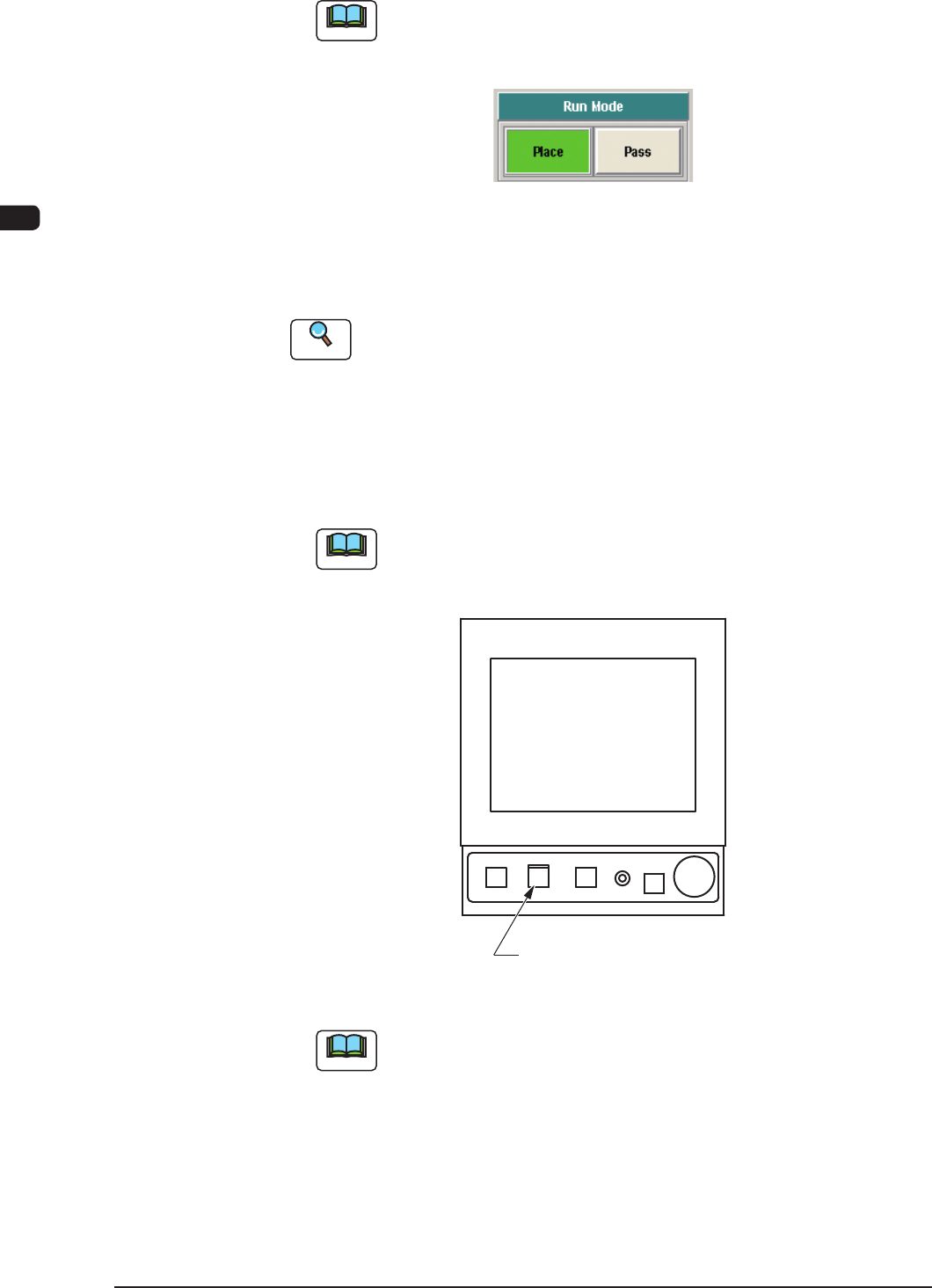
(2) Press the [Operation] button on the "Product" window.
(The "Run Mode" window appears as an initial one of the "OPERATION"
window.)
F1C9
1OM-1603
3-10
1. Automatic Operation : Chap.3
1012-004
(3) Press the [Place] button (entitled "Run Mode").
Note
Press the [Pass] button (entitled "RUN MD") to set the "Pass" mode.
When the machine is set in the "Pass" mode, it just carries the PCB to the
output machine without placing any components on the PCB.
F1C10
(4) Change the pattern program to the one for the automatic operation for the
product to be produced.
Reference
Refer to "2. Program Change Operation" for details.
(5) Press the [START] button twice on the operation panel.
(When the [START] button is pressed once, the button ashes. Then,
when the [START] button is pressed again while the button is ashing, the
automatic operation (machine) is started.)
Note
In the case that the machine operation is not available when the [START]
button is pressed the rst time, a management information message is
displayed.
[
START
]
Button
F1C11
Note
(a) The [START] button does not icker when a window other than
the "Product" window is active. Therefore, the automatic operation
cannot be started.
(b) When the PCB positioning section is already loaded with a PCB, the
machine discharges the PCB without placing any components on it.

1OM-1603
3-11
1. Automatic Operation : Chap.3
1007-004
1.3.3.1 Work during Automatic Operation
•
Conrmation
ofOperationModeandProduction
Log
The operation mode and the production log can be conrmed in the "Product"
window during the automatic operation.
Under the normal running condition, the current condition such as the program
names, the number of produced PCBs, etc., can be conrmed. In addition to
that, it can also be conrmed how many PCBs can be nished prospectively
and what degree of deterioration in the operation rate can be expected based on
pickup errors, etc.
By using the "Product" window, it can be conrmed if the machine is producing
the PCBs under normal condition or not, if there is any factor to deteriorate
the productivity or not, and what is happening due to the factor and where it is
happening.
When the productivity has deteriorated prominently, it is reported to the
operator with a message issued on the "Product" window.
•
Replenishment of Components and PCBs
When a component shortage error occurs during the aut
omatic operation, the
machine issues an error alarm. In this case, replenish the component supply.
Reference
Refer to "3. Component Replenishment" in "Chapter 3" for details.
When a PCB shortage error occurs during the automatic operation, the input
machine issues an error alarm or this machine stops running automatically.
Reference
Refer to "4. PCB Replenishment" in "Chapter 3" for details.
•
Interruption & Restart and Emergency Stop & Restoration of Automatic
Operation
Refer to the following when the automatic operation must be interrupted during
the automatic operation, the machine must be stopped immediately in an
emergency, or the automatic operation must be restarted or restored.
Reference
5.1 Stop of Machine Operation in Chapter 3
5.2 Interruption of Automatic Operation in Chapter 3