00197222-03_IM_PCB_Barcode_V2_0_SP3_de_en.pdf - 第13页
PCB Barco de V2.0 S P3 / Ins tallation Manual Ausgabe 12/2012 E dition 13 A dditional step s in two - computer operati on ► Connect to t he Vision com puter v ia rem ote acces s. ► Log in as administrator. ► Perform the …
PCB Barcode V2.0 SP3 / Installation Manual Ausgabe 12/2012 Edition
12
4.2 Installing PCB Barcode Software
The required drivers and licenses are available on the gray USB stick.
► Switch to the operating system level on the station computer.
► Log in as administrator.
► Open Windows Explorer.
► Start the Install.bat batch file from the USB stick drive.
NOTICE
If necessary, the installation file may be started several times.
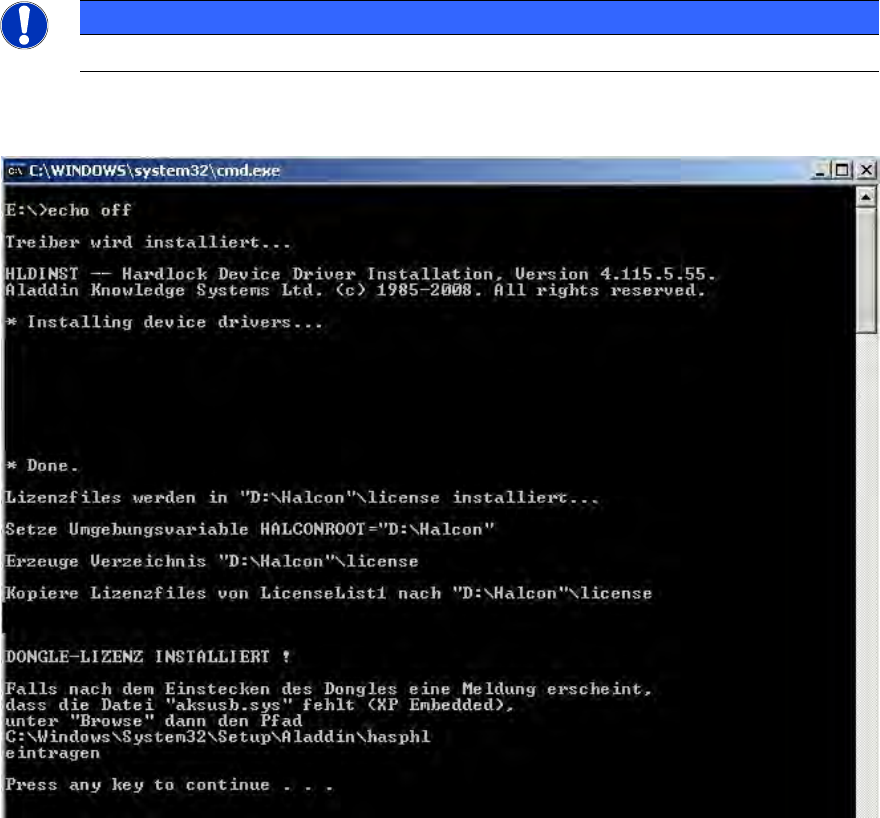
The following window is displayed on the screen during installation.
Figure 4-3: Installation of drivers and licenses
PCB Barcode V2.0 SP3 / Installation Manual Ausgabe 12/2012 Edition
13
Additional steps in two-computer operation
► Connect to the Vision computer via remote access.
► Log in as administrator.
► Perform the installation as described above on the Vision computer as well.
After finishing the installation procedure, the license files are automatically copied to the
D:\Halcon\license directory.
Shortly after, the indicator on the USB dongle lights up in red. This means that the USB dongle has
been detected by the system.
► Remove the gray USB stick and hand it over to the customer.
► Shut down the station computer and in two-computer operation the Vision computer as well.
► Reboot the computer(s).
PCB Barcode V2.0 SP3 / Installation Manual Ausgabe 12/2012 Edition
14
4.3 Reading out Dongle ID
As of the 706.0 station software version, the dongle ID can be read out. For this, the readme.txt
and lmhostid.exe files are available in the DongleID directory on the product CD of the station
software. Proceed as follows to find out the dongle ID:
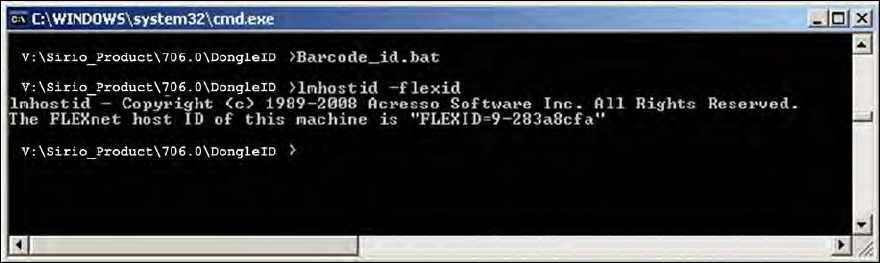
► Open a command interpreter (cmd) in the DongleID directory.
► Start the lmhostid.exe file by running the lmhostid –flexid command.
The dongle ID is displayed (in the following sample: "FLEXID=9-283a8cfa").
Figure 4-4: Reading out dongle ID