PS288_OwnersMnl_PriorTo2009.pdf - 第86页
Operation • Administrato r Functions 3—26 PS288 Owner’s Manual 6. Display acuWin32 tool bar— Bring the cursor anywhere inside the black and white vision image area shown below and d ouble-click. This opens the acuW in32 …
Operation • Administrator Functions
PS288 Owner’s Manual 3—25
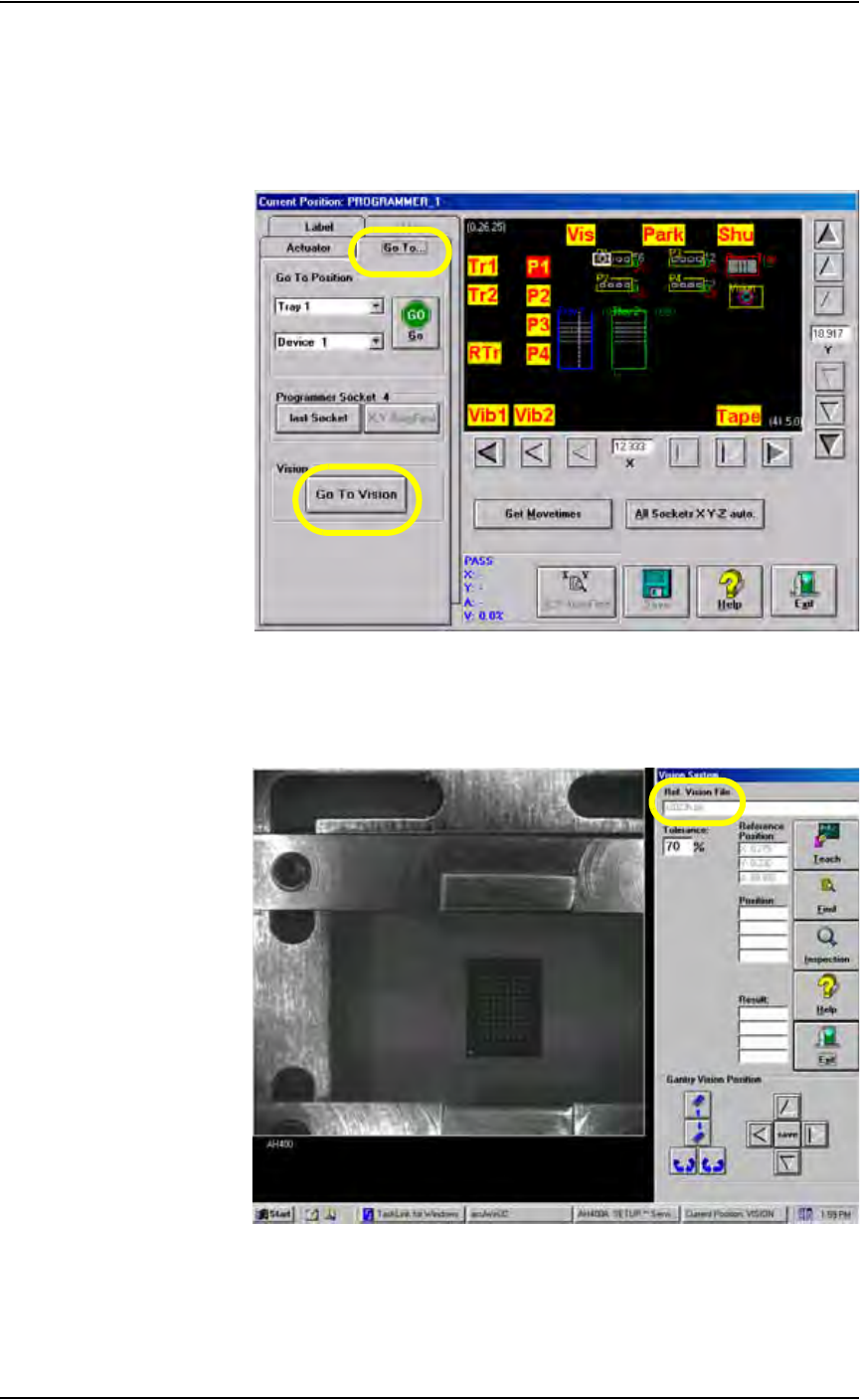
4. Move device to the Vision system—
4a) Pick up the device by bringing the cursor over the programmer label
and right-clicking the touchpad.
4b) On the Gantry window, select the Go To... tab.
4c) Click Go To Vision. The device moves to the Vision system.
Figure 3-31—On Go To tab, click Go to Vision
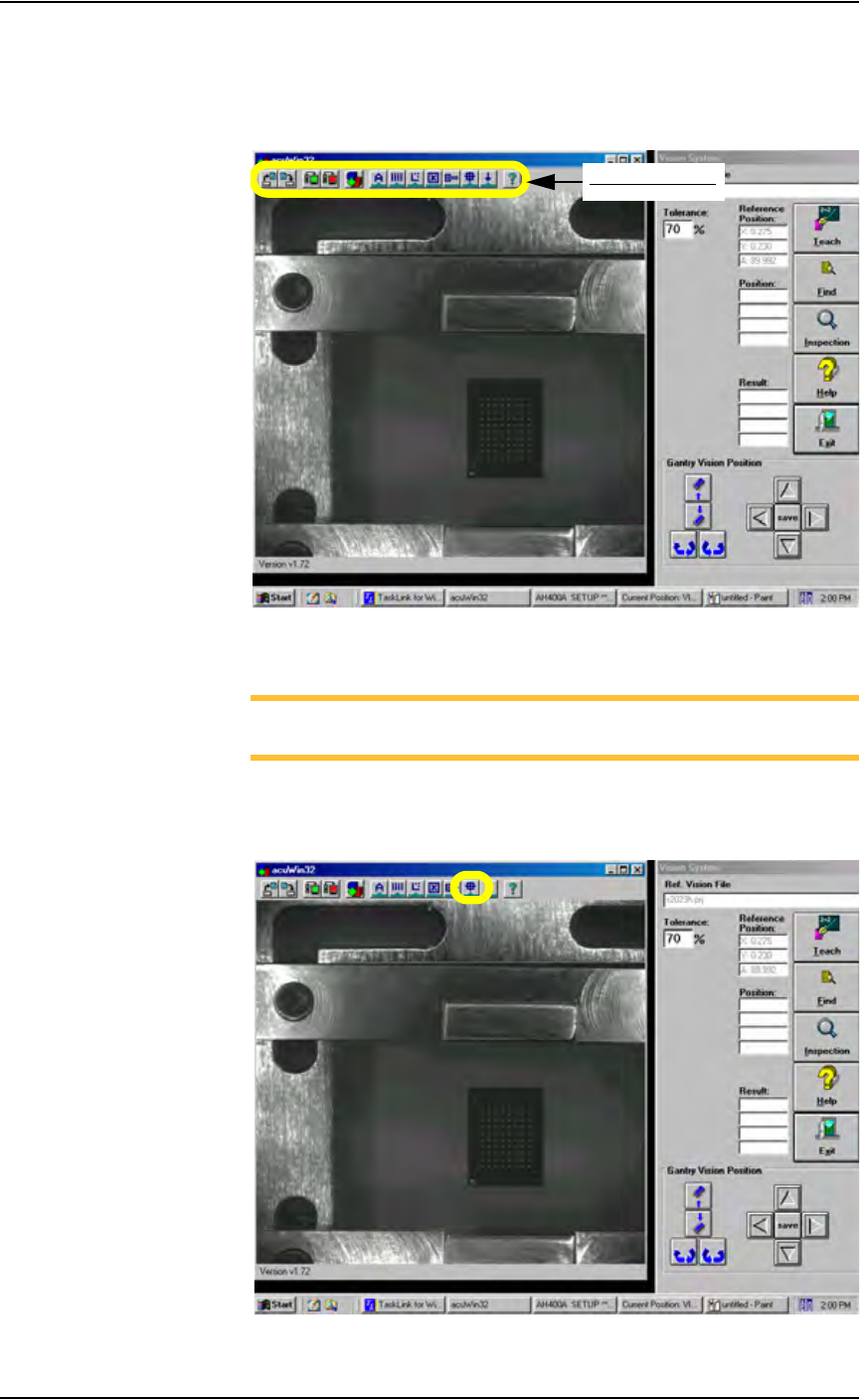
5. Verify correct file—
On the Vision System window, note that the name of the reference
vision file for this Job is displayed.
Figure 3-32—Reference vision file name
Operation • Administrator Functions
3—26 PS288 Owner’s Manual
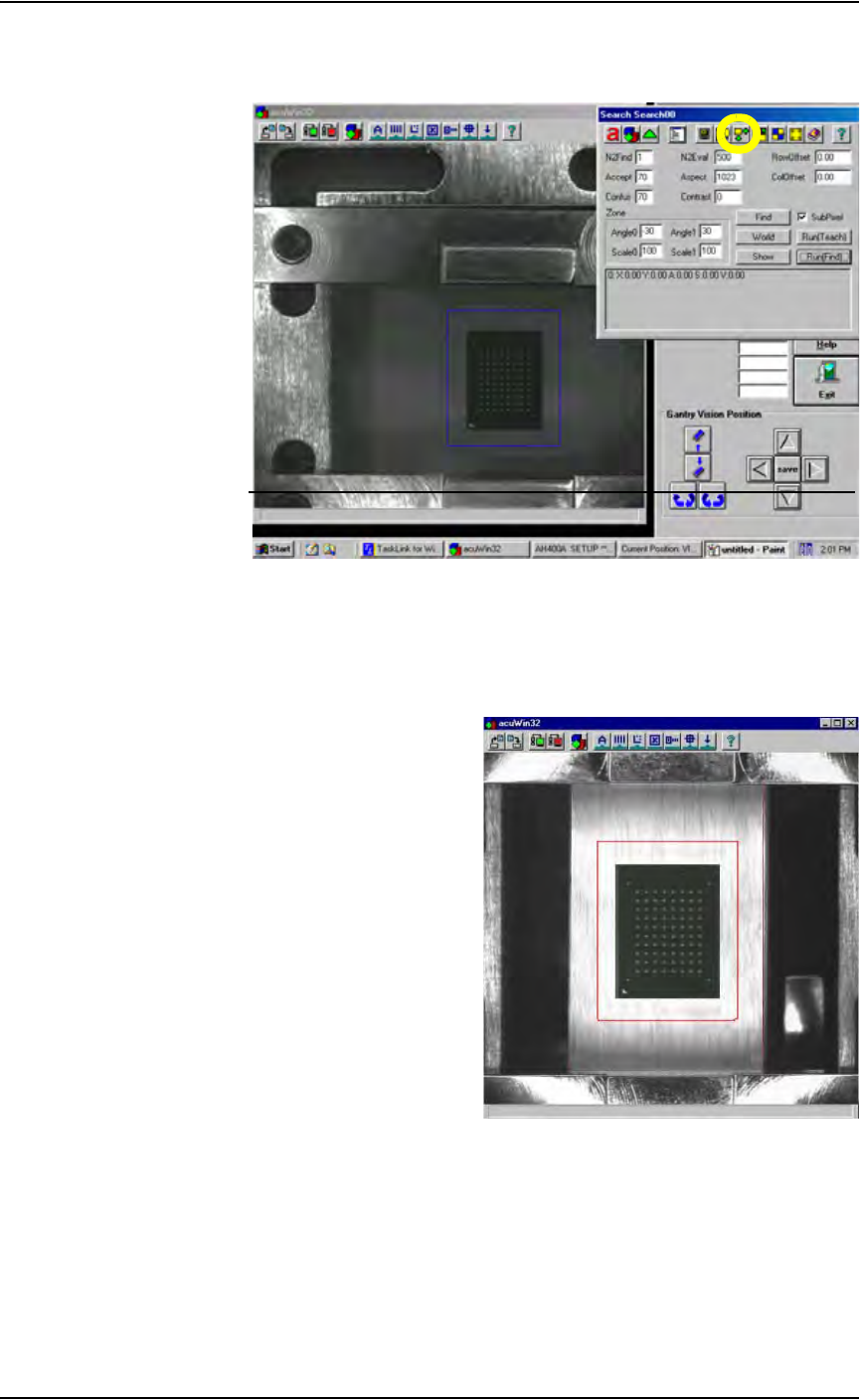
6. Display acuWin32 tool bar—
Bring the cursor anywhere inside the black and white vision image area
shown below and double-click. This opens the acuWin32 tool bar. See
Figure 3-33.
Figure 3-33—Click inside black and white vision image area to open the
AcuWin32 tool bar
NOTE: It may be necessary to adjust the device search area for this
device. If so, proceed with Step 7. If not, skip forward to Step 8.
7. Adjust device search area (if necessary) —
7a) On the acuWin32 tool bar, click the icon to open the Search Search dia-
log.
Figure 3-34—Click to open Search Search dialog
acuWin32 tool bar
Operation • Administrator Functions
PS288 Owner’s Manual 3—27
7b) On the Search Search dialog tool bar, click the icon to open the Area
Search dialog.
Figure 3-35—Click to open Area Search dialog
7c) Set the device search area (red rectangle in Figure 3-36) around the
device so that it is 30-50% larger than the device. To adjust the device
search area, place the arrow on any red line, hold down the left touch-
pad button, and use the touchpad to drag the line.
Figure 3-36—Set device search area (red rectangle) around device
7d) When the device search area is adjusted, click the green triangle to exit
the Area Search dialog. See Figure 3-37.