00198764-01_IM_SIPLACE_Pro_17.0_R19-2_EN.pdf - 第14页
SIPLACE Pro 17.0 (R19-2) / Installation Manual 11/2019 Edition 14 6.2 Installing SIPLACE Pro NOTICE The setup wizard is available in English only. After installation, oth er GUI languages can be selected in SIPLACE P ro …
SIPLACE Pro 17.0 (R19-2) / Installation Manual 11/2019 Edition
13
6 Installing the SIPLACE Pro Software
This chapter describes important preparations to be performed prior to installation and how to
install the SIPLACE Pro and SIPLACE Pro Language Pack software respectively.
6.1 Preparations Prior to Installation
– For more detailed information which software is essential and has to be successfully installed
before performing the installation of SIPLACE Pro please refer to the Support Media and the
respective manual.
► Make sure you use the Prerequisite Analyzer of Support Media.
► Select SIPLACE Pro as planned Product to install all required missing prerequisites for
SIPLACE Pro (e.g. License Manager, Operation Manager, Error Reporter Service, Net
Framework).
– By default, Support Media installs SQL Express editions only. If you want to use SQL Server
edition instead, install it manually by following the steps described in the SQL installation
documentation on Support Media before using the Prerequisite Analyzer for further preparation.
We strongly recommend that you follow the installation documentation on Support Media, since
it describes the settings needed for SIPLACE Line Software.
– If you install SIPLACE Pro via remote desktop connection:
► Ensure that you establish a connection to the session for administering the server. This can
be done by using the parameter /admin when executing the remote desktop application
mstsc.exe.
► To avoid conflicts with running applications, ensure that no other users are logged on to the
server during the installation.
– If you install the database on a remote computer, Support Media has to be executed on this
computer with the ASM Net – SQL Server Prerequisites – Apply ASM SQL settings profile
after the SQL Server has been installed.
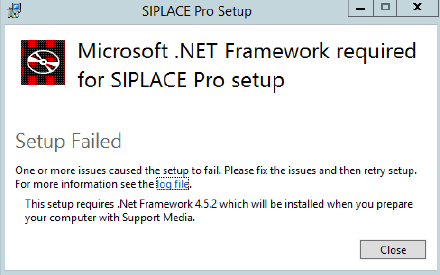
– If you have not prepared your computer with Support Media and your computer has no .Net
Framework installed, you may get the following error message after starting the SIPLACE Pro
Setup:
Figure 6-1: .Net Framework missing
► Ensure that you have prepared your computer with Support Media to avoid this problem.
SIPLACE Pro 17.0 (R19-2) / Installation Manual 11/2019 Edition
14
6.2 Installing SIPLACE Pro
NOTICE
The setup wizard is available in English only. After installation, other GUI languages can
be selected in SIPLACE Pro Desk.
CAUTION
► Ensure that you have closed any other application which might use SIPLACE Pro!
Especially, stop all SIPLACE OIB related services, before installing SIPLACE Pro, as
they may interfere with the current Setup.
► Log in using an administrative user account on the computer.
► Insert the installation media and mount the *.iso file.
► Open Windows Explorer.
► Double-click the BundleInstaller file to start installing SIPLACE Pro.
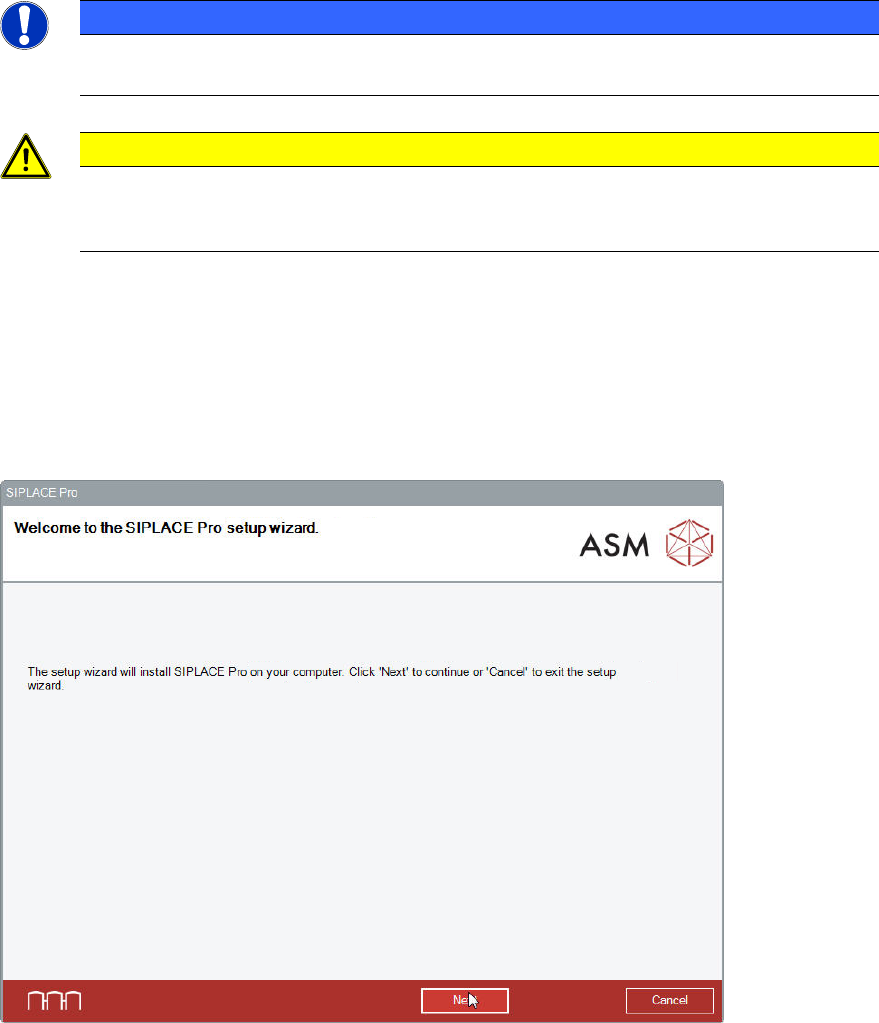
The Welcome dialog of the SIPLACE Pro setup wizard is displayed.
Figure 6-2: Welcome dialog
► Click the Next button.
SIPLACE Pro 17.0 (R19-2) / Installation Manual 11/2019 Edition
15
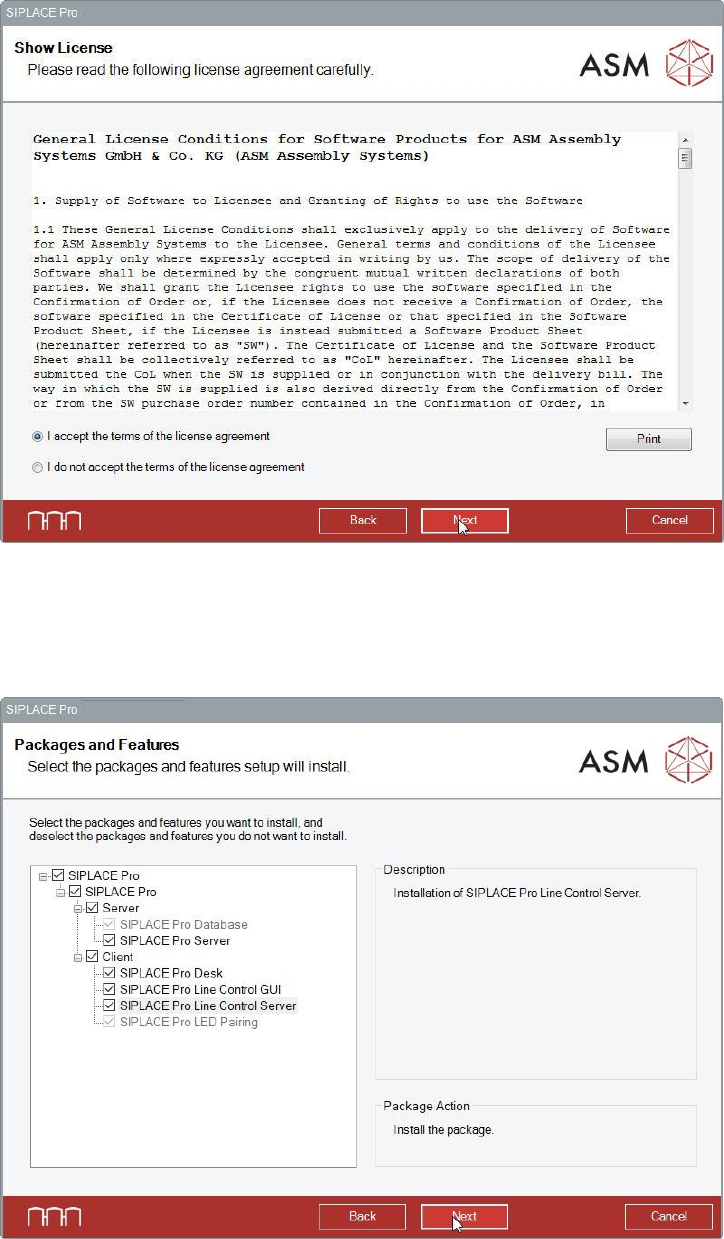
The Show License dialog is displayed.
Figure 6-3: Accepting license conditions
► Select I accept the terms of the license agreement to accept the license conditions.
► Click the Next button.
The Packages and Features dialog is displayed.
Figure 6-4: Selecting packages and features
All software components are enabled by default. However, you can select single features to be
installed. Please refer to sections 6.2.1 to 6.2.5.