00198764-01_IM_SIPLACE_Pro_17.0_R19-2_EN.pdf - 第15页
SIPLACE Pro 17.0 (R19-2) / Installation Manual 11/2019 Edition 15 The Show License dialog is displa yed. Figure 6-3: Accepting lic ense conditions ► Select I accept the ter ms of the license agree ment to accept the lice…
SIPLACE Pro 17.0 (R19-2) / Installation Manual 11/2019 Edition
14
6.2 Installing SIPLACE Pro
NOTICE
The setup wizard is available in English only. After installation, other GUI languages can
be selected in SIPLACE Pro Desk.
CAUTION
► Ensure that you have closed any other application which might use SIPLACE Pro!
Especially, stop all SIPLACE OIB related services, before installing SIPLACE Pro, as
they may interfere with the current Setup.
► Log in using an administrative user account on the computer.
► Insert the installation media and mount the *.iso file.
► Open Windows Explorer.
► Double-click the BundleInstaller file to start installing SIPLACE Pro.
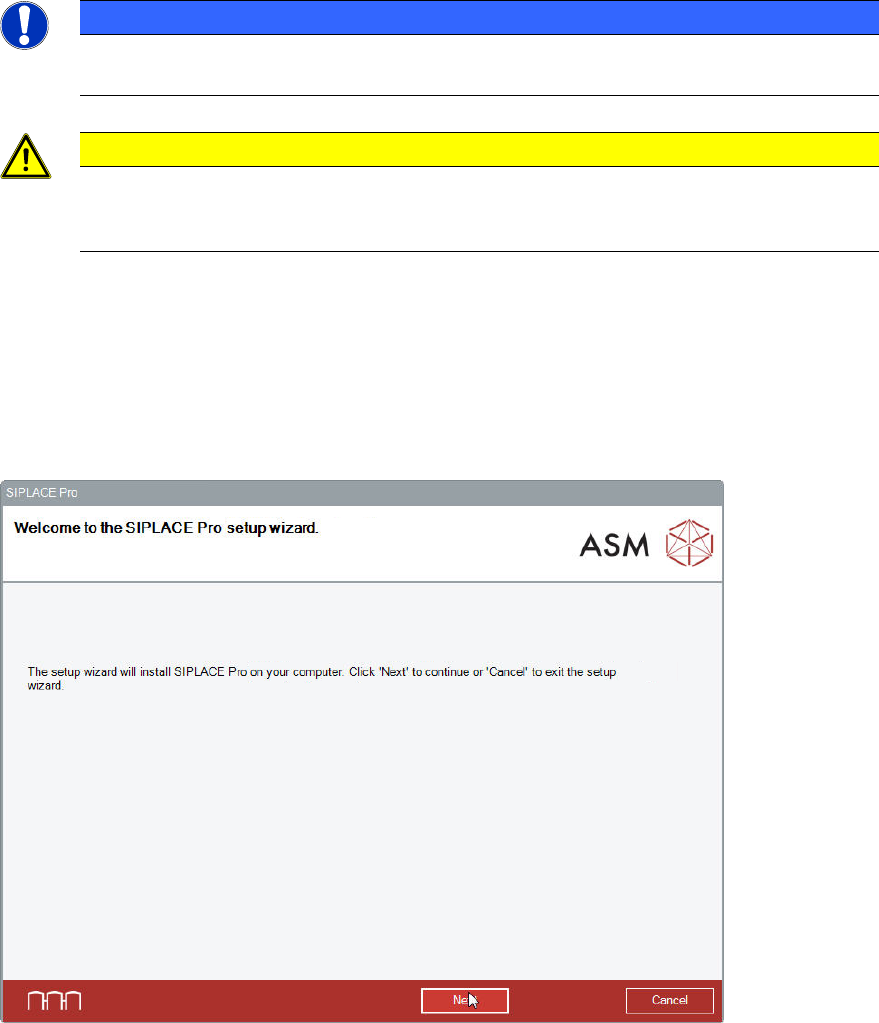
The Welcome dialog of the SIPLACE Pro setup wizard is displayed.
Figure 6-2: Welcome dialog
► Click the Next button.
SIPLACE Pro 17.0 (R19-2) / Installation Manual 11/2019 Edition
15
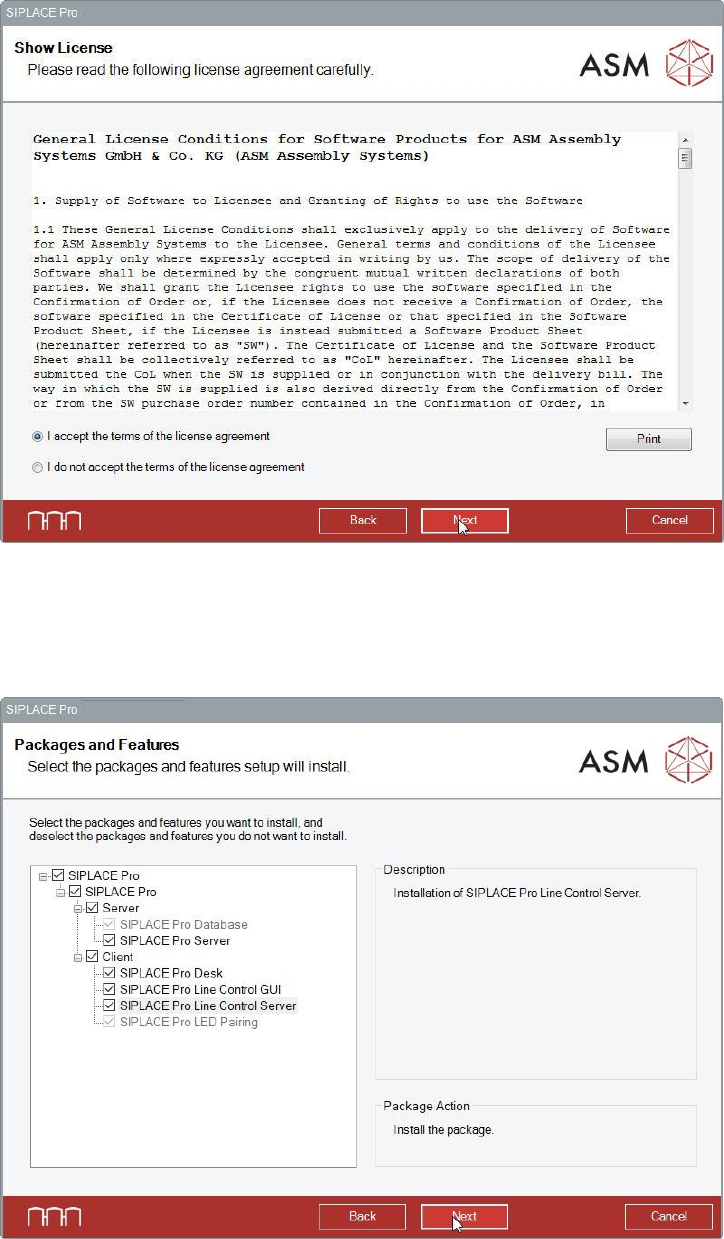
The Show License dialog is displayed.
Figure 6-3: Accepting license conditions
► Select I accept the terms of the license agreement to accept the license conditions.
► Click the Next button.
The Packages and Features dialog is displayed.
Figure 6-4: Selecting packages and features
All software components are enabled by default. However, you can select single features to be
installed. Please refer to sections 6.2.1 to 6.2.5.
SIPLACE Pro 17.0 (R19-2) / Installation Manual 11/2019 Edition
16
NOTICE
Installing SIPLACE LED Pairing
If SIPLACE Pro Desk is selected, SIPLACE LED Pairing will also be installed
automatically and cannot be unselected.
However, if SIPLACE Pro Desk is unselected, you can select SIPLACE LED Pairing to
be installed separately.
► In default case, click the Next button.
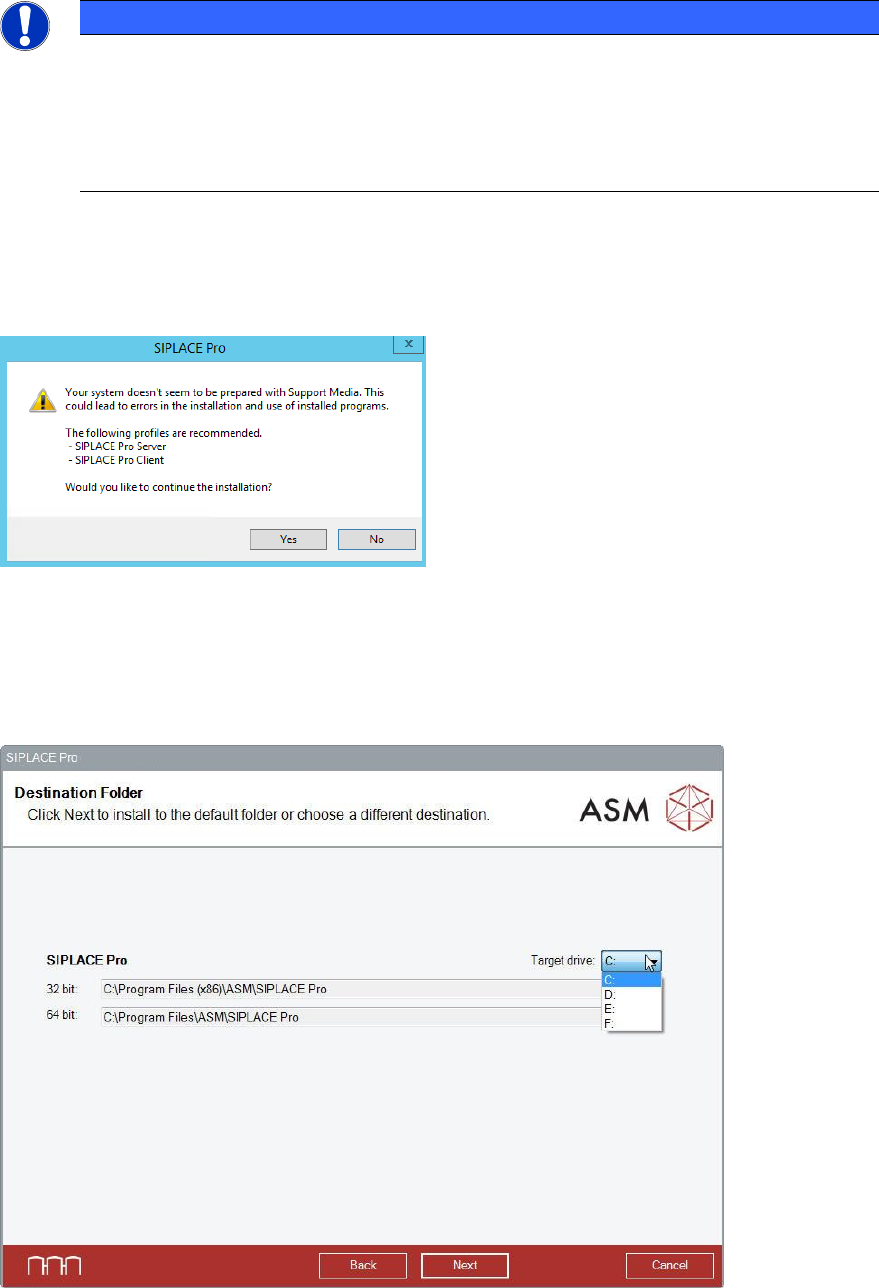
If you have not prepared your computer for SIPLACE Pro 17.0 using the Prerequisite Analyzer from
the Support Media, an error message like the following appears:
Figure 6-5: No Support Media preparation
► In this case, we strongly recommend you to click the No button to cancel the setup and begin
to prepare your computer using the Support Media.
Please refer to section 6.1 for more information.
The Destination Folder dialog is displayed.
Figure 6-6: Selecting installation drive
► Select the drive on which you want to install the 32 bit and 64 bit parts of SIPLACE Pro.
You can select one installation drive per package.