00198764-01_IM_SIPLACE_Pro_17.0_R19-2_EN.pdf - 第51页
SIPLACE Pro 17.0 (R19-2) / Installation Manual 11/2019 Edition 51 If it exists, perform the following a ctions: Figure 7-4: Shutting down compon ent ► - Right-click the compon ent and select Shut down . Figure 7-5: Delet…
SIPLACE Pro 17.0 (R19-2) / Installation Manual 11/2019 Edition
50
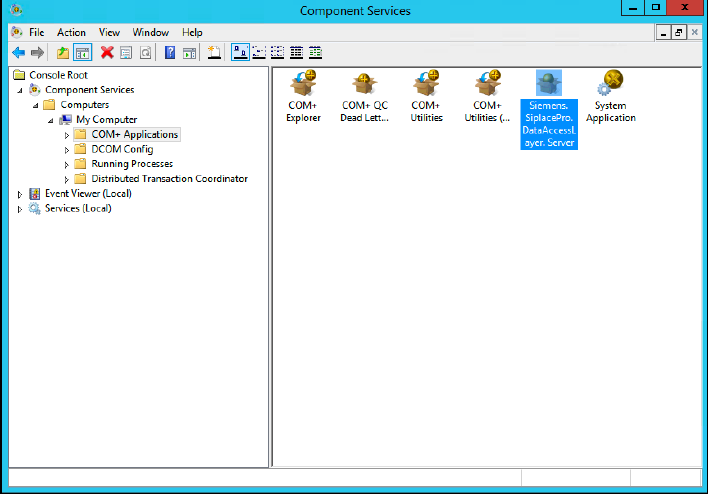
The Component Services window opens.
Figure 7-3: Component Services window
► In the left pane, navigate to Component Services – Computers – My Computer – COM+
Applications.
► In the right part of the window, verify if the Siemens.SiplacePro.DataAccessLayer.Server
component exists.
SIPLACE Pro 17.0 (R19-2) / Installation Manual 11/2019 Edition
51
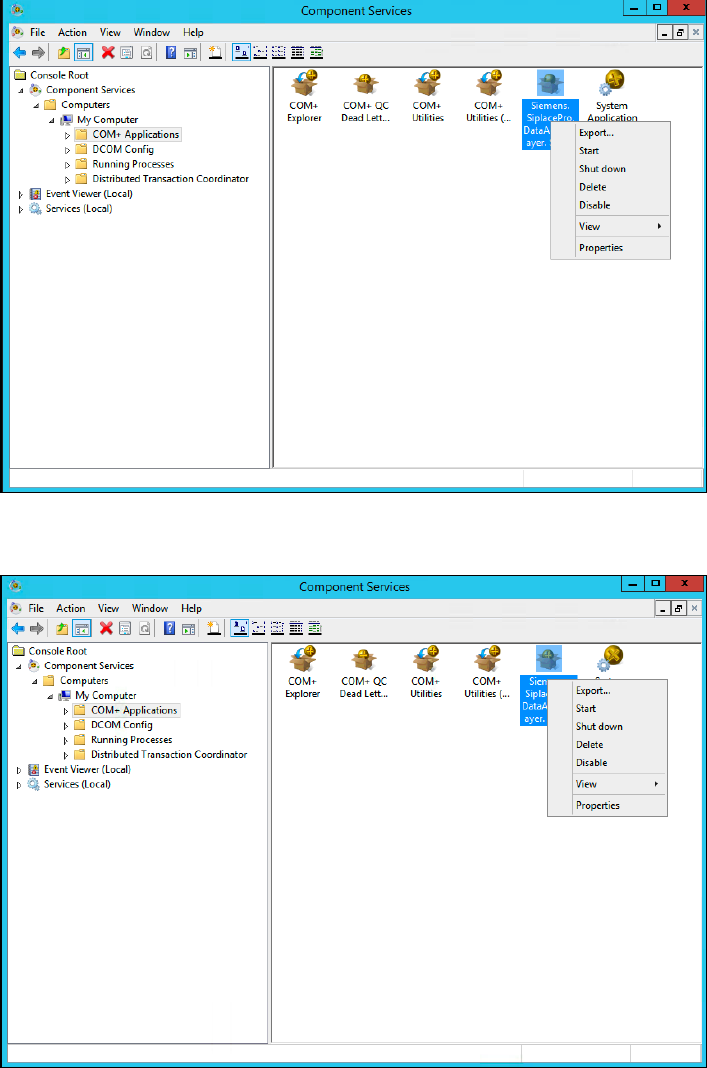
If it exists, perform the following actions:
Figure 7-4: Shutting down component
► - Right-click the component and select Shut down.
Figure 7-5: Deleting component
► Right-click the component and select Delete.
SIPLACE Pro 17.0 (R19-2) / Installation Manual 11/2019 Edition
52
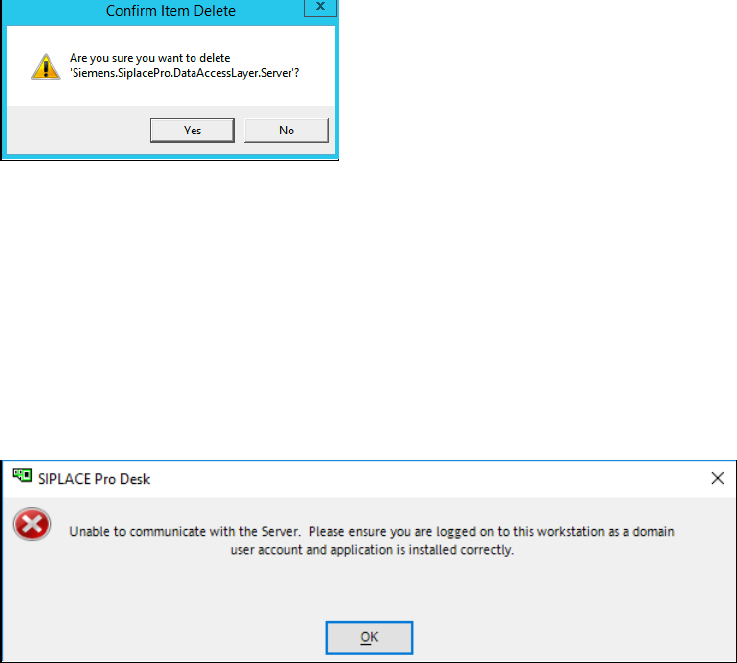
Figure 7-6: Confirming deletion
► Accept the confirmation message by clicking Yes.
► After that perform a new installation of SIPLACE Pro, but ensure you already have stopped
relevant applications and services before, as described above.
7.3.3 Client Server Installation – Client Does Not Open
The following error message may be displayed:
Figure 7-7: Client does not open
There are multiple possible causes for this problem.
► If the account you are currently using is local, please ensure that it also exists on the Server
with the same password.
► Please ensure that the account you have configured during setup for the COM+ component on
the Server also exists on the Client with the same password.