00193910_Install_SQL2000Server_manual.pdf - 第17页
Installation of SQL Server 2000 Edition 10/2005 US 17 / 24 Fig. 3-21: License agreement → Accept the software license agree ment. Click the Yes button. Fig. 3-22: Instance Name → Normally you have only one SQL Server Ins…
Installation of SQL Server 2000 Edition 10/2005 US
→ Wait until the installation files will be extracted in the directory you specified.
16 / 24
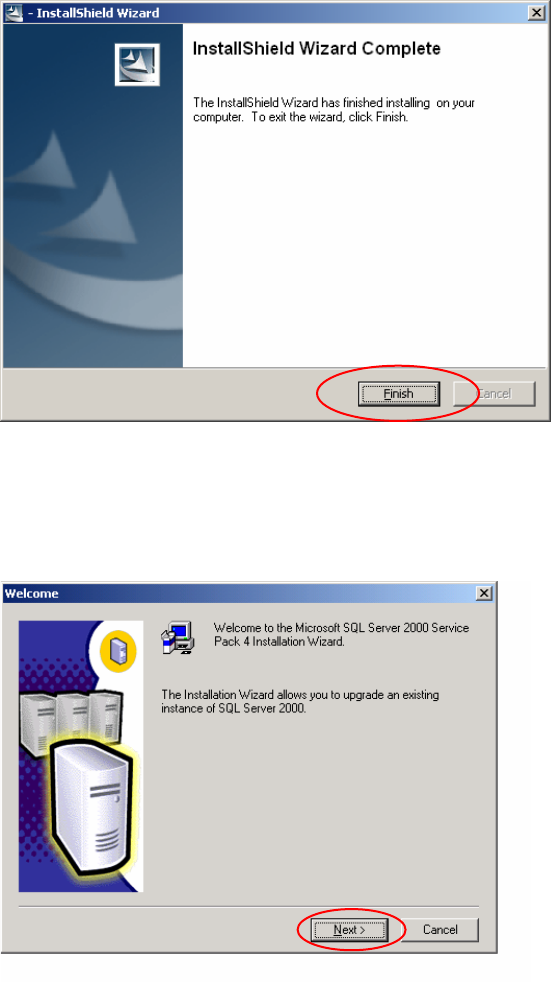
Fig. 3-19: Message
The files have been extracted and stored in the directory.
2
→ Change to the directory c:\sql2ksp4 and start the setup.bat program.
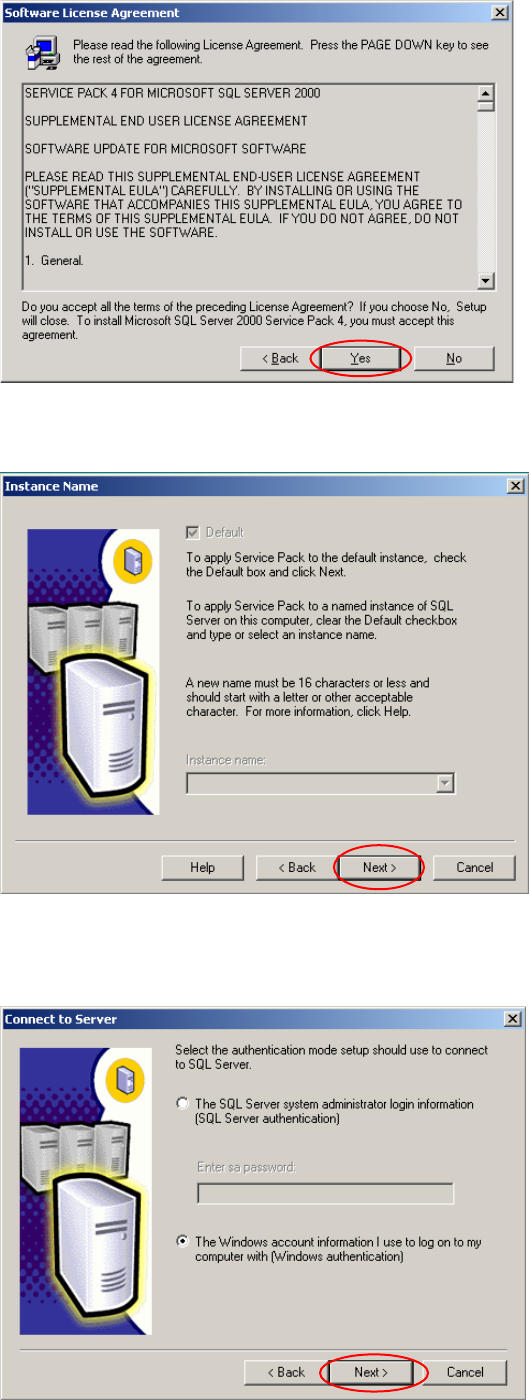
→ Wait until you see the welcome screen.
Fig. 3-20: Welcome Screen
→ Click the Next > button.
Installation of SQL Server 2000 Edition 10/2005 US
17 / 24
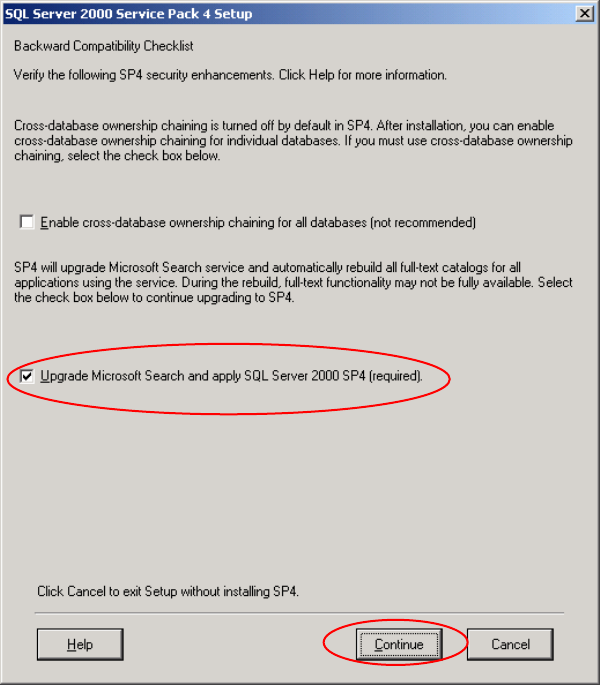
Fig. 3-21: License agreement
→ Accept the software license agreement. Click the Yes button.
Fig. 3-22: Instance Name
→ Normally you have only one SQL Server Instance. In this case you can continue with the Next >
button.
Installation of SQL Server 2000 Edition 10/2005 US
Fig. 3-23: Instance Name
→ Use the default account information.
→ Click the Next > button.
→ Wait until the user account will be validated.
The dialog for installation options will appear:
Fig. 2 - 76 Installation Options
→ Select the Upgrade Microsoft Search and apply SQL Server 2000 SP4 (required) option
→ Click the Continue button.
18 / 24