00198622-04_IM_WES7_WIN10_EN-DE.pdf - 第17页
WES7 / Win10 - Inst allation Manual 09/2020 Edition 17 NOTICE For iBASE computers , you must make th e following setting i n the BIOS ( F2 key) b efore the first boot, otherw ise the computer s tarts from the U SB stick …
WES7 / Win10 - Installation Manual 09/2020 Edition
16
If the system partition is big enough, the Choose Restore Option message is displayed and
one of the following options may be selected:
1. Restore existing system partition only
The system partition will be restored only.
2. Restore complete system disk
The complete hard disk will be restored.
► Select an option and confirm your selection with OK (or cancel your selection with Cancel).
The operating system is installed.
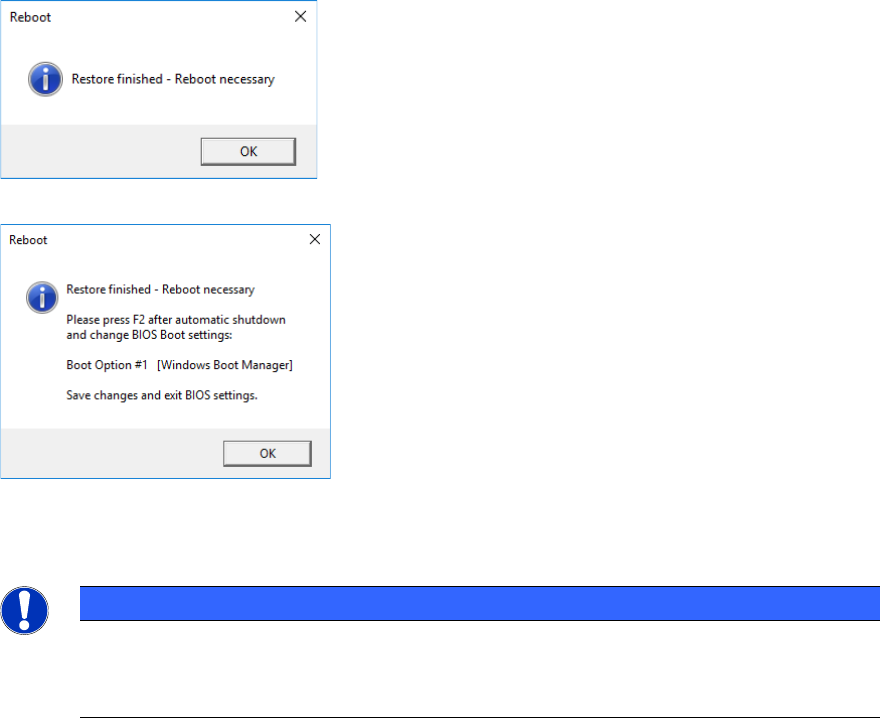
When installing from a USB stick, the completion of the restore image installation is displayed in
the following manner, depending on the PC type and Windows version:
Figure 4-2: Final message in general
Figure 4-3: Final message under Win10 on iBASE computers
If the completing window is confirmed with OK, the reboot starts automatically.
NOTICE
Please observe:
When installing from DVD, no completing window is displayed and after successful
installation, the reboot starts immediately.
WES7 / Win10 - Installation Manual 09/2020 Edition
17
NOTICE
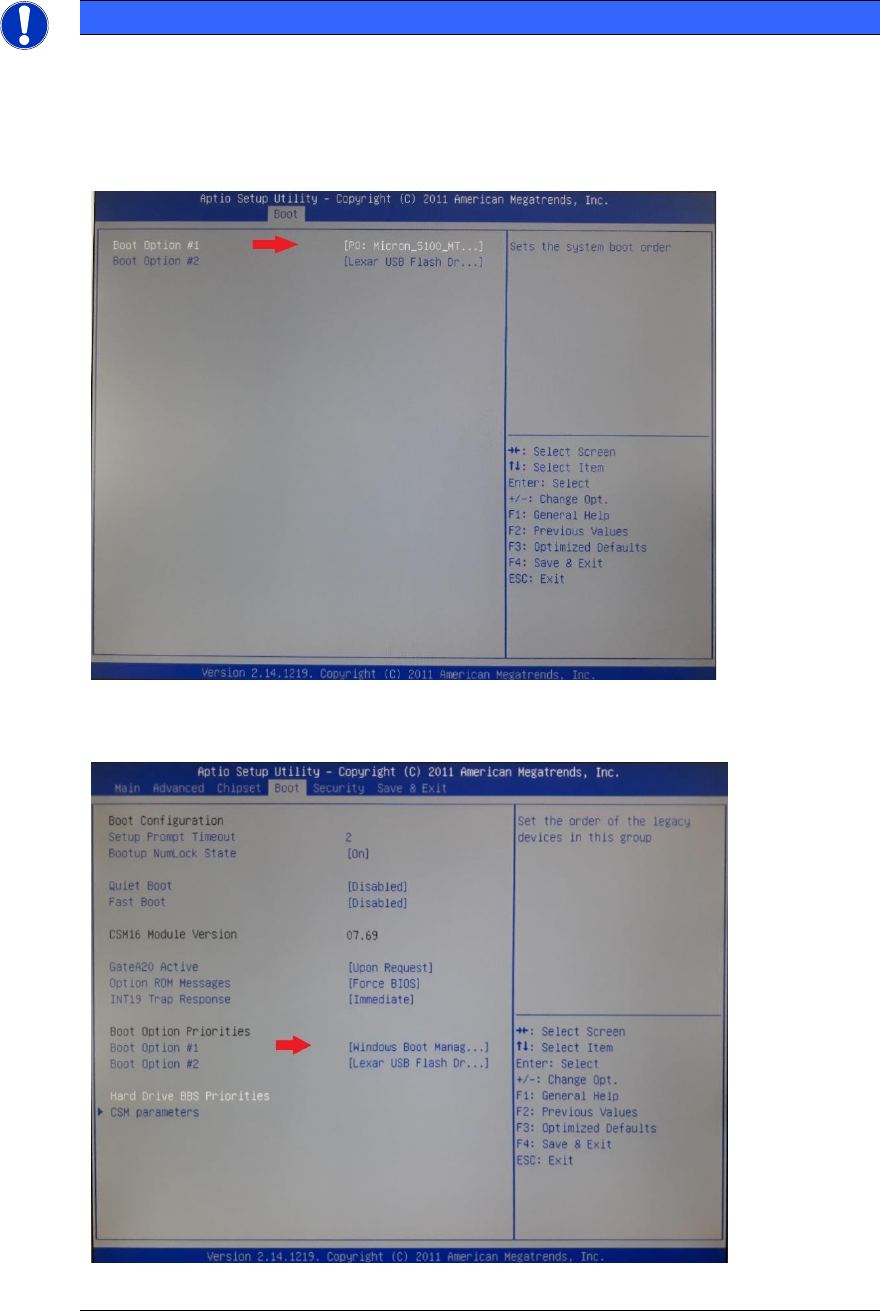
For iBASE computers, you must make the following setting in the BIOS (F2 key) before
the first boot, otherwise the computer starts from the USB stick again, or no operating
system will be found:
► WES7 – Put back the hard disk in the first place of the boot sequence
(under: Boot / Hard Drive BBS Priorities).
Figure 4-4: BIOS – WES7
► Win10 – Put the Windows Boot Manager in the first place of the boot sequence.
Figure 4-5: BIOS – Win10
WES7 / Win10 - Installation Manual 09/2020 Edition
18
When the Windows login window is displayed, the installation is completed (the first boot may take
some minutes).
► Log on as "ASM_Admin" and enter a password.
► If you install from DVD: Remove the DVD from the DVD drive.
► If you install from USB stick: Check if the SIPLACE WES7 Configurator / SIPLACE Win10
Configurator (e.g. directory _WES7_Configurator) is available for run on the USB stick (please
refer to section 4.3.3).
If not, release the USB stick and remove it from the USB interface.
► For the newer computers (iBASE, Microbox 427D) with two monitor outputs, the Clone
Displays operating mode has to be set in the display properties under Display – Multiple
Display, if required. Otherwise, it might happen that only one monitor is accessed, or the task
bar is only available on one of the monitors. For WES7, this setting can also be made in the
SIPLACE WES7 Configurator with the Add-ons and Touch Screen Driver button.
► Additionally, it may be necessary to set the "Screen resolution" to 1024 x 768
(for E-series: 1280 x 1024) and enable the Scale Full Screen setting in the display properties
under Panel Fit.
4.3.3 Choosing the Computer Configuration with the SIPLACE Configurator
► Make the medium with the SIPLACE WES7 Configurator / SIPLACE Win10 Configurator
available on the computer (insert CD / USB stick).
► Open Windows Explorer and navigate to the DVD drive or open the directory (e.g. directory
_WES7_Configurator) that contains the SIPLACE WES7 Configurator / SIPLACE Win10
Configurator on the USB stick.
► Double-click on the start.hta file from the software CD or from the USB stick to start the
SIPLACE Configurator.
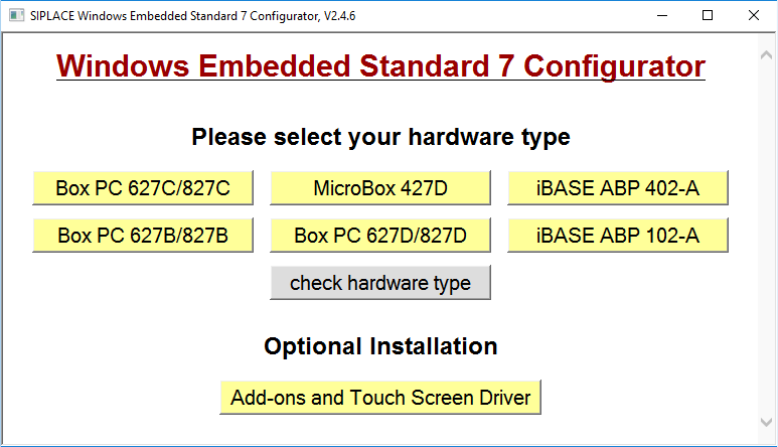
The following window is displayed for WES7:
Figure 4-6: Window "SIPLACE Windows Embedded Standard 7 Configurator"