00197479-02_IM_BoardGateKeeper1.2-SP1_EN.pdf - 第13页
Installation Installation Manual SIPLACE BoardGateKeeper 1.2 SP1 13 ► The installation of BoardGateKeeper will begin. ► The installation is suc ce ssfully finished. Click Close to exit. The SIPLACE BoardGateKeeper progra…
Installation
12 Installation Manual SIPLACE BoardGateKeeper 1.2 SP1
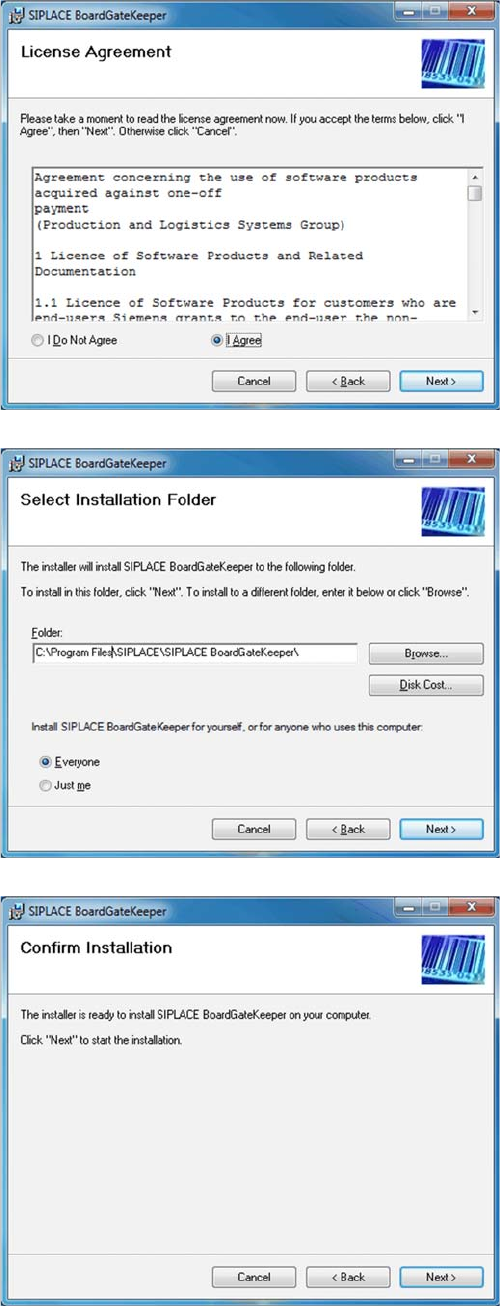
► Read the license agreement. If you agree with the
conditions, click on I Agree, otherwise click on I Do
Not Agree. If you select I Do Not Agree, the installa-
tion procedure will be terminated.
► Click on Next to continue the installation procedure.
► Now specify the folder in which you wish to install the
application. The default folder is C:\Program
Files\SIPLACE\SIPLACE BoardGateKeeper. You
can alter the default installation folder by using the
Browse… button.
► Confirm the installation by clicking on Next.
Installation
Installation Manual SIPLACE BoardGateKeeper 1.2 SP1 13
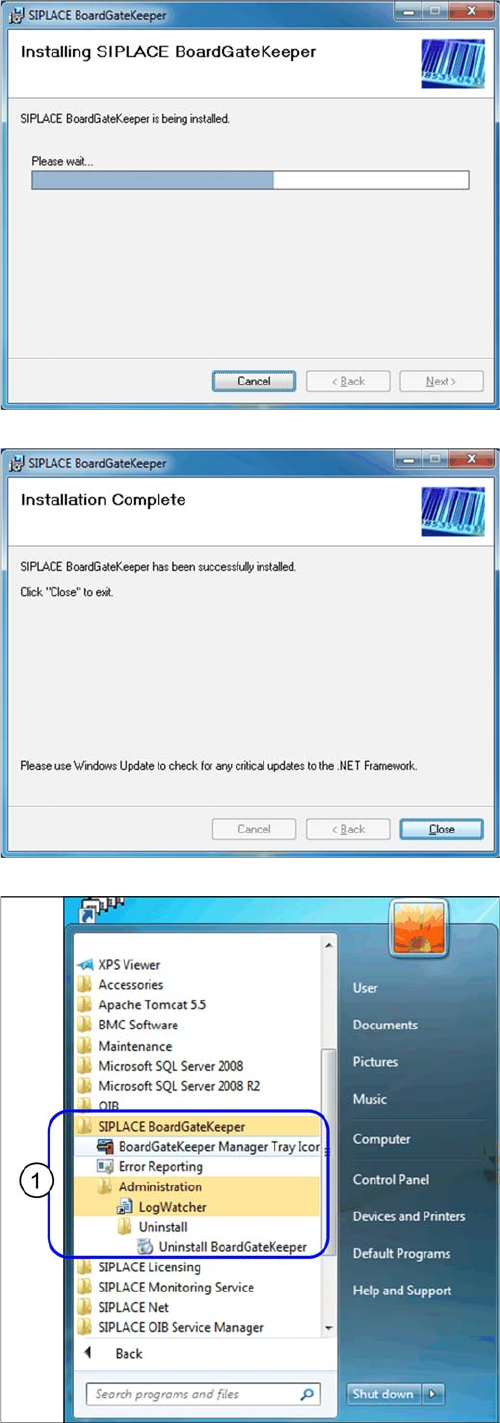
► The installation of BoardGateKeeper will begin.
► The installation is successfully finished. Click Close
to exit.
The SIPLACE BoardGateKeeper program group with the
programs and shortcuts was added to the Windows Start
menu (1):
▪ SIPLACE BoardGateKeeper
– BoardGateKeeper Manager Tray Icon
– Error Reporting
– LogWatcher
– Uninstall BoardGateKeeper
Installation
14 Installation Manual SIPLACE BoardGateKeeper 1.2 SP1