00198503-02_IM_SIPLACE_Pro_15.1_R18-1_EN.pdf - 第20页
SIPLACE Pro 15.1 (R18 - 1) / Installat ion Manual 05/2018 Edition 20 Figure 6-11: Disk space require ments ► Click the OK button. The following dialog is displayed. Figure 6-12: Ready for install ation ► Click the Instal…
SIPLACE Pro 15.1 (R18-1) / Installation Manual 05/2018 Edition
19
The setup will validate the connection to the given database instance and only continue, if it is
valid.
NOTICE
If you installed the SQL server using a current Support Media and did not configure a
custom password, the password for the sa
user will be the default password. In this case
you do not have to enter the password for the account in this step – the setup wizard will
try to use the default password for connection to the database if you do not enter a
different one.
However, if you have installed the SQL Server using an older version of Support Media,
the password for the sa user of your SQL installation might be an older one that is not
known by the setup. In this case, you will get a login error message and have to enter
the correct password manually.
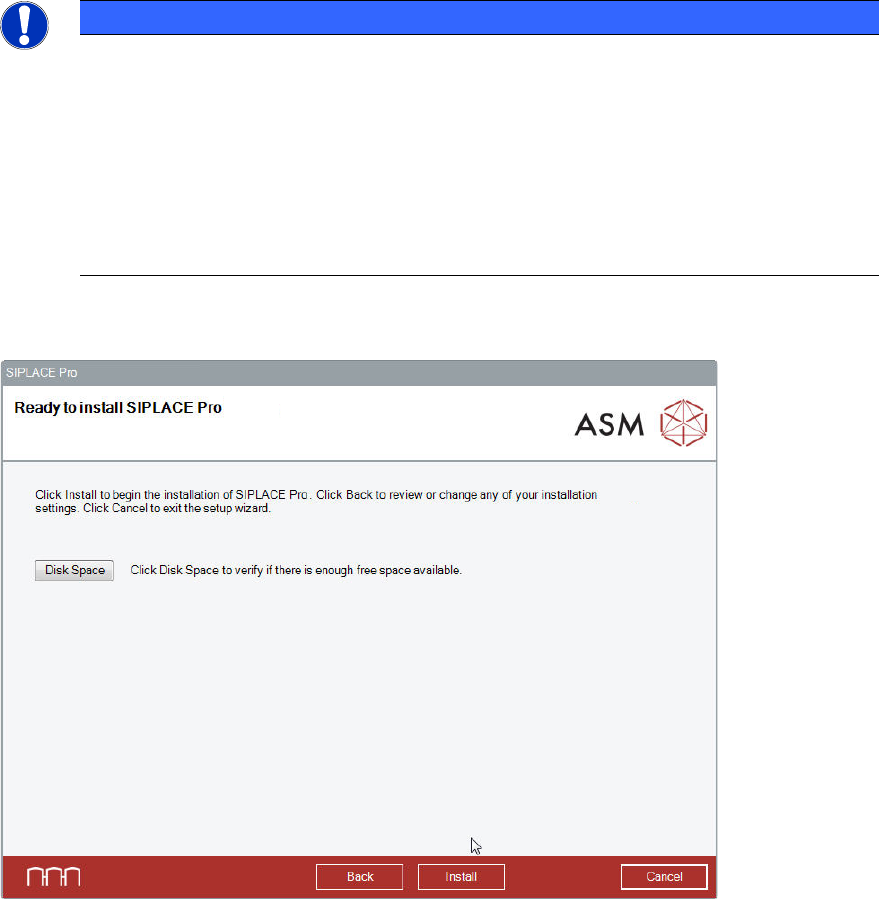
SIPLACE Pro is now ready to be installed. The following dialog is displayed.
Figure 6-10: Checking disk space
Before installing, you can check the available, required and recommended disk space (per drive) to
perform the installation.
► Click the Disk Space button.
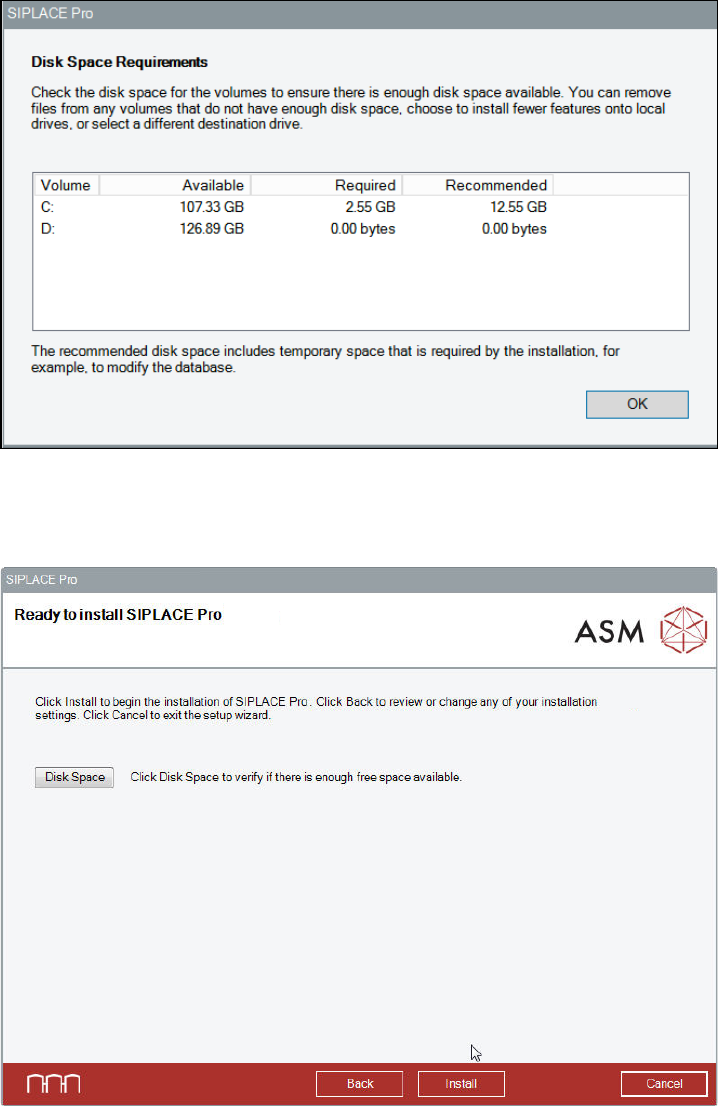
The Disk Space Requirements dialog is displayed.
SIPLACE Pro 15.1 (R18-1) / Installation Manual 05/2018 Edition
20
Figure 6-11: Disk space requirements
► Click the OK button.
The following dialog is displayed.
Figure 6-12: Ready for installation
► Click the Install button to start the installation.
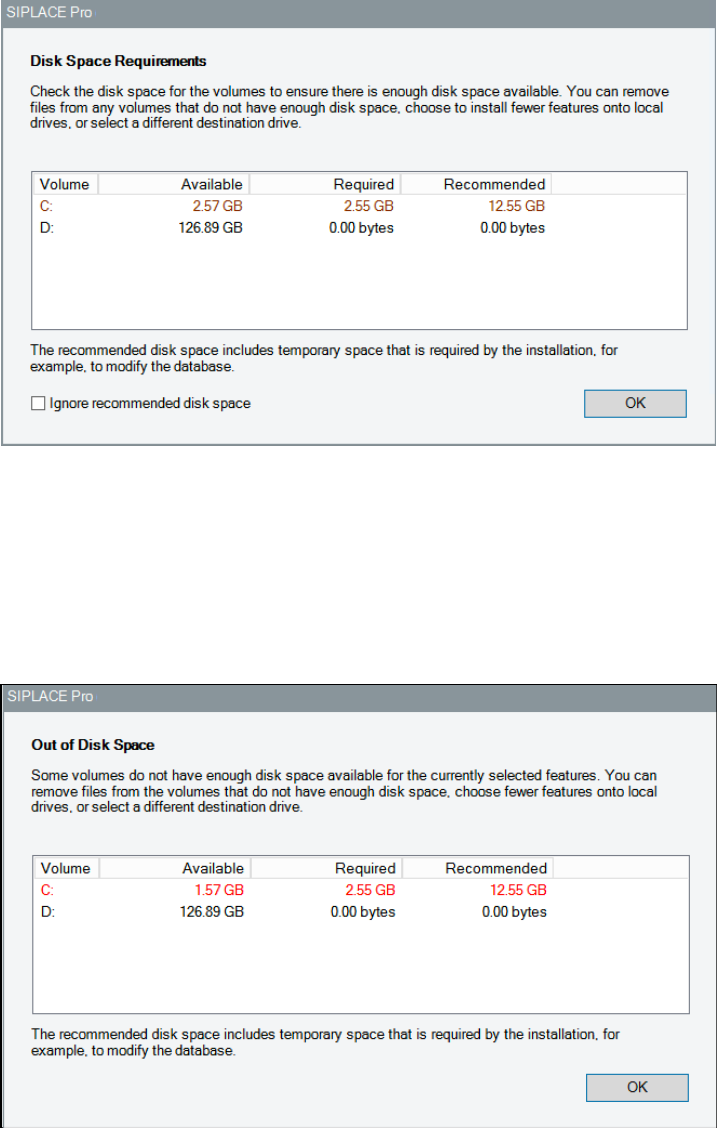
Now the setup explicitly checks the available, required and recommended disk space again. If your
free disk space does not match the recommended disk space the following dialog is displayed.
SIPLACE Pro 15.1 (R18-1) / Installation Manual 05/2018 Edition
21
Figure 6-13: Not enough recommended disk space
The setup checks for the recommended disk space to ensure that enough disk space is available
for installation processes. We strongly recommend this disk space. However, you may override this
check.
► In this case, activate the Ignore recommended disk space checkbox.
After that, the setup allows to continue the installation.
If the disk space is insufficient, the Out of Disk Space dialog is displayed.
Figure 6-14: Out of disk space
► Click the OK button and solve the problem.