03253524-01 KPO 2 Closed Loop.pdf - 第8页
2 INSTALLATION 2.4 PRINTER SYSTEM REQUIREMENTS 8 Standalone Manual Interface To Koh Young KPO 2 08/2021 2.4 PRINTER SYSTEM REQUIREMENTS Listed below are the DEK printer system requirements: ● Printer Platform - Horizon a…
2 INSTALLATION
2.1 DEFINITIONS
Standalone Manual Interface To Koh Young KPO 2 08/2021 7
2 INSTALLATION
2.1 DEFINITIONS
The abbreviations and terms used in this manual are listed below:
Item Definition
DOE Design Of Experiments
KPO KY Process Optimizer
PAM Printer Advisor Manager
PDM Printer Diagnostic Manager
POM Printer Optimizer Manager
ProDEK ASM’s closed loop print alignment and stencil clean optimizer
RTX A special DEK machine software version not yet released as main-
stream
SPI Solder Paste Inspection
kgs Kilograms - metric unit of pressure
lbs Pounds - imperial unit of pressure
USC Under Stencil Cleaner
2.2 SCOPE
This chapter provides instructions for an ASM engineer to install the DEK-KPO interface software
on the DEK printer and establish communications over local or factory networks to the Koh Young
SPI.
2.3 INTRODUCTION
KPO is a software tool developed by Koh Young. It communicates with the DEK printer to gather
print parameter information and make changes to those parameter values while monitoring the
solder paste print results measured on the SPI machine.
In effect, the KPO takes ownership of the printing process by identifying the initial print process
parameters through an automated DOE test and monitors the print performance during production.
The following print parameters are under KPO control:
●
Forward Print Speed
●
Reverse Print Speed
●
Separation Speed
●
Front Print Pressure
●
Rear Print Pressure
●
Print Offsets
●
Clean Rates
In addition, it can instigate an under stencil cleaning operation.
PDM performs printing anomaly detection and displays advice to the operator and can be run at
any time. PAM is run as DOE to find the optimum print settings. The DOE needs a certain number
of boards to run the tests and validate the results. The number of boards depends on the KPO test.
POM maintains the optimal settings by adjusting the print process parameters, print offsets and
clean rates while production is running.
NOTE:
Running different KPO versions between the printer and SPI has not been validated. ASM recom-
mend only running the same KPO version between the printer and SPI. The results of mixing ver-
sions is unknown and could be unpredictable.

2 INSTALLATION
2.4 PRINTER SYSTEM REQUIREMENTS
8 Standalone Manual Interface To Koh Young KPO 2 08/2021
2.4 PRINTER SYSTEM REQUIREMENTS
Listed below are the DEK printer system requirements:
●
Printer Platform - Horizon and NeoHorizon
●
Operating System - WES7 or Windows 10 IoT Enterprise
●
System PC - Q35,H81 or H110
●
Printer Software Version – RTX 1614 (9SP20.1614.x)
NOTE:
KPO software has its own print offset capability in POM and therefore, ProDEK should not be run
at the same time as KPO software.
Please contact the local ASM Service Control Centre (SCC) to get the latest version of the DEK
KPO software.
2 INSTALLATION
2.5 PREPARATION
Standalone Manual Interface To Koh Young KPO 2 08/2021 9
2.5 PREPARATION
2.5.1 Networking
The DEK printer needs to be networked for communication with the downline Koh Young SPI
machine. This can be cabled directly from the printer to the SPI (the SPI has an internal network
hub) or through the customer network. The following IP addresses/subnet mask of the printer and
SPI needs to be confirmed by the customer network administrator:
●
Printer IP address
●
Printer subnet mask
●
SPI IP address
2.5.2 RTX Key
The KPO printer software requires a RTX key to operate.
2.5.3 Barcode Reader
The KPO software can use the product or remote barcodes if required. The remote barcode reader
should be configured as normal. The KPO software automatically uses barcode data if it is avail-
able.
2.6 NETWORK SETUP
If the printer software is running, terminate the printer software through the Windows Task Manager
prior to commencing this setup procedure.
2.6.1 Set Printer IP Address
To set the printer IP address carry out the following:
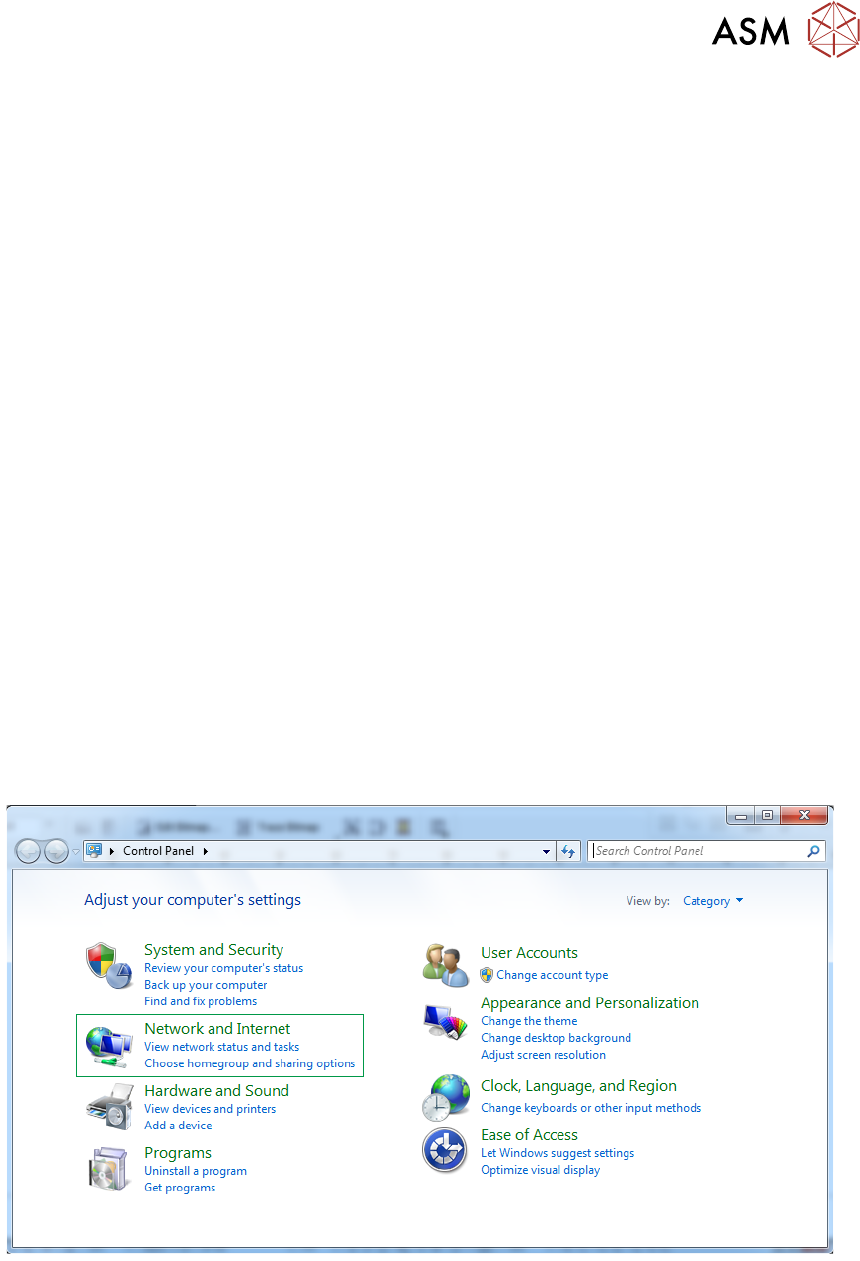
► Using Windows Start button, select Control Panel, Network and Internet.