TK55400.PickupBaseMACS.pdf - 第4页
Product Engineering Division SMT Sect ion Robotics Operations Y AMAHA MOTOR CO., L TD. MDOC-SOFT50732 4/7 3 Fun ction Det ail s 3.1 Setting 1. Open the machi ne setting screen. 2. Make sure that [Installation Setti ng]-[…
Product Engineering Division
SMT Section
Robotics Operations
YAMAHA MOTOR CO., LTD.
MDOC-SOFT50732
4/7
3 Function Details
3.1 Setting
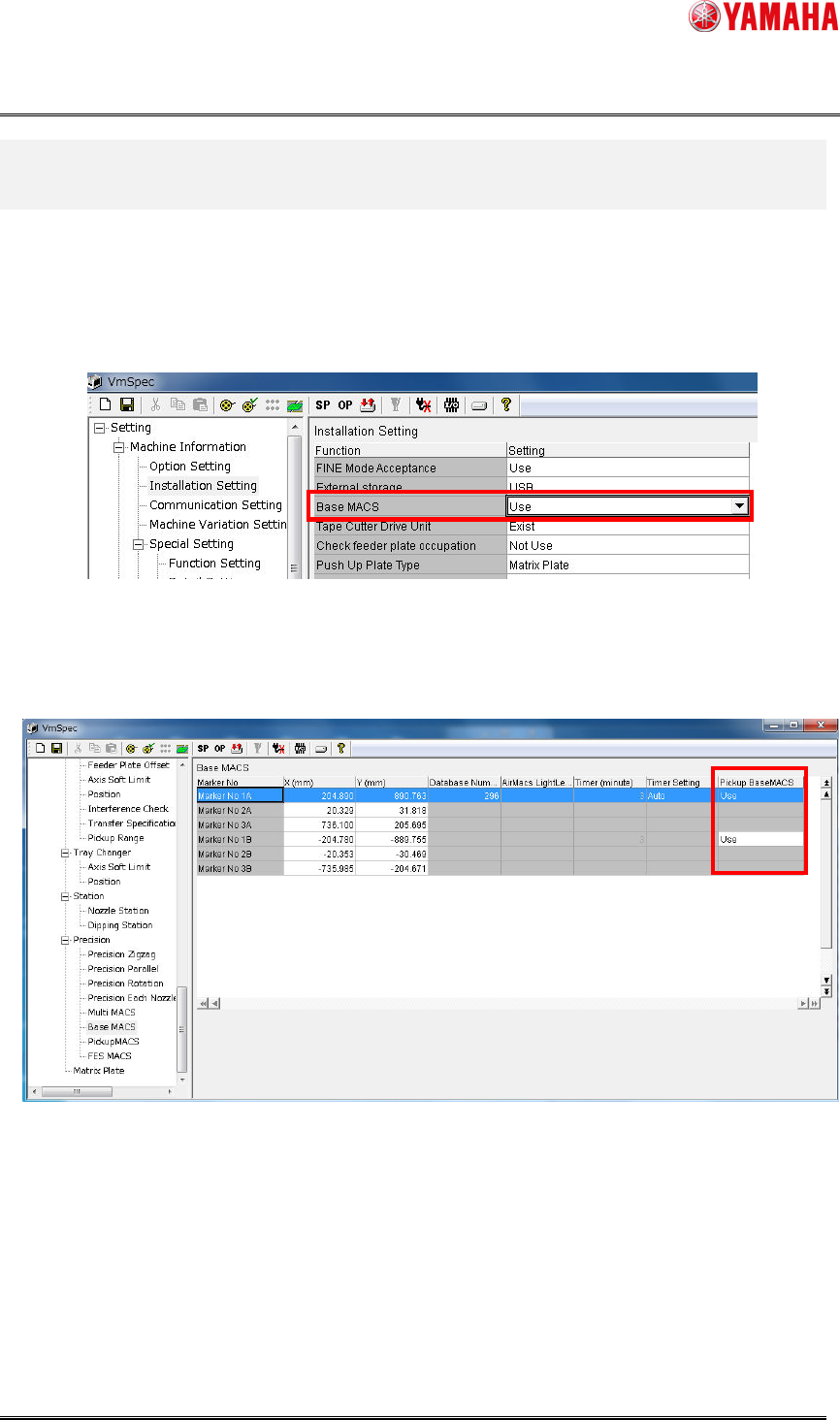
1. Open the machine setting screen.
2. Make sure that [Installation Setting]-[Base MACS] is set to “Use”.
Fig 3.1.1 The BaseMACS setting screen
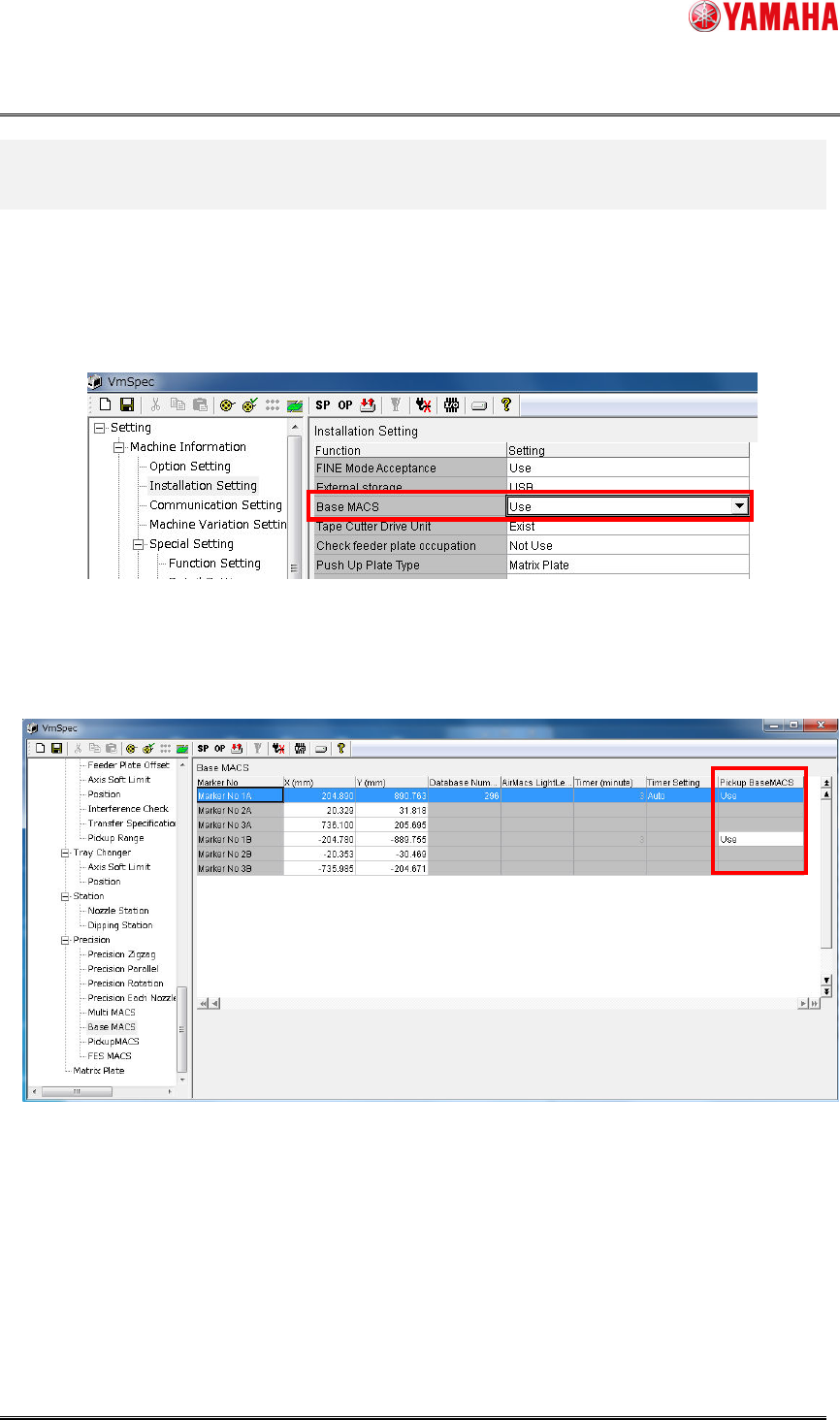
3. Select [Precision]-[Base MACS] and set [Pickup BaseMACS] to “Use”.
Make this setting by mounting table.
Fig 3.1.2 The Pickup BaseMACS setting
4. Save the setting, and close the screen.
Product Engineering Division
SMT Section
Robotics Operations
YAMAHA MOTOR CO., LTD.
MDOC-SOFT50732
4/7
3 Function Details
3.1 Setting
1. Open the machine setting screen.
2. Make sure that [Installation Setting]-[Base MACS] is set to “Use”.
Fig 3.1.1 The BaseMACS setting screen
3. Select [Precision]-[Base MACS] and set [Pickup BaseMACS] to “Use”.
Make this setting by mounting table.
Fig 3.1.2 The Pickup BaseMACS setting
4. Save the setting, and close the screen.
Product Engineering Division
SMT Section
Robotics Operations
YAMAHA MOTOR CO., LTD.
MDOC-SOFT50732
5/7
3.2 Operation During Auto-running
You do not need to perform any special operation to work this function.
BaseMACS is automatically performed at the start of auto-running, and correction is
performed at pickup.
※ Timing of BaseMACS is not changed.
3.3 Utility Operation
On the [Parts] screen, you can see a pickup position that has been corrected with
BaseMACS.
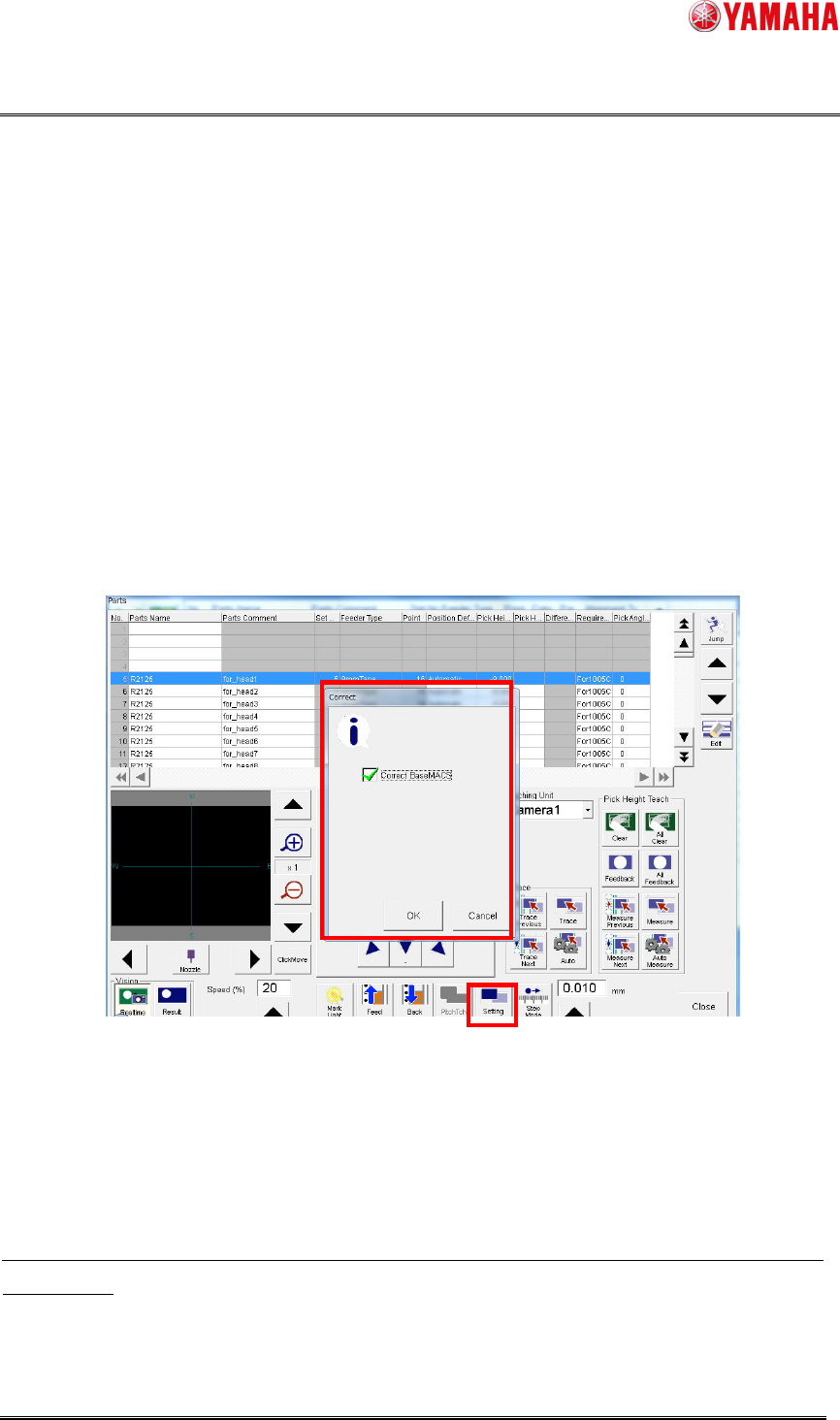
1. Click the [Parts]-[Teach] button to open the [Parts] screen.
2. Click the [Setting] button to open the [Correct] dialog. Check the [Correct BaseMACS]
check box, then click the [OK] button.
3. BaseMACS is performed. After that, trace and teach are performed with BaseMACS
correction applied.
Fig 3.3.1 The parts teach and trace screen
z Also when trace or teach is performed with the [Correct Base MACS] check box
checked or when BaseMACS has not been recognized, the dialog of “Fig 3.3.1” is
displayed. Click the [OK] button to perform BaseMACS before trace and teach.
Also at parts adjustment on the [Parts Adj]-[Pick up] dialog, pickup position is corrected with
BaseMACS.
▲01