00197718-01_IM_Taceability4.0_EN.pdf - 第19页
Installation of Trace Service and Monitor 4.2.1 Installation Trace Service Installation Manual SIPLACE Traceability 4.0 19 ► Place the SIPLACE T raceability CD into the CD-ROM drive of your computer. Trace Service can be…
Installation of Trace Service and Monitor
Trace Service 4.2.1 Installation
18 Installation Manual SIPLACE Traceability 4.0
▪ SIPLACE Studio (for Trace Monitor)
▪ Database server
– SQL Supported Versions:
SQL 2008 Express SP3
SQL 2008 Express SP3 x64
SQL 2005 Express SP4
SQL 2005 Express SP4 x64
SQL 2008R2 SP 2 Express
SQL 2008R2 SP 2 Express x64
SQL 2012 SP 1 CU2 Express
SQL 2012 SP 1 CU2 Express x64
SQL Server 2005 SP 4
SQL Server 2005 SP 4 x64
SQL Server 2008 SP 3
SQL Server 2008 SP 3 x64
SQL Server 2008R2 SP 2
SQL Server 2008R2 SP 2 x64
SQL Server 2012 SP 1 CU2
SQL Server 2012 SP 1 CU2 x64
–
4.2
4.2 Trace Service
Trace Service
Trace Service requires a SIPLACE Pro installation (GUI or Desk).
4.2.1
4.2.1 Installation
Installation
NOTICE
SQL Server Installation Manual
For a detailed description of the SQL Server installation, refer to the SQL Server Installation
Manual (Item No.: 00196824-xx) which can be found on the Support Media DVD. The SQL
Server itself is not part of the Support Media DVDs.
NOTICE
Machine-Based Traceability
For machine-based traceability, the SIPLACE placement machines must be equipped with the
options "Setup verification" and "Traceability".
NOTICE
MS SQL Express
MS SQL Express databases are only allowed for testing/training purposes
Installation of Trace Service and Monitor
4.2.1 Installation Trace Service
Installation Manual SIPLACE Traceability 4.0 19
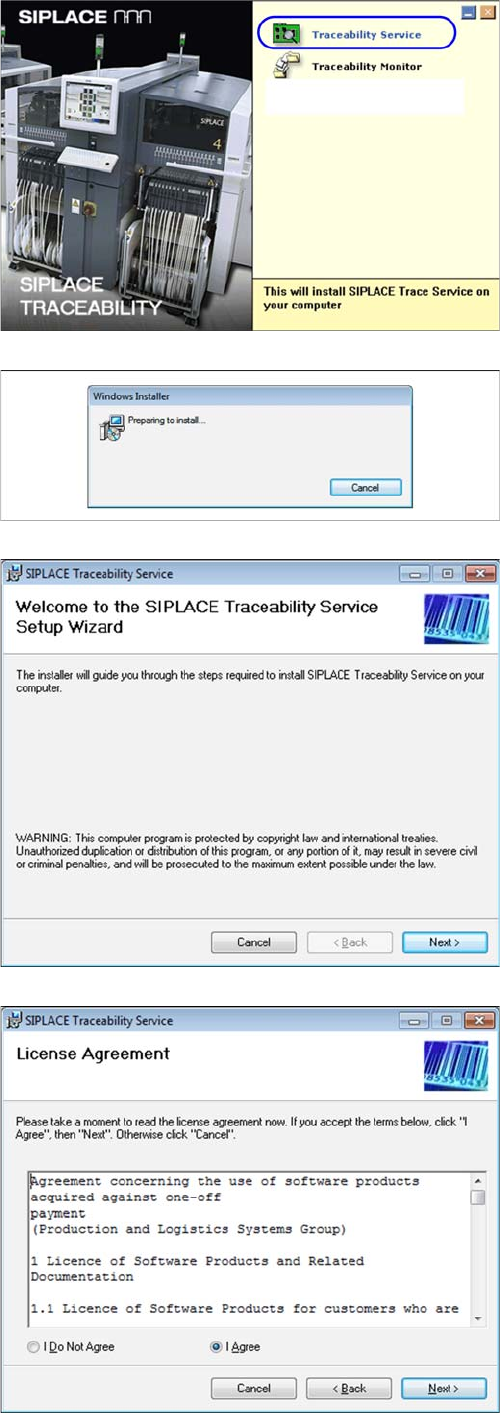
► Place the SIPLACE Traceability CD into the CD-ROM
drive of your computer. Trace Service can be in-
stalled on any computer in network with access to
SIPLACE LAN
⇨ You will see the start screen.
► Select SIPLACE Trace Service. You will be guided
through the Trace Service installation procedure.
The dialog boxes shown below will be displayed during
the installation procedure.
The Welcome dialog will appear.
► Click on Next to continue the installation procedure.
► Read the license agreement. If you agree with the
conditions, click on I Agree, otherwise click on I Do
Not Agree. If you select I Do Not Agree, the installa-
tion procedure will be terminated.
► Click on Next to continue the installation procedure.
Installation of Trace Service and Monitor
Trace Service 4.2.1 Installation
20 Installation Manual SIPLACE Traceability 4.0
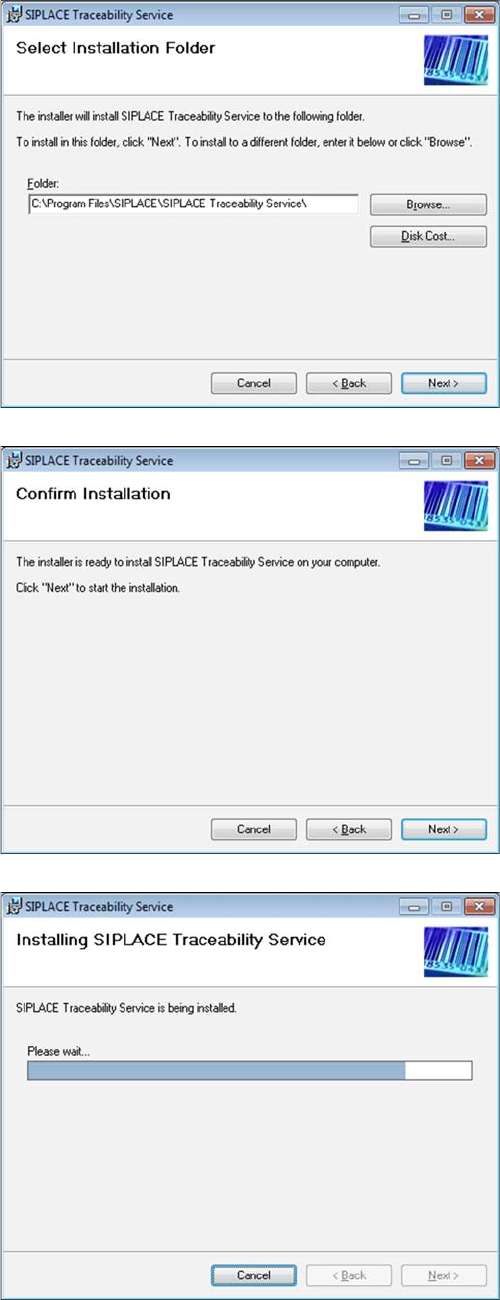
► Now specify the folder in which you wish to install the
application. The default folder is C:\Program
Files\SIPLACE\SIPLACE Traceability Service. You
can alter the default installation folder by using the
Browse… button.
► Confirm the installation by clicking on Next.
► The installation of Trace Service will begin.