00198171-02_Technical_Training_FSE_TX-Series_EN.pdf - 第136页
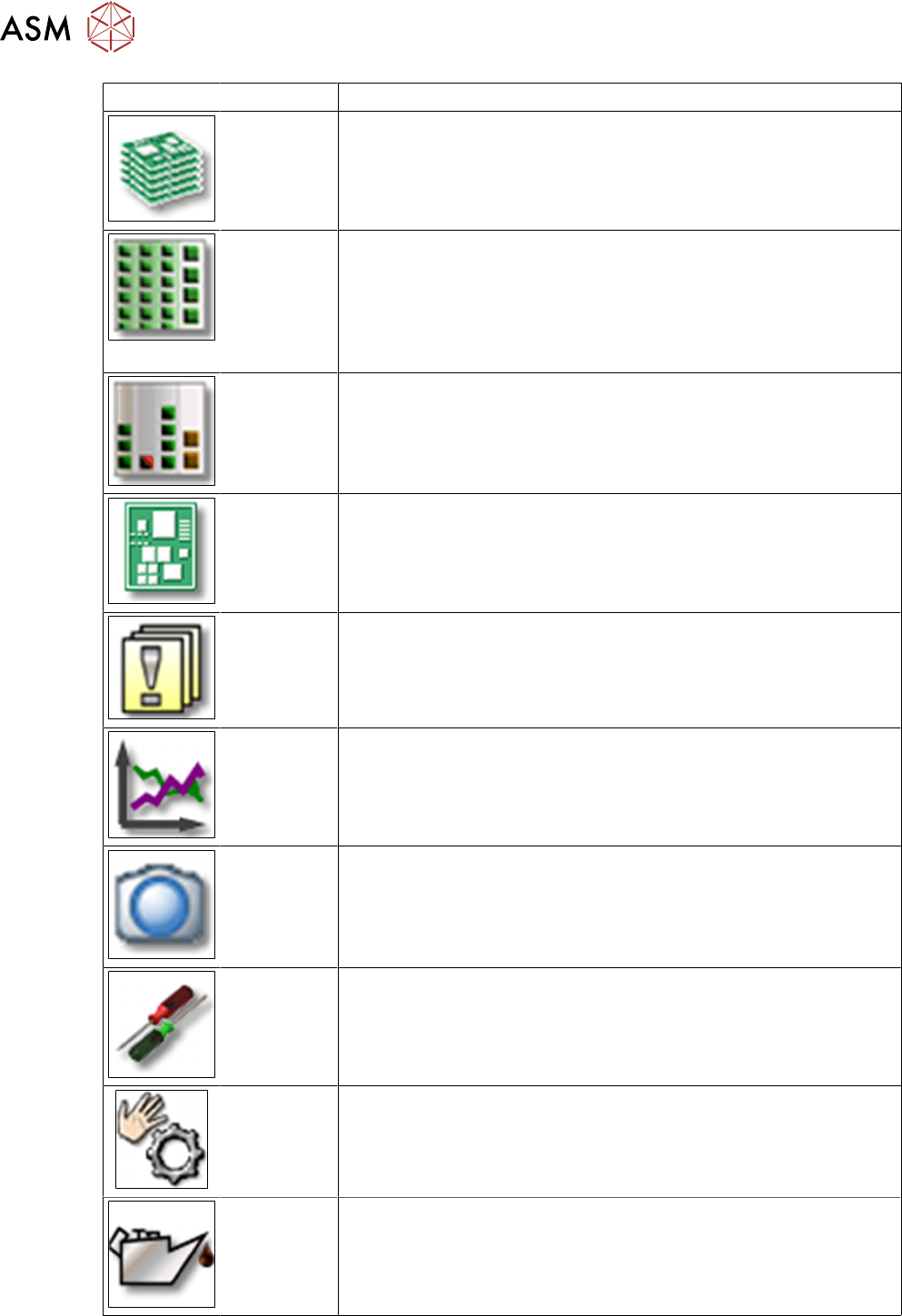
9 Station Software Overviews 9.2 Overview Station Software Main Menus 136 Technical Training FSE SIPLACE TX-Series 01/2018 Icon Description Main Operat- ing View ● Production information ● Production status Locations and…
9 Station Software Overviews
9.1 Station Software Start Page Overview
Technical Training FSE SIPLACE TX-Series 01/2018 135
9 Station Software Overviews
9.1 Station Software Start Page Overview
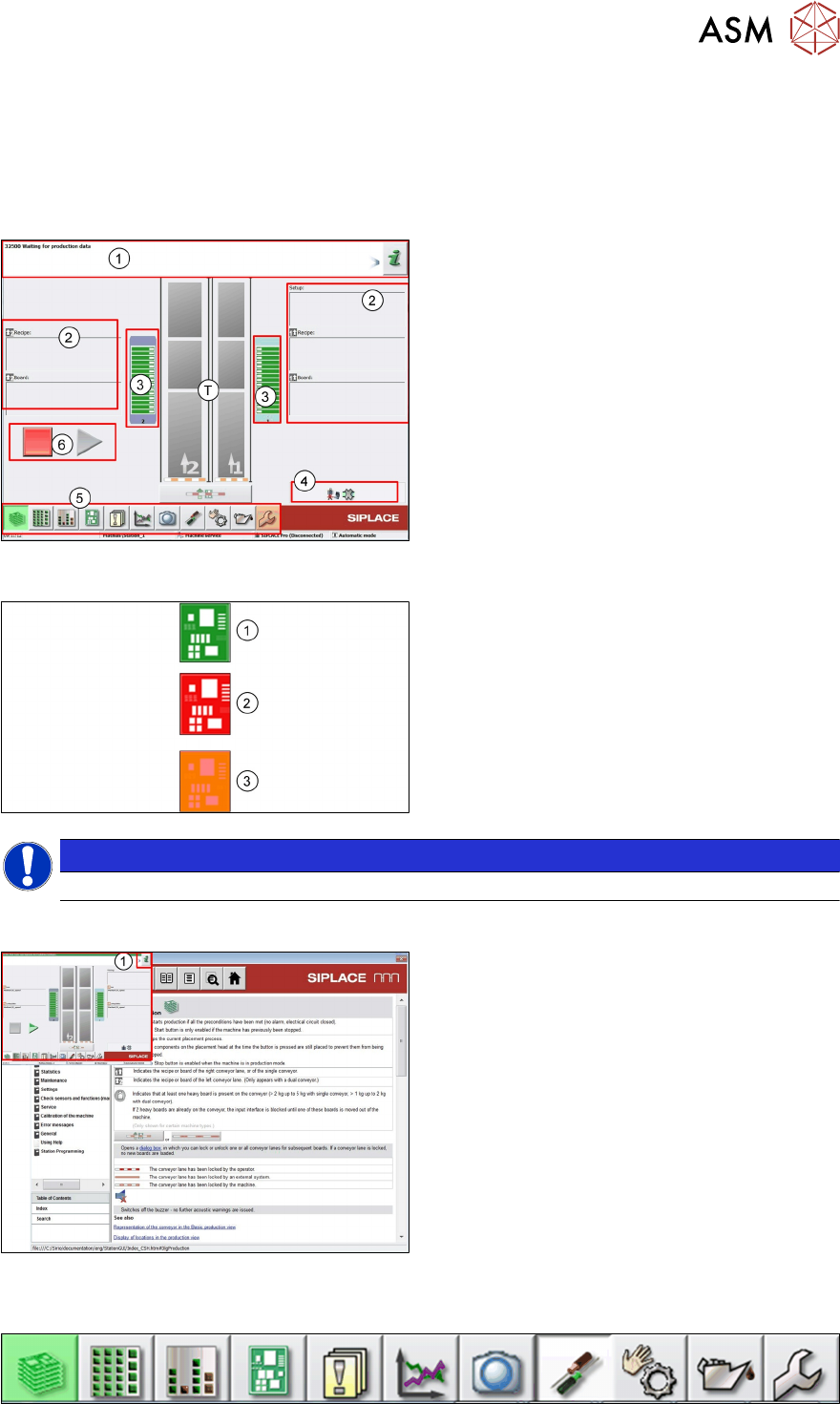
Station GUI Main Overview
T - Machine Conveyors
1. Information/Action bar. Machine Status
2. Product and setup information for transport
1 and 2
3. Feeder Table Status
4. Machine options and settings information
5. Machine Main Icons
6. Start / Stop buttons
Icon Color Meaning
1. If the icon is green then the machine is OK.
2. If the icon is red then the machine has a
problem and is no longer producing.
Action is required.
3. Orange means that the machine has a
problem but is still producing.
NOTICE
The colors of the icons in the GUI have a very clear meaning and should not be ignored.
Station GUI Help File
●
Click (1) in main or sub manual, "Help"
window will be opened.
●
The help file gives detailed error informa-
tion plus information on the machine calib-
rations and settings.
●
The help file also explains the meaning of
the various icons displayed.
9.2 Overview Station Software Main Menus
9 Station Software Overviews
9.2 Overview Station Software Main Menus
136 Technical Training FSE SIPLACE TX-Series 01/2018
Icon Description
Main Operat-
ing View
●
Production information
●
Production status
Locations
and Feeders
●
Checks and configures feeders and nozzles configuration.
●
Displays deactivated feeders and omitted feeders
●
Teaches component shapes and component pocket shapes
●
Modifies tray descriptions
●
Sets glue parameters
Component
filling levels
Displays and edits Component filling levels
PCB Inform-
ation
●
Displays and edits boards and placement positions list
●
Teaches fiducials
Messages
●
Displays notifications about current and previous events
●
Individual tables can be viewed for track errors, conveyor er-
rors, machine errors, general errors and linked errors
●
Displays the saved vision dumps
Performance
data
●
Shows the statistics for board and machine performance
●
Starts the OIS (Operator Information System)
Live image
●
Displays the individual live camera images
●
Views and saves the Vision dump
Settings and
Options
●
Checks & sets machine settings and GUI
●
Sets the activity level and the user interface language
●
Displays and edits the machine options and software options
Sensors and
functions
●
Information and functions for tests and diagnoses
●
Sets the behavior of start button, starts overall reference run
●
Single machine and head functions and endurance runs
Maintenance
●
Executes machine maintenance
●
Displays head statistics data
●
Head verification software
9 Station Software Overviews
9.3 User management and activity level rights
Technical Training FSE SIPLACE TX-Series 01/2018 137
Calibration
and configur-
ation
●
Conducts Calibrations
●
Configures and upgrade machine
●
Backs up and restores machine data
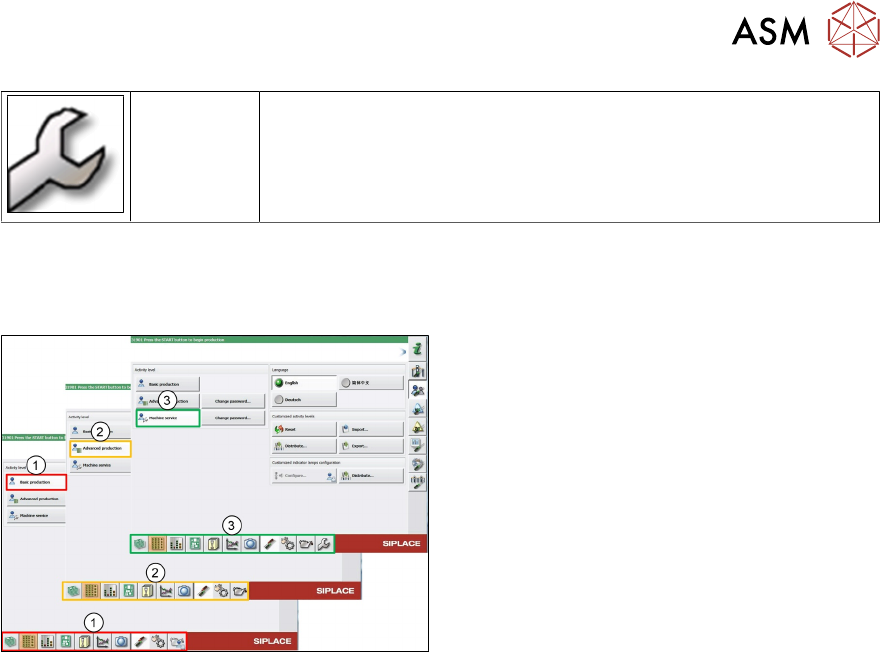
9.3 User management and activity level rights
Activity Levels User Levels
Following activity levels are defined:
1. Basic production
2. Advanced production
3. Machine service
The buttons vary according to your individual configuration and the operator level set.
Some views are only available for higher operator levels.
Basic production
This operator level is for basic machine operation.
Advanced production
This level is for people who can make programming changes.
SIPLACE Station vision teaching, teaching fiducials or who conduct machine maintenance.