CP45松下驱动器部分.pdf - 第13页
9. Motor & Driver Ver. Date CP45 CP45NEO 00 2004/11 O O 9-2 Fig.9-3-2-1 On-Line Connector Icon On-Line Connector Icon Fig.9-3-2-2Communication Stste W indow
9. Motor & Driver
Ver. Date CP45
CP45NEO
00 2004/11 O O
9-2
9-3 Parameter Load/Unload of SANYO Q-Type Motor Driver(=Amplifier)
9-3-1 Connection btw. Q-Motor Driver(=Amplifier) and Computer
* Tools
a) Notebook Computer
b) Cable for interface
1) Open Lower Cover of Rear Equipment
2) Prepare Laptop Installed with Q-SETUP Software
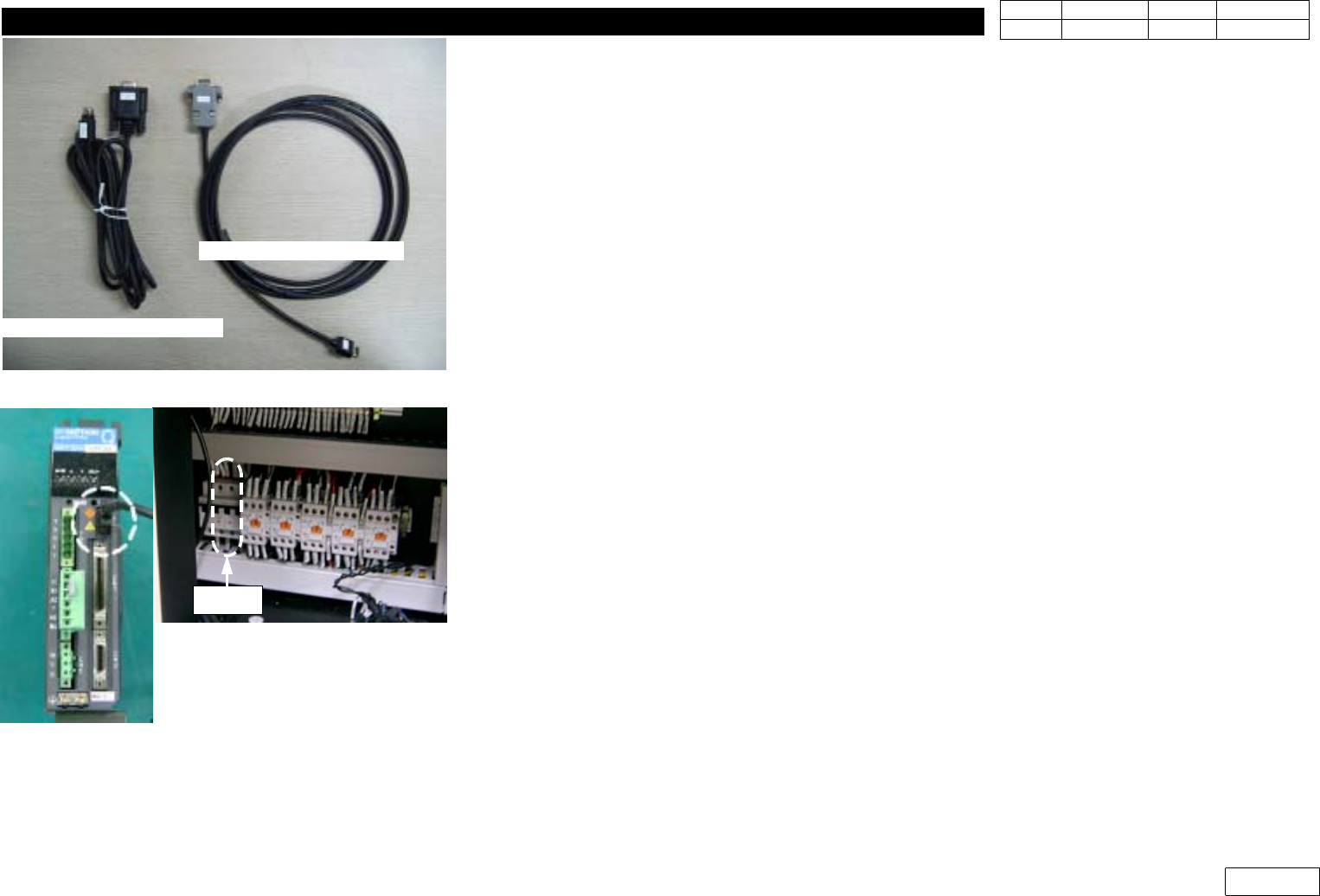
3) Prepare Exclusive Interface Cable as Fig.9-3-1-1 and Connect it to Laptop(RS232 Port)
4) W hen Connecting Interface Cable, Temporarily Block the Power Diverged to Driver from
Chip Mounter to Prevent the Damage of Driver(=Amplifier)(CP#2 Off :Fig 9-3-1-2)
5) Connect Interface Cable to the Port of Applying Amplifier as Fig.9-3-1-2
6) After Connecting Cable, Turn CP#2 On to Approve the Power to Driver
9-3-2. Software Run and Connection with Amplifier
1) Run Q-SETUP Software of Laptop
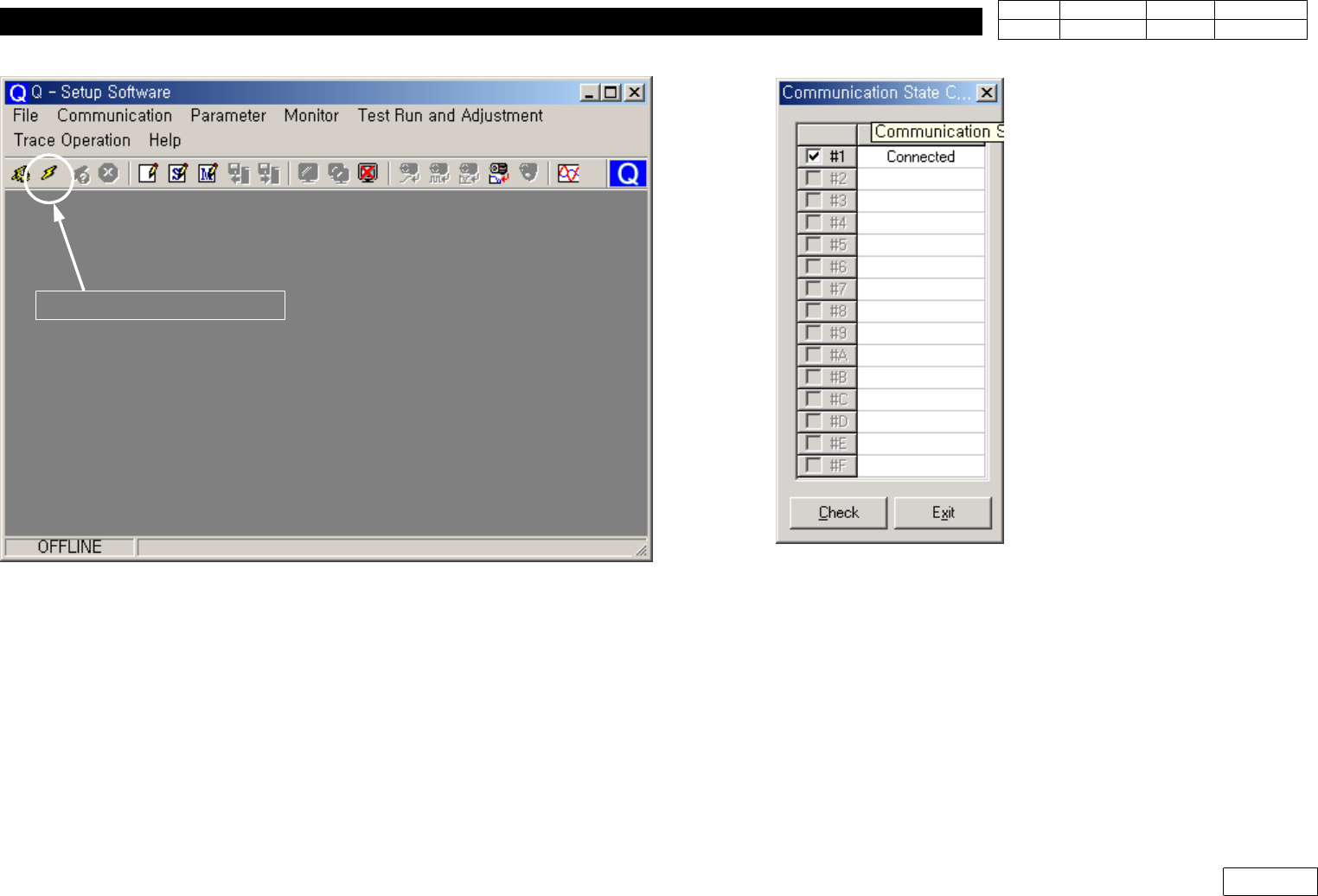
2) When Q-SETUP Software is Run, Window as Fig 9-3-2-1 Appears
3) Running Icon Connecting On-line Displays the Window of Communication State as Fig
9-3-2-2. Press 'Check' Button to Check Connection State.
4) When the error massage
"not corresponding"
is displated,
=> Please revise the latest version of 'Q-Setup' program
Fig.9-3-1-1 Interface Cable for Pana. Amplifier
Cable for Panasonic
Cable for Q-series
Fig.9-3-1-2 Connect I/F cable to Amplifier /
CP#2 off for safety
CP#2
9. Motor & Driver
Ver. Date CP45
CP45NEO
00 2004/11 O O
9-2
Fig.9-3-2-1 On-Line Connector Icon
On-Line Connector Icon
Fig.9-3-2-2Communication Stste W indow

9. Motor & Driver
Ver. Date CP45
CP45NEO
00 2004/11 O O
9-2
9-3-3. Changing Setting Value
* Agent or Customer Should not Change Parameter w/o Permission of the
Company and We do not Take Responsibility for any Error of Equipment by
this Change.
But Distributed Part for Service Information can be Changed by Permitted
One.
1) Select 'Transmit Parameter[Amplifier => File]' on Q-SETUP Screen and Download
Parameter File Saved in Driver(=amplifier) (Ref. Fig 9-3-3-1)
2) Click General Parameter Setting to Open Downloaded Amplifier File(*,ap0)
(System Parameter, Motor Parameter are for Expert Use and not Changed)
3) Select Symbol to be Changed and Click 'Edit' to Change (Ref. Fig 9-3-3-2)
9-3-4. Downloading Designated File in Amplifier
* O ur Company Offers Designated Parameter by Each Amplifier
(Drive for Spare Part is Set and Released before Delivery to Agent or Customer)
1) To Download this Parameter to Amplifier, Run Procedure 9-3-1 and 9-3-2 to Read
Parameter of Amplifier First and Save it for Backup
2) Select 'Transmit Parameter[File => Amplifier]' i n Q-SETUP Screen, and Load Parameter
File to Driver (Ref. Fig 9-3-4-1)
At this time, be Sure to Select All 3 Kinds of Parameters(General Parameter, System
Parameter, Motor Parameter) for the Kinds of Parameter to Transmit