TM1858_Time Matching Function.pdf - 第4页
Y A M A H A M o t o r C o . L t d . , I M O p e r a t i o n s E n g i n e e r i n g t e a m M o u n t e r S o f t w a r e D e v e l o p m e n t g r o u p MDOC-SOFT5005 5 4 Fi g 2 .2 T i me M atc hi n g S e t t i n …
YAMAHA Motor Co. Ltd.,
IM Operations Engineering team
Mounter Software Development group
MDOC-SOFT50055
3
2 How to setting
The following settings are necessary to use this function
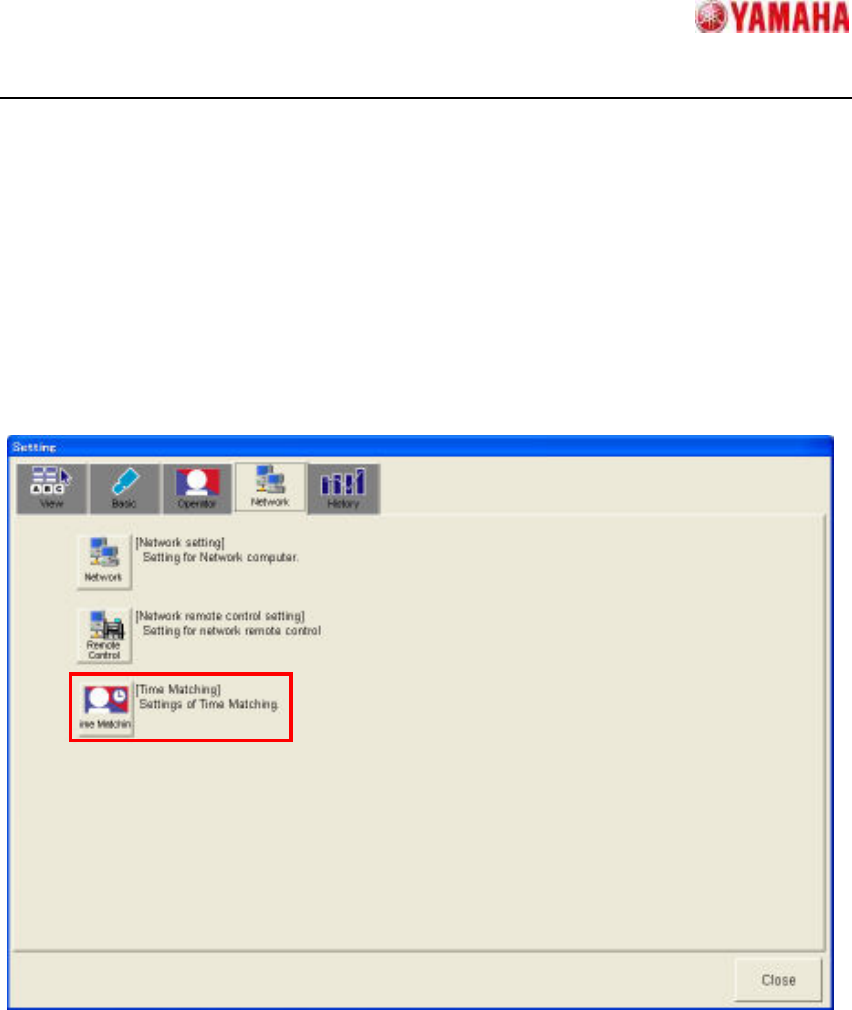
Tap [Setup] - [Software Setting] - [Network] - [Time Matching] button (Fig 2.1), and open Time
Matching Setting dialog (Fig. 2.2)
Fig 2.1 is the example of YS Series.
Fig 2.1 Software Setting dialog
YAMAHA Motor Co. Ltd.,
IM Operations Engineering team
Mounter Software Development group
MDOC-SOFT50055
4
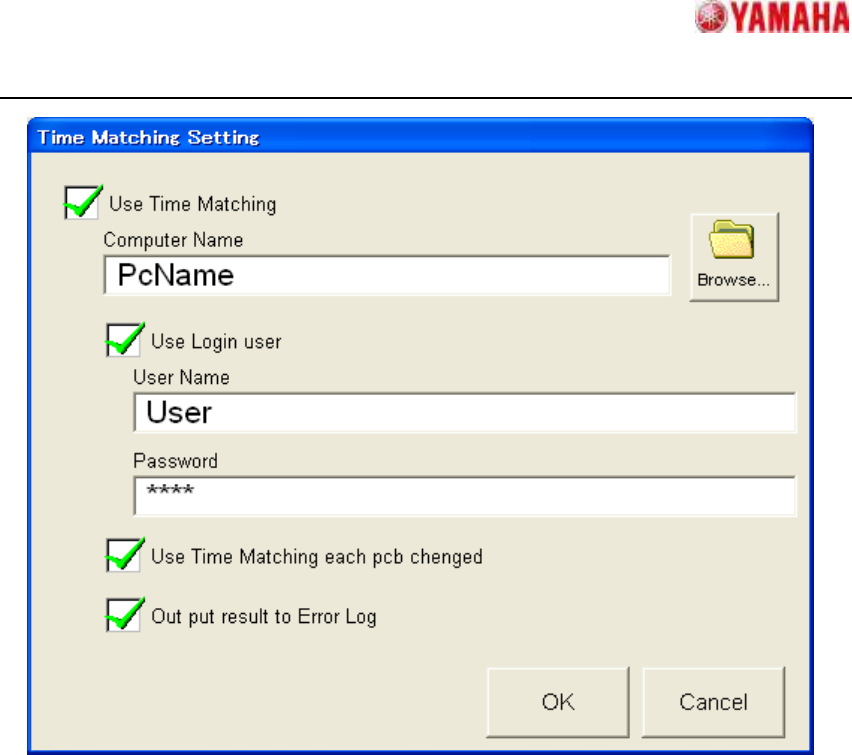
Fig 2.2 Time Matching Setting dialog
・ [Use Time Matching]
If "Checked state" is set, “Time Matching” is executed when the mounter application is
starting up.
Moreover the other items become to be able to edit.
・ [Computer Name]
Set computer name or IP address of the PC which is for the standard time.
Ex.) Domain Server, 192.168.0.1 etc.
CAUTION! If this item is not set, “Time Matching “is not executed.
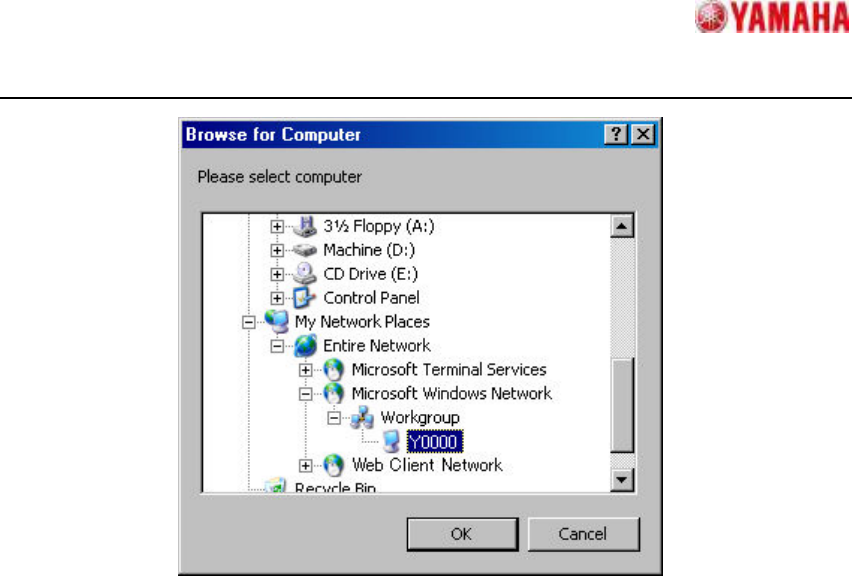
・ [Browse…]
Refer to PC of the standard time. (Fig 2.3) When PC of the standard time is selected and
[OK] button is tapped, [Computer Name] is set.
YAMAHA Motor Co. Ltd.,
IM Operations Engineering team
Mounter Software Development group
MDOC-SOFT50055
5
Fig 2.3 Browse for Computer dialog
・ [Use Login user]
Check this item when the password is necessary for accessing PC of the standard time.
・ [User Name]
Set login user name of PC of the standard time.
When the domain is necessary, please add “domain name¥” before the user name.
Ex.) Domain¥User
・ [Password]
Set login password of PC of the standard time.
All the inputted items are displayed as *.
・ [Use Time Matching each Pcb changed]
If "Checked state" is set, “Time Matching” is executed when board data is changed.
Default is not checked.
・ [Out put result to Error Log]
If "Checked state" is set, the result of “Time Matching” is added to [MIS] - [Error log].
(Refer to “4 Error Message”) Default is not checked.
Please tap [OK] button after the setting ends. The setting is saved and Time Matching Setting