00194703_Setup Selection Assistant Setup Center RF.pdf - 第16页
SIPLACE Setup Center RF 2.1 - Tools Installation Manual - Setup Selection Assistant If you choose “Reduce setup” the optim ized setup from the first recipe is copied to “Setup Center\<Line name>\<Setup name>”…
Installation Manual - Setup Selection Assistant SIPLACE Setup Center RF 2.1 - Tools
Step 3: Edit Job
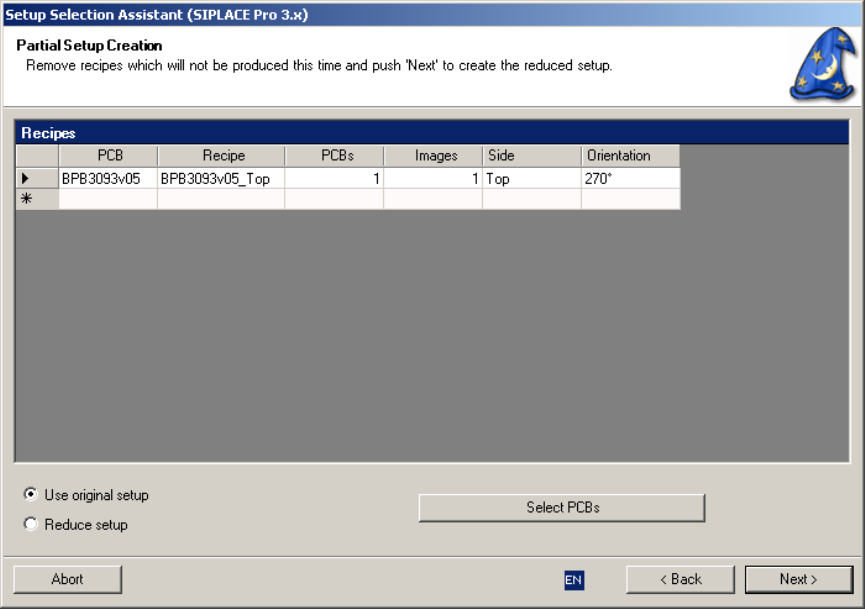
The following step is to edit the (copied!) job according to the today’s needs:
Figure 6 "Job Editor" page
The recipes grid shows the recipes which are currently in the job. Remove all recipes which will not be
produced this time.
You can also add new boards to the job clicking on the button “Select PCBs”. For each selected PCB and
each board side with placement positions a new recipe is created. A board side can not be inserted twice.
The orientation is taken from the default orientation of the board side in SIPLACE Pro. A check is done to
see if the board side fits into the setup. Omitted components, images or placement positions are not
checked.
You can delete PCBs from the job by selecting the line in the view and press the “del” (Delete) key.
If you choose “Use original setup” the optimized setup of the first recipe is entered into all recipes.
15 of 20
-
SIPLACE Setup Center RF 2.1 - Tools Installation Manual - Setup Selection Assistant
If you choose “Reduce setup” the optimized setup from the first recipe is copied to “Setup Center\<Line
name>\<Setup name>” and its tables are copied as well. Then all not required feeders and components
are removed from the copied setup.
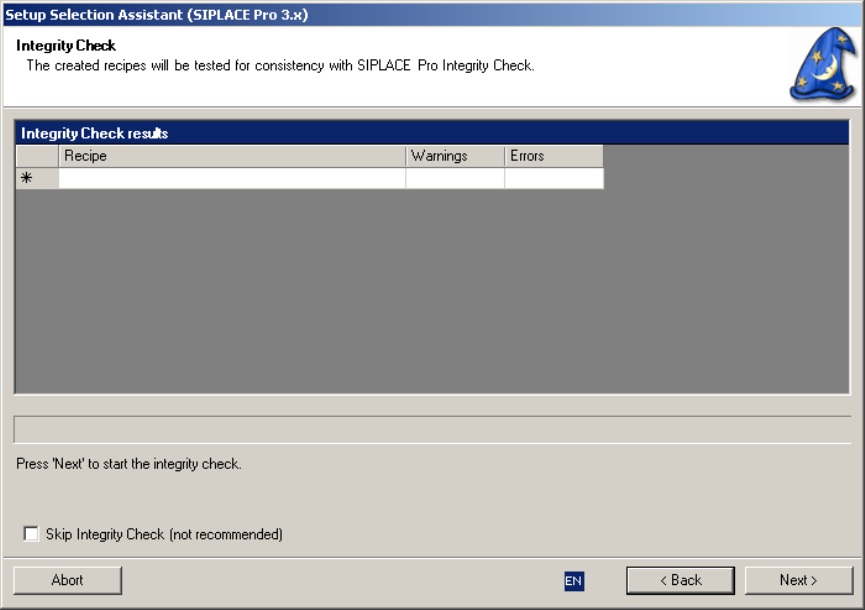
Step 4: Perform the Integrity Check
The following step makes sure the recipes are consistent and ready for download to the SIPLACE
stations:
Figure 7 "Integrity Check" page
Starting next the integrity check will be done for all recipes. If you get error messages you need to
analyze and adjust the data in SIPLACE Pro.
16 of 20
Installation Manual - Setup Selection Assistant SIPLACE Setup Center RF 2.1 - Tools
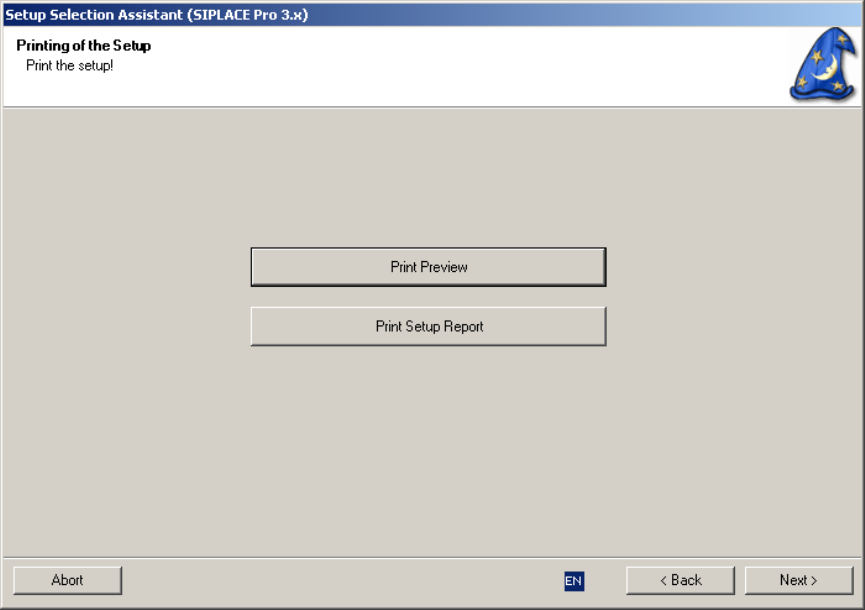
Step 5: Printing the Setup
This step supports the printout of the setup which is intended to guide the setup operator to build the
physical setup:
Figure 8 "Setup Printout" page
17 of 20
-