TM6211.SmartRecognition.pdf - 第7页
S M T S o f t w a r e E n g i n e e r i n g G r o u p I M O p e r a t i o n s Y A M A H A M O T O R C O . , L T D . MDOC-SOFT50185 4) Correct the image angle T o create a model f or Smart Recognition, adjust the a ngle o…
SMT Software Engineering Group
IM Operations YAMAHA MOTOR CO., LTD.
MDOC-SOFT50185
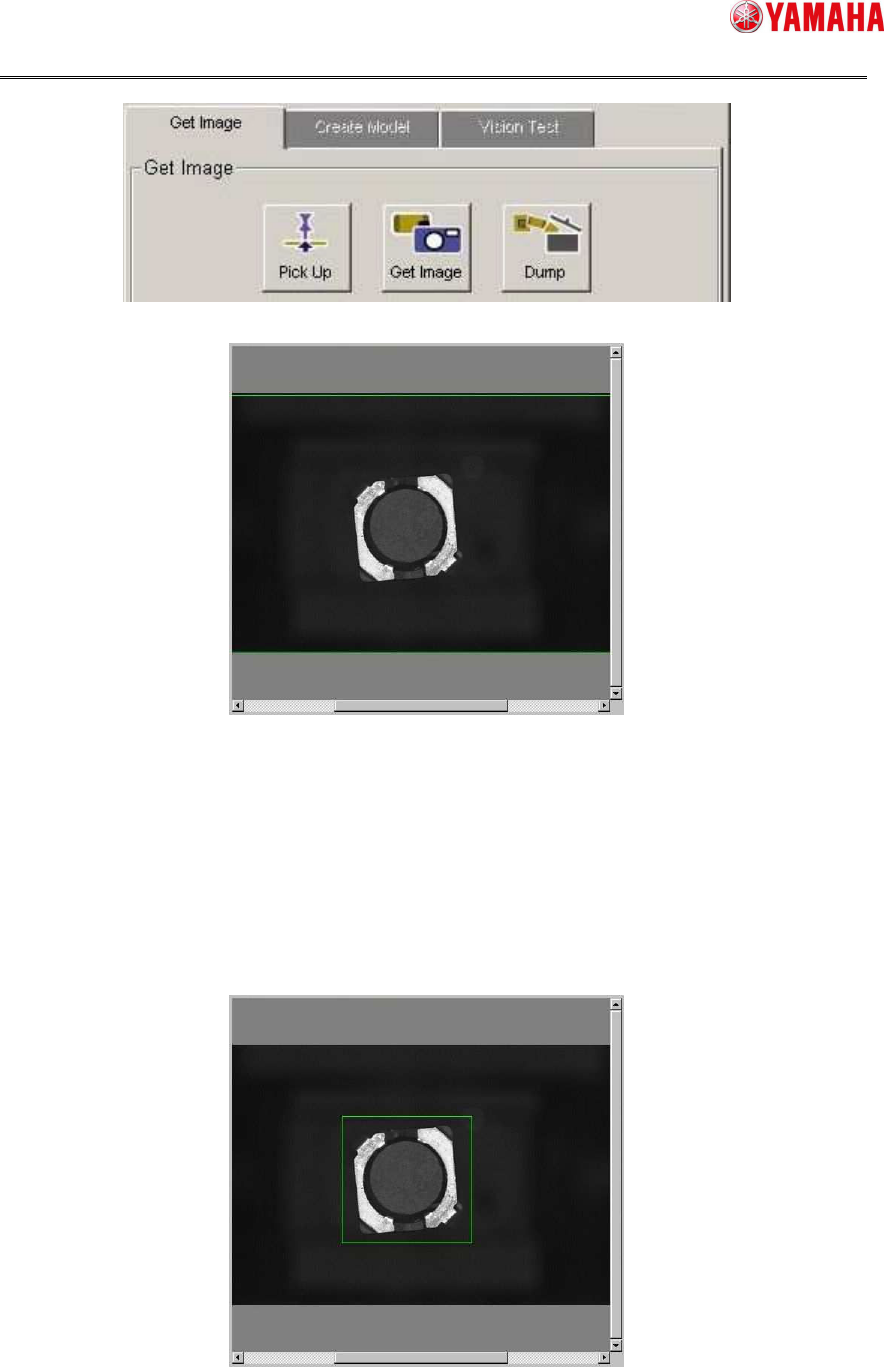
3) Specify edge detection frame
To specify an edge detection frame, enclose the parts by dragging the mouse on the
vision window.
Just after the image captured, the outer frame of the image is automatically set as its
edge detection frame. You can go to the next step without adjusting the frame, but in
that case, there is a possibility that something on the white space can be detected
incorrectly as parts edges. Therefore, it is recommended to set edge detection frame
with its absolute minimum margin.
SMT Software Engineering Group
IM Operations YAMAHA MOTOR CO., LTD.
MDOC-SOFT50185
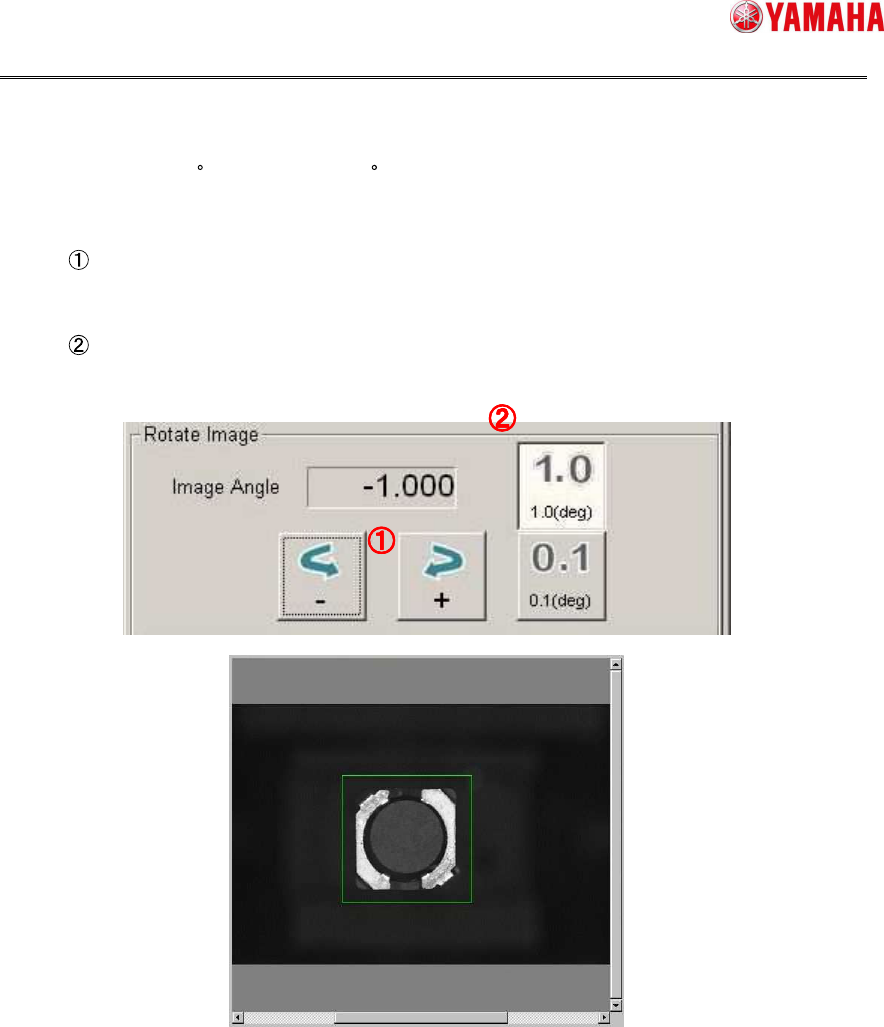
4) Correct the image angle
To create a model for Smart Recognition, adjust the angle of the image to make it
straight (angle 0 ). Mount angle 0 is also based on this angle, so be sure to set this
angle precisely.
Rotate the image
Allows you to rotate the image enclosed with the edge detection frame.
Rotating angle
Allows you to specify a rotating angle.
SMT Software Engineering Group
IM Operations YAMAHA MOTOR CO., LTD.
MDOC-SOFT50185
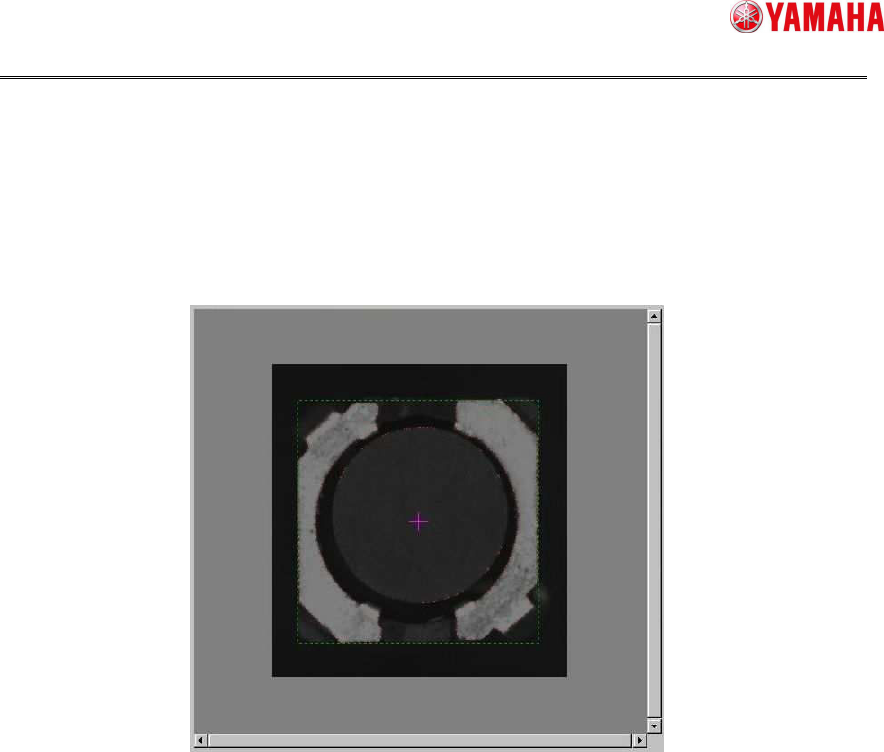
5) Move to the Create Model screen
Press the [Next] button to go to the [Create Model] screen.
When the screen is switched, the edges are detected automatically from the captured
image, and the vision window switches to an image superimposing of the detected
edge image on the captured parts image.
An error may occur if the detected edges are too many or too few.
If it is difficult to see detected edges, check only the [Detected Edge] check box.