00194675-02.pdf - 第54页
7 Uninstalling Installation manual SIPLACE Pro Edition 10/2005 US 54 7 Abb. 7 - 1 Licence options Æ Choose Keep... if you want to install a version later on or choose Remove... if you do not want to install SIPLACE Pro e…

Installation manual SIPLACE Pro 7 Uninstalling
Edition 10/2005 US
53
7 Uninstalling
7.1 Uninstalling the software
Uninstalling SIPLACE Pro deletes all SIPLACE Pro software components from the system except
for the SIPLACE Pro Database. 7
The SIPLACE Pro Database is not automatically uninstalled in order to prevent possible data
loss. 7
Step 1
Uninstall SIPLACE Pro via the Control Panel. 7
You require the uninstall window in Windows for uninstalling. 7
Æ Click Start in the Windows start menu.
Æ Click Settings.
Æ Click Control Panel.
Æ Double-click Add / Remove Programs.
A list appears with the names of the software packages installed on the computer. 7
Æ Select SIPLACE Pro.
Æ Click the Change/Remove components button.
Æ In the "Confirm File Deletion" dialog box, click Yes if you wish to proceed or No if you wish to
cancel the uninstall process.
Æ Select Remove to remove all installed features.
Æ Click Next to continue.
Æ In the "Confirm File Deletion" dialog box, click OK if you wish to proceed or Cancel if you wish
to cancel the uninstall process.
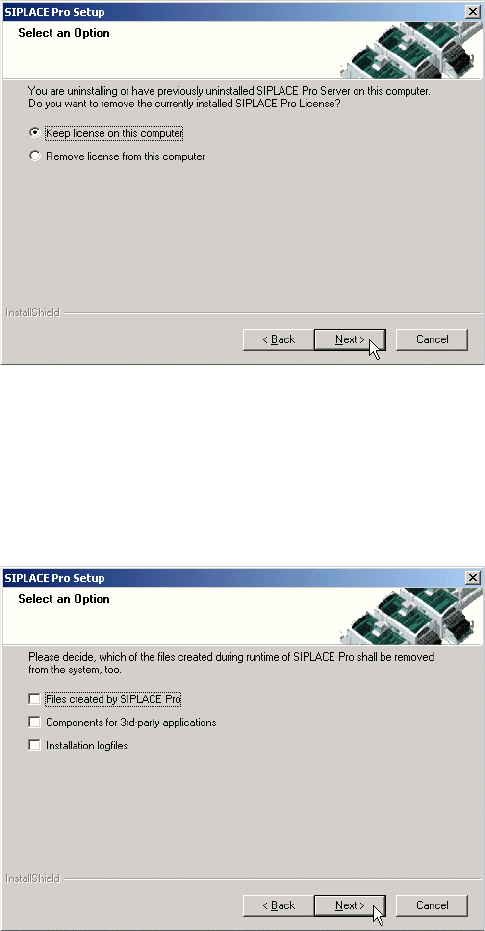
Æ In the license dialog box you could choose if you want to keep the license on this computer for
future installations or if you want to remove the license from this computer.
7 Uninstalling Installation manual SIPLACE Pro
Edition 10/2005 US
54
7
Abb. 7 - 1 Licence options
Æ Choose Keep... if you want to install a version later on or choose Remove... if you do not want
to install SIPLACE Pro ever again or if its expired.
Æ Click Next to continue.
7
Abb. 7 - 2 Saving options
Æ Choose Files created by SIPLACE Pro to be removed if you want to free disk space prior to
installing SIPLACE Pro again on this computer..
Choose Components for 3rd-party applications to be removed if you do not plan to install
SIPLACE Pro again on this computer.
Choose Installation logfiles to be removed if you never install SIPLACE Pro again on this
computer. If you want to keep the installation logfiles including the log from the uninstallation,
make sure to leave the option Installation logfiles unchecked.
7

Installation manual SIPLACE Pro 7 Uninstalling
Edition 10/2005 US
55
Æ If you do not plan to install SIPLACE Pro again on this computer, we recommend to choose
all options.
Æ Click Next and you get a summary of all components to be deleted.
Æ Click Next if you accept all the information entered so far.
Æ Click Done.
Step 2
Clean up the registry. 7
Æ Go to the "registry editor"
via Start - Run - then type in "regedit".
Æ Select HKEY_LOCAL_MACHINE\SOFTWARE\Siemens SIPLACE
Æ Delete the following entries:
Line Control GUI 2.0
LineControlServer 1.0
SIPLACE Pro 1.0
SIPLACE Pro 2.0
SIPLACE Pro SetupLog
Step 3
Clean up the disk and make sure that there are no more program files. 7
Æ Check the path Program Files\Siemens SIPLACE\SIPLACE Pro.
Æ If you will find additional files, please delete them (except for the database).
7.2 Uninstalling the database
7.2.1 On SQL Server 2000 installations
Warning
All data for SIPLACE Pro will be deleted. This step is only for database administrators. 7
Æ Go to "Microsoft SQL Server - Enterprise Manager".
Æ Select the database "SIPLACEPro".
Æ With the right-mouse button select "delete".
All database files of SIPLACE Pro will be deleted. 7