00196086-01_IM_Siplace_Pro_5.2_EN.pdf - 第34页
4 Installation of SIPLACE Pro and possible Setup Types Installation manual SIPLACE Pro Edition 07/2008 US 32 4.2.4 Setup T ype – SIPLACE Pro Line Con trol GUI This setup type is used for compute rs dedicate d to perfor m…
Installation manual SIPLACE Pro 4 Installation of SIPLACE Pro and possible Setup Types
Edition 07/2008 US
31
Step 2
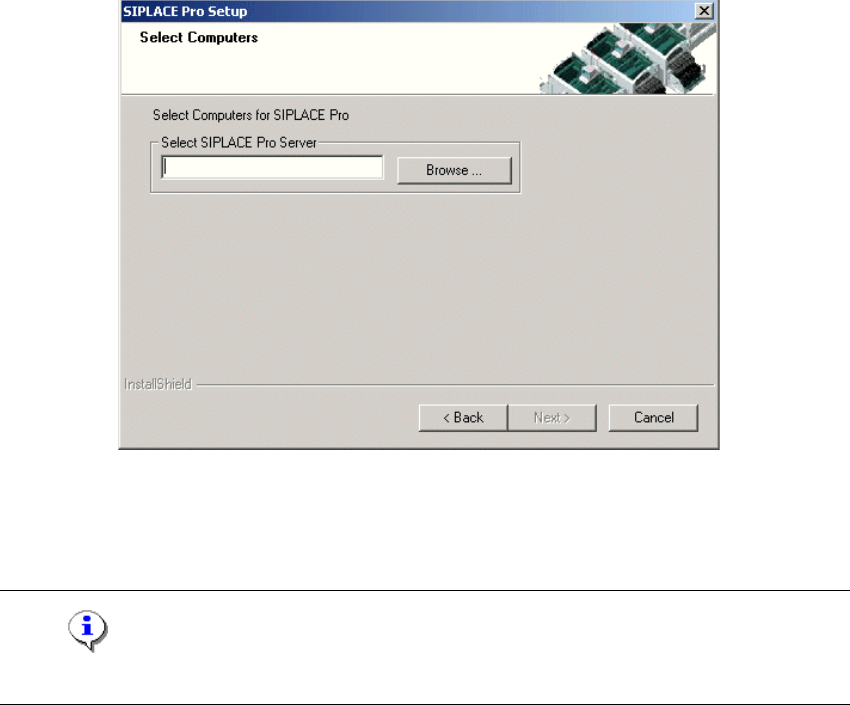
– You are prompted to enter the name of the computer where SIPLACE Pro Server is running.
. 4
Fig. 4 - 18 "Select Computers" dialog box
Æ You can type in a computer name or click the Browse button to open a dialog box in which you
can select another name.
Note
SIPLACE Pro Server must already be installed on the remote computer! 4
Step 3
The "Start Copying Files" dialog box gives you a last chance to check the information you have
entered during the previous steps. 4
Æ Click Next if you accept all the information entered so far.
Æ If you want to alter one or more details, click the Back button until you get to the dialog box in
question.
Æ There, input your changes and click Next to continue as usual.
– The installation routine is now started.
– The "Setup Complete" window confirms that the installation has been completed successfully.
4 Installation of SIPLACE Pro and possible Setup Types Installation manual SIPLACE Pro
Edition 07/2008 US
32
4.2.4 Setup Type – SIPLACE Pro Line Control GUI
This setup type is used for computers dedicated to perform download of production data to the
line. Computers with the "SIPLACE Pro Line Control GUI" setup should be located close to the
line. 4
4
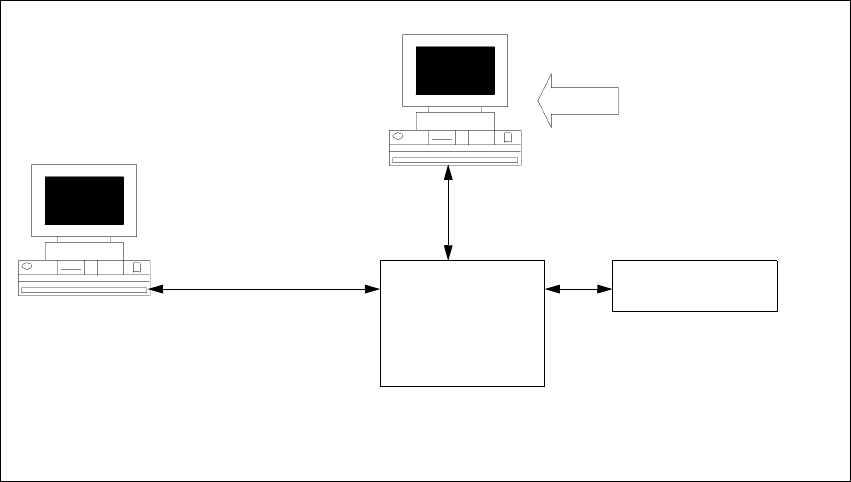
Fig. 4 - 19 Components – SIPLACE Line Control GUI
Step 1
Æ Run through the steps in ”Starting installation – first steps” from page 13.
Æ Select the SIPLACE Pro Line Control GUI setup type.
Æ Click Next.
Line Control
GUI
SIPLACE Pro
Interface
MS SQL Server with
SIPLACE Pro Server,
Line Control Server, and
Database pre-installed
Setup
COM
MSMQ
Resource
Manager
Installation manual SIPLACE Pro 4 Installation of SIPLACE Pro and possible Setup Types
Edition 07/2008 US
33
Step 2
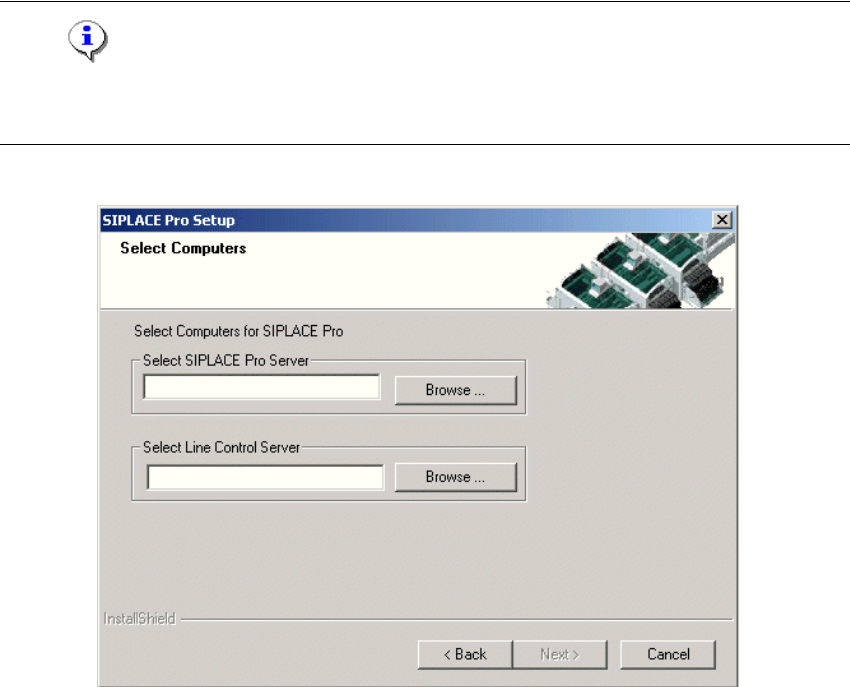
– You are prompted to enter the names of the computers which are running Line Control Server
and SIPLACE Pro Server.
Æ You can type in the names or click the Browse button to open a dialog box in which you can
select another computer name.
Note
SIPLACE Pro Server and Line Control Server must already be installed on the remote remote
computer. 4
4
Fig. 4 - 20 "Select Computers" dialog box