BT3564_user_manual_chi_20191017H.pdf - 第159页
8.8 示例程序 153 8 5 配置串行通信组件。 1. 单击 “ Toolbox ” - “ Components ” - “ Serial Port ”。 2. 将“ Serial Port ”组件拖拽到表格设计画面 中。 3. 设置 “ Serial Port ” - “ Properties ” - “ Misc ”。 4. 确认 “ Control Pa nels ” - “ Hardware and Sound ” - “…
8.8
示例程序
152
以下示例说明使用 Windows
®
开发语言 Visual Studio
®
2017 Professional Edition,经
由 RS-232C 通过计算机操作本仪器,取得测量值后保存到文件中的方法。
下面说明使用 Visual Basic
®
2017 生成程序的步骤。
生成设计的步骤为 Visual Basic
®
的示例。Visual C#
®
可按照几乎与 Visual Basic
®
相
同的方式生成。
8.8 示例程序
利用 Visual Studio
®
2017 生成
生成步骤 (Visual Basic
®
2017)
由于计算机和 Visual Basic
®
2017 环境的不同,说明可能会有若干差异。 Visual
Basic
®
2017 的详细使用方法请参阅 Visual Basic
®
2017 的使用说明书或 HELP。
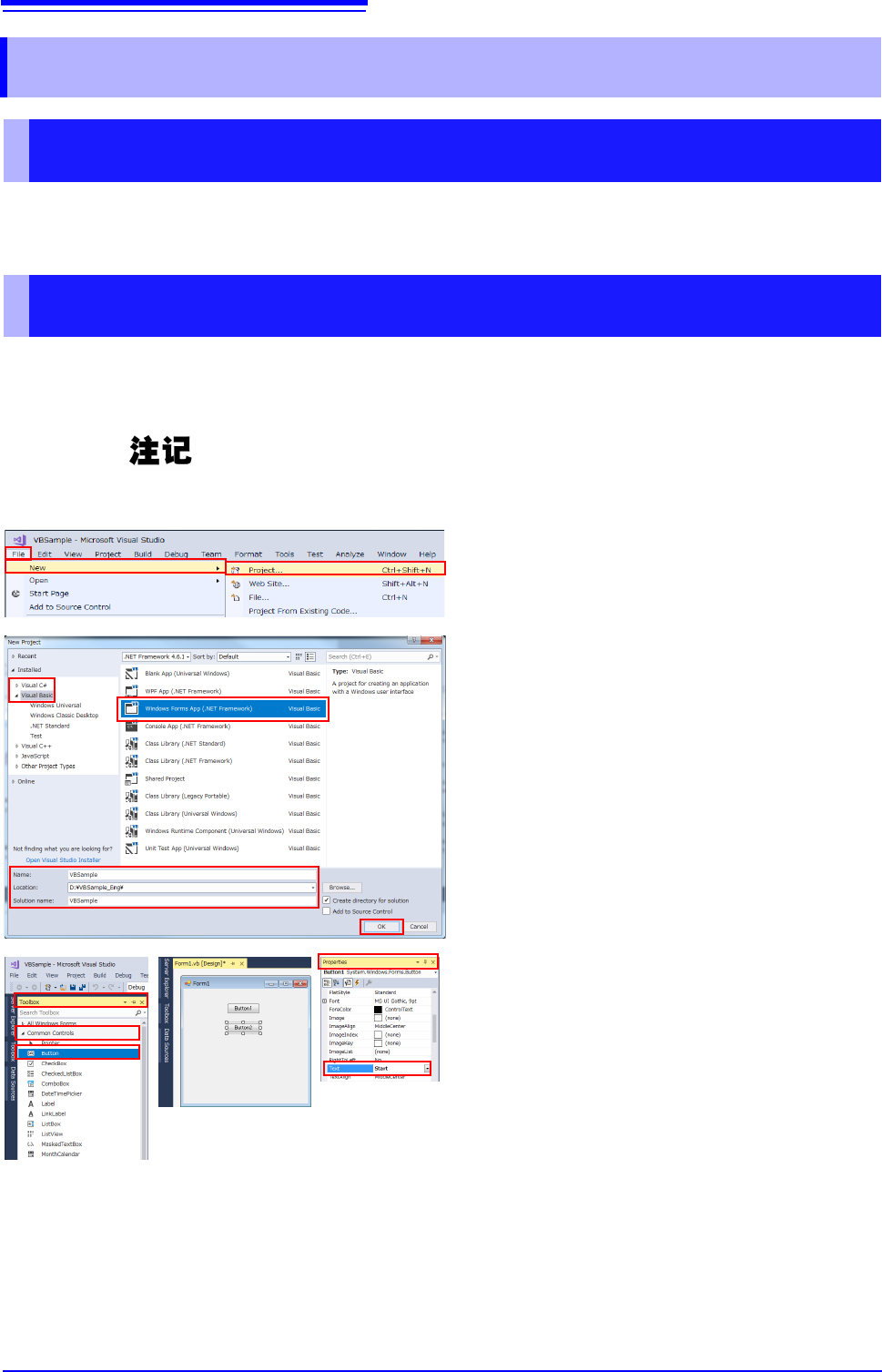
1 启动 Visual Studio
®
2017,选择 “File” -
“
New” - “Project...”。
2 选择 “Visual C#”或 “Visual Basic” -
“
Windows Forms APP (.Net
Framework...)
”。
3 输入名称、位置与解决方案名称,然后选择
“
OK”。
4 配置按钮。
1. 单击 “Toolbox” - “Common Controls” -
“Button”。
2. 将“ Button”拖拽并粘贴到表格设计画面中。
3. 通过 “Properties”窗口将 “Text”变更为
“Start”。
4. 按照与步骤 1 ~ 3 相同的方式,创建用于结
束应用程序的按钮。
8.8
示例程序
153
8
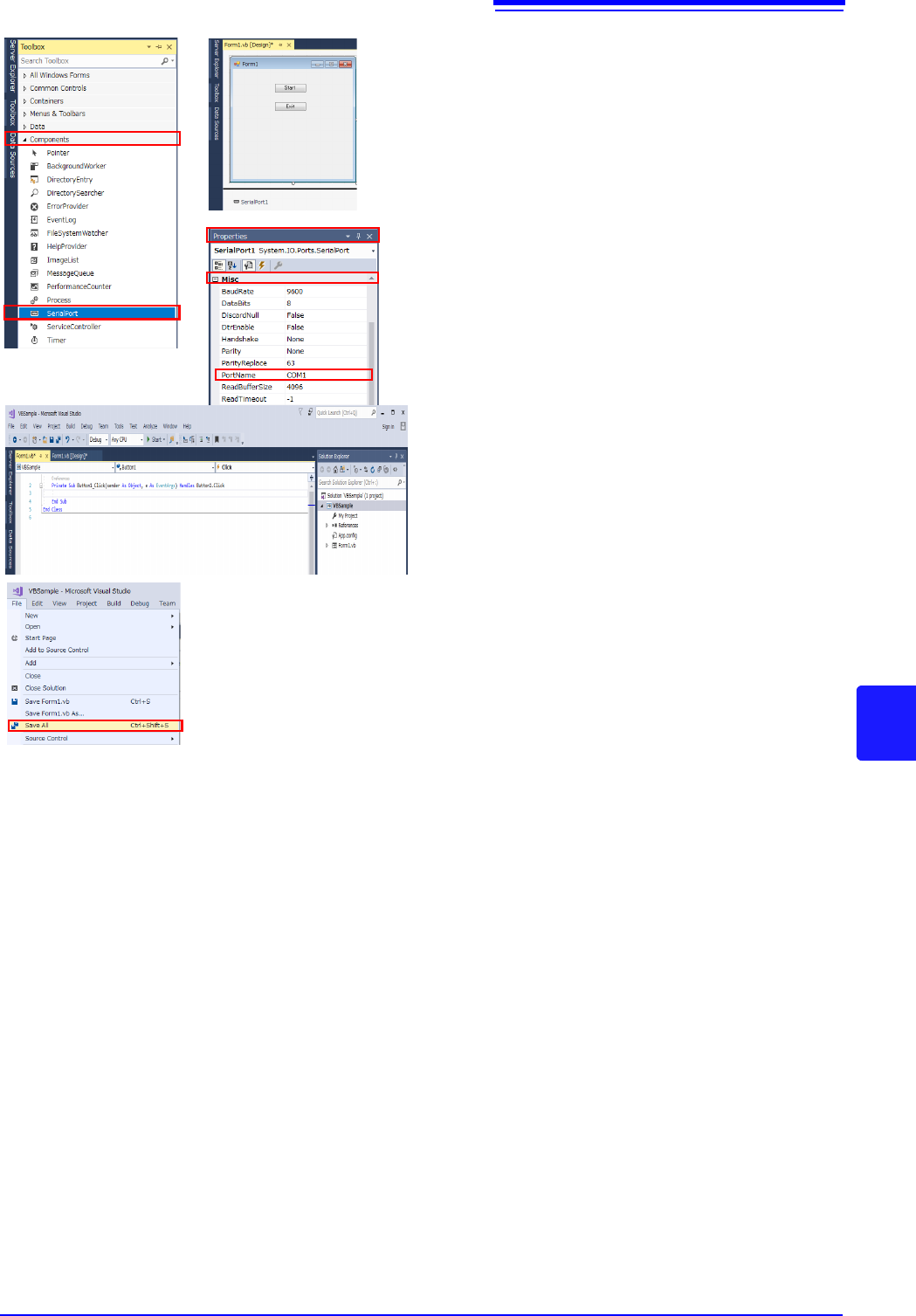
5 配置串行通信组件。
1. 单击“Toolbox”-“Components”-“Serial
Port”。
2. 将“Serial Port”组件拖拽到表格设计画面
中。
3. 设置“Serial Port”-“Properties”-“Misc”。
4. 确认 “Control Panels” - “Hardware and
Sound”-“Device Manager”-“Ports”,在
要使用的端口名中变更 “Port Name”。
6 记述代码。
如果双击已配置的 “Start”,则会显示代码编辑
器。
7 选择“File”-“Save All”并结束 Visual Stu-
dio
®
2017。
8.8
示例程序
154
下面所示为使用 Visual Basic
®
2017 进行 RS-232C 通讯,设置本仪器的测量条件并读入测量结果,然后保存到文
件中的示例程序。
示例程序记述如下。
为开始测量而创建的按钮 .......................................................................... “
Start”
为结束应用程序而创建的按钮 .................................................................... “
Exit”
如果按下 “测量开始”按钮,则进行 10 次测量,并将测量值写入到 “data.csv”文件中。
按下 “Stop”按钮,结束程序。
以下所示程序全部记述为 “Form1”的代码。
示例程序 (Visual Basic
®
2017)
using System;
using System.Collections.Generic;
using System.ComponentModel;
using System.Data;
using System.Drawing;
using System.Linq;
using System.Text;
using System.Threading.Tasks;
using System.Windows.Forms;
using System.IO;
using System.IO.Ports;
namespace CSSample
{
public partial class Form1 : Form
{
public Form1()
{
InitializeComponent();
}
//Perform process when Button1 is pressed
private void button1_Click(object sender, EventArgs e)
{
StreamWriter sw;
string recvstr;
int i;
try
{
button1.Enabled = false; //Disable buttons during communication........(a)
button2.Enabled = false;
//Communication port setting..............................................................(b)
SerialPort1.PortName = "COM1";
SerialPort1.BaudRate = 9600;
SerialPort1.DataBits = 8;
SerialPort1.Parity = Parity.None;
SerialPort1.StopBits = StopBits.One;
SerialPort1.NewLine = "\r\n"; //Terminator setting..........................(c)
SerialPort1.ReadTimeout = 2000; //2 seconds time out..........................(d)
SerialPort1.Open(); //Open a port
SendSetting(); //Instrument settings
sw = new StreamWriter(@"data.csv"); //Create text file to be saved................(e)
for (i = 0; i < 10; i++)
{
//Begin measurement and read measurement results Command..............................(f)
SerialPort1.WriteLine(":FETCH?");
recvstr = SerialPort1.ReadLine(); //Read measurement results
sw.WriteLine(recvstr); //Write to file
}
sw.Close(); //Close file
SerialPort1.Close(); //Close port
button1.Enabled = true;
button2.Enabled = true;
}