Oxford ICP-CVD SOP.pdf
Tool Owner: Eric Mills, enmills@pr inceton.ed u , x 8-4 626 Backup: J oe Palmer, jpalmer@ princeton.edu , x 8-4 706 Page 1 of 11 Oxford Pla sma Pro 100 PECVD Draft v.0.4 PROCEDUR E OVERVIEW 1. Login via Mend ix 2. Check …
Tool Owner: Eric Mills, enmills@princeton.edu, x 8-4626
Backup: Joe Palmer, jpalmer@princeton.edu, x 8-4706
Page 1 of 11
Oxford PlasmaPro 100 PECVD
Draft v.0.4
PROCEDURE OVERVIEW
1. Login via Mendix
2. Check process logs and tool condition
3. Perform chamber conditioning run with dummy wafer already present in loadlock
4. Vent loadlock, unload dummy, load sample, pump loadlock
5. Load and modify desired recipe
6. Perform sample etch
7. Vent loadlock, unload sample, load dummy, pump loadlock
8. Load & modify appropriate cleaning procedure
9. Run chamber cleaning recipe
10. Logout via Mendix
CRITICAL PRECAUTIONS AND COMMON MISTAKES
Mendix login controls the monitor power
MATERIALS restrictions:
o No exposed metal during process; covering with spin-coated resist is not suitable protection, must
be conformal vacuum deposition. Exceptions to this must be explicitly approved by the MNFL
staff
o No exposed photoresist, Kapton tape, or other organics; this will get integrated into the
deposited film and degrade film quality
SAMPLE restrictions:
o All samples must be placed on a 4” carrier wafer. User must ensure that samples do not slide off of
carrier during loading (may require creation of custom holder)
Processing restrictions:
o If loading/unloading by hand, double-glove immediately before touching part to go inside chamber
o If operating at a temperature other than 70
o
C, you must abide by time restrictions placed on high-
temperature processing. As of this writing, >70C processing is approved for M-F
afternoons/evenings only.
Before you start:
Check wafer status in software, and visually (both chamber and loadlock)
The loadlock should be pumped down, a wafer should be inside
Oxford PC2000 (tool) Software should be running
The user “USER” should be logged in
Tool condition for next user:
Ensure cleaning recipe has started, wait for plasma to ignite
Page 2 of 11
TOOL OVERVIEW
The Oxford PlasmaPro100 ICPCVD is an inductively-coupled plasma (ICP) system designed to deposit SiO2 and SiNx at 20-
5000nm thicknesses. It is typically operated at table temperatures between 70 and 250C. Processes can be run between
0-100mTorr. It is plumbed with SiH4 (4%, in Ar), Ar, H2, N2O, CF4, O2, and N2. It uses helium backside cooling to maintain
wafer temperature during process, using a physical clamp to maintain sample position.
FULL PROCEDURE
Log in via Mendix. Mendix controls power to the
monitor.
Check Process Logs:
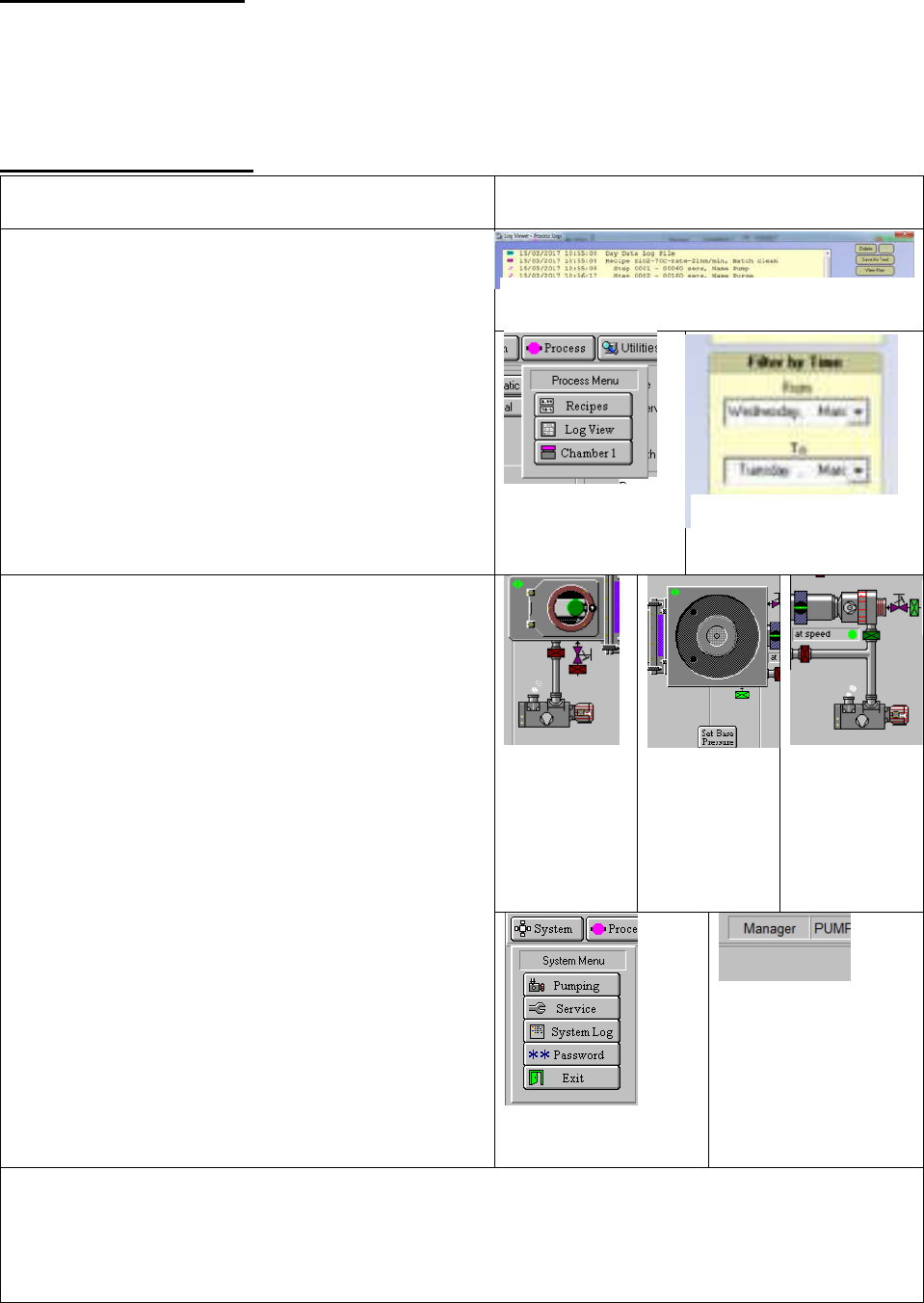
1. Click Process, then Log View
2. In the Log Viewer screen, use “Filter by time” to
make sure a reasonable date range is selected
3. Scroll all the way down to view the most recent
run
4. If the most recent run is an appropriate
chamber clean, you can proceed with your run
(check guidelines for appropriate cleans in
section G)
a. Using the log to view runs in detail is
covered in Appendix A
5. Exit the Log Viewer (x, upper right corner)
Figure 2. Main Menu
dropdown
Check the tool condition:
6. Go to Pumping page, from the System menu
7. Check that turbo, backing, and roughing pump
are all running (spinning animation)
8. Check turbo speed (“at speed”)
9. Check vacuum (Penning <~3e-07Torr)
a. If “Red Alert” is shown around the
screen, or the Turbo is off, alert an
MNFL staff member and stop here
10. Check that a) No wafer is shown in the process
chamber, and that b) there is a wafer in the
loadlock
11. Check current user (top of screen). If it reads
anything other than “user”, log in as user:
a. Press System, then Password, and
enter USER/USER in the
username/password boxes in the
popup window.
Figure 4.
Pumping page
view of Loadlock
& roughing
pump. Green
circle indicates a
wafer
Figure 5.
Pumping page
view of process
chamber. Green
circle would
indicate a wafer.
Figure 6.
Pumping page
view of turbo
pump & backing
pump. Note “at
speed”
Figure 7. System menu
dropdown.
Figure 8. Currently logged-
in user displayed at top of
screen.
12.
If the previous user’s cleaning process is not finished:
a. If plasma steps have finished, and the prior total deposition thickness totalled <1um, it is
reasonably safe to abort the cleaning process, and unload the wafer into the loadlock
See Appendix B for explanation of cleaning process steps
Figure 1. Log View page. Scroll down for more recent runs
Figure 3. "Filter by time"
function of Log View
Page 3 of 11
A) Perform chamber condition run
1.
Visually check for a wafer inside the loadlock
2. Check that no wafer is inside the chamber
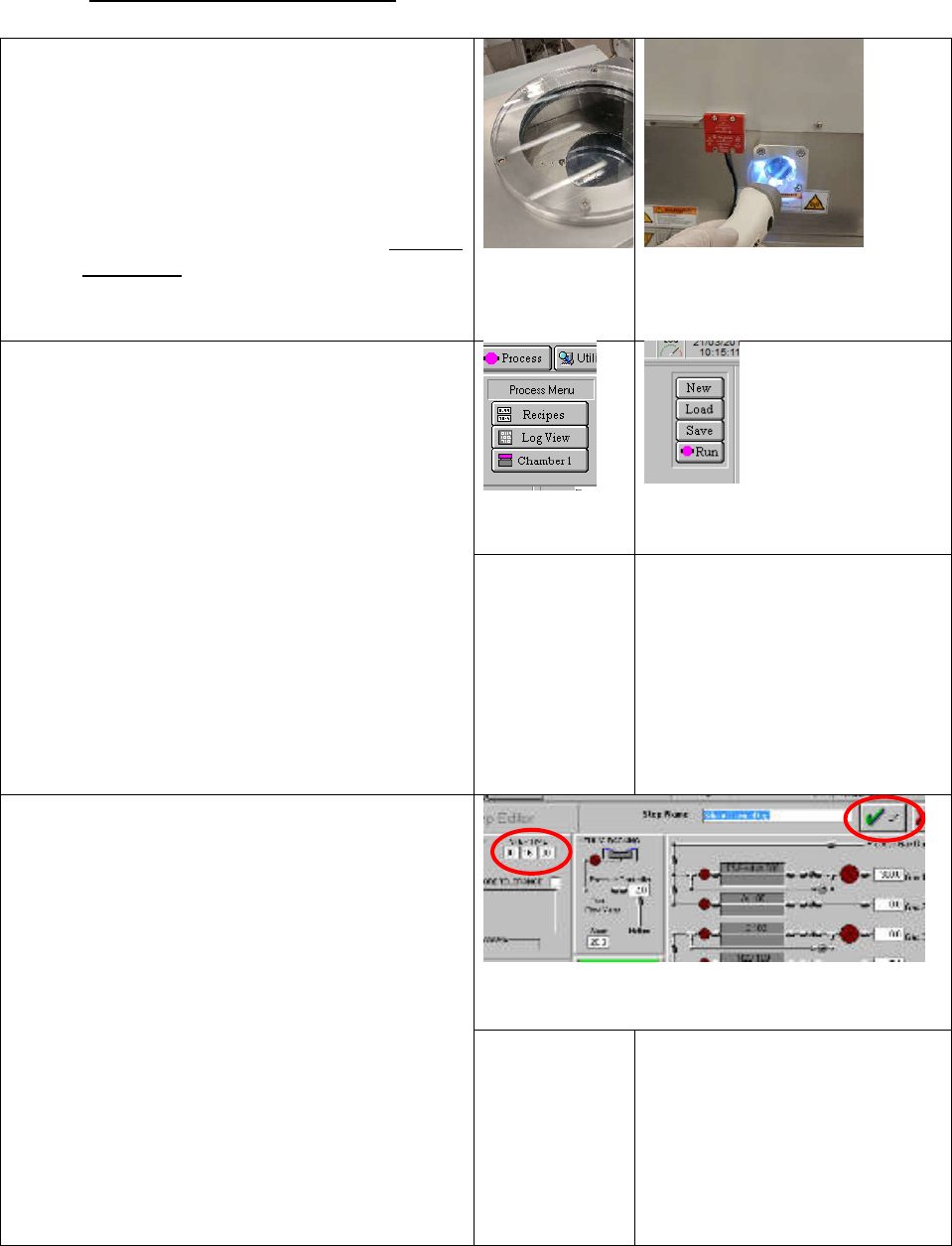
a) Hold a flashlight against the window, shine
straight inside. If you can see a region with
three small slits radiating outward from the
center, no wafer is inside.
b) If you see a dark shiny continuous disk in
the middle, there’s a wafer inside. Find the
MNFL staff
Figure 9. Loadlock.
Wafer is inside
Figure 10. Flashlight against window,
check for wafer.
3.
Locate your desired recipe
a) Click Process Menu, then Recipes
b) Press Load
c) A popup reading: “Currently loaded recipe
contains unsaved changes. …..”, click Yes.
This will restore the recipe to the staff-
programmed defaults (what we want)
d) Find your desired recipe from the pop-up
list, click OK
NOTE: If heating the chamber from 70C to
250C, run the “@Heat Chamber to 250C”
process before running your conditioning
process. This will take ~25 minutes.
Figure 11. Process
Menu dropdown
Figure 12. Recipe Load button on the
recipes page
[RECIPE
SELECTION
dialog]
[UNSAVED CHANGES popup]
4.
Modify the recipe
a) Left-click on the “Dep” step (different
name in each recipe), click “Edit Step”
i) NOTE: click on the step in the white box
of the Recipe Editor window, not the
step library
b) Change the step time (circled) to allow
deposition of >100nm of material
i) NOTE: can only change step time, not
other parameters
c) Click “OK” to exit the editing screen
Figure 13. Edit Step screen, showing Step time (circled, left) and
"OK" button (circled, right)
[Recipe Editor
window]