00192419-02.pdf - 第13页
13 User int erfac e Main view – arrangement an d explanat ion of the icons a T itle bar showing the currently open menu s Menu bar wi th pull-down me nus d W orki ng a rea / di spl ay ar ea f Button / status display for …
12
Menu control of the machine
The menu control and the user interface of the machine are based on the
Microsoft Windows standard. You can initiate actions in the individual
menus by using
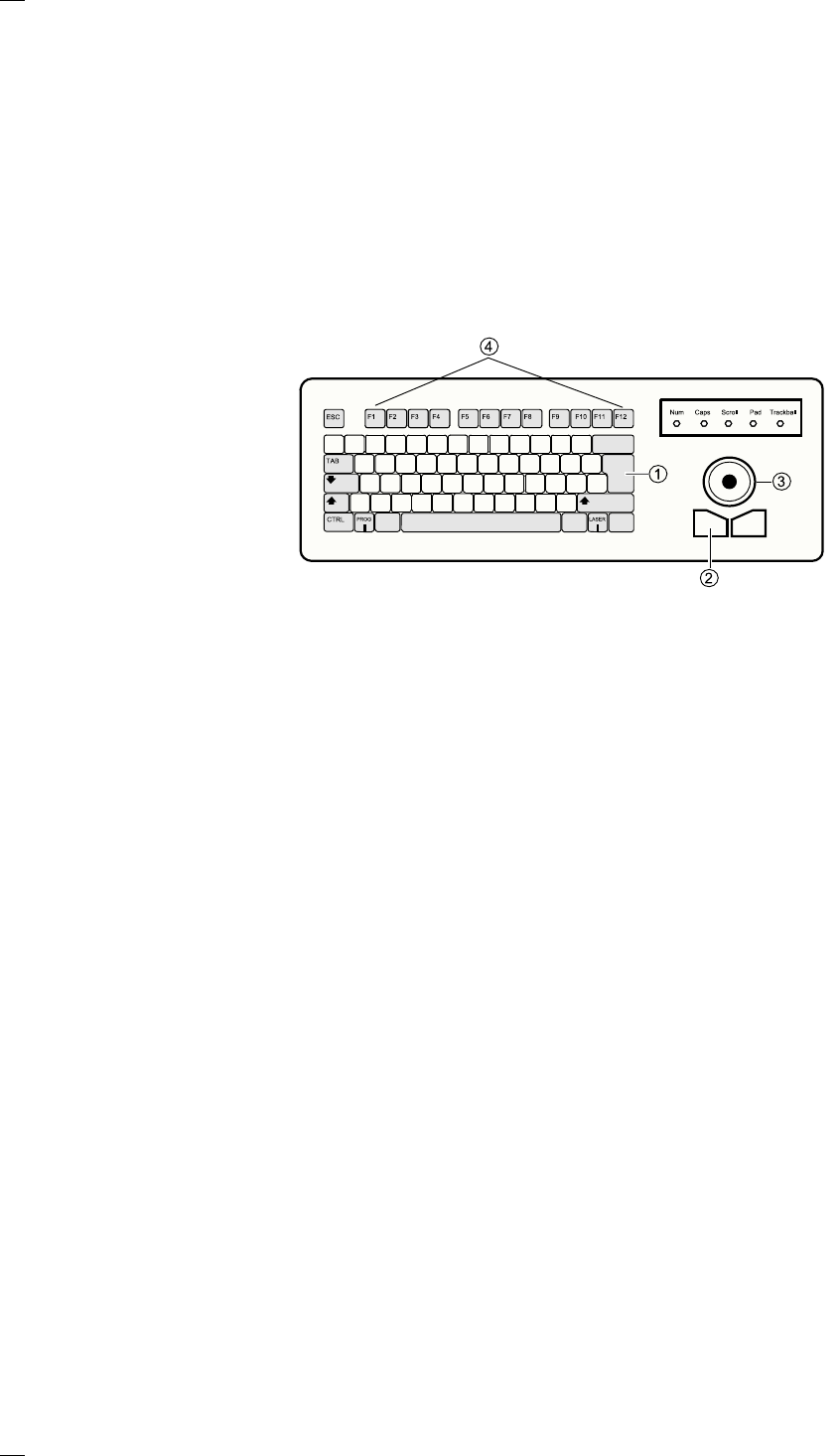
– function keys F1 to F12 on the keyboard,
– the trackball and the left-hand mouse button or
– the touchscreen.
– You can open pull-downs and their submenus by pressing the Alt-key in
combination with a ’hot key.
Keyboard with integrated mouse (trackball)
IBM-compatible
keyboard with
German
character set
a Return key
s Left-hand mouse button
d Trackball
f Function keys F1 to F12
Touchscreen
As an alternative to the trackball you can position the mouse pointer on
the screen and operate it by touching the screen with your finger.
13
User interface
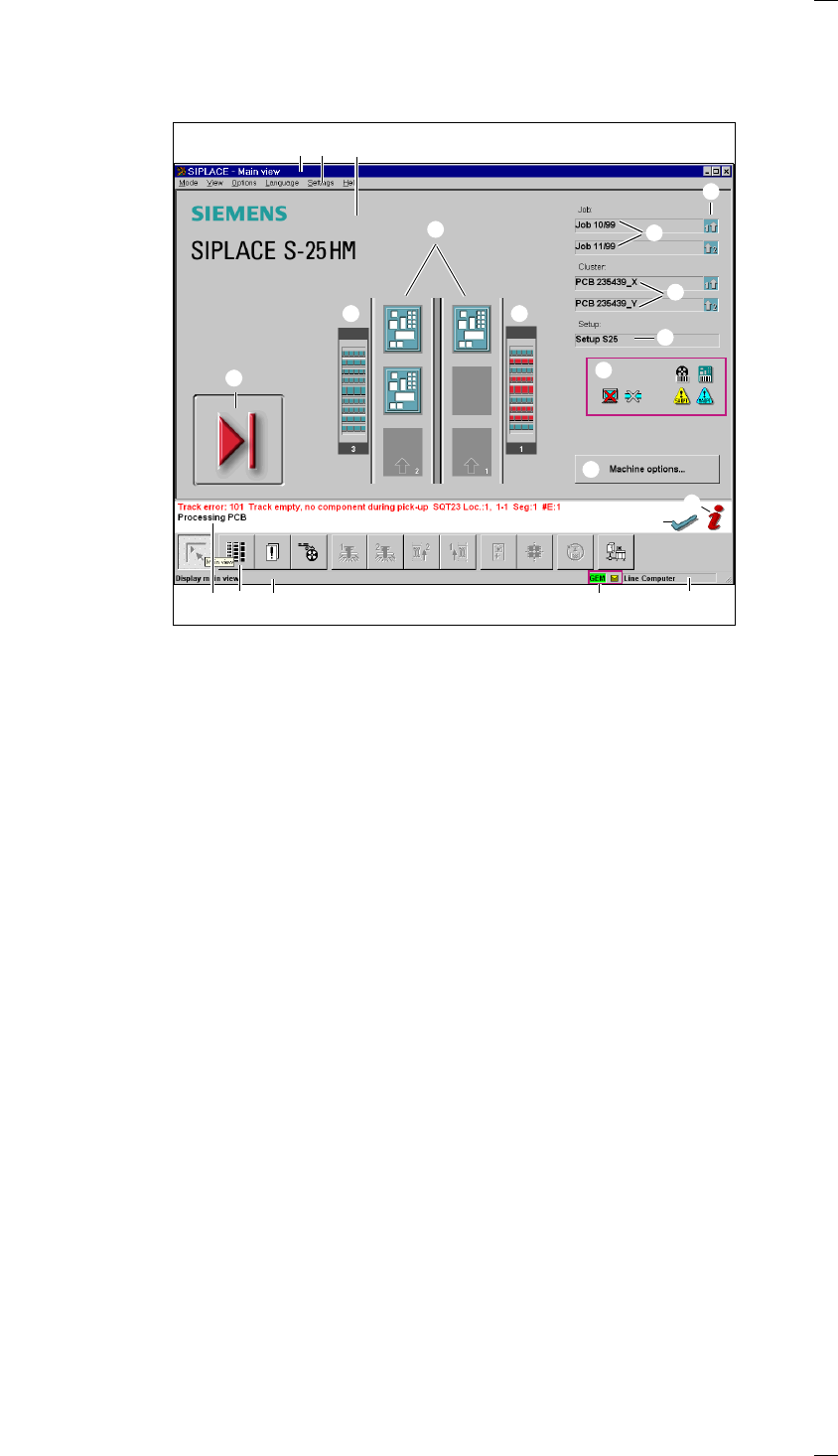
Main view – arrangement and explanation of the icons
a Title bar showing the currently open menu
s Menu bar with pull-down menus
d Working area / display area
f Button / status display for operator input
g Status box for displaying error messages, statuses and actions required
h Toolbar with icons for the submenus
j Information bar for the menus
k GEM status display
l Display for the machine’s current operating mode
; Troubleshooting status display
A Information and help system
S Button for activating the machine options
D Display for component/PCB barcode, machine / software options, compressed
air cut-out status and connection to the line computer
F Box displaying the currently loaded set-up
G Boxes displaying the clusters loaded for tracks 1 and 2
H Boxes displaying the job names for tracks 1 and 2
J Status display for the transport signal interface:
K Status display for locations 1 - 3
L Status display for the PCB conveyor (transport track 1)
Status display for the PCB conveyor (optional dual conveyor)
Transport track 2
a s d
g hj l
F
G
H
K
L
J
f
k
;
A
S
D
K
14
Meaning of the icons
Button / status display for operator input (icon f)
Machine power-up and reference run
When this symbol is displayed, some parts of the user interface cannot be
used. The software is being loaded. Then the status field displays the sta-
tus "Waiting for reference run" and the action "Press start key".
Press the start key. The reference run is then performed.
The machine is ready to perform assembly operations. The following icon
is displayed.
Button / status display for operator input (icon
f)
Stop processing PCB
When you click this icon, the current placement operation is stopped.
Assembly of the PCBs located on the processing conveyors is completed
and they are then transported to the intermediate or output conveyor of
the associated conveyor track. No PCBs are transported into the machine.
Click the icon.
The icon changes to the icon presented below. This continues to be dis-
played until assembly of the current PCBs has been completed and these
have been transported into the intermediate or output conveyor, i.e. until
the processing conveyors have been emptied.
Button / status display for operator input (icon
f)
After "Stop processing PCB" while processing conveyors are emptied
(The triangle in the icon is continuously circled by a small yellow arrow.)
Once the processing areas have been emptied, the following icon is dis-
played.
Button / status display for operator input (icon
f)
Continue processing
This icon is displayed after "Stop processing PCB" or after a machine
stop. (The triangles in the icon move continuously from left to right.)
Click this icon to continue the interrupted operation once the error has
been successfully eliminated.
Click the icon .
Processing is now continued.
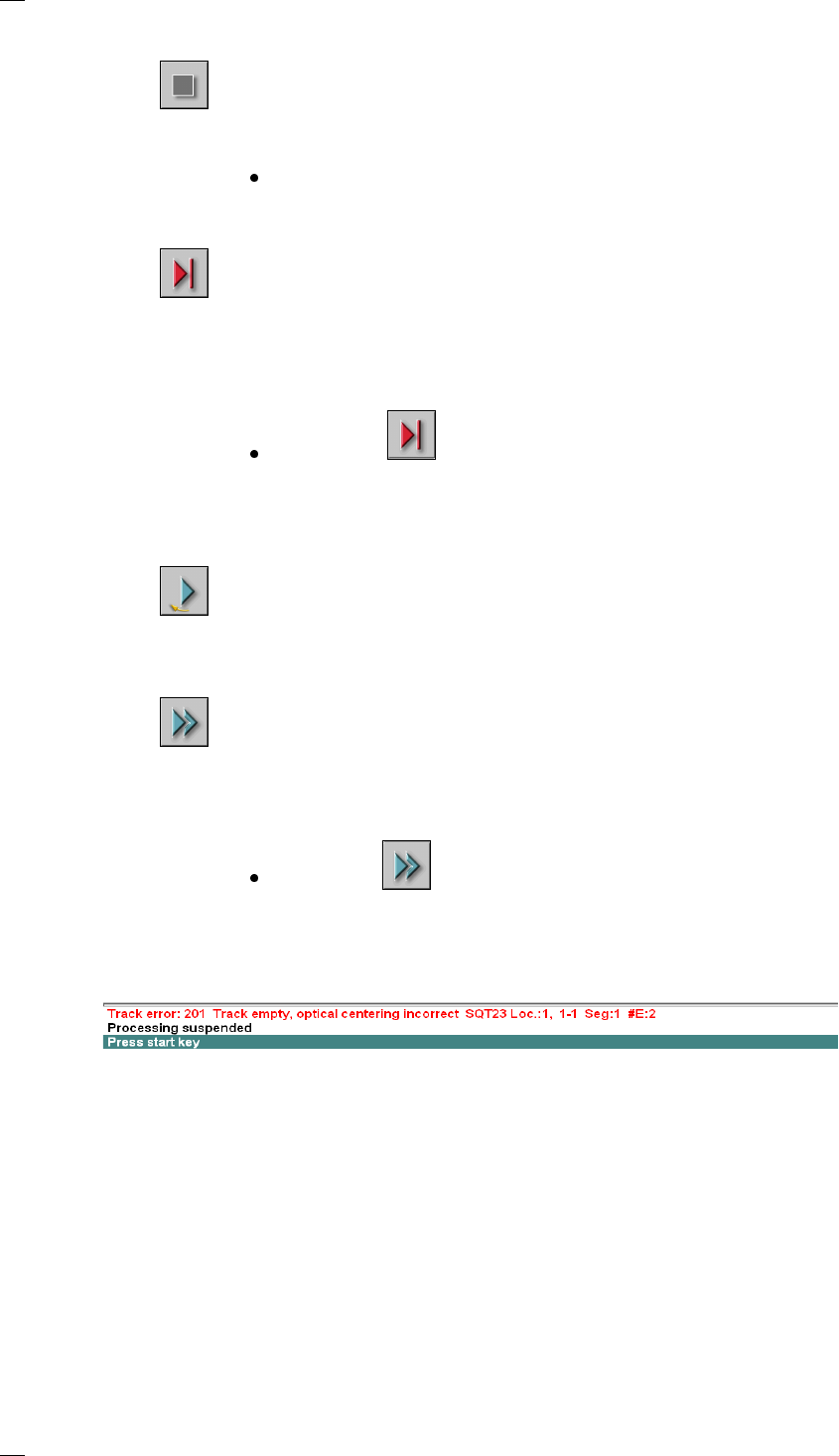
Status box for displaying error messages, statuses and actions
(icon
g)
Line for error information
Lines containing errors that caused machine stoppages have a red
background.
Status display /process status
This line informs the operator about processes running on the machine,
such as ‘Processing suspended’ or ‘Transporting PCB onto output
conveyor’.
Note / action line
Notes to the operator prompting a specific action have a green
background.