00192419-02.pdf - 第31页
31 ’ T rack e rrors location X ’ menu The “ Track errors view ” m enu con tains a general ov erview of all the track errors. The “ Track errors location X ” menu also displays t he errors sepa- rate ly for l oca ti ons 1…
30
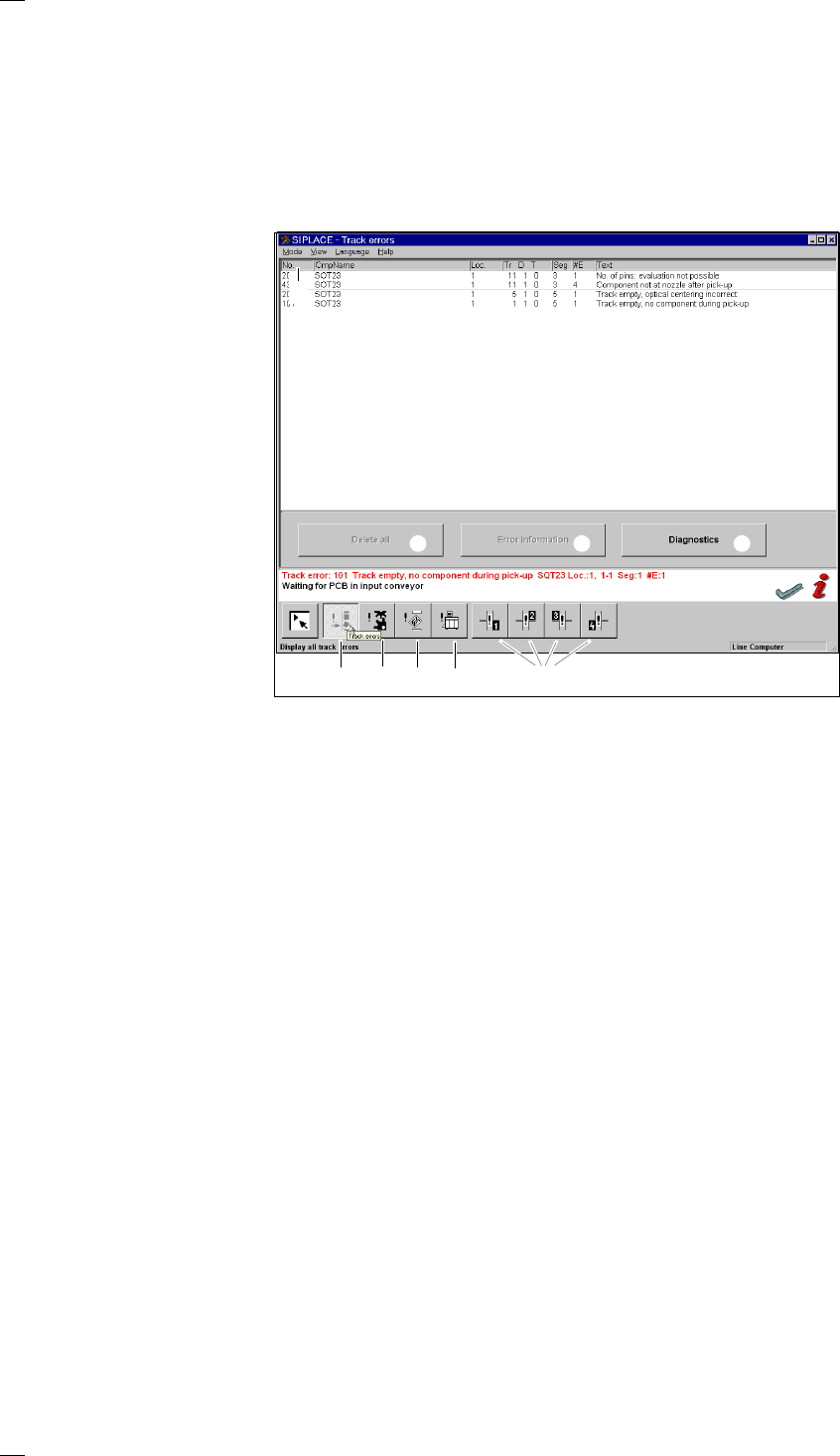
’Display errors’ menu
From the Error handling menu you can access the lists corresponding to
the following error types:
– Track errors
– Machine errors
– Transport errors
– General errors
The top line will always show the last error to occur.
a Icon for accessing the track errors menu
s Icon for accessing the machine errors menu
d Icon for accessing the transport errors menu
f Icon for accessing the general errors menu
g List of errors with title bar
Key to the abbreviations in the title bar:
No.: Error number
CmpName: Name of the component
Loc.: Component location
Tr/D/T: Track / division / tray
Seg: Number of the segment which was used for placing the component
#E: Error counter - The error counter shows how often this error has already
occurred.
Text: Explanatory text
The following abbreviations may also be encountered with other
error types:
DEV.: The originator of the error message, e.g. gantry 1, etc.
Transp.: Conveyor belt affected:
1 = Standard conveyor
2 = 2nd conveyor when the twin conveyor option has been installed
Info 1 or 2: Information of relevance to Siemens only.
h Diagnostics (option)
Select one particular error line in the list and click on Diagnostics. The
diagnostics program will be started.
j Error information
Additional information concerning the marked errors is displayed by the
information and help system.
k Delete all
Click on this button to delete all the errors of the same type. If a track is
empty, it must be filled before deleting.
l Location X track errors’
g
hj
a s d f
k
l
31
’Track errors location X’ menu
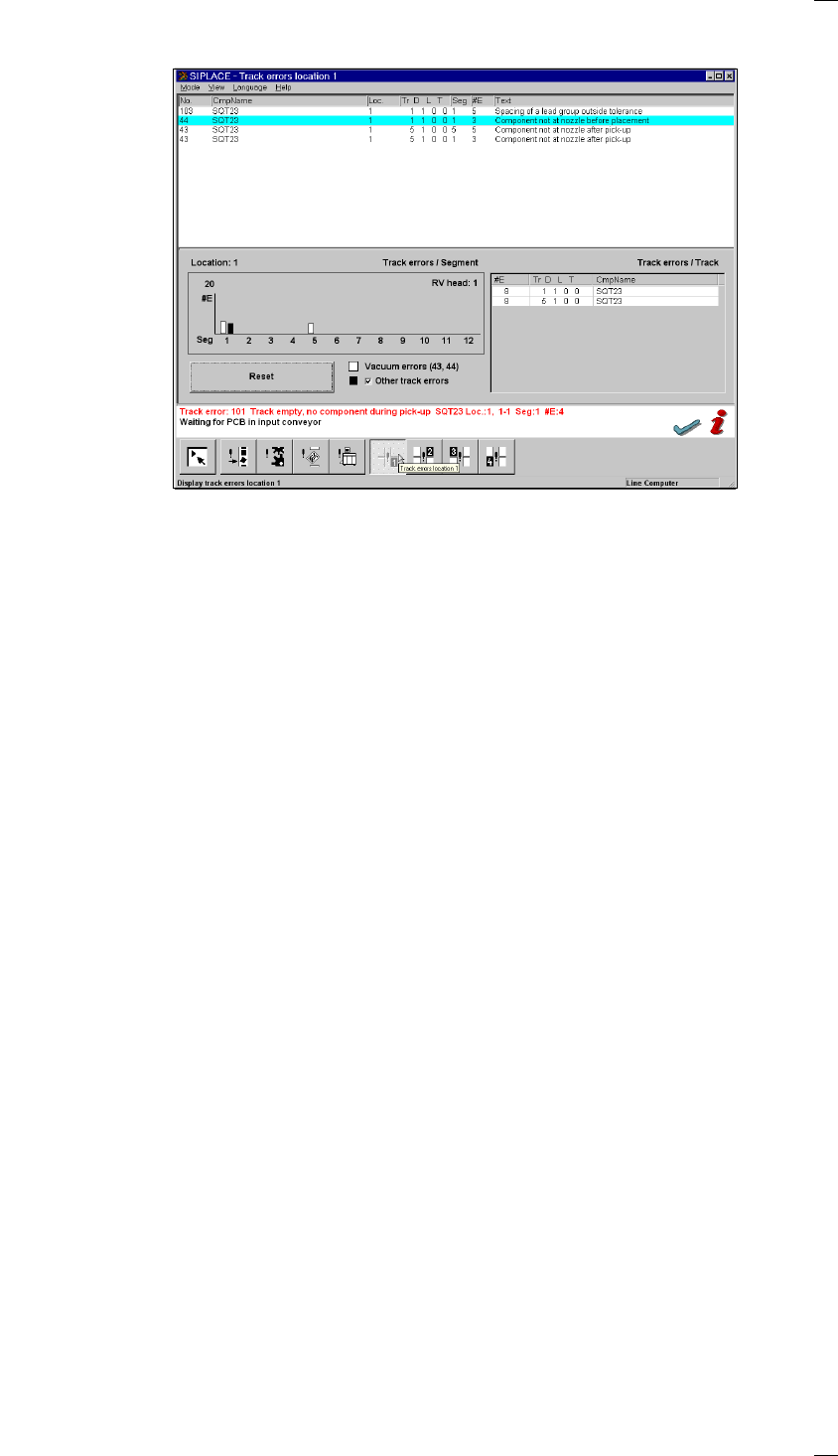
The “Track errors view” menu contains a general overview of all the track
errors. The “Track errors location X” menu also displays the errors sepa-
rately for locations 1 – 4. This list contains all track errors, apart from
‘Track empty’. The errors are also totaled and then displayed in the “Track
errors / Segment’ bar chart, sorted by segment number.
Vacuum errors 43 and 44 take the form of white bars. All other errors are
shown as black bars. The black error bars can be hidden, as required.
The track errors are not deleted when tracks or locations are filled,
although they can be deleted using the “Reset” button. The counter is
reset when a new set-up is loaded.
The tracks are displayed, sorted in ascending frequency of errors, in the
table beside the “Track errors / Segment” bar chart. This provides the rele-
vant data in a format suitable for error analysis.
’Feeders’ menu
The Feeders menu has four submenus for querying or checking the status
of all feeder modules:
– Displaying empty tracks and setting them full
– Omit components. (This menu can only be accessed from the ’Line engi-
neer’ operator control level or higher).
– Displaying magazines and changing inventory levels
Displaying and vibrating linear feeders
Type S-25 HM machine with an MTC (matrix tray changer) installed also
have a Matrix tray changer location 1 and/or Matrix tray changer location 3
submenu.
32
’Display and refill empty tracks’ menu
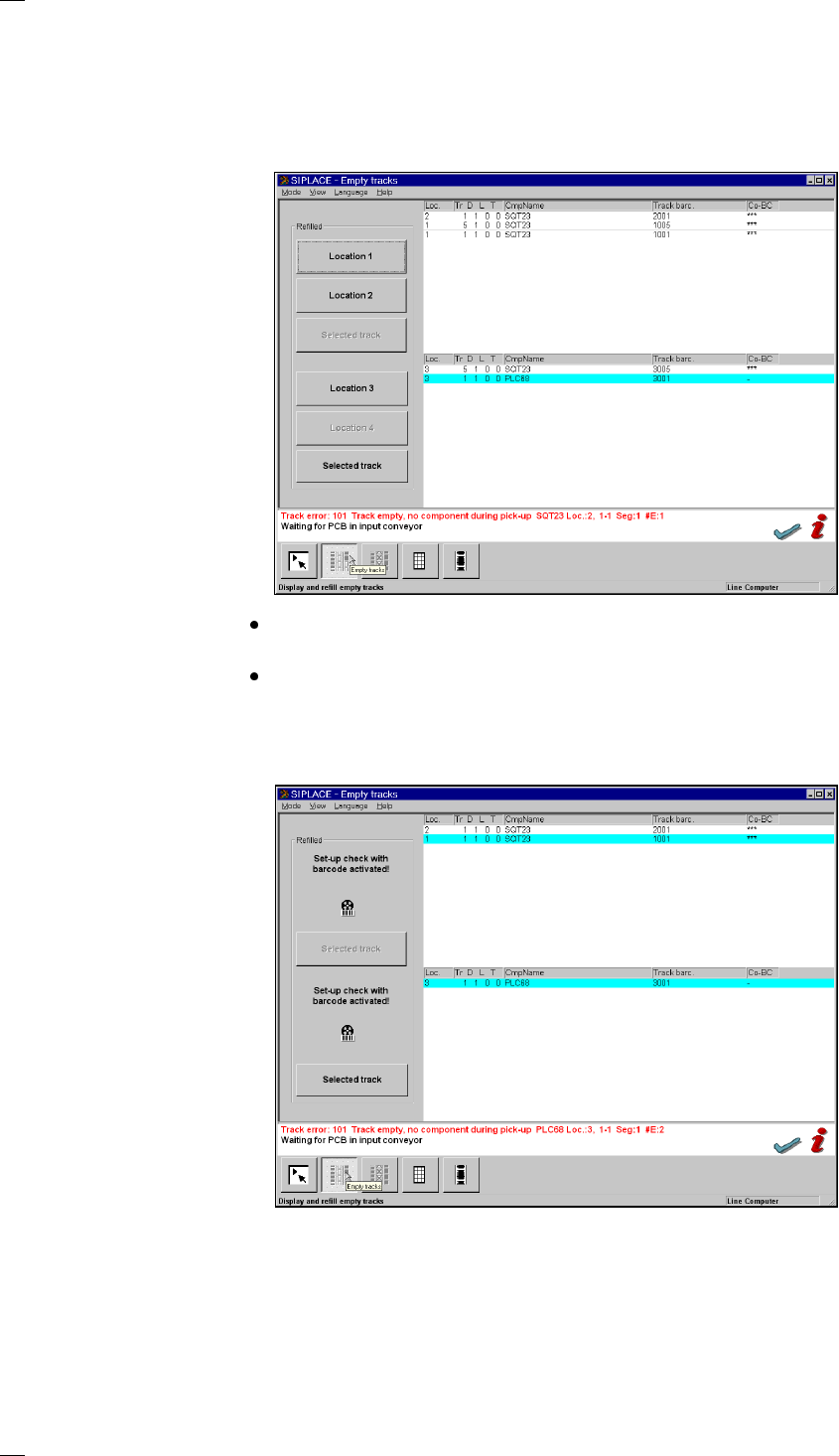
The empty tracks of feeder modules are displayed in this menu. After fill-
ing, you can set the tracks to full. Depending on the option which has been
activated, the following submenus will be called:
’Display empty tracks without component verification’
When you click on the button for location 1, 2, 3 or 4, the entire location
which you selected will be set to full.
When you select a particular feeder module in the list section and then
click on the Selected track button, the individual track will be set to full.
’Display empty tracks with component verification’
If the Component verification with barcode option has been configured
and activated, the following menu will appear:
Within this menu, locations 1 to 4 or individual tracks which have been
given a barcode cannot be set to full. Apart from displaying the empty
tracks, this menu also allows to individually set to full those empty tracks
which have not been provided with a barcode. Tracks which do not have a
component barcode are indicated by a dash in the CO-BC column. The
Selected track button is activated here.