00192419-02.pdf - 第33页
33 ’ Display trays a nd change com ponent levels ’ menu In this menu you can display the c omponent lev els of flat pack magazines and update the com ponent levels of individ ual trays. Update compone nt levels Click on …
32
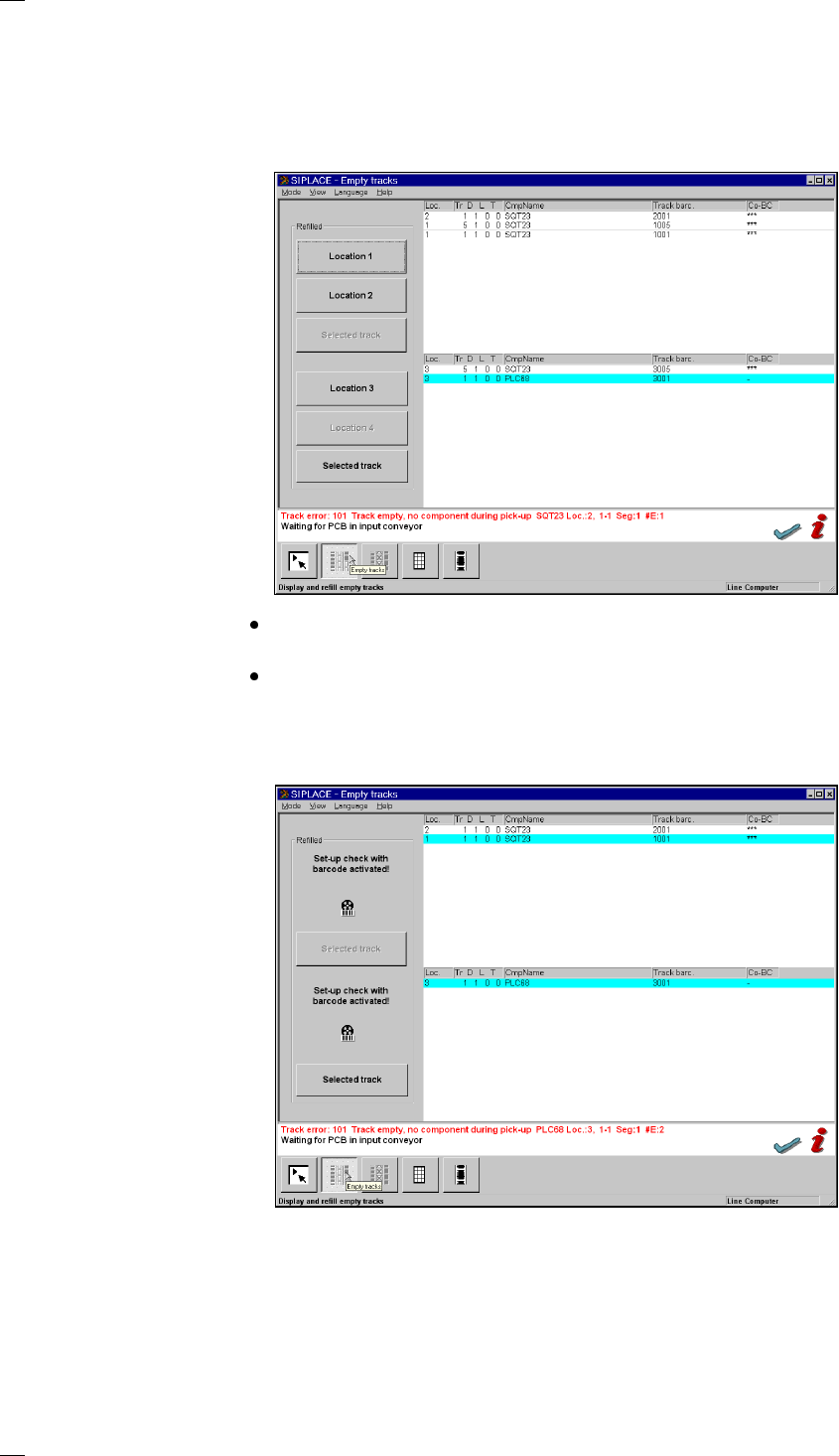
’Display and refill empty tracks’ menu
The empty tracks of feeder modules are displayed in this menu. After fill-
ing, you can set the tracks to full. Depending on the option which has been
activated, the following submenus will be called:
’Display empty tracks without component verification’
When you click on the button for location 1, 2, 3 or 4, the entire location
which you selected will be set to full.
When you select a particular feeder module in the list section and then
click on the Selected track button, the individual track will be set to full.
’Display empty tracks with component verification’
If the Component verification with barcode option has been configured
and activated, the following menu will appear:
Within this menu, locations 1 to 4 or individual tracks which have been
given a barcode cannot be set to full. Apart from displaying the empty
tracks, this menu also allows to individually set to full those empty tracks
which have not been provided with a barcode. Tracks which do not have a
component barcode are indicated by a dash in the CO-BC column. The
Selected track button is activated here.
33
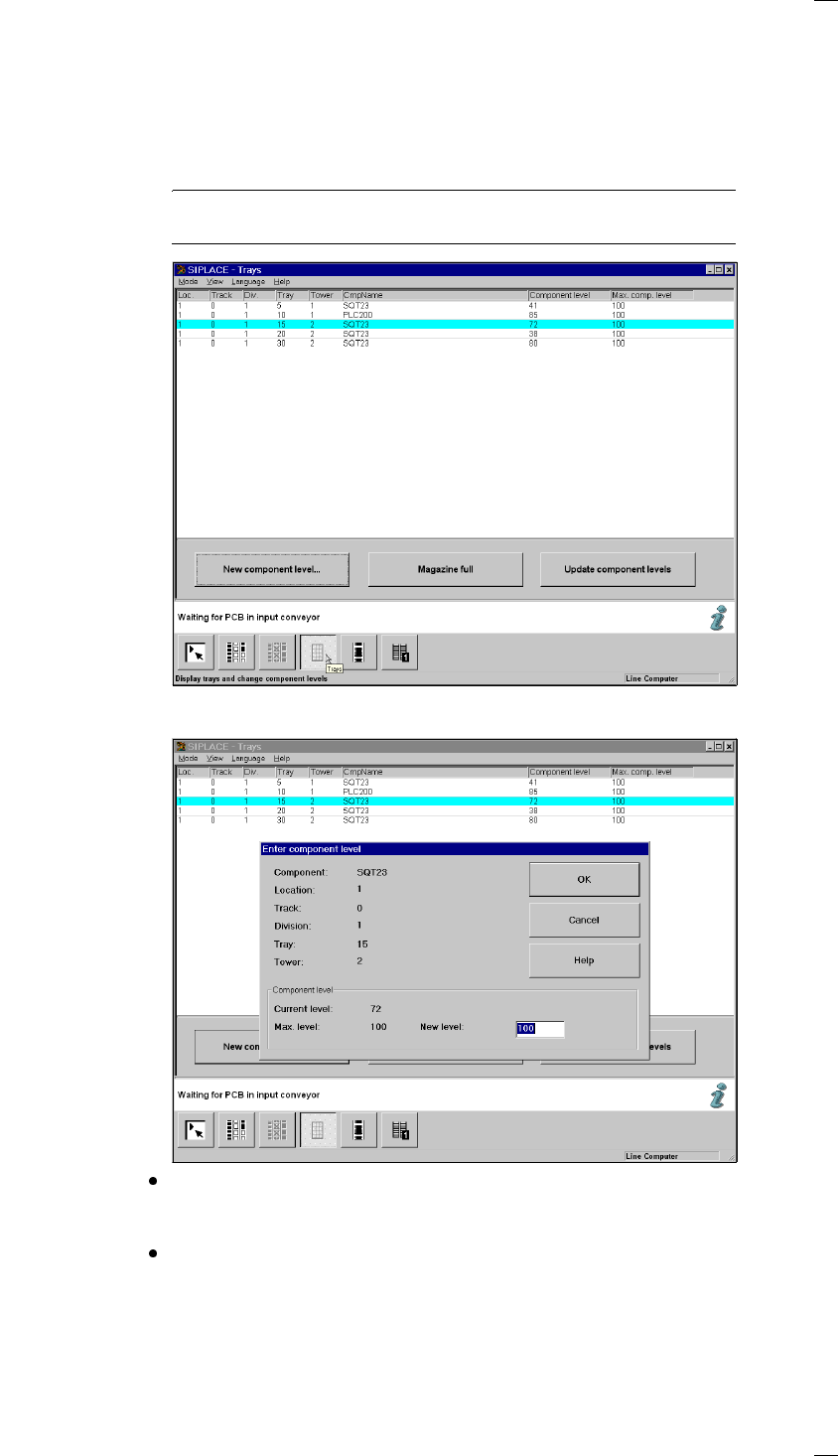
’Display trays and change component levels’ menu
In this menu you can display the component levels of flatpack magazines
and update the component levels of individual trays.
Update component levels
Click on this button and the current status of all flatpack magazines will be
displayed.
NOTE
During the placement process itself the component levels are not updated.
New component level ...Mark the desired track in the list by moving the cyan bar over it. Click on
the New component level ... button.
Enter the current number of components into the New level field of the dia-
log box. The maximum permissible value for the number of components is
displayed in the Max. level field.
Click on the OK button to confirm your entry.
Magazine full Confirms that the selected magazine has been filled.
34
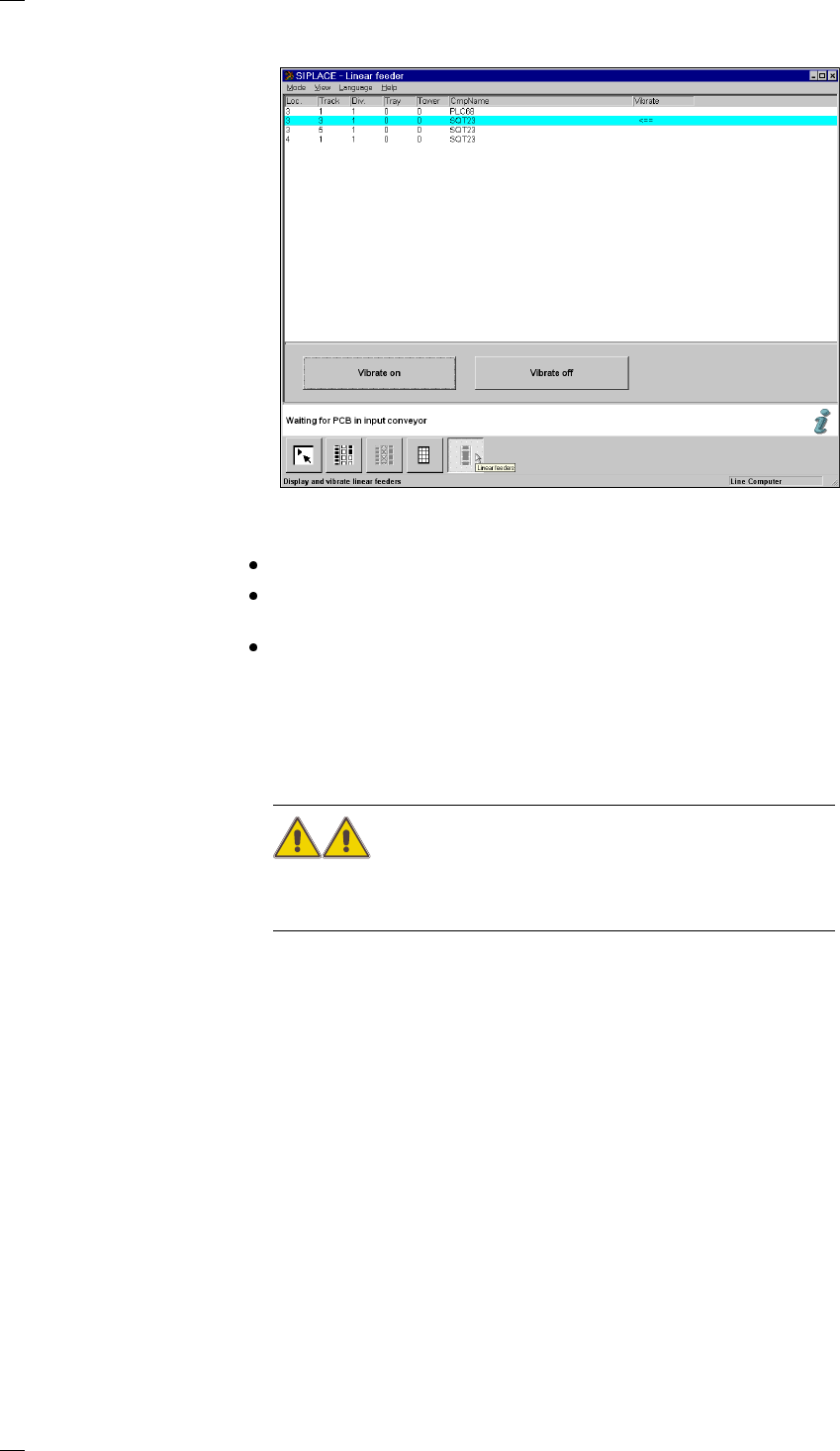
’Display linear feeder and vibrate’ menu
When you have filled a linear feeder, you can use this menu to select it
and turn vibration on.
Select the linear feeder from the list.
Click on the Vibrate on button. The arrow in the Vibrate column shows that
the module is being vibrated.
You can stop vibration by clicking on the Vibrate off button.
’Single functions - Gantries 1/2’ menu
The Single function menu for gantries 1 to 2 are identical.
Only personnel with the corresponding training and qualifi-
cations are permitted to access the Single functions Gantry X (X = 1 or 2)
menu since improper treatment of the machine may result in serious phys-
ical injury and considerable damage to property.
The Single functions Gantry X menu has the following submenus:
– Gantry functions
– Revolver head functions
– Vacuum test revolver head
– Nozzle offset revolver head
– Nozzle configuration
– Nozzle-changer configuration revolver head (if this option has been
installed and configured)