SiplaceProInstall_eng.pdf - 第57页
7 Tr oubl es hoot ing II nsta llat ion Manu al Edi tio n 05/ 2009 US SIPLACE Pro 7.0 55 Solut ion: 7 Click on Next . Set up will return t he datab ase to it s s t ate a t th e beginning o f the Installation. The database…
Installation Manual 7 Troubleshooting
SIPLACE Pro 7.0 Edition 05/2009 US
54
Cause: 7
The service LineControlServer could not be stopped. 7
Solution: 7
Please proceed as follows: 7
Æ (1) Press the Next button several times. Sometimes the applications simply need time to close.
As soon as the application is terminated, the installation will continue.
Æ (2) Check if the LCGUI is running on another client. If yes, please stop it and try to continue
the installation by pressing the Next button again.
Æ (3) Open Services from the start menu (Start/Settings/System Control/Administration/Services.
Locate the line for the "LineControlServer". If the status is "started", try to stop the service by
context menu. After that try to continue the installation by pressing the button Next.
Æ (4) If the Service cannot be "stopped", the service could not be stopped as requested. Please
restart your computer.
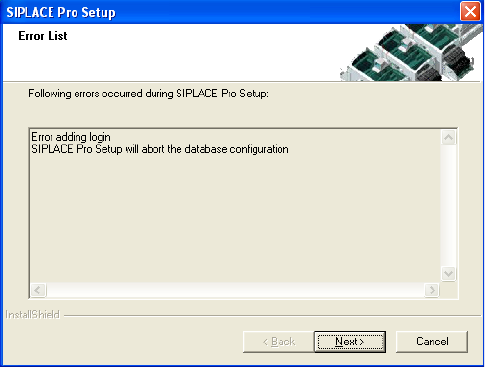
7.1.6 Cannot add Logins
Error description: 7
The installation displays in the dialog "Cannot add Logins, need to run Repair Security". 7
7
Fig. 7 - 4 Conflicting Logins
Cause: 7
When a database is restored but the repair security script hasn’t completed successfully. 7

7 Troubleshooting IInstallation Manual
Edition 05/2009 US SIPLACE Pro 7.0
55
Solution: 7
Click on Next. Setup will return the database to its state at the beginning of the Installation. The
database administrator should start the Query Analyser (or equivalent) and run the script
RepairSecurity.tsq, which can be found in the SIPLACE Pro Installation directory in the folder
DBSkripts. Now restart Setup.exe. The database should now be processed correctly. 7
7.1.7 Error - 16xx...
Error description: 7
Message with unspecific error message "Error -16xx ..." is displayed during setup. 7
Cause: 7
SIPLACE Pro's installation program is made up of several programs running simultaneously, and
in this case, the runtime system of the installation may detect errors, which cannot be caught or
handled by the installation program. Therefore the native error messages as provided by the
runtime system are displayed. Examples for such errors are: 7
– Error -1601 The Windows InstallerService could not be accessed.
– Error -1603: Fatal Error During Installation
– Error -1607: Unable to Install InstallShield Scripting Runtime
– Error -1608: Unable to create InstallDriver instance
– Error -1628: Failed to complete script based install
– Solution:
If these or other generic error messages are displayed during installation of SIPLACE Pro, please
refer to the InstallShield Customer Central (http://consumer.installshield.com/common.asp
) for in-
formation on how to handle this case. 7
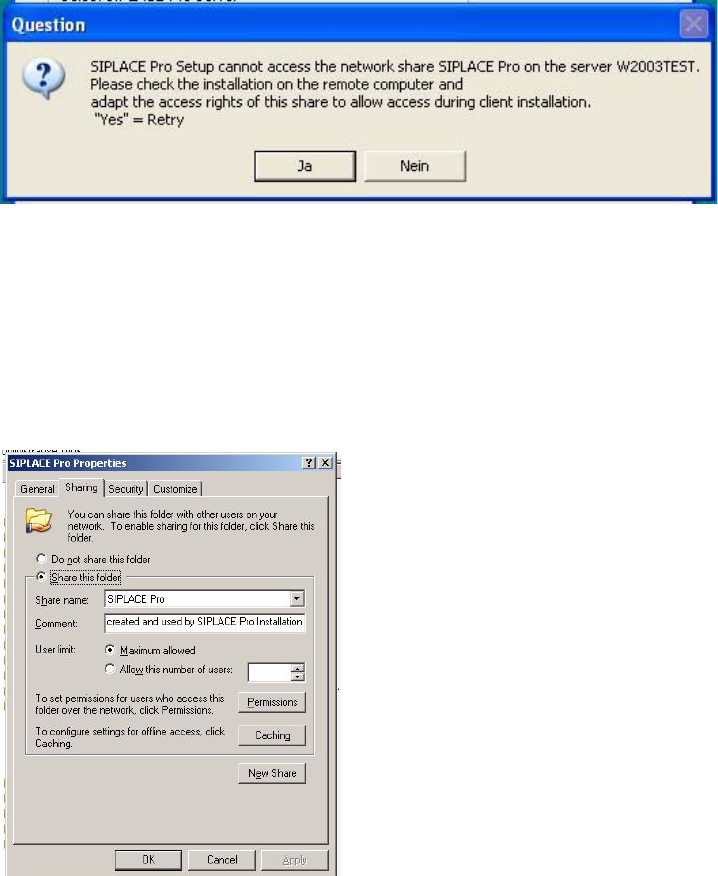
7.1.8 Access problems of SIPLACE Pro share after client installation
Error Description: 7
After the first client installation of SIPLACE Pro you can not access the SIPLACE Pro share ...
share on a remote server (may be true for either a SIPLACE Pro server or a Line Control Server
or a pure database server) and following error message is displayed. 7
Installation Manual 7 Troubleshooting
SIPLACE Pro 7.0 Edition 05/2009 US
56
7
Fig. 7 - 5 Error message during client installlation
Solution: 7
In order to solve the share problem you have to modify the access rights for this share of the
reomote computer as follows: 7
Æ In Explorer go to Properties of the SIPLACE Pro folder.
Æ Click on Sharing
7
Fig. 7 - 6 SIPLACE Pro folder properties
Æ Click on permissions.