ConneX_Help.pdf - 第8页
Conne X Even tSto reD B Conne X Postg reS Q L + Ti m e sc a l eDB Se rvi c e Conne X Se rvi c e DataIO L ic ense Manag e r Se r vic e 3. If an y of t he fo ur C o nne X servi c e s are not al rea d y starte d ( and set t…

After installing Machine Manager, reboot and double-check that the Machine Manager service is running on the PSV Handler/Host
computer:
1. Click Start > type Run (hit ENTER) > services.msc
2. In the Services window, start the following service if needed (right-click > Start):
ConneX Machine Manager Service
3. If the Machine Manager Service is not already started (and set to start automatically):
Right-click the service
Select Start
Right-click the service again
Click Properties
On the General tab, from the Startup Type drop-down list, select Automatic
Note
Beyond this point, you remotely manage each Machine Manager instance/client/computer from the ConneX Server because Machine
Manager is essentially "headless" (requires no user interface).
Handler Software Configuration
To configure the "AH700/CH700" handler software of a PSV System (Machine Manager instance) for ConneX, keep the same IP address of
127.0.0.1 with default port TCP 9002. If you change the Machine Manager port, then also reflect the same change in the 'WinAH400.ini'
file.
1. On the Handler/Host PC of a PSV System (Machine Manager instance), open File/Windows Explorer to the following directory:
If Machine Manager is running on a PSV7000, open 'C:\AH700'
If Machine Manager is running on a PSV3000/3500/5000, open 'C:\CH700'
2. Locate the
WinAH400.ini
file and open it with a text editor (such as Notepad).
3. Find the following lines in the file. If they are not present, then add them:
4. Save the change(s).
ConneX is now set to communicate with the respective handler software (AH700 or CH700) over the specified IP address and port number.
ConneX Server Installation
Run the setup wizard for ConneX Server to install the main ConneX Service and Data I/O License Manager:
ConneX Service, the primary ConneX handler service for managing data and event collection from system components.
Data I/O License Manager, for validating the propriety of authorized Data I/O software products, features, and services.
The centralized ConneX Server requires specific network ports to be open for proper communication with each Machine Manager instance;
the setup wizard for ConneX Server automatically opens the following ports in Windows Defender Firewall:
Service/Inbound Rule Required Port
ConneX internal MQTT port TCP 9002
ConneX MQTT port TCP 1883
ConneX SSDP port UDP 1900
ConneX web port TCP 5001
License Manager Discover Port ReceiveUDP 9081
License Manager gRPC Service Port TCP 9003
License Manager WCF Service Port TCP 9000
License Manager Web Port TCP 5002
LicenseManagerServer UDP any
LicenseManagerServer TCP any
Template Manager MQTT port TCP 1883
Template Manager web port
TCP 5004
Note
If you change the MQTT port(s), then also restart the ConneX Machine Manager Service (see below).
After installing ConneX Server, reboot and double-check that the ConneX services are running:
1. Click Start > type Run (hit ENTER) > services.msc
2. In the Services window, start the following services if needed (right-click > Start):
CheckConneX=true
ConneX3=true IP=127.0.0.1 Port=9002
ini
ConneX EventStoreDB
ConneX PostgreSQL + TimescaleDB Service
ConneX Service
DataIO License Manager Service
3. If any of the four ConneX services are not already started (and set to start automatically):
Right-click the service
Select Start
Right-click the service again
Click Properties
On the General tab, from the Startup Type drop-down list, select Automatic
4. Skip this step if installing ConneX Server on a Windows 10 computer. Else for Windows Server 2016/2019/2022:
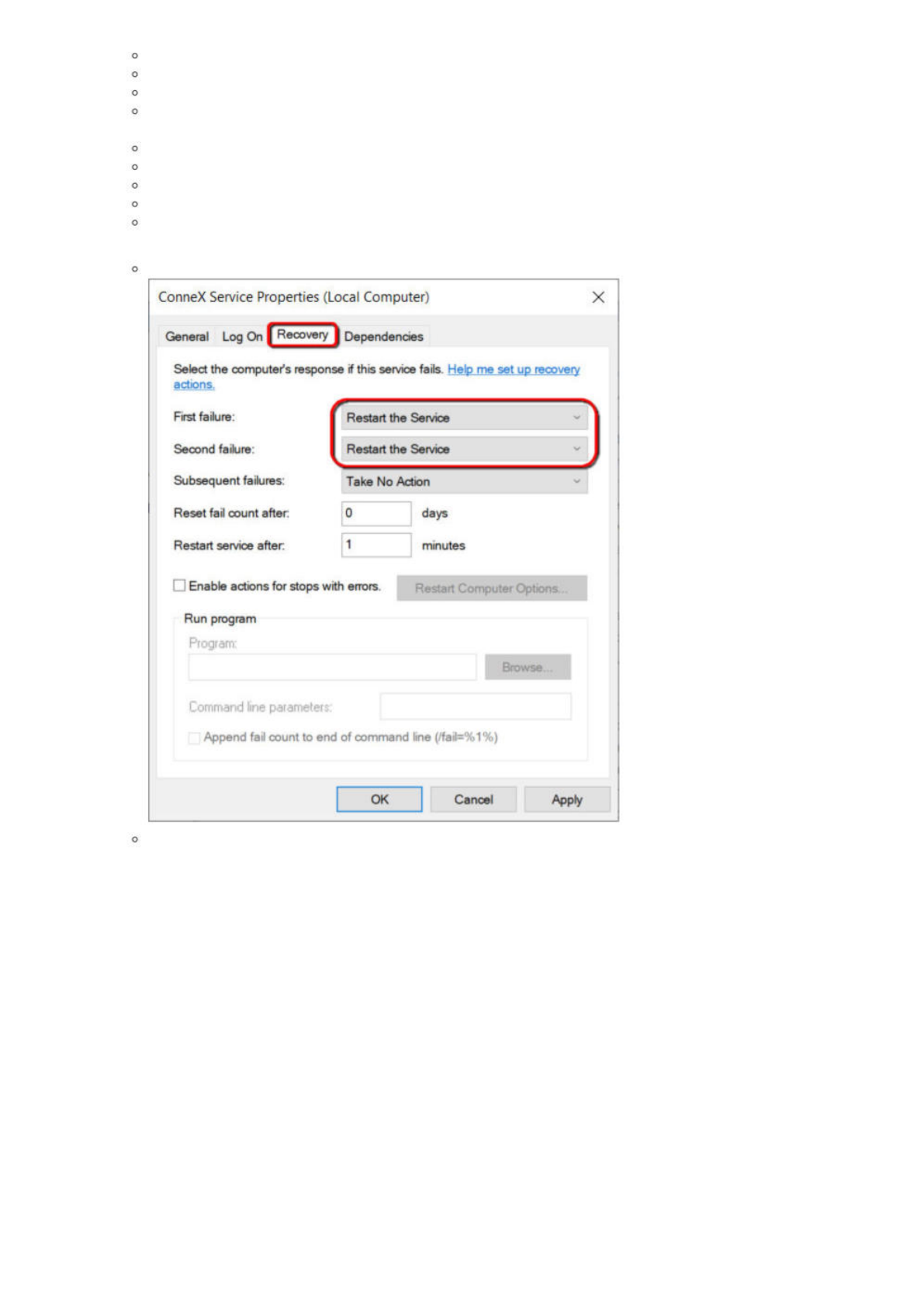
Click the Recovery tab, then set both First failure and Second failure to the option Restart the Service.
Click Apply and then OK.
Activate ConneX License
After installing Machine Manager and ConneX Server, ensure ConneX has sufficient licenses available to satisfy each Machine Manager
instance/connection.
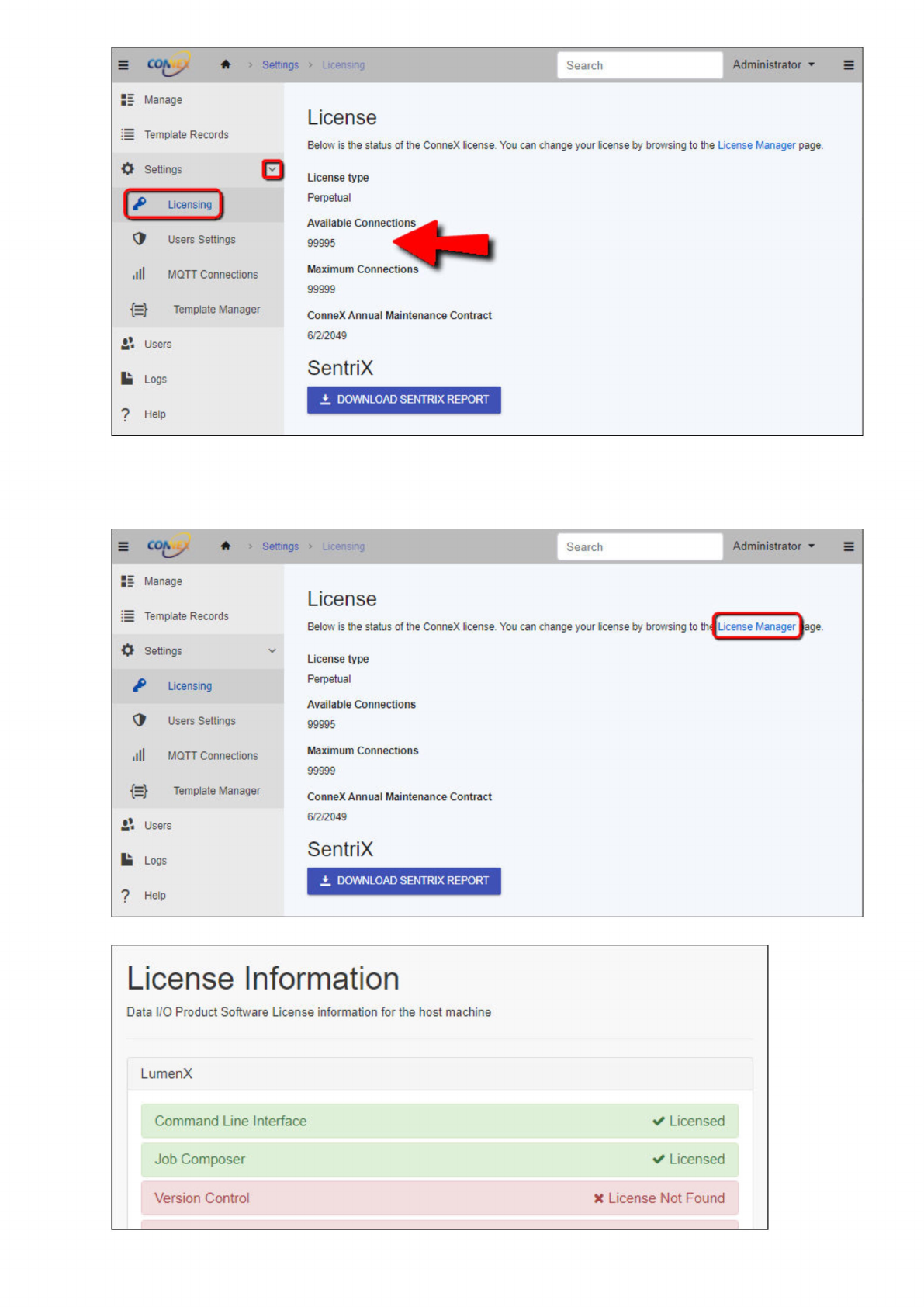
1. In the left pane, click Settings, then click Licensing.
2. On the License page, ensure Available Connections is greater than one (and/or equal to the number of expected Machine
Manager connections).
ConneX
Service
Properties
(Local
Computer)
X
General
Log
On
Dependencies
Select
the
computers
response
if
this
service
fails.
Help
me
set
up
re8very
actions,
First
failure:
Second
failure:
Subsequent
failures:
Reset
fail
count
after:
Restart
service
after:
口
Enable
actions
for
stops
with
errors
Run
program
Program:
Browse
Command
line
parameters:
Append
fail
count
to
end
of
command
line
(/fail=%1%)
OK
Cancel
Apply
Restart
Computer
Options..
Note
You may need to refresh the License page to display any modifications to ConneX licensing.
3. If Available Connections shows unexpected information and/or to access Data I/O License Manager directly, click the License
Manager link.
4. On the License Information page, you can activate, deactivate, and refresh your Data I/O software licenses.
Note
Search
Administrator
Manage
:
=
Template
Records
0
Settings
G
Users
Settings
illl
MQTT
Connections
{=}
Template
Manager
Users
Logs
?
Help
License
Below
is
the
status
of
the
ConneX
license
You
can
change
your
license
by
browsing
to
the
License
Manager
page.
License
type
Perpetual
Available
Connect!
99995
Maximum
Connect
99999
ConneX
Annual
Maintenance
Contract
6/2/2049
SentriX
±
DOWNLOAD
SENTRIX
REPORT
=
Q
含
Search
Administrator
Manage
License
Template
Records
Below
is
trie
status
of
the
ConneX
license
You
can
change
your
license
by
browsing
to
License
Manager
0
Settings
#
Licensing
G
Users
Settings
illl
MQTT
Connections
License
type
Perpetual
Available
Connections
99995
Maximum
Connections
99999
{=}
Template
Manager
ConneX
Annual
Maintenance
Contract
£
Users
6/2/2049
!■
Logs
SentriX
7
Help
License
Information
Data
I/O
Product
Software
License
information
for
the
host
machine
LumenX
Command
Line
Interface
Job
Composer
V
Licensed
Licensed
Version
Control
*
License
Not
Found