Infinity EX NetworkingInf.pdf - 第9页
INFINITY EX NETWO RKING CONNEC TION TO A NETW ORK SER VICE Chapter Issu e 1 Aug 0 2 Technical Reference Manual 27.9 Select ing Comm s Pr otocol Options The Comms Protocol Set Preference GEM, and NET_FILE options each dis…
INFINITY
EX
NETWORKING
CONNECTION TO A NETWORK SERVICE
27.8 Technical Reference Manual Chapter Issue 1 Aug 02
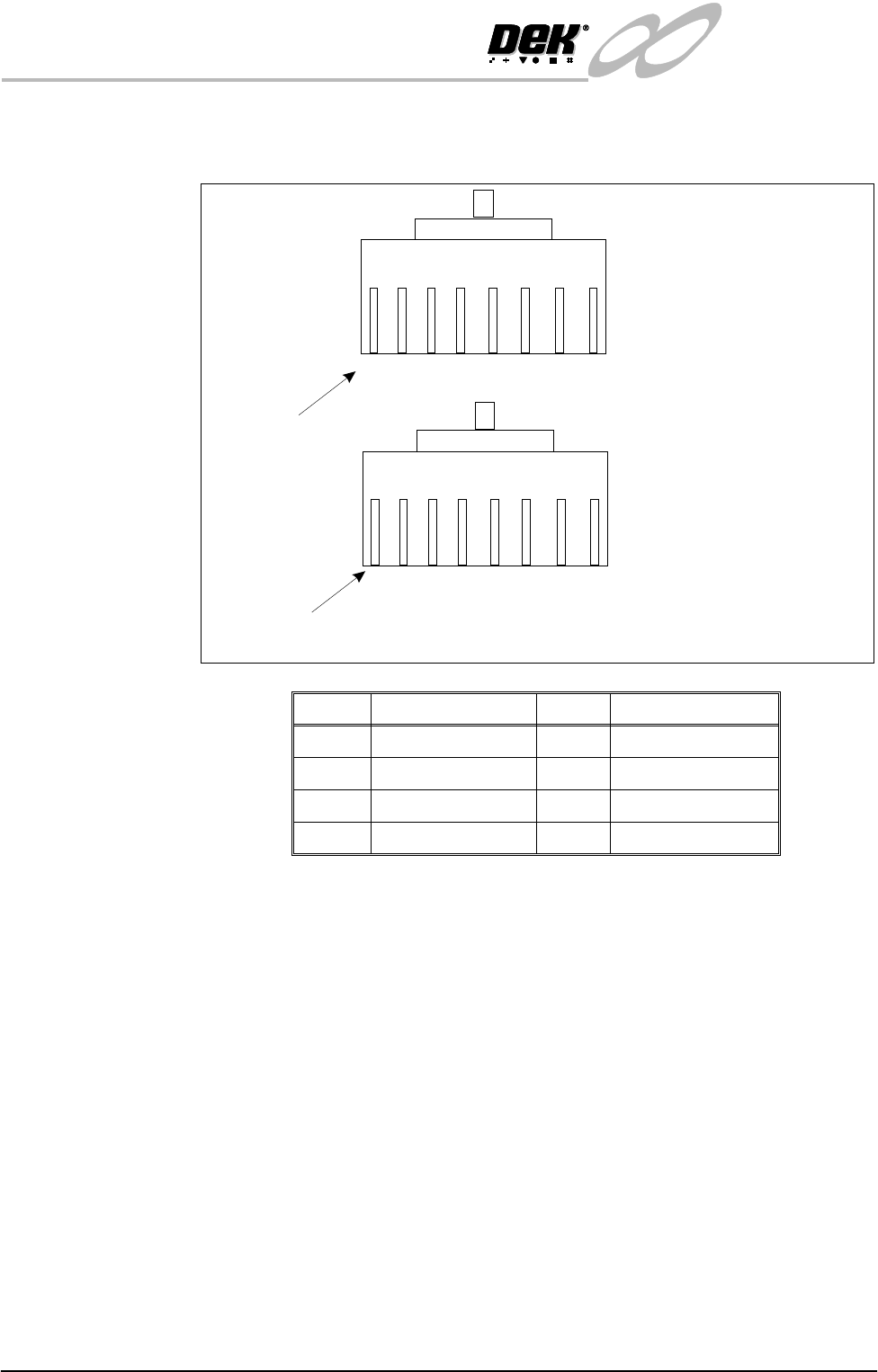
8 Way RJ45
Connector
Internally the LAN RJ45 connection is routed to 3SK02 card slot X13 of the PC
enclosure rear panel. The connections (to connector A) are shown below:
NOTE
The connection above is wired as DEK would recommend. It is possible that a
customer network connection may differ from the one shown, if a problem exists
in installation the connection at the customer network end of the cable may need
to be configured accordingly.
Pin No. Signal Pin No. Signal
1+ve Transmit 5Not Used
2 -ve Transmit 6 -ve Receive
3 +ve Receive 7 Not Used
4 Not Used 8 Not Used
BN
BN
W/
BN
W/
BN
O
O
W/
O
W/
O
G
G
W/
G
W/
G
BL
BL
W/
BL
Pin 1
Connector A (Pin View)
Connector B (Pin View)
Connection Diagram for Reverse RJ - 45 Cable
Pin 1
W/
BL
INFINITY
EX
NETWORKING
CONNECTION TO A NETWORK SERVICE
Chapter Issue 1 Aug 02 Technical Reference Manual 27.9
Selecting Comms
Protocol Options
The Comms Protocol Set Preference GEM, and NET_FILE options each display
additional menu parameters if they are selected in the Set Preferences window.
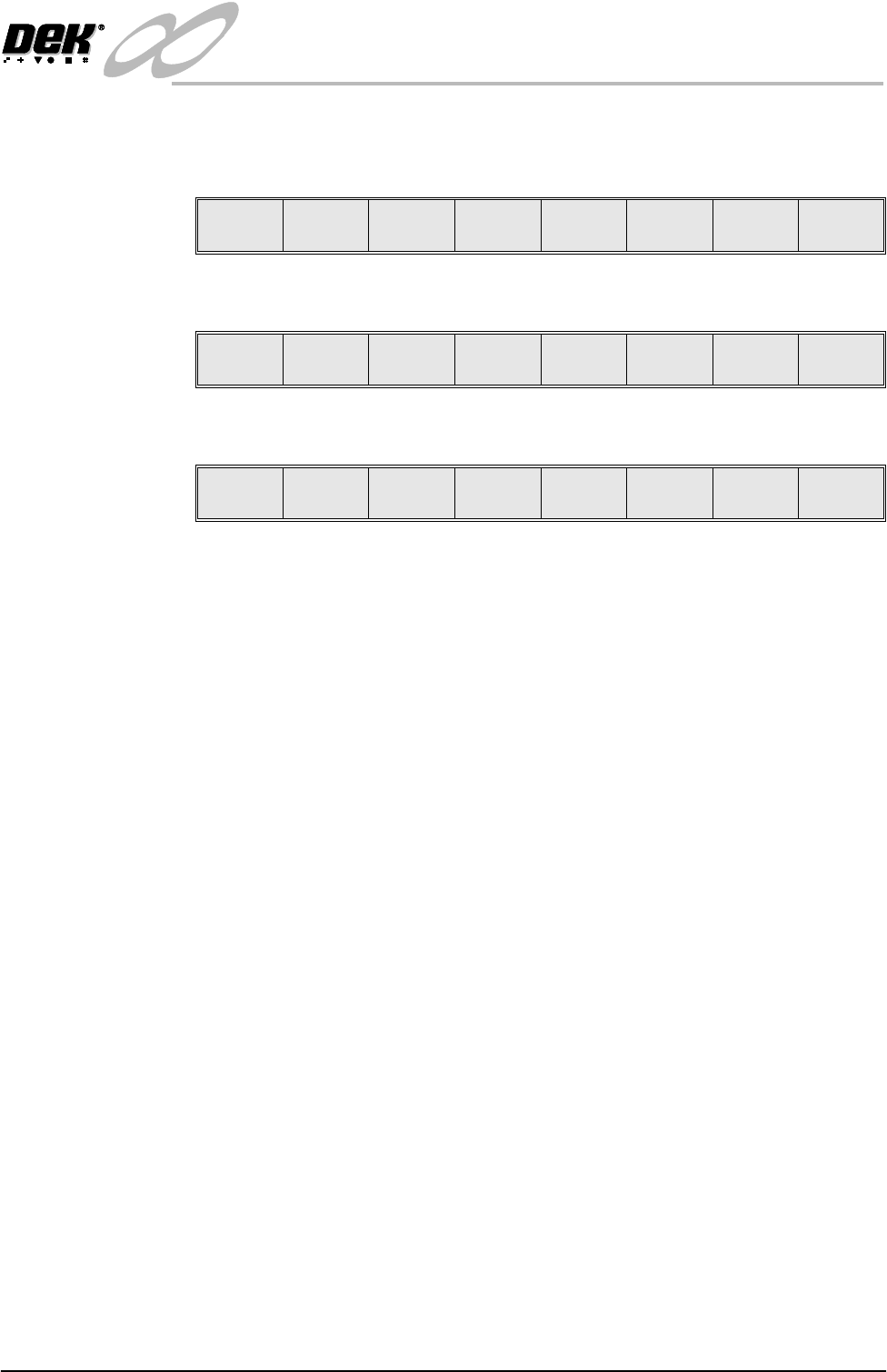
On selecting GEM the following menu bar is displayed:
On selecting NET_FILE the following menu bar is displayed:
If the Enable Comms key is pressed the following menu bar is displayed:
The user is given the option to Confirm or Exit their selection.
The NET_FILE option may display a further window requesting the Network
Password.
Enable
Comms
Next Previous Incr. Decr. Exit
Enable
Comms
Edit
Comms
Next Previous Incr. Decr. Exit
Confirm Exit
INFINITY
EX
NETWORKING
CONNECTION TO A NETWORK SERVICE
27.10 Technical Reference Manual Chapter Issue 1 Aug 02
Editing NET_FILE
Comms Options
The NET_FILE comms editing window allows the user to change IP addresses,
user ID and file paths.
To enter the Edit Comms window from the set preferences window, select
NET_FILE from the comms protocol, set preference and press the Edit Comms
menu bar option.
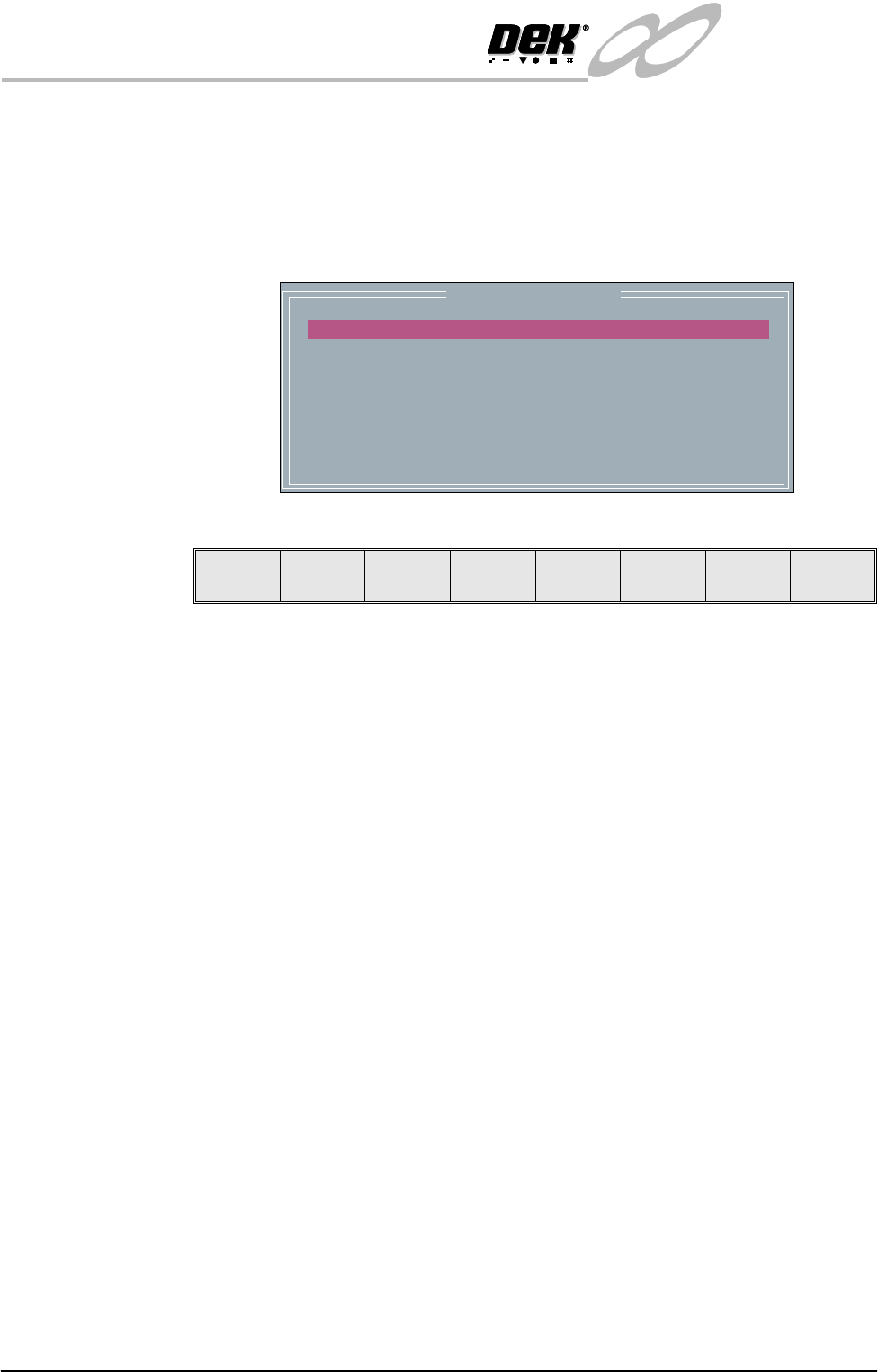
The Edit Comms window is displayed as follows:
To edit the Edit Comms window select from the following menu bar:
The Next and Previous keys move the highlight bar up and down the list of
network parameters.
With any of the following highlighted:
• Remote Drive
• User ID
• Products Path
•Data Path
On selecting Incr. the message ‘Please type in the text, then press Return’ is
displayed. The menu softkeys are blanked out.
With any of the following highlighted:
• Local Copies
• Reconnect Period
• Timeout
The Incr. and Decr. keys change the value of the highlighted parameter.
The Exit key is used to leave the Edit Comms window.
Network Parameters
REMOTE DRIVE
USER ID
PRODUCTS PATH
DATA PATH
LOCAL COPIES
RECONNECT PERIOD
TIMEOUT
c:
typhoon
product
data
ENABLED
60
30
Next Previous Incr. Decr. Exit